Xbox Series X: How to Spot Refurbished vs. New
Quick answer: You cannot reliably identify a new or refurbished Xbox Series X from its appearance alone. A Microsoft Certified Refurbished console can be repaired, tested, cleaned, and repackaged with standard accessories, so it may look nearly new. Check the seller’s written condition, proof of purchase, serial-number match, warranty terms, return policy, and the console’s basic operation together.
This checklist explains how to spot a refurbished vs. new Xbox Series X without relying on myths such as a flawless shell, a particular model-number prefix, or a first-run setup screen. It also separates refurbished devices from open-box and ordinary used consoles, since sellers may use those labels differently.
Know what the seller means by “new” or “refurbished”
New should mean sold as new by the retailer, with that condition stated on the listing and receipt. A certified refurbished Xbox Series X has been inspected and restored for resale under a named program. Microsoft says its Certified Refurbished products are screened, repaired when needed, tested, cleaned, and repackaged with standard accessories and manuals. An open-box console may have been opened or returned without being repaired; a used unit has had a previous owner. Ask the seller to state the category in writing before you pay.
Start with the exact model and package. Xbox Series X models and bundles can differ, including digital-only editions, so a missing disc drive or a different box is not automatically evidence of refurbishment. Compare the product name and included items with the manufacturer’s page for that specific model.
1. Check the box and purchase paperwork
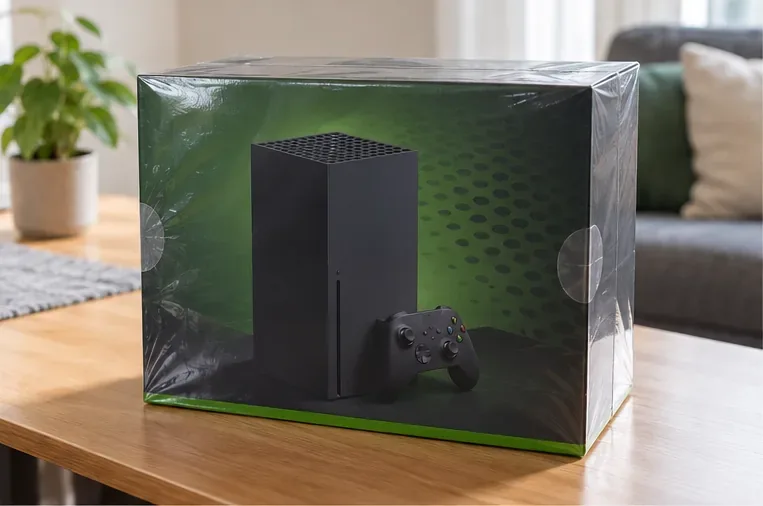
Look for torn seals, crushed corners, a second shipping label covering the original product label, or a box that does not match the model advertised. These are reasons to ask questions, not proof by themselves. Do not assume a “holographic sticker” is a universal Microsoft authenticity feature, and do not treat shrink-wrap as conclusive: packaging can be replaced or resealed.
Ask for an itemized receipt or order confirmation that says new, open-box, or refurbished, and check who is actually selling the console when you shop through a marketplace. Read the written return window and warranty terms before checkout. If the seller will not document the condition, cannot explain an unusually low price, or refuses a reasonable inspection, choose another listing.
2. Inspect the console for signs of handling
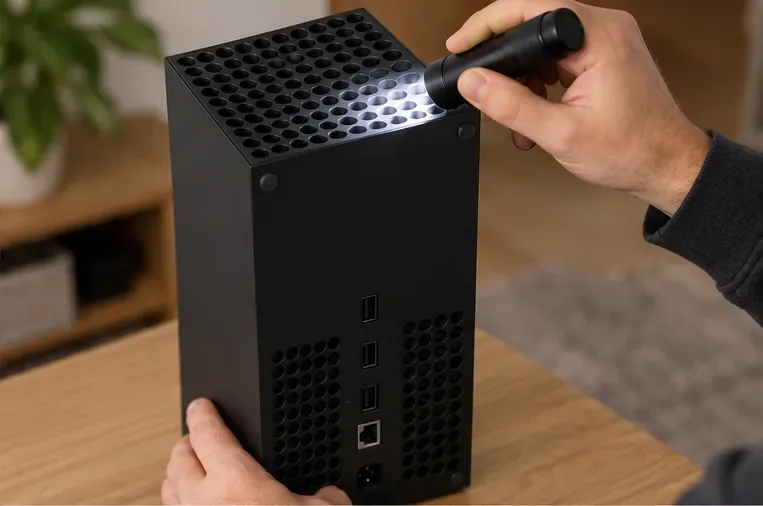
With the seller’s permission, inspect the casing and top vent under bright light. Look for dust packed into openings, scuffs on corners, residue around the feet, bent or loose ports, damaged cables, and uneven seams. Check whether the controller has polished thumbsticks, worn buttons, or a loose-feeling stick. A new console should be free of prior-use damage, but cosmetic condition is only supporting evidence: a carefully cleaned refurbished unit may look pristine, while a new box can be scuffed during shipping.
Use the console’s label and product page to confirm the exact model and edition. Avoid claims that a specific prefix, color, or cosmetic detail proves it is new unless Microsoft’s documentation for that model confirms it.
3. Match the serial number and check coverage
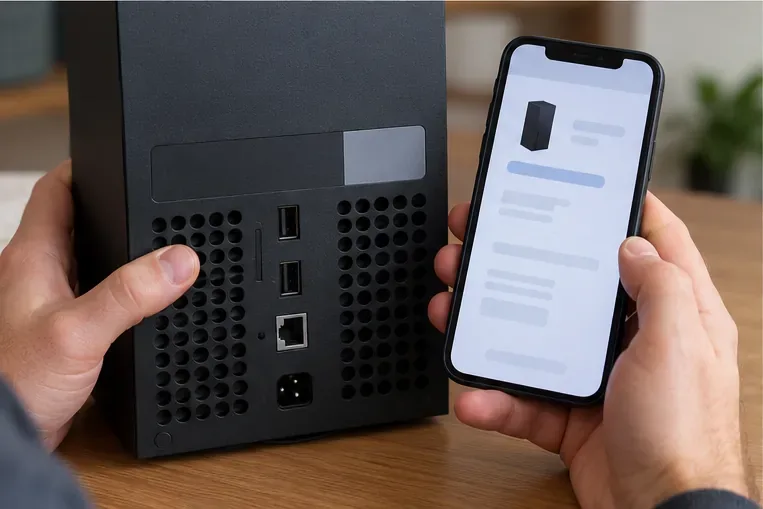
Find the console serial number on the rear label and in Settings > System > Console info. Xbox Support documents both the console-info route and the location of the serial number for Series X. Check that the number on the physical console matches the number shown in its settings; if the box label is visible, compare that too. A mismatch is a serious reason to stop the transaction.
Use Microsoft’s official Xbox product registration and warranty support or the Microsoft account devices page to review device details and service coverage. Warranty length and consumer rights depend on the seller, purchase channel, and country, so read the exact terms attached to the listing and keep your receipt. A warranty record can help verify the device and its coverage, but it does not by itself certify that a console was sold new. A coverage date that looks wrong may need correction with proof of purchase.
4. Verify the accessories and test the console
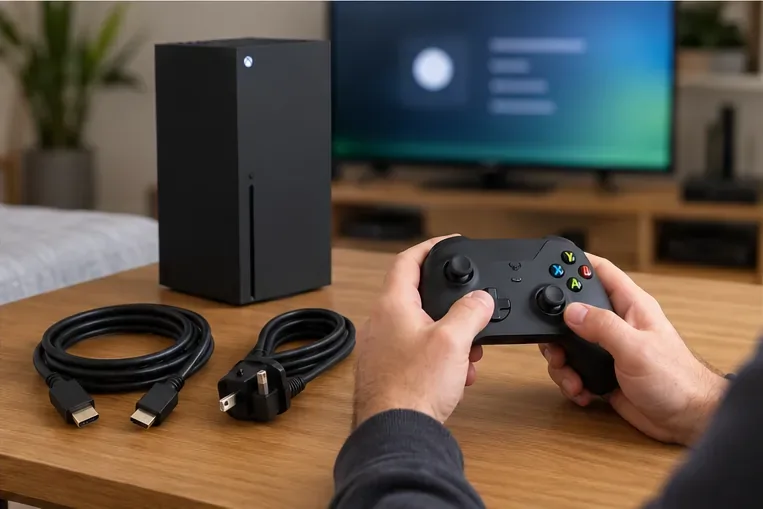
For the standard Xbox Series X package shown on Xbox’s product page, the listed contents include the console, an Xbox Wireless Controller, an Ultra High Speed HDMI cable, and a power cord. Bundles and editions can vary, so compare the contents with the exact product page and the seller’s listing rather than assuming every box is identical. A complete accessory set does not prove that the console is new; Microsoft says certified refurbished products can be repackaged with standard accessories.
If you can test the unit, power it on and confirm it reaches the normal setup or dashboard flow, outputs video over HDMI, connects to the network, and responds to controller buttons and both analog sticks. Test the disc drive only if the specific model includes one. Check for unusual fan noise, repeated shutdowns, loose ports, or error messages. A setup prompt, clean dashboard, or software update is not a reliable age test: a refurbished unit can be reset, and a new console can need updates.
Which clues matter most?
| Clue | What it can tell you | What it cannot prove |
|---|---|---|
| Listing and receipt wording | How the seller represented the item | That the representation is true without matching details and a return option |
| Serial numbers that match | The box, console label, and settings refer to the same device | Whether the device was previously repaired or resold |
| Warranty or service record | Coverage information and possible service history | That the unit was sold as new |
| Clean casing and sealed-looking box | Useful condition clues | That the console has never been opened, cleaned, or repackaged |
| Accessories and normal operation | Whether expected items are present and basic functions work | Whether the console is new rather than refurbished |
Buyer’s checklist before you pay
- Confirm the exact Series X edition and whether it has a disc drive.
- Get the condition category and included accessories in writing.
- Compare the console serial number in Settings with the rear label.
- Review official coverage information, seller warranty, return terms, and proof of purchase.
- Inspect the vents, ports, casing, feet, controller, and cables for wear or damage.
- When possible, test video output, network connection, controller input, and the disc drive if present.
- Walk away if serials do not match, the seller will not document the sale, or a defect appears during testing.
The most dependable way to decide between a new Xbox Series X and a refurbished one is to combine seller documentation with serial and coverage checks, then inspect and test the actual device. Packaging, appearance, warranty, and accessories each provide clues; none should be treated as proof on its own.









