Home
» 🎮 Esports
»
How to Fix Brawl Stars Stuck at 92% Loading
How to Fix Brawl Stars Stuck at 92% Loading
If Brawl Stars stops at 92% on the startup loading screen, that number is a symptom, not a diagnosis. A stalled load can be related to a temporary game-side problem, a connection that drops during startup, or an issue on one device. Supercell has previously documented a 92% startup hang: its September 12, 2024 maintenance notes say the team fixed players getting stuck at 92%. That historical fix confirms the symptom has occurred before, but it does not identify the cause of a new stall today. Start with checks that separate a service-wide issue from a local one, and save reinstalling for last.
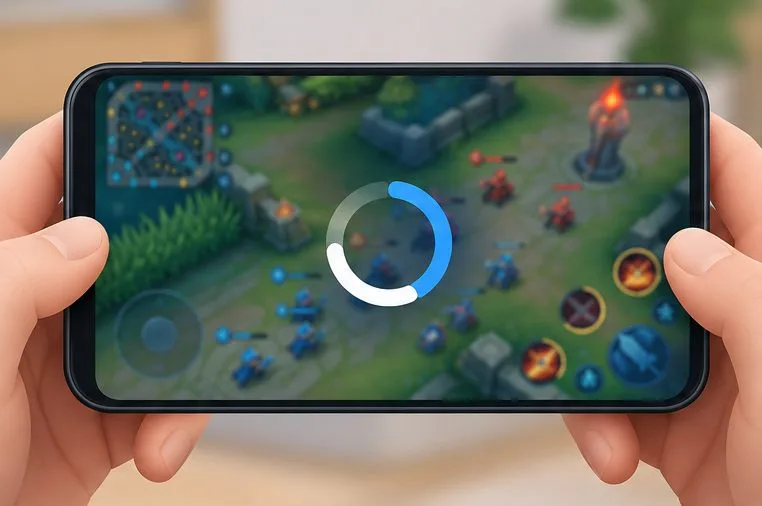
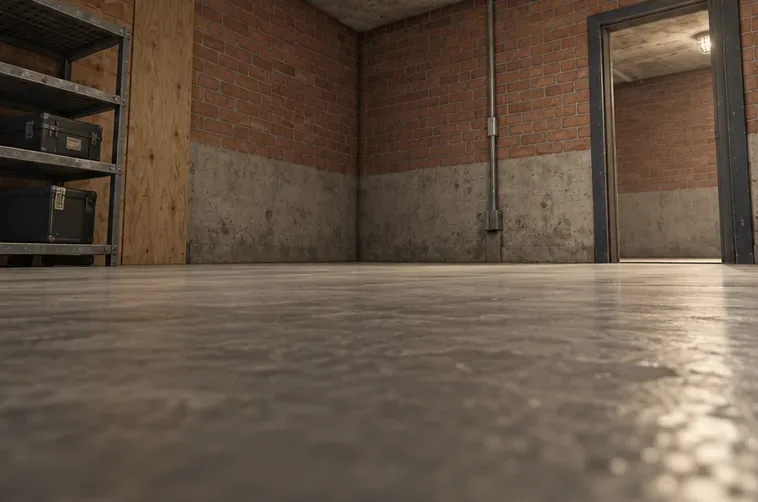
A generic arena game screen behind a loading spinner illustrates the symptom; it is not a screenshot of a current Brawl Stars screen.
1. Check whether the problem is temporary or limited to your device
First, note what happens rather than repeatedly tapping the screen. Leave the game open briefly, then close it fully and launch it once more. If the loading screen advances after a short wait or a single relaunch, a transient startup delay may have cleared. If it stops at the same point on every attempt, continue through the checks below.
Look at recent notices on Brawl Stars’ official channels and the official Brawl Stars troubleshooting and support page. Supercell’s support portal includes an “Unstable Connection” topic, and its official patch notes have listed both connection and startup fixes. That means a game-side incident or defect is possible, but a 92% display alone does not prove that servers are down. If there is an active notice or maintenance window, wait for it to end before changing device settings; if there is no notice, move on to a controlled network test.
2. Compare Wi-Fi with mobile data
Compare Wi-Fi and cellular data one at a time to see whether the loading failure follows one connection.
On a phone or tablet, switch from Wi-Fi to cellular data, or from cellular data to a stable Wi-Fi network, and try one launch. Do not change several network settings at once. If Brawl Stars loads on one connection but not the other, that is useful evidence: focus next on the failing network, router, carrier, or any VPN or filtering service you use. It does not prove which network component is at fault.
If Wi-Fi fails but cellular data works, restart the router and retry Wi-Fi after it reconnects.
If cellular data fails but Wi-Fi works, check that mobile data is enabled for the game and that your plan has usable data coverage.
If you use a VPN, private DNS, ad blocker, or network-filtering app, briefly test with it disabled, then restore your preferred setting. Only do this if you know how to turn it back on.
A strong signal icon does not guarantee a stable route to the game, and a speed test is not a definitive Brawl Stars server test. The useful result is whether the game behaves differently across two connections. If both fail, keep troubleshooting the device and check for an official notice rather than assuming the router is responsible.
3. Restart the app and device, then check for updates
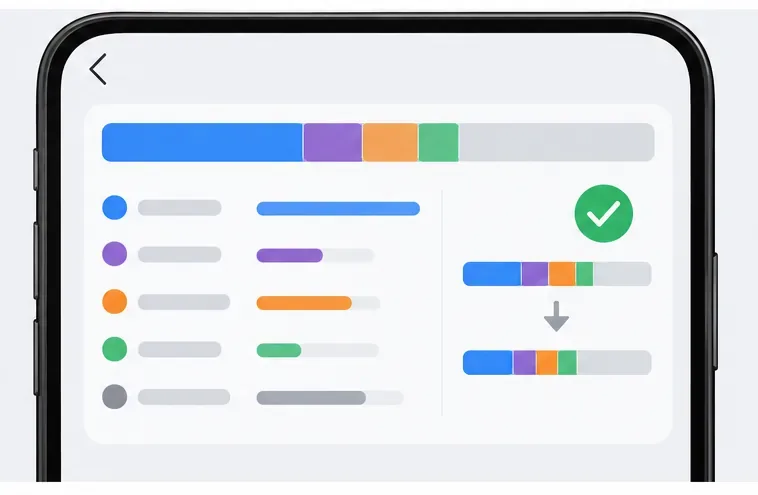
Restarting the device and installing an available game update are low-risk checks before clearing local data.
Close Brawl Stars from the recent-apps screen, reopen it, and if the same hang remains, restart the device. Then check the App Store or Google Play for a Brawl Stars update and install any available version. Also install a pending operating-system update if your device manufacturer recommends it and you have enough battery and storage to complete the update.
Google’s current Android guidance for an app that will not open or work properly recommends restarting the phone, checking Android and app updates, and force-stopping the affected app as possible steps. The precise menu names vary by Android version and manufacturer. Apple’s steps also vary by iOS version, so use the standard app switcher to close the game rather than following Android menu instructions on an iPhone.
Check free storage as well. A device that is nearly full can have trouble installing updates or handling temporary files, although low storage is not proven by the 92% number itself. Remove only files you no longer need; do not delete Brawl Stars data as an experiment. After updating and restarting, try loading again and note whether the screen passes 92%, freezes earlier, or displays a different message.
4. Clear cache carefully on Android; protect your account before reinstalling
Confirm that your account is recoverable before using uninstall and reinstall as a later troubleshooting step.
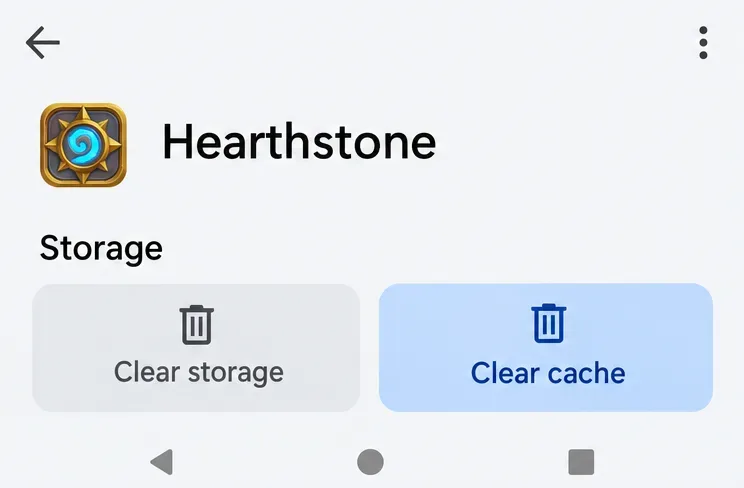
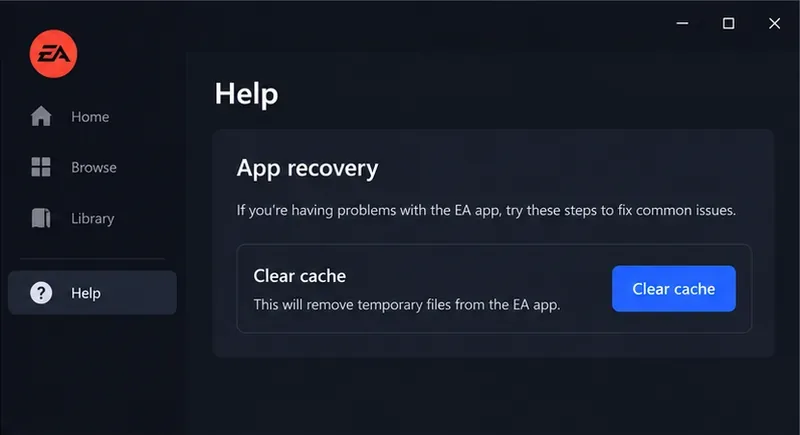
On some Android phones, the app settings offer separate options to clear cache and clear storage or data. Google notes that app settings vary by device, and that uninstalling can erase locally saved app data. If your phone offers a cache-only option for Brawl Stars, you can try that first. Read the button labels carefully: do not choose “Clear storage,” “Clear data,” or a similarly worded option unless you understand the consequences and have secured your account.
iPhone and iPad do not expose the same Android-style per-app cache controls. Do not search for an Android cache menu on iOS. Restarting, updating, and checking available storage are safer first steps on either platform.
Reinstall only after confirming that you can recover your Brawl Stars account. Supercell’s official Brawl Stars reinstall instructions specifically say to connect the game to Supercell ID before starting. If you can still reach Settings on another device or after a successful load, check the account connection and make sure you can access the email used for it. If the game never opens and you are unsure whether progress is linked, contact Supercell Support before deleting it. A fresh install may fix damaged local files, but it cannot repair an outage, and it can make account recovery harder if progress was not connected.
How to tell whether a fix worked
Use a repeatable check: launch the updated game on the same connection, wait for the loading screen to complete, and confirm that the lobby opens. If possible, close and reopen the game once more. A single successful launch is encouraging, but repeated access after relaunch is a better sign that the problem has cleared.
Change approach based on the pattern:
Only one network works: troubleshoot the failing connection or ask its provider for help.
The game works after an update or restart: keep the device and app updated; avoid clearing data without a recovery plan.
The game still stops at 92% on multiple networks: the cause remains uncertain. Check official notices, then contact Supercell through its support portal.
Other apps also lose connection or freeze: investigate the phone’s network or operating system, not only Brawl Stars.
When you contact support, include your device model, operating-system version, Brawl Stars version, country or region, approximate time of the failed attempt, whether Wi-Fi and cellular data behave differently, and what you already tried. A short screen recording can help show the exact symptom. Do not include passwords, one-time login codes, or payment details.
What the 92% figure can—and cannot—tell you
Verified: Supercell’s September 2024 notes recorded a fix for players stuck at 92% during startup. Situation-dependent: today’s repeat stall may involve the game, the connection, or one device, and cross-network testing helps narrow that down. Not established by the percentage alone: whether the current cause is a server outage, corrupted app data, a specific phone model, or a ban. Do not jump to a factory reset or account deletion based on the number.