Home
» 🎮 Esports
»
Best Warzone Telemetry Overlay Settings for Ping and Packet Loss
Best Warzone Telemetry Overlay Settings for Ping and Packet Loss
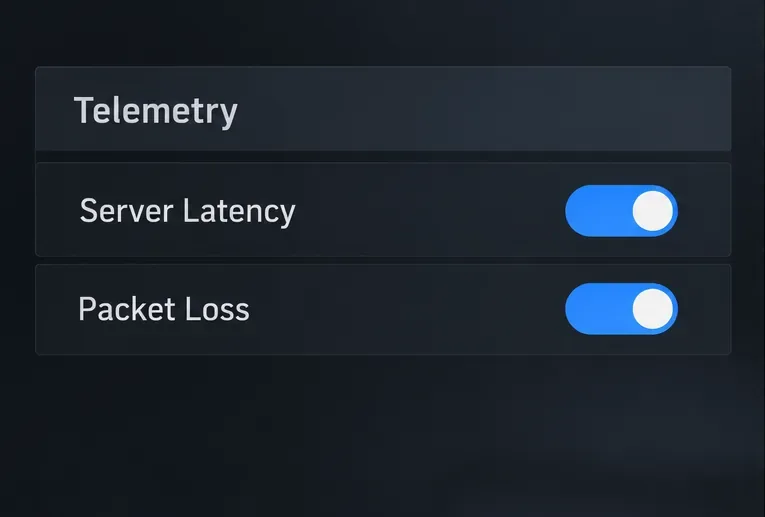
If a gunfight feels delayed or your operator suddenly snaps back into place, a telemetry overlay can help you tell whether the match connection is unstable. The best Warzone setup for checking ping and packet loss is straightforward: enable Server Latency and Packet Loss under Settings > Interface > Telemetry, then watch both during a match. These indicators diagnose what your connection is doing; they do not lower ping or repair packet loss.
As of October 8, 2026, I did not find a recent official announcement changing these telemetry controls. Activision’s support guidance still explains latency and packet loss as separate contributors to lag. Menu layout and wording can shift between game updates and platforms, so look for the Telemetry section in your current Interface settings if the path differs.
Recommended telemetry settings
Setting
Recommendation
What it helps you check
Server Latency
On
Displays the in-match latency reading, commonly called ping, in milliseconds.
Packet Loss
On
Shows whether data is being lost between your game and the match connection.
Other telemetry
Leave off unless you need it
Keeps the HUD focused on the two connection readings you are investigating.
You do not need to maximize every diagnostic display. Start with those two indicators, play a normal match, and note whether the values stay steady or change at the same time as lag symptoms. The exact overlay position and available telemetry options may vary by game build, mode, or platform.
How to turn on ping and packet loss
Open the in-game Settings menu.
Select Interface.
Scroll to the Telemetry section.
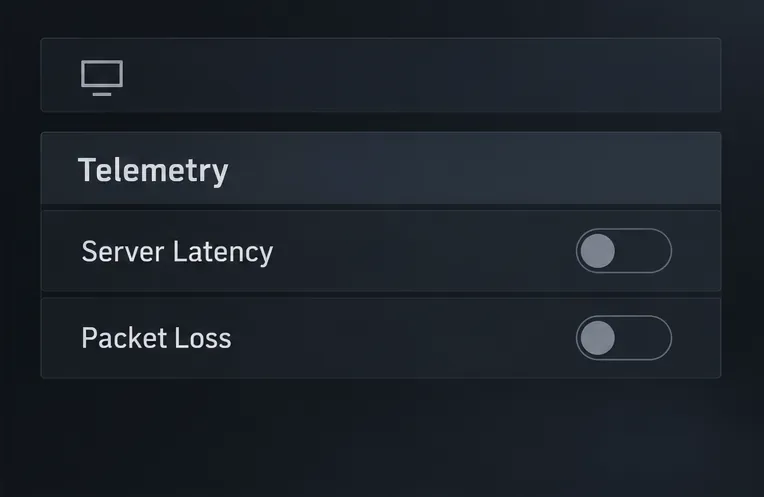
Switch on Server Latency and Packet Loss, then return to a match and confirm that both readings appear.
Activision has documented Server Latency and Packet Loss telemetry as in-game monitoring options in its Call of Duty settings material. That guide is for an earlier Call of Duty PC title, so use the labels in your current Warzone interface as the authority if a menu has moved. Activision’s settings guide explains the two telemetry monitors.
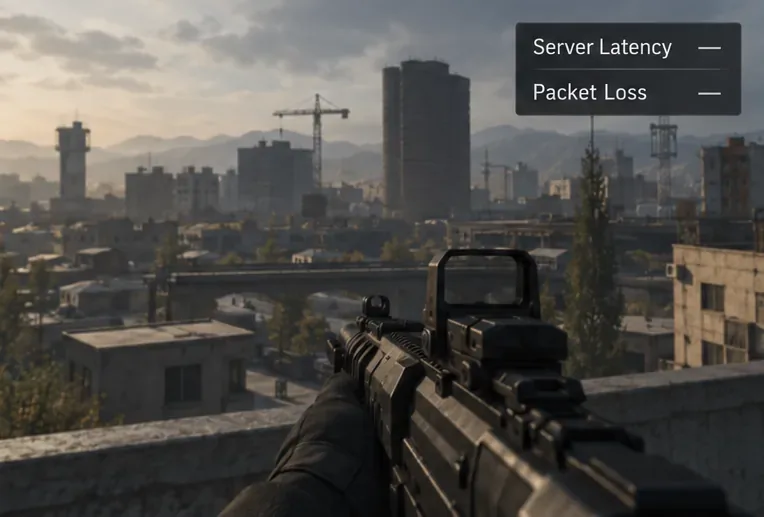
Start in Settings and open Interface; category names and menu layout can differ across versions and platforms.Find the Telemetry section and locate the two readings you want to monitor.Enable both Server Latency and Packet Loss so the in-match overlay can show them together.The in-match overlay should make both connection readings visible; exact placement and appearance may vary.
What the two readings mean
Server Latency: how long the response takes
Latency is the time data takes to travel between locations, measured in milliseconds. In a match, a higher reading means more delay between your system and the game server. Activision notes that ping is influenced by factors such as your internet provider and your geographic relationship to the servers, and matchmaking cannot remove every effect of latency. Activision’s Warzone lag guide defines latency and outlines common influences.
Do not judge a connection from one isolated number. Watch whether the reading is consistent across a match and compare it with what you feel: delayed hit registration, rubber-banding, or sudden movement corrections. A steady but higher reading may point to the route or distance to the match server; the overlay alone cannot tell you the cause.
Packet Loss: whether some data is not getting through
Packet loss means some data sent across the connection does not arrive as intended. The game may feel inconsistent even if the latency figure looks acceptable. A brief nonzero reading is a reason to observe what happens next, not proof by itself that your router or provider is at fault. Repeated or sustained loss alongside stutters is more useful evidence to record and report.
Latency and packet loss can appear together, but one does not automatically explain the other. A ping increase without visible loss suggests delay; loss appearing repeatedly suggests delivery problems. These are clues, not a complete network test.
Read the overlay without jumping to conclusions
Both readings look steady and gameplay feels normal: leave the settings as they are. The overlay is doing its job without needing extra widgets.
Latency rises during a lag spike while loss stays at zero: note the time and match, then compare in another match. The overlay shows the symptom, not whether it came from the route, the server, or congestion elsewhere.
Packet loss appears during visible stutters: repeat the observation. Record whether it happens on Wi-Fi or Ethernet and whether other devices are using the connection.
The display is missing or frozen: return to Interface > Telemetry, confirm both settings remain enabled, and check again after entering a live match. Some menus or modes may not show readings the same way.
There is no universal ping or loss cutoff that guarantees a smooth Warzone match for every player. Activision’s technical discussion of Call of Duty matchmaking distinguishes network latency from in-game latency and explains that the overall experience also depends on server and client processing. Treat the overlay as a view of connection conditions, not a complete performance score. Activision’s matchmaking paper explains the different latency components.
Use the readings to guide your next test
Compare more than one match. Write down the displayed latency and loss when gameplay feels normal and when it feels poor. A recurring pattern is more informative than one spike.
Compare connection types if possible. Activision recommends a wired connection because Wi-Fi reliability can vary. If Ethernet is practical, test it under similar conditions.
Reduce competing traffic for a test. Pause large downloads or video streams and see whether the pattern changes. Activision notes that other network use can consume available bandwidth.
Check your local network and provider. If problems recur across matches, review router guidance or contact your internet provider with the times and readings you recorded. The overlay cannot identify the exact failing hop or prove that the game server caused the issue.
A speed test can be useful for checking your general connection, but it may use a different route and endpoint from the Warzone match server. Activision’s documentation explains that the selected data center affects network latency, so use the in-game reading when evaluating the match itself.
Common telemetry mistakes
Turning on every widget: extra readouts can clutter the HUD. Keep Server Latency and Packet Loss visible first; add another indicator only to answer a specific question.
Assuming the overlay fixes lag: these are monitoring settings. They do not change your internet route, server assignment, or packet delivery.
Reading one spike as a diagnosis: capture repeated observations and note what you were doing when the problem occurred.
Confusing an internet speed test with in-match ping: a test to another endpoint does not necessarily match the route used by the current lobby.
Sharing screenshots without checking them: network screens may include account or connection details. Crop or hide private information before posting an image publicly.
Best baseline: turn on Server Latency and Packet Loss, keep the rest of the telemetry minimal, and observe both during real matches. Use repeated readings to decide whether to test Ethernet, reduce competing traffic, or contact your provider. The overlay helps you describe a connection problem clearly; it cannot promise a lower ping or identify the cause by itself.