Home
» 🎮 Esports
»
How to Turn Off Stage Hazards in Smash Ultimate Quickplay
How to Turn Off Stage Hazards in Smash Ultimate Quickplay
Yes—set the Stage preference in Quickplay’s Preferred Rules to “Hazards Off.” From the main menu, choose Online, then Smash, then Quickplay. Turn Preferred Rules on, open the Stage option, choose Hazards Off, and confirm before searching for a match. This asks matchmaking for a hazards-off game; it does not guarantee every match will use your exact rules.
The four interface views below are illustrations of the navigation and selection described here. Button names, layout, and menu order can vary slightly with game version, language, or whether you choose Solo or Co-op.
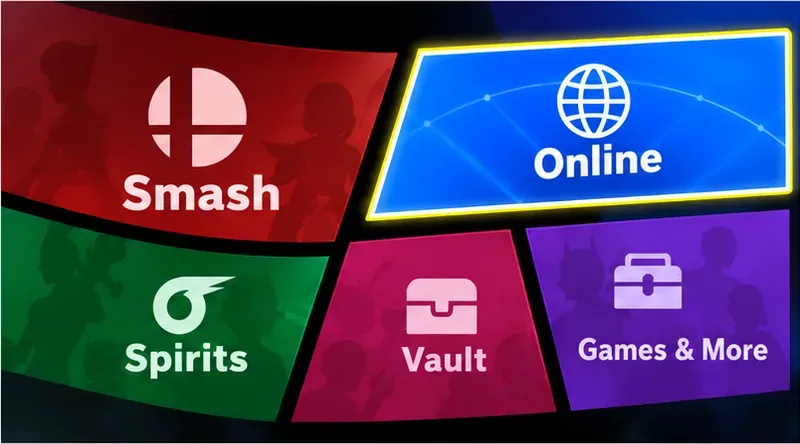
The main menu view highlights Online, where Quickplay is located.
What does “Stage Hazards Off” change?
Stage hazards are gameplay events or environmental interactions on a stage that can disrupt a fight, such as a stage-triggered obstacle or a change that interferes with normal movement. Choosing Hazards Off tells the game to use the stage without its designated hazards. It does not turn off items, Final Smash Meter, or other match rules; those are separate Preferred Rules.
Hazards Off also does not mean every stage becomes a flat, identical platform. Stage shape, ledges, platforms, and some visual or movement features may remain. If you want a more standardized layout, choose a Battlefield or Omega form instead. If you want a broader variety of stage layouts without the designated hazards, Hazards Off is the closer fit.
Nintendo’s official online guide explains that Quickplay uses Preferred Rules to prioritize matches with players who want similar rules. Nintendo’s tournament rules also list “Stage Hazards: Off” as a selectable match rule. These sources confirm the distinction between online preferences and a custom ruleset; Quickplay matchmaking still makes the final match assignment. See Nintendo’s Super Smash Bros. Ultimate online play guide and its official tournament rules example.
How do you select hazards off in Quickplay?
Open Quickplay. From the main menu, select Online, choose Smash, then choose Quickplay. Nintendo Support lists this route for starting an online Quickplay match. Online play requires a Nintendo Switch Online membership.
Enable Preferred Rules. Select Solo or Co-op as appropriate, then check the Preferred Rules control. If it is off, switch it on so the game uses the preferences you set. When preferences are disabled, you give matchmaking less direction over the rules.
Open the Stage preference. In the Preferred Rules settings, move to Stage and open its choices. Select “Hazards Off,” then confirm or return to the previous screen. Make sure the Stage row reflects Hazards Off before continuing.
Start matchmaking and check the result. Select your fighter and continue to Ready to Fight. When a match begins, observe whether the stage is running its usual hazards. If the setting was not saved, return to Preferred Rules and select it again before the next search.
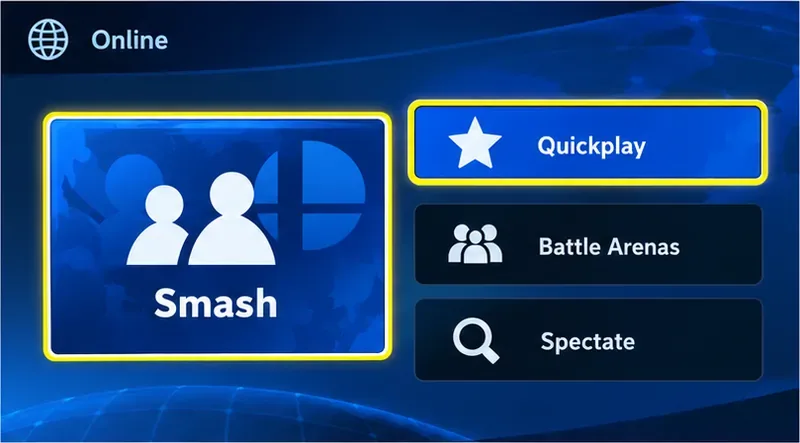
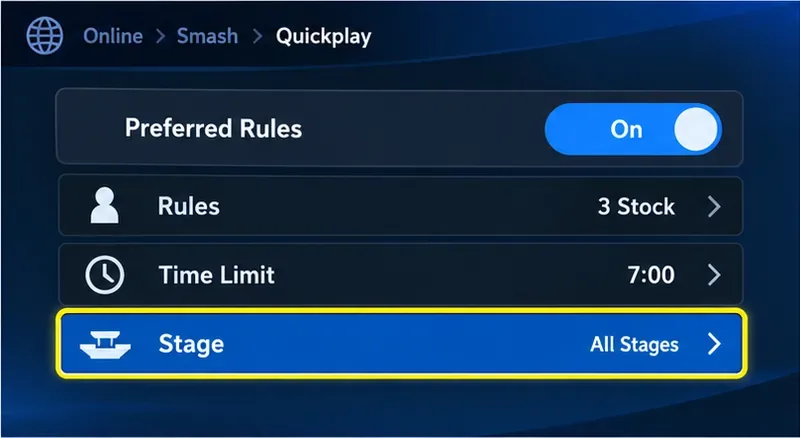
Choose Smash, then Quickplay, to reach online matchmaking.Turn Preferred Rules on, then open the Stage row to change the stage preference.Select Hazards Off in the Stage preference list and confirm the setting.
Will every Quickplay match have hazards off?
No. Preferred Rules are matchmaking preferences, not a private-room rules lock. Nintendo says players are prioritized according to their overall Global Smash Power and preferred rules. Its update history also notes that Quickplay settings are prioritized but that a match is not guaranteed to follow the exact settings shown. That means you can request hazards off and still encounter a match whose rules differ.
For example, if you prefer hazards off but the opponent’s settings or matchmaking conditions result in a different rule set, the stage may not match your preference. Recheck the Stage setting if you see hazards repeatedly, but don’t assume a single mismatch means you selected the wrong option. The matchmaker can make a different assignment.
If you need the hazards-off rule guaranteed for a planned set with friends, create or join a Battle Arena and use its custom rules, or start a local Smash match and set Stage Hazards to Off. Nintendo’s support page distinguishes Quickplay’s matchmaking from Battle Arenas, where players can create or join a room with custom rules. See Nintendo Support’s guide to local and online multiplayer.
What if you cannot find the option?
Preferred Rules is off: Enable it first, then open the rules or stage settings. The hazards preference is part of the requested setup.
You are in Battle Arenas or a tournament: Those modes may use the host’s or event’s rules instead of your Quickplay preference. Check the arena or event settings.
You chose a different stage option: “All Stages,” “Battlefield,” and “Omega” are separate choices. Return to Stage and select Hazards Off specifically.
You still encounter a hazardous stage: This may be a matchmaking mismatch. Confirm your preference is enabled, then try another match. Quickplay cannot promise an exact ruleset each time.
You want a fixed stage shape: Hazards Off keeps a wider range of stage layouts. Choose Battlefield or Omega if you prefer those standardized forms, or use an Arena when you need custom control.
Nintendo’s update history records that Small Battlefield became available as a Preferred Rule in Online battles in version 8.1.0. The same update history notes that Quickplay matching uses Preferred Rules but may not match them exactly. For current platform and online-mode details, consult the Super Smash Bros. Ultimate update history.
Quick check before the next match
Before searching, confirm three things: Preferred Rules is on, Stage is set to Hazards Off, and you are entering Quickplay rather than a mode with a host-defined ruleset. After the match loads, remember that hazards off is a preference in Quickplay, not a guarantee. For a specific stage or a guaranteed ruleset, use a Battlefield or Omega preference where appropriate, or arrange a Battle Arena with the rules you want.