How to Fix PUBG Stuck on “Initializing” on Steam

Fix PUBG stuck on Initializing on Steam with a focused checklist for PC service notices, launch options, game files, downloads, and connection issues.
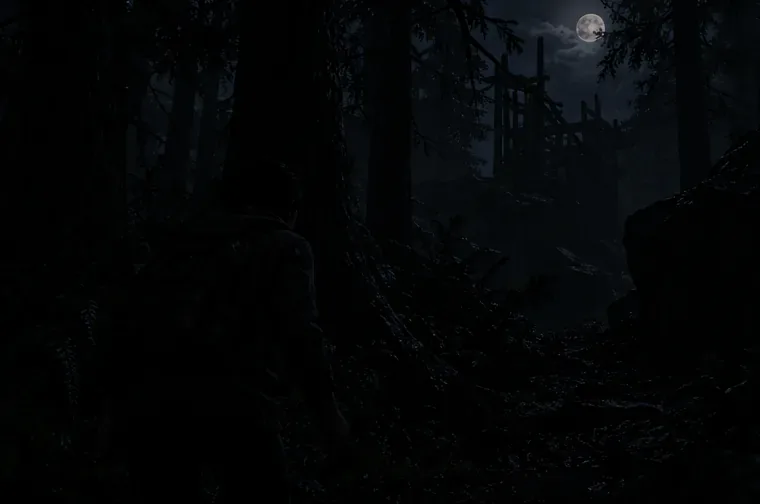
Best Dead by Daylight visual filter settings start with the game’s own Gamma control, raised a little from your comfortable default. Keep contrast, saturation, hue, and sharpening close to neutral, and lift shadows only if a dark outfit still blends into nearby scenery. This approach can make Survivor silhouettes easier to read while preserving shadow, fog, lamps, and scratch-mark detail. There is no universal slider number: your display, HDR mode, room lighting, and the current map all affect the picture.
Calibrate the in-game option first. Add a single display or PC filter only if one specific problem remains, then test the result in both dark and bright areas. A filter changes how visible pixels look; it cannot reveal a Survivor through a wall or replace an in-game aura, perk, or power.
Use the table as a direction for adjustment, not a set of copied values. Different monitors and driver tools use different scales, so compare the picture after changing one control at a time.
| Control | Starting point | Signs the adjustment is too strong |
|---|---|---|
| In-game Gamma | Begin at the current default, then raise it slightly | Shadows turn gray or bright lights lose their texture |
| Shadow or black level | Make a small lift only if dark clothing disappears | The whole scene looks hazy or flat |
| Contrast | Keep it neutral; adjust slightly only if edges look indistinct | Dark details collapse or bright objects become harsh |
| Highlights | Leave them alone unless fog, windows, or lamps look clipped | Bright areas become blank patches |
| Saturation and hue | Stay close to neutral | Scratch marks, blood, auras, or map colors blend together |
| Sharpening | Turn it off or keep it low | Foliage gains halos, grain, or shimmering edges |
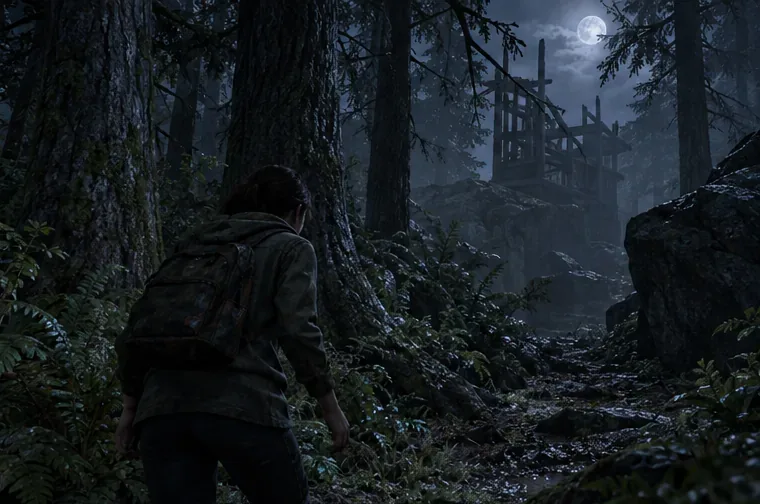
Open Settings and look in Graphics for Gamma. Behaviour Interactive added a Gamma calibration control in update 9.0.0, and its 2025 quality-of-life announcement described Gamma adjustment as available on all platforms. The settings menu has since been reorganized into tabs and subtabs, so follow the current labels on your platform if the exact path differs.
Raise Gamma in a small step, then inspect a dark corner, a mid-lit path, and a nearby lamp or window. The goal is to make surfaces and a figure’s outline distinguishable while shadows remain darker than open ground. If dark areas become gray, or if fog and lamps bloom into white patches, reduce the last change. Don’t max Gamma just to make the whole map look bright.
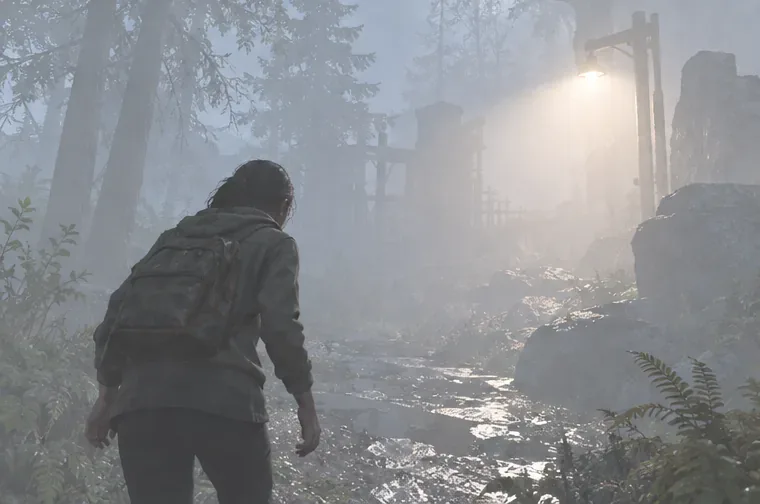
If you have difficulty distinguishing red or other visual cues, try the game’s color-accessibility options and choose the setting that works for your vision. Update 9.3.0 also added a beta option to choose from a set of scratch-mark colors. That can help scratch marks stand apart from a map without raising every shadow or changing the entire palette. Check the cues in a live match and keep the chosen color distinct from the environment and other interface indicators.
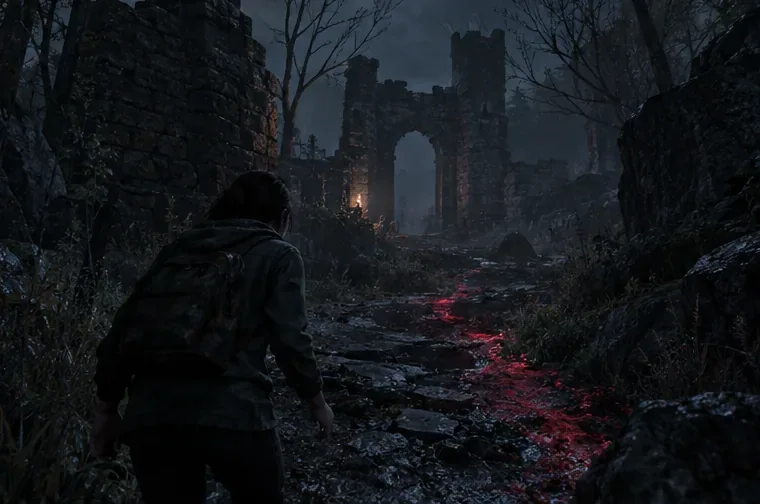
On PC, a driver-level game filter or display tool may offer controls for gamma, shadows, contrast, or highlights. Keep a neutral preset as your reference and change only the setting tied to the problem. If a small shadow lift makes dark clothing visible but flattens the map, bring the filter back toward neutral rather than stacking another brightening effect. Sharpening should stay low enough that leaves and wire fences do not shimmer.
Console players can use the game’s Gamma and color-accessibility controls, plus their display’s picture settings. A television’s “game” or “black level” preset affects other content too, so recheck the result after switching inputs or HDR modes.
Dead by Daylight maps do not share one fixed lighting setup. Behaviour Interactive’s 9.3.0 notes describe changes to the Autohaven Wreckers Realm to reduce excessive darkness, including texture recalibration, lighting work, fog, and a hue adjustment. Those changes show why an old filter preset or video may no longer match the current image. A setting that helps in a shadowed interior can make an outdoor path or lamp look washed out.
Test the same profile in at least three conditions: a dark corner, a mid-lit route, and a bright light or fog bank. If only one map looks wrong, lower the filter strength instead of pushing a global setting until every other map is too bright. If the picture changes after a game update, repeat the short check before assuming your monitor has changed.
If one check fails, return the last control you changed to neutral and adjust only the control related to that issue. The most useful Dead by Daylight visual filter settings preserve map detail and make existing silhouettes easier to read without changing what information the game reveals.
For the setting history, see Behaviour Interactive’s 9.0.0 Gamma notes, its 2025 Gamma announcement, and the 9.3.0 notes on scratch-mark colors and Autohaven lighting. A BHVR Community Manager said in May 2024 that filters were whitelisted and they were not banning for their use at that time; this dated forum statement is not a guarantee of current compatibility or policy. Recheck current official guidance before installing third-party software, and avoid tools that remove map objects or expose information hidden by the game.
Fix PUBG stuck on Initializing on Steam with a focused checklist for PC service notices, launch options, game files, downloads, and connection issues.
Fix Brawl Stars stuck at 92% loading with an ordered checklist for service notices, network tests, safe updates, Android cache, and account-safe reinstalling.
Best Dead by Daylight visual filter settings start with a small Gamma lift, neutral color and contrast, and a quick check for dark corners, fog, and bright lights.
Find the Steam and EA app fields for Apex Legends launch options, use EA’s documented FPS command, and see why +exec autoexec.cfg remains unverified.
Reduce input lag on a Nintendo Switch dock for Smash Ultimate with TV Game Mode, a direct HDMI test, controller checks, and online-latency troubleshooting.
Find the best EA SPORTS FC audio settings for a clearer referee whistle: tune Stadium Ambience and Commentary, then troubleshoot output or timing issues.
Compare the best Attack Move Click keybinds in League of Legends—A, Shift + right-click, mouse side buttons, and left-click—with setup and kiting tips.
Find the best tablet aspect ratio setup for Clash Royale, compare Android display-fit choices, and check iPad full-screen framing without cropping the arena.
Fix Warzone Dev Error 6068 on startup with safe PC checks for updates, overlays, graphics drivers, game-file repair, and clean boot troubleshooting.
Check your Overwatch 2 overall match win rate with Career Stats, matching game totals, and the right filters—without mistaking hero percentages for match results.