How to Fix PUBG Stuck on “Initializing” on Steam

Fix PUBG stuck on Initializing on Steam with a focused checklist for PC service notices, launch options, game files, downloads, and connection issues.
If you want Apex Legends to run a custom autoexec.cfg at startup, first separate the launcher setting from the file itself. Steam and the EA app both have launch-option fields, but the current EA help pages we checked document an FPS cap—not the custom command +exec autoexec.cfg. You can find the right field below, but its existence does not confirm that Apex will load an autoexec file or that a particular file path is supported.
For a supported startup setting, EA currently documents +fps_max <required frame rate>. For an autoexec-specific setup, the accurate answer is more limited: the current official instructions do not verify the command, file location, or permission for this method. The steps here show how to reach the correct Apex Legends launch-options field, use a documented Apex option, and undo a change without presenting an unverified command as guaranteed.
A launch option is text a launcher passes to a game as it starts. A autoexec.cfg is a separate configuration file that would need to exist somewhere the game reads. Typing a command in a launcher field does not create that file, prove that Apex reads it, or confirm that a custom command is allowed.
Steam’s general help says some console commands can be used as launch options by adding a plus sign, while also warning that not every command works that way. That general note does not confirm that Apex supports +exec autoexec.cfg. EA’s current Apex FPS guide documents the FPS-cap command and launcher fields; it does not provide an autoexec procedure.
+fps_max option. If you need a custom autoexec, treat the method as unverified until EA confirms it for the current game build.Open the Library where you normally select Apex Legends. If Steam starts the game, use Steam’s Apex entry. If you start it from the EA app, use the EA app’s game tile. Before editing, copy any existing launch commands into a separate note. Do not erase text just because an older guide shows a different command.
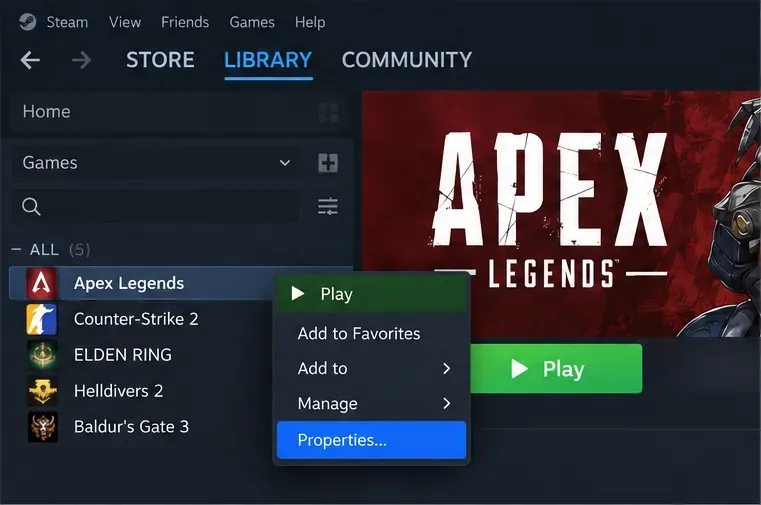
In Steam: open Library, right-click Apex Legends, choose Properties, then open General. The Steam Launch Options field is on that page. These are the current steps in Steam Support’s launch-options guide.
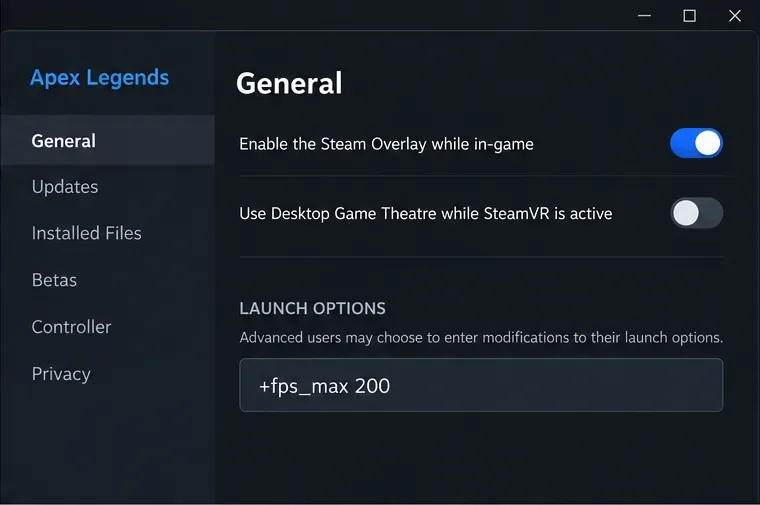
In the EA app: open Library, find the Apex Legends tile, select its three-dot menu, and choose View Properties. Enter supported launch commands in EA app Advanced launch options. EA’s EA app instructions describe this route. The two launchers have separate properties pages, so do not assume that a value entered in one field automatically appears in the other.
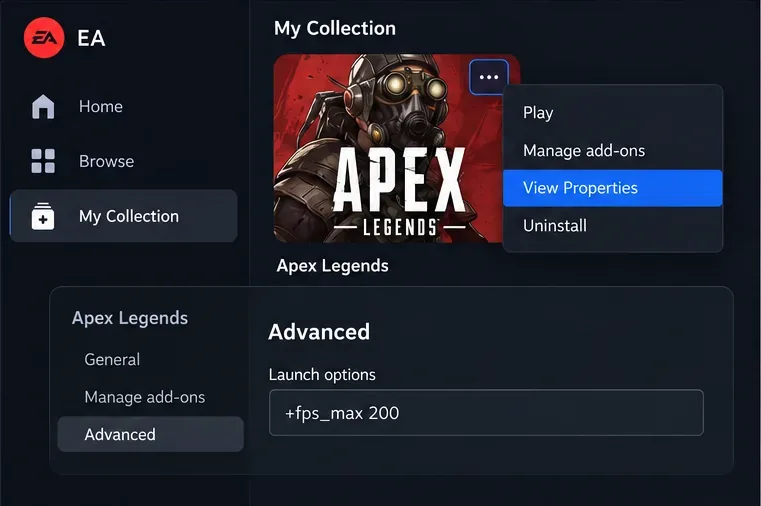
Launcher layouts can change. If a label looks different, use the current properties page in the client rather than relying on an old screenshot.
If you want to cap frame rate, EA’s documented syntax is +fps_max <required frame rate>. The guide gives +fps_max 200 as an example of a 200 FPS cap. It is an example, not a recommendation for every computer or monitor. EA warns that changing the cap can cause performance issues, and says the result depends on your hardware and display. Check your PC’s capabilities and use a value that suits your setup.
If your goal is specifically an autoexec, you may encounter +exec autoexec.cfg in community instructions. Do not treat that line as a current EA-supported Apex command: the official pages linked here do not specify it, a required file location, or an approval for editing the relevant files. Steam’s general note about plus-prefixed commands is not Apex-specific proof. Avoid adding a guessed folder path or a large bundle of commands to see what happens.
Start Apex normally after saving one documented option. For an FPS cap, you can check the in-game Performance Display under Settings > Gameplay, or enable Steam’s in-game FPS counter; EA documents both ways to view frame rate. Compare what you see during ordinary gameplay with your selected cap, keeping in mind that the display, hardware, and game scene affect performance.
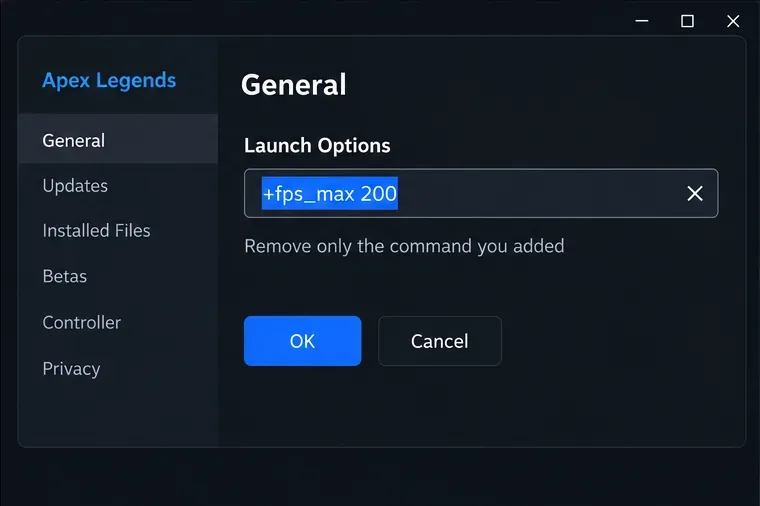
An FPS counter cannot prove that +exec autoexec.cfg loaded. If a setting causes problems or appears ineffective, close the game, return to the same launcher field, remove only the command you just added, and restore any previous text from your saved copy. This returns the launch field to its earlier state; it is not a test of an undocumented autoexec command.
EA’s current User Agreement describes anti-cheat measures and unauthorized programs or files that EA believes can enable cheating or alter the game experience or protections without authorization. It does not name autoexec.cfg or decide whether every use of a configuration file violates the agreement. That means it would be inaccurate to promise that any autoexec is safe, and equally inaccurate to claim this document gives a specific ruling on the command. If you need certainty about a particular file or command, ask EA Support before modifying game files.
autoexec.cfg.The practical answer is that you can open Apex’s Steam or EA app launch-options field and use an option EA currently documents, such as an FPS cap. The specific autoexec command and file setup remain unverified in the current official Apex guidance reviewed for this article.
Information checked October 17, 2026. Interface images are schematic and may differ from the current launcher layout.
Fix PUBG stuck on Initializing on Steam with a focused checklist for PC service notices, launch options, game files, downloads, and connection issues.
Fix Brawl Stars stuck at 92% loading with an ordered checklist for service notices, network tests, safe updates, Android cache, and account-safe reinstalling.
Best Dead by Daylight visual filter settings start with a small Gamma lift, neutral color and contrast, and a quick check for dark corners, fog, and bright lights.
Find the Steam and EA app fields for Apex Legends launch options, use EA’s documented FPS command, and see why +exec autoexec.cfg remains unverified.
Reduce input lag on a Nintendo Switch dock for Smash Ultimate with TV Game Mode, a direct HDMI test, controller checks, and online-latency troubleshooting.
Find the best EA SPORTS FC audio settings for a clearer referee whistle: tune Stadium Ambience and Commentary, then troubleshoot output or timing issues.
Compare the best Attack Move Click keybinds in League of Legends—A, Shift + right-click, mouse side buttons, and left-click—with setup and kiting tips.
Find the best tablet aspect ratio setup for Clash Royale, compare Android display-fit choices, and check iPad full-screen framing without cropping the arena.
Fix Warzone Dev Error 6068 on startup with safe PC checks for updates, overlays, graphics drivers, game-file repair, and clean boot troubleshooting.
Check your Overwatch 2 overall match win rate with Career Stats, matching game totals, and the right filters—without mistaking hero percentages for match results.