How to Fix PUBG Stuck on “Initializing” on Steam

Fix PUBG stuck on Initializing on Steam with a focused checklist for PC service notices, launch options, game files, downloads, and connection issues.
Turn on your TV’s Game Mode for the HDMI input connected to the Nintendo Switch dock. This is the best first check for Smash Ultimate input lag in TV Mode: Nintendo explains that a television processes the console’s video and audio before displaying them, and that Game Mode or a similar option may shorten that processing time. If the delay remains, test the HDMI path and controller separately before buying anything.
“Input lag” usually means a delay between your button press and the game’s response on screen. It is separate from online latency, which can make an online match feel slow or uneven. A wired internet connection may help with a network problem, but it cannot remove delay from the TV’s picture processing.
The photos below show generic equipment setups. TV menus and dock layouts vary; the fighting-game scene is not a Super Smash Bros. Ultimate screenshot or a performance measurement.
Before changing settings, start an offline Training session in Smash Ultimate. Use the same controller and TV input, then repeat a simple action—such as a short hop, attack, or shield input—several times. You do not need a stopwatch or special equipment; compare how immediate the response feels. Change one thing at a time, repeat the same action, and keep the change only if the difference is clear.
If the game feels responsive offline but delayed only in online matches, go to Step 4. That pattern points toward the network path rather than the dock’s video connection. These steps apply to Nintendo Switch and Nintendo Switch – OLED Model in TV Mode. Nintendo Switch Lite does not support TV Mode.
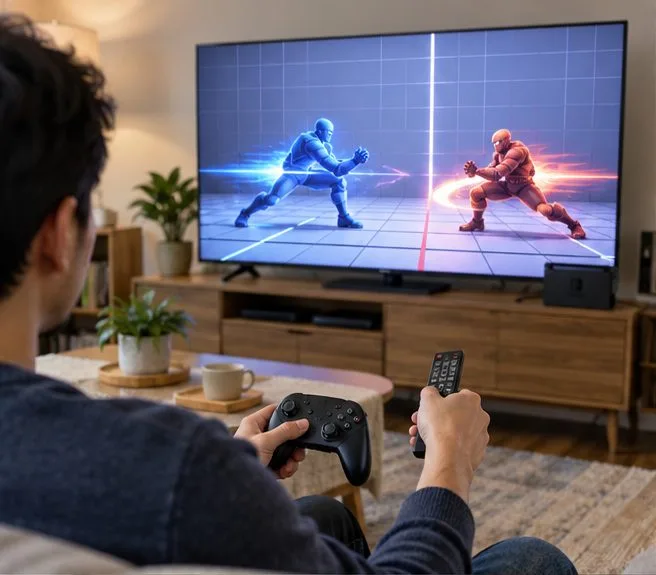
Use the TV remote to open the television’s picture, input, or gaming settings. Turn on Game Mode, Game, or the TV’s equivalent low-latency setting for the HDMI input carrying the Switch dock’s signal. Some televisions save picture settings separately for each HDMI input, so verify the active port. The mode is a TV setting; you do not enable it in Smash Ultimate or in the Switch system menu.
Nintendo says Game Mode can shorten a television’s internal processing time. Menu names and available options depend on the TV, so consult its manual if you cannot find the setting. Picture quality or processing may look different in this mode. Repeat the offline check before and after enabling it, and compare the feel for yourself.
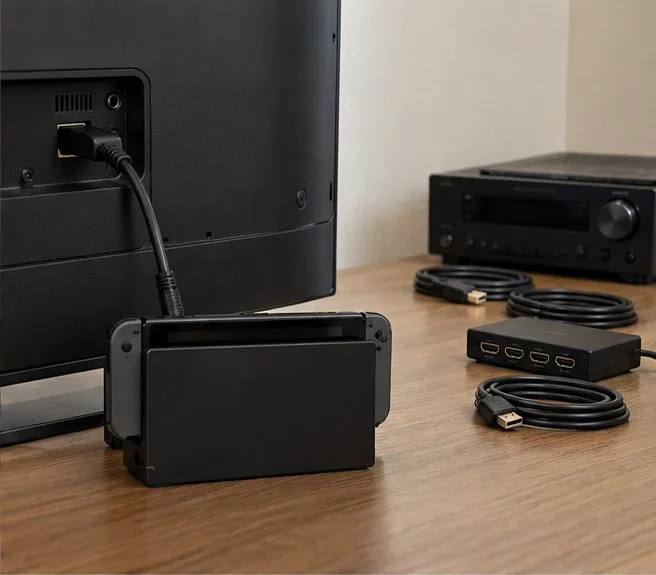
If the dock’s HDMI cable currently passes through an AV receiver, HDMI switch, capture card, or similar device, bypass that equipment for a test. Connect the dock straight to the TV, select the correct input, and repeat the same Training-mode action. If you move the cable to a different HDMI port, make sure Game Mode is enabled for that port too.
A change in response suggests that a removed device or one of its settings may be part of the signal path; it does not mean every receiver or switch adds noticeable delay. If the direct connection feels better, reconnect the devices one at a time and check their manuals for a low-latency or pass-through setting. Consider any trade-offs, such as losing receiver audio or convenient input switching during the test. If nothing changes, restore your normal setup and continue.
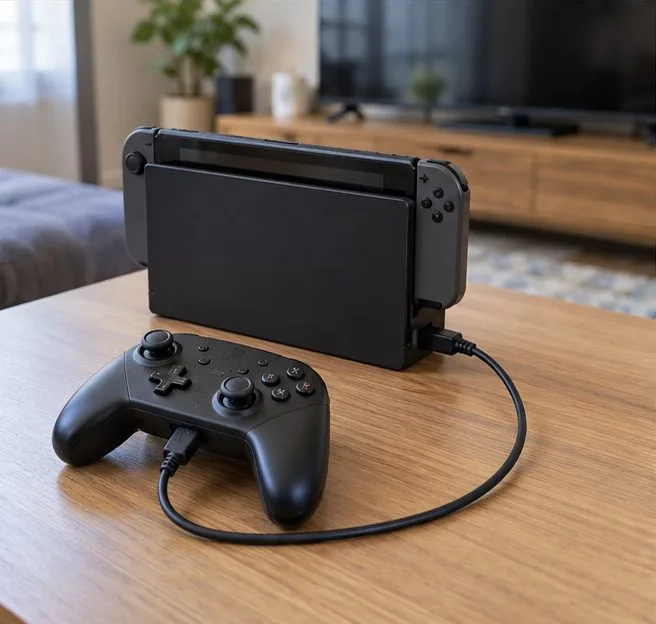
A controller issue can feel like display lag, so test it independently. If you use a Nintendo Switch Pro Controller, open System Settings > Controllers and Sensors > Pro Controller Wired Communication and turn the option on. Connect the controller to a USB port on the dock with a USB charging cable, then repeat the same offline action. Nintendo documents this wired mode, but does not promise that it will reduce perceived lag in every setup. Treat it as a comparison, not a guaranteed fix. The NFC touchpoint is disabled while wired communication is active.
If the wireless controller response is inconsistent, move the console away from a position behind the TV, metal shelving, or other nearby wireless devices. Nintendo recommends reducing possible wireless interference and testing the controller in another compatible game. You can also check whether button presses register at System Settings > Controllers and Sensors > Test Input Devices > Test Controller Buttons. This menu confirms button registration; it is not a latency meter. If one button fails or behaves incorrectly, troubleshoot that controller rather than changing TV settings.
Compare offline Training with an online match. If inputs feel delayed in both, return to the TV, HDMI, and controller checks. If the problem appears only online, use Nintendo’s connection test and network troubleshooting steps. Nintendo lists a weak wireless signal, interference, slow internet speeds, and network-device response times among possible causes of online latency.
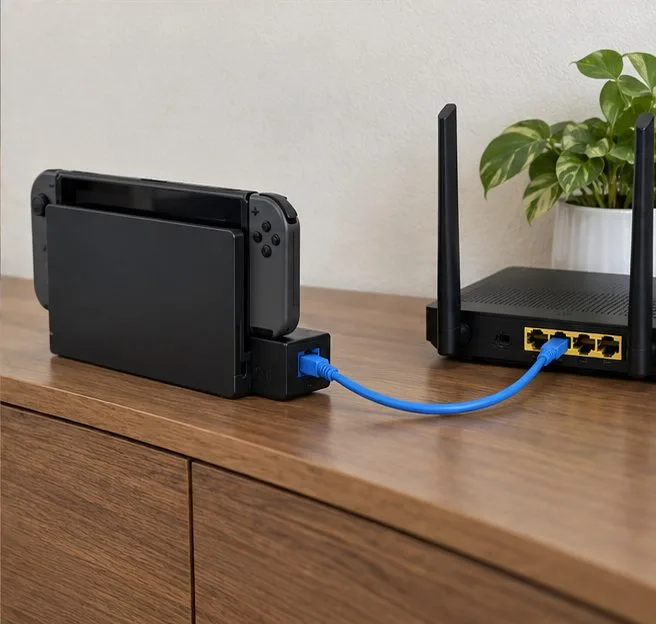
For a network comparison, connect the dock to your router with Ethernet if practical. The Nintendo Switch – OLED Model dock (model HEG-007) has a built-in LAN port. A dock without a built-in LAN port needs a compatible USB LAN adapter for wired internet. Ethernet can help isolate Wi-Fi instability, but it will not make local Training inputs register sooner or shorten the TV’s video processing.
If Game Mode improves offline play, leave it enabled for the Switch’s HDMI input. If bypassing an HDMI device helps, inspect that device’s settings. If only one controller feels inconsistent, check its buttons, wireless environment, and wired comparison. If offline play feels normal but online matches do not, focus on the network. When local delay persists across controllers and a direct TV connection, consult the TV manual for its lowest-latency mode and confirm the dock and HDMI cable are connected correctly. TV processing delay alone does not prove that the console or television is defective.
Fix PUBG stuck on Initializing on Steam with a focused checklist for PC service notices, launch options, game files, downloads, and connection issues.
Fix Brawl Stars stuck at 92% loading with an ordered checklist for service notices, network tests, safe updates, Android cache, and account-safe reinstalling.
Best Dead by Daylight visual filter settings start with a small Gamma lift, neutral color and contrast, and a quick check for dark corners, fog, and bright lights.
Find the Steam and EA app fields for Apex Legends launch options, use EA’s documented FPS command, and see why +exec autoexec.cfg remains unverified.
Reduce input lag on a Nintendo Switch dock for Smash Ultimate with TV Game Mode, a direct HDMI test, controller checks, and online-latency troubleshooting.
Find the best EA SPORTS FC audio settings for a clearer referee whistle: tune Stadium Ambience and Commentary, then troubleshoot output or timing issues.
Compare the best Attack Move Click keybinds in League of Legends—A, Shift + right-click, mouse side buttons, and left-click—with setup and kiting tips.
Find the best tablet aspect ratio setup for Clash Royale, compare Android display-fit choices, and check iPad full-screen framing without cropping the arena.
Fix Warzone Dev Error 6068 on startup with safe PC checks for updates, overlays, graphics drivers, game-file repair, and clean boot troubleshooting.
Check your Overwatch 2 overall match win rate with Career Stats, matching game totals, and the right filters—without mistaking hero percentages for match results.