Paladins Killcam and Top Play Options: What You Can Use Now
Paladins removed killcam and Top Play. Learn what replaced them and compare practical recording options for reviewing deaths or saving highlights.
To fix PUBG stuck on the “Initializing” screen on Steam, first check for a service interruption, restart Steam and your PC, remove custom launch options, and verify the game files. If the game still opens but never reaches the lobby, test your connection before downloading the entire game again. A reinstall cannot resolve a server outage or a problem on your normal internet connection.
This guide covers PUBG: BATTLEGROUNDS on Windows through Steam. It does not cover PUBG Mobile. Instructions were checked against official support documents on October 8, 2026. Several PUBG articles retain older Steam menu names; the file verification instructions below use Steam’s current documented “Installed Files” label.
An “Initializing” message that stays on the game screen is a symptom, not a diagnosis. Treat damaged files, a stalled client session, and a connection problem as possibilities to investigate. None can be confirmed from that word alone.
| What you see | Where to start |
|---|---|
| The game opens and remains on “Initializing” | Check service notices, restart, then test files and connectivity. |
| A separate “Failed to initialize STEAM” error | Focus on Steam startup, launch options, and permissions. |
| The window closes after the PUBG logo | Follow the startup crash branch, including Windows and graphics driver checks. |
| Steam cannot finish updating PUBG | Resolve the download or installation problem before testing the lobby. |
PUBG’s Steam initialization error article specifically concerns PUBG being unable to load Steam properly. That is different from assuming every frozen loading screen has the same cause.
Look at PUBG’s official news and announcements and the server-status channel linked in its official connectivity guide. Check the platform, date, and time zone of any maintenance notice. A console maintenance window does not automatically explain a Steam problem.
If a relevant interruption is confirmed, wait for the announced recovery and try again. This article does not establish whether servers are available at the moment you read it.
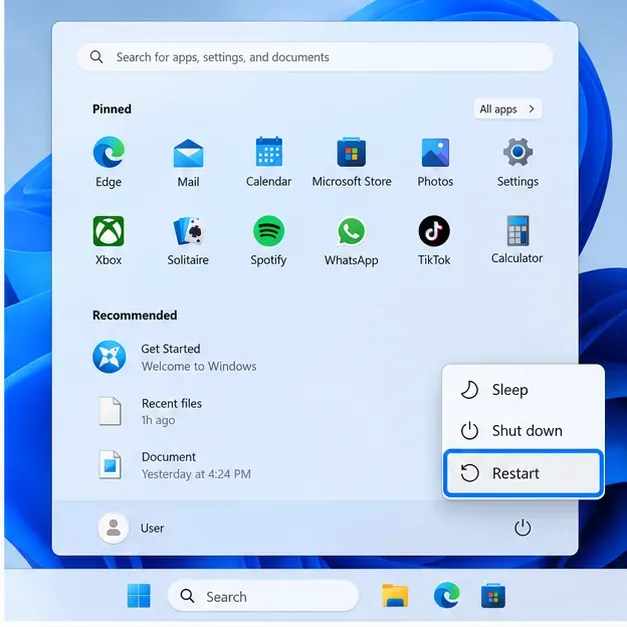
Close the game. If it will not respond, press Ctrl + Shift + Esc, locate the PUBG game process in Task Manager, and end that task. Exit Steam completely, then restart your computer. Open Steam, let any pending PUBG update finish, and launch the game from your Library.
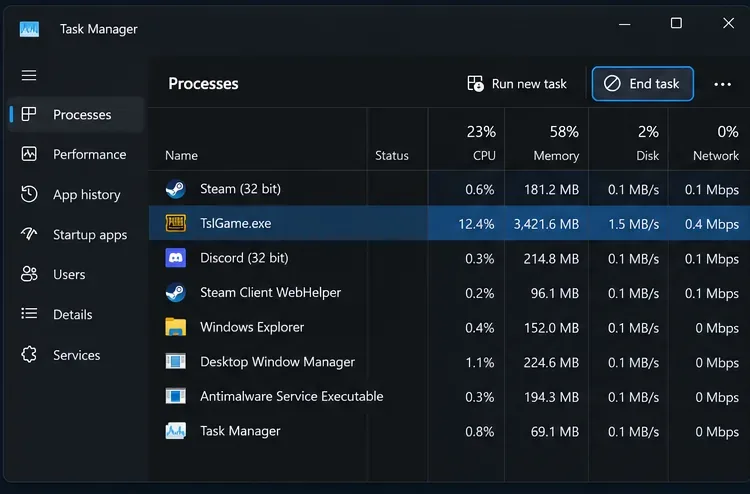
PUBG recommends restarting Steam in its startup crash troubleshooting article. For this loading-screen problem, a fresh launch is a useful first test, not a guaranteed cure.
For example, if the game previously ran and became stuck after an update, this test helps distinguish a temporary session problem from something that survives a full restart. Avoid opening several PUBG instances while you wait.
In Steam, right-click PUBG: BATTLEGROUNDS, select Properties, and open General. Copy any text in Launch Options into a note, then clear the field. Close Properties and launch again.

PUBG’s general crashing and performance guide, updated February 26, 2026, recommends removing old launch commands. Start with a blank field rather than adding a collection of supposed optimization flags.
If the field is already empty, move on. If removing options helps, leave them out while checking that the improvement survives another launch. The older Steam initialization article mentions additional flags, but that is not evidence that those flags fix the separate “Initializing” screen.
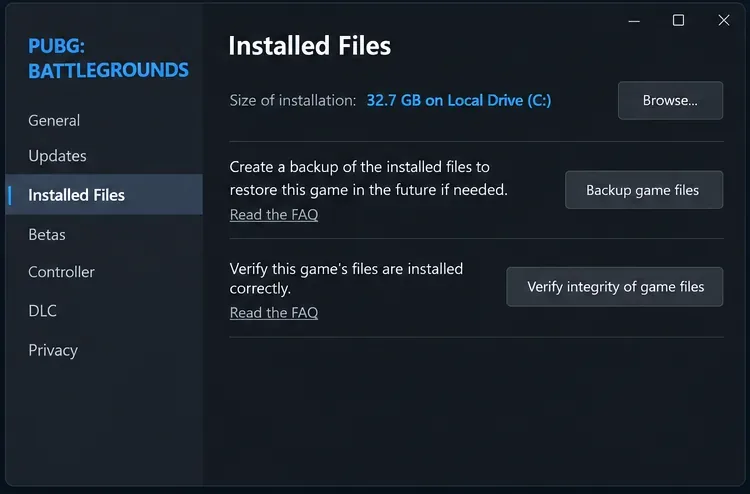
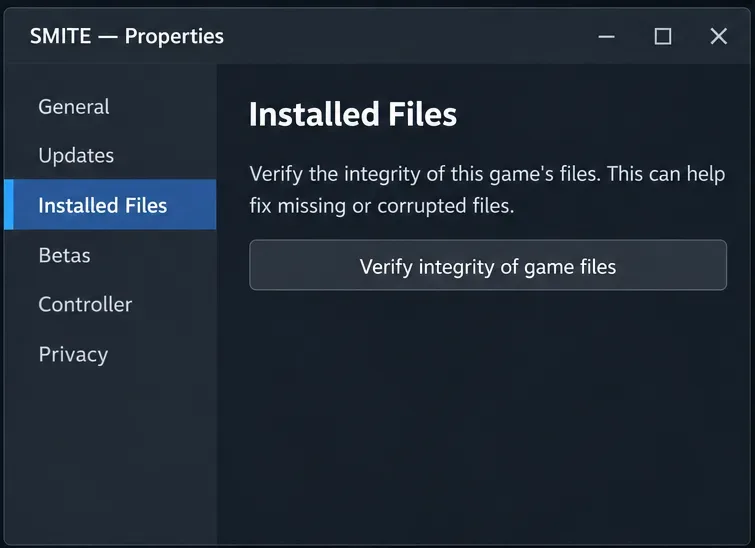
Steam’s file verification instructions explain that this checks the installation. Do not verify multiple games simultaneously or run a heavy disk scan at the same time. Steam also notes that some local configuration files can fail verification without indicating a broken installation.
Verification is particularly useful after an interrupted update. It does not test the route between your computer and PUBG’s services. If the installation checks out but the lobby still never appears, use the next steps to narrow the problem.
Use this branch when Steam downloads stall, update retries repeat, or the installation cannot complete. Open Steam Settings, select Downloads, and choose the download-cache clearing control. Have your account sign-in method ready before proceeding.
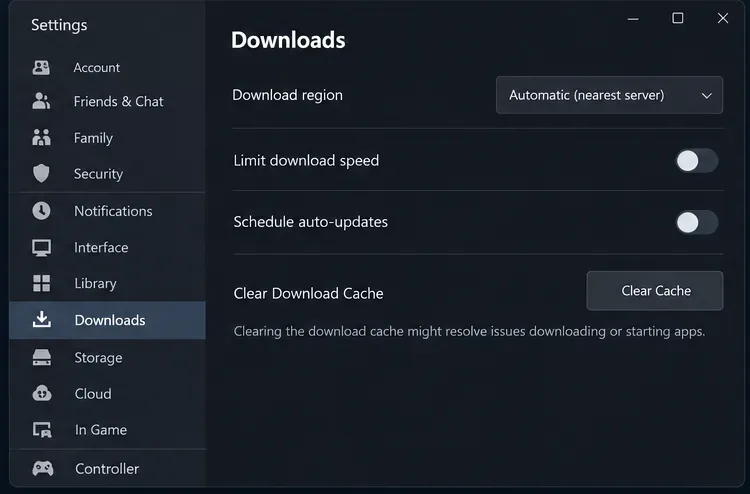
Follow Steam’s official download cache instructions, then let Steam finish updating PUBG before testing it. Clearing this cache addresses the download side; it is not a universal fix for a lobby connection stall.
If updates complete normally and only the game’s “Initializing” screen hangs, skip repeated cache clears. Repeating an unchanged test provides little new information.
PUBG’s connectivity guidance recommends restarting the router, trying a wired connection, disabling third-party VPN software for a test, and checking an alternate connection such as mobile tethering.
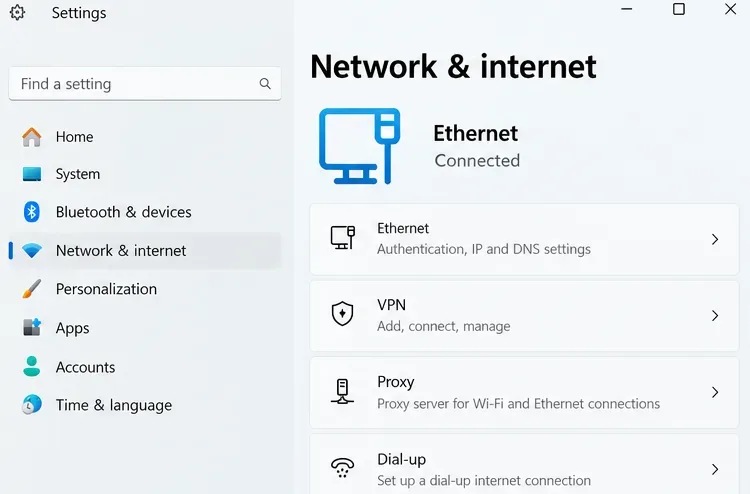
Choose one change at a time. If you use Wi-Fi, test Ethernet where practical. If you have a VPN enabled, disconnect it and relaunch. If neither helps, briefly test a trusted alternate connection, watching mobile data usage.
Illustrative example: suppose the same PC reaches the lobby on a phone hotspot but remains stuck on home internet. That result points toward a difference in the connection path or network configuration. It does not prove the router, ISP, or DNS is specifically responsible. Record the result for support instead of immediately reinstalling Windows.
Keep firewall protection enabled. Do not open arbitrary ports or disable anti-cheat software just because a general internet tutorial recommends it.
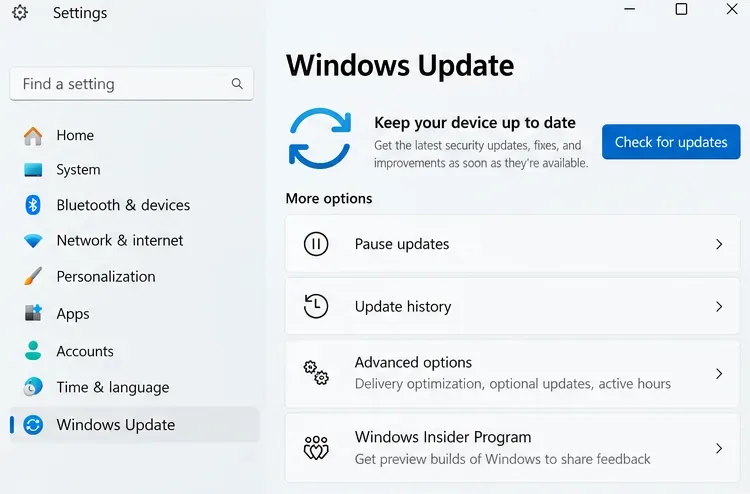
If PUBG crashes, shows a black window, or fails before loading the lobby artwork, check Windows Update and your graphics driver through the hardware manufacturer’s official software or support site. Install applicable updates, restart, and test again. PUBG’s startup crash guidance recommends both checks.
For the explicit “Failed to initialize STEAM” error, PUBG also recommends running Steam and PUBG as administrator. Treat elevation as a targeted diagnostic test: close both first, then use Windows’ Run as administrator command for the installed application. Record whether it changes the result.
If the game displays normally and only the online lobby fails to load, connection testing is a more informative next move than cycling through graphics settings. Avoid changing several unrelated settings together; you will lose track of which change affected startup.
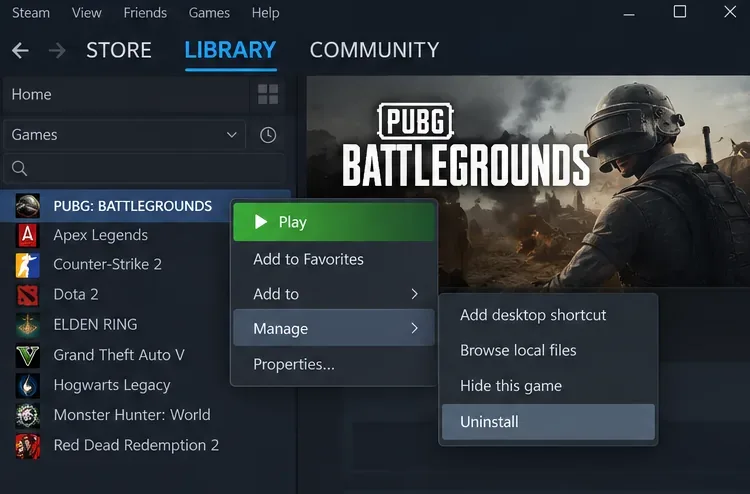
A reinstall becomes reasonable when the problem persists across restarts and connection tests, especially if installation repairs also fail. Save screenshots of your settings and preserve any logs you may need for support. Uninstall PUBG through Steam’s Library management menu and install it again through Steam.
A standard reinstall and PUBG’s documented clean installation are different operations. The clean-install procedure also removes local PUBG data and specified leftover files. Read the official performance guide linked above before taking that additional step; local settings may be reset. Do not delete shared anti-cheat folders or unrelated Steam folders.
Reinstalling Steam itself is a separate escalation. Do not start there when Steam works normally for other games and the only failure is PUBG’s lobby loading.
After a change appears to work, check more than the disappearance of “Initializing”:
If the problem remains, use the official PUBG support request form. Include when the issue began, the exact screen or error, your country and ISP, and the results of verification and alternate-network testing. Describe whether it occurs at startup or after returning from a match.
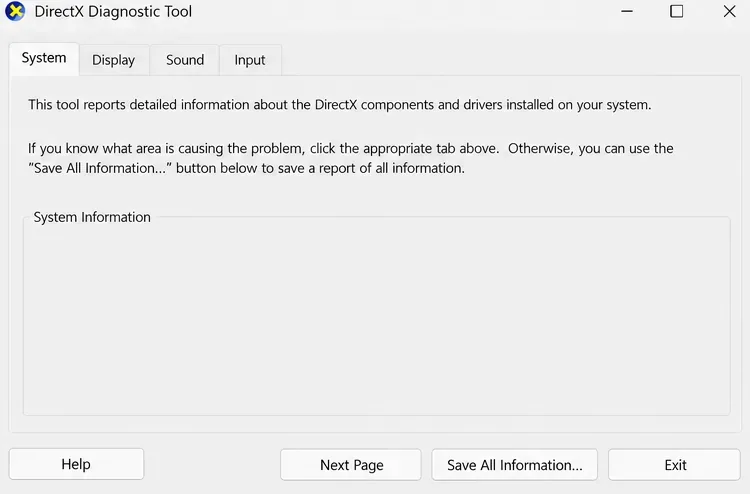
PUBG’s performance guide requests DxDiag information and available crash files. Press Windows + R, enter dxdiag, and use Save All Information to prepare the diagnostic report. Check %localappdata%\TslGame\Saved\Crashes for a relevant crash report if one exists. A loading hang may not produce a crash dump; say so rather than attaching an unrelated file.
The useful outcome is either a repeatable return to the lobby or a report that clearly separates installation, startup, and connection behavior. If the failure persists after these checks, further diagnosis is needed; no single documented fix is confirmed for every PUBG “Initializing” hang.
Paladins removed killcam and Top Play. Learn what replaced them and compare practical recording options for reviewing deaths or saving highlights.
Compare Rocket League’s Dynamic Range presets, reduce music that masks match audio, and learn what the 2026 Override Boost Audio option changes.
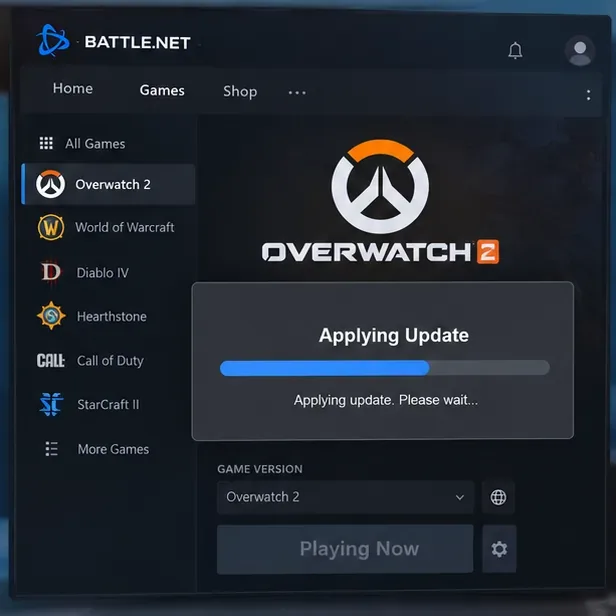
Overwatch 2 stuck on “Applying Update”? Use this current Battle.net troubleshooting order to repair files, clear cache, fix network issues, and avoid unnecessary reinstalls.
Fix PUBG stuck on Initializing on Steam with targeted checks for server issues, launch options, game files, updates, and your internet connection.
Troubleshoot SMITE’s version vendor mismatch on Steam: check the game entry, finish updates, restart Steam, verify files, and know when to contact support.
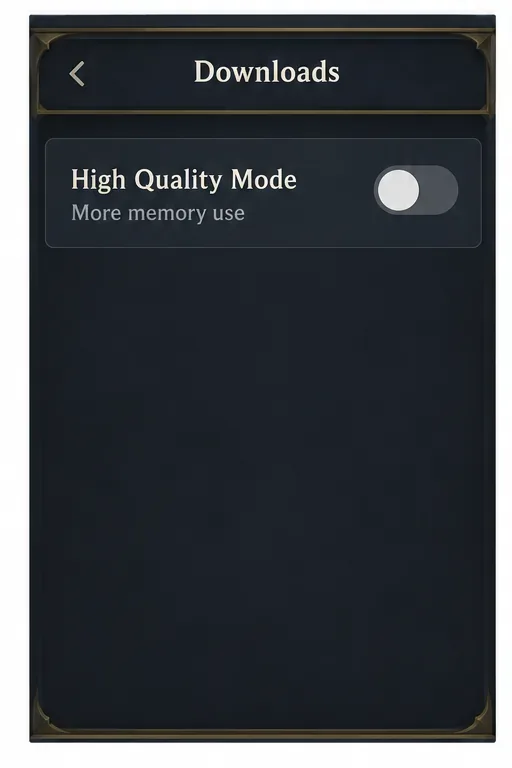
Compare Hearthstone mobile frame-rate settings, High Quality Mode, and phone power options to find a smoother, more stable setup for Android or iPhone.
Warzone shader optimization stuck at 0%? Compare the safest fixes for Steam and Battle.net, from waiting at the Main Menu to file repair and clean boot troubleshooting.
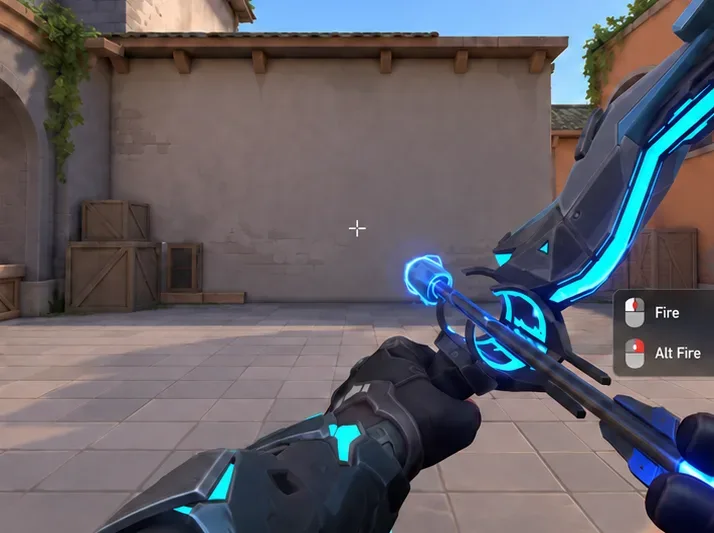
Choose VALORANT ability keybinds that preserve movement and aim, set agent profiles, avoid input conflicts, and test your layout before Competitive.
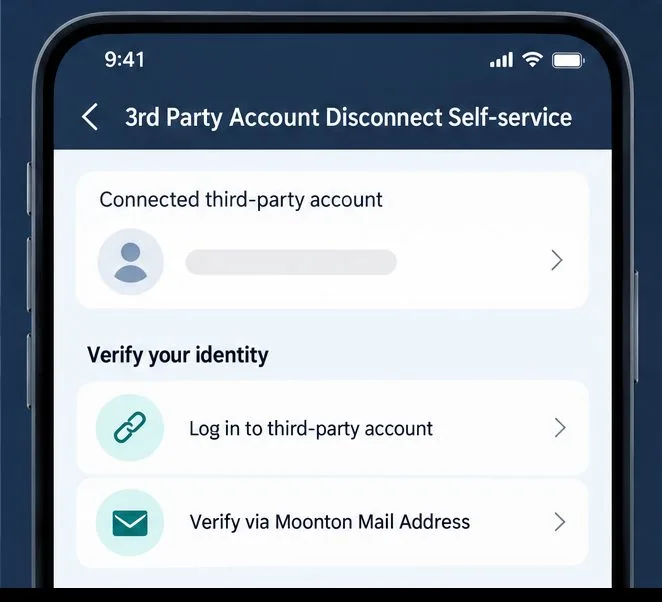
Unlink a third-party account in Mobile Legends through Account Center. Learn the verification options, account safety rule, and how this differs from changing Moonton email.
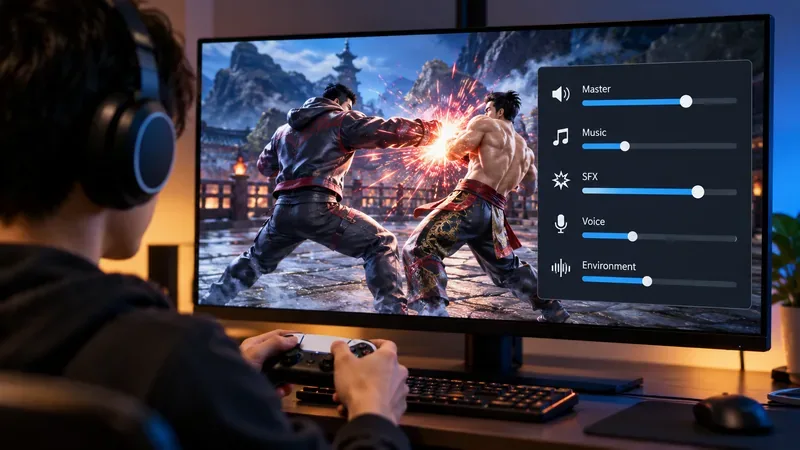
Use a hit-focused Tekken 8 audio mix that keeps impact sounds clear without making music, voices, or stage ambience disappear. Includes a practical starting mix and tuning tips.