Watching Overwatch 2 on Twitch: Find Live Streams and Drops (2026)
Watching Overwatch 2 on Twitch takes only a few steps: open Twitch, search for Overwatch, choose the game category, and select a live channel. You can watch public streams without installing the game. A Twitch account is optional for viewing, but you need to sign in to follow creators, chat, receive channel notifications, or earn and claim Twitch Drops.
One naming detail can make the search confusing: Twitch currently labels the game directory Overwatch, even though many players still search for Overwatch 2. Search for “Overwatch” and select the category result. Drops are separate from ordinary viewing: they are available only during an active campaign, on eligible live streams, and only after you claim the reward on Twitch.
What you need to watch Overwatch on Twitch
- A web browser or the Twitch app on a supported device.
- A stable internet connection. A Twitch account is optional for watching, but sign in for chat, follows, notifications, and Drops.
- A Battle.net account linked through Twitch if you plan to collect an Overwatch reward during a campaign.
- For Drops, a PC or Mac browser or the Twitch app for Android or iOS. Twitch currently does not support earning or claiming Drops through its console, smart TV, or other TV apps.
You do not need to launch Overwatch or own a particular hero to watch someone else play. Keep Twitch open in a browser or app and choose a stream.
How to watch Overwatch 2 on Twitch
-
1. Open Twitch and sign in if you want interactive features
Go to Twitch in a browser or open the mobile app. You can usually start a public live stream without signing in. Log in or create a free account if you want to follow a streamer, write in chat, receive live alerts, or work toward a Drop. Twitch explains the account features in its account setup guide.
-
2. Search for the current Overwatch category
Enter Overwatch in Twitch’s search bar and choose the result marked as a category. That opens the game directory rather than one creator’s channel. You can also open Twitch’s Overwatch directory directly. Its current page label is Overwatch, so use that name if a search for “Overwatch 2” does not surface the category first.
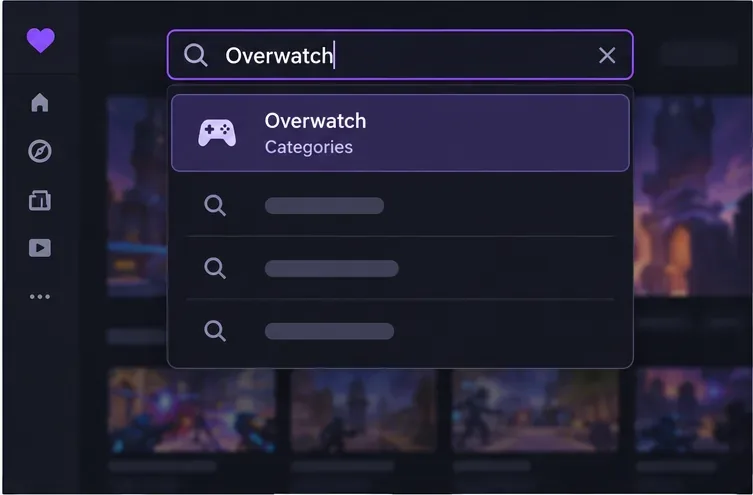
Illustrative search view: select the Overwatch category result to open the game directory. -
3. Pick a live channel from the directory
Scan the live cards for a stream title, language, tags, and viewer count that fit what you want to watch. For a tournament broadcast, look for an official Overwatch esports channel or follow the links on the official 2026 Overwatch Champions Series announcement for season information. For everyday gameplay, a creator’s title and tags can tell you whether the stream is focused on ranked matches, a specific hero, coaching, or casual play. Viewer count is only a discovery signal; it does not tell you whether a stream will be useful or enjoyable.
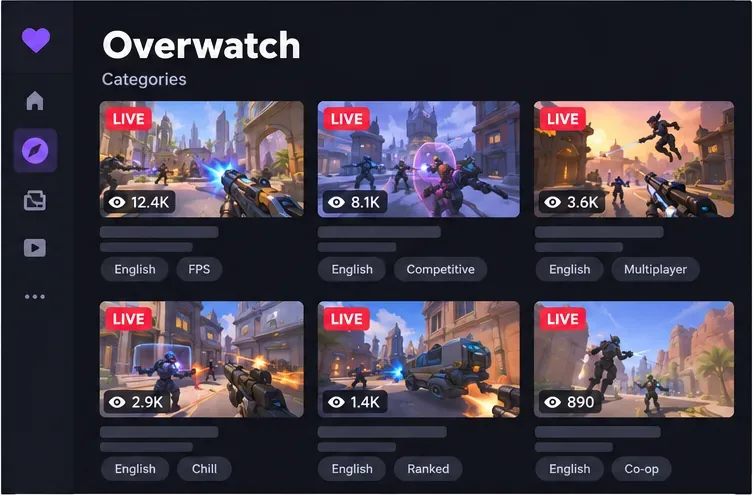
Illustrative directory view. Live cards, viewer counts, and available tags change; use the details shown on Twitch. -
4. Adjust the video player and use chat
Click a live card to open its channel. Use the player’s volume and settings controls to choose a video quality. If the stream buffers, try Auto or a lower available resolution; Twitch recommends Auto in its playback troubleshooting guide. Theater mode gives the video more room, and fullscreen fills the display.
The chat panel sits beside the player on desktop and may appear below the video on a phone. Sign in to send messages. Each channel can set its own chat rules or participation limits, so read the notice shown above the message box if Twitch will not let you post.
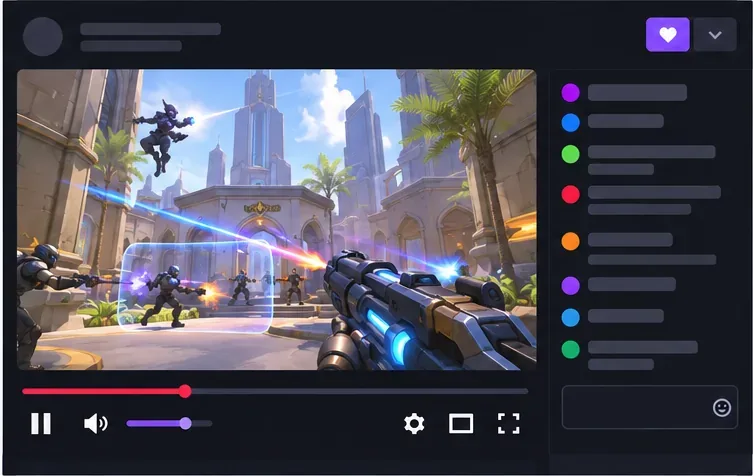
Illustrative player view showing the video controls and space reserved for live chat. -
5. Follow creators and collect eligible Twitch Drops
Select Follow on a channel to make it easier to find again; enable its notification option if you want an alert when that creator goes live. Following a channel does not guarantee Drops. Overwatch rewards appear only during campaigns that Blizzard or another campaign partner has activated.
When an Overwatch Drops campaign is active, open Twitch’s Drops Inventory, find the campaign, and use Connect beside the game to link the Twitch account to the correct Battle.net account. Twitch redirects you to the game publisher to authorize the connection; check that the intended Battle.net account is linked before watching. Then watch a live, eligible Overwatch stream marked for Drops and track the campaign’s required watch time in the Drops panel or inventory. A replay or VOD does not count. Progress can continue across participating channels for the same campaign, but only one channel can earn progress at a time.
When the requirement is complete, claim the reward from the Twitch notification, the Drops panel, or Drops Inventory. Claiming on Twitch and delivering the item into the game are separate steps. Twitch says many rewards arrive within 24–48 hours, while some can take up to seven days; campaign details may give a different timeframe.
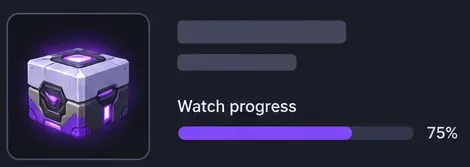
Illustrative progress card; the actual reward, watch target, and campaign availability vary. See Twitch’s official guide to earning and claiming Drops for current campaign rules. It also notes that Drops are supported in a PC or Mac browser and the Twitch apps for Android and iOS, not in console or TV apps.
Tips for a smoother Overwatch stream
- Choose a language you understand. Use directory filters or channel tags when they are available.
- Try Auto quality if video stalls. If it still buffers, test a lower resolution, close other high-bandwidth apps, or switch to a more stable connection.
- Use the stream title to find the right kind of play. Look for the hero, rank, mode, or coaching topic you care about rather than relying only on popularity.
- For esports, check the current official schedule. Tournament dates and broadcast channels can change between stages; the OWCS announcement and official Overwatch channels are safer sources than an old stream link.
- For Drops, use a supported device. You can watch on a larger screen, but switch to a browser on PC/Mac or the Twitch Android/iOS app to earn and claim Drops.
Fix common Twitch viewing problems
The stream keeps buffering
Open the player settings and choose Auto or a lower quality. If playback remains choppy, refresh the channel, update the app or browser, and check whether another device or download is using most of your connection.
I can watch, but I cannot send a chat message
Sign in, expand the chat panel, and read the channel’s participation notice. Some channels restrict who can post or apply a waiting period; the streamer’s rules determine those limits. Twitch’s Chat Basics guide covers signing in and using chat.
My Overwatch Drop is missing
Check that a campaign is active, the channel is eligible and live, the correct Battle.net account is linked, and the requirement is complete. Then open Drops Inventory and claim the reward if a Claim button is available. If Twitch shows it as claimed but the item has not reached the game after the campaign’s stated delivery window, check Blizzard’s account and reward support information.
Frequently asked questions
Is watching Overwatch 2 on Twitch free?
Yes. Watching a public Twitch stream is free. Channel subscriptions and Bits are optional ways to support creators; neither is required to watch an ordinary stream.
Do I need an Overwatch install or a Twitch account to watch?
No game install is needed. A Twitch account is generally unnecessary for viewing a public stream, but you must sign in to chat, follow channels, receive notifications, or earn and claim Drops.
Are Overwatch Twitch Drops always available?
No. Drops depend on an active promotion and eligible channels. Check Twitch Drops Inventory or the campaign announcement before watching specifically for a reward, and read the listed watch-time requirement.
Can I earn Drops while watching on a console or smart TV?
Twitch currently supports Drops through a PC or Mac browser and the Twitch apps for Android and iOS. Its console, smart-TV, and other TV apps do not support earning or claiming Drops, so use a supported device for the reward steps.









