Home
» 🎮 Esports
»
Ultimate Guide: How to Safely Remove or Replace a PS5 M.2 SSD
Ultimate Guide: How to Safely Remove or Replace a PS5 M.2 SSD
Ultimate Guide: How to Safely Remove or Replace a PS5 M.2 SSD
If you are running out of room on a PS5, you can add or replace the removable M.2 NVMe SSD installed in the console’s expansion bay. One important distinction: the PS5’s built-in ultra-high-speed storage is not a user-swappable drive. This guide covers the separate M.2 expansion SSD, including safe removal, compatibility checks, installation, formatting, and common mistakes.
Quick answer: Shut the console down, unplug it, let it cool, remove the correct outer cover for your model, open the expansion bay, and lift the M.2 SSD diagonally by its edges. Install a compatible PCIe Gen4 x4 NVMe drive with a cooling structure, then follow the PS5 formatting prompt. Formatting erases data on that M.2 drive.
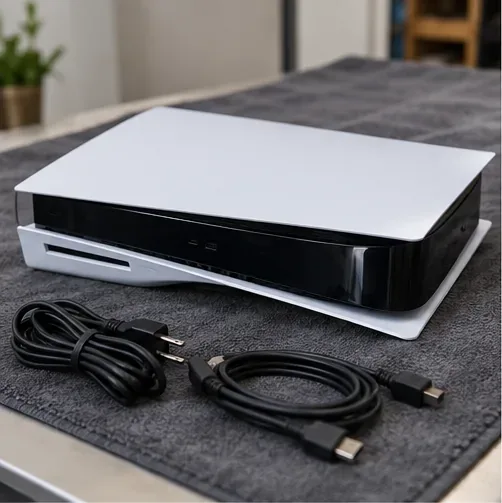
Power the console off, unplug its cables, and let it cool before opening the expansion bay.
What “PS5 internal SSD” means
Searches for PS5 internal SSD replacement often mix up two different parts. The built-in storage is part of the console’s internal hardware and is not the drive this routine upgrade guide describes. The removable M.2 SSD is an optional expansion drive installed under a service cover. Sony provides instructions for adding, removing, and moving that M.2 drive; use those instructions for your exact console model.
If you are replacing an existing expansion drive, first decide what you want to do with the games stored on it. Use the PS5’s storage controls to move games to another supported location or plan to download them again. Do not assume that copying or cloning the drive on a computer is the correct transfer method.
Check PS5 M.2 SSD compatibility before buying
A drive’s label alone is not enough. The SSD, its heatsink, and the complete cooling assembly must fit the expansion bay. Sony recommends updating PS5 system software before installation and notes that not every third-party drive meeting the listed specifications is guaranteed to work.
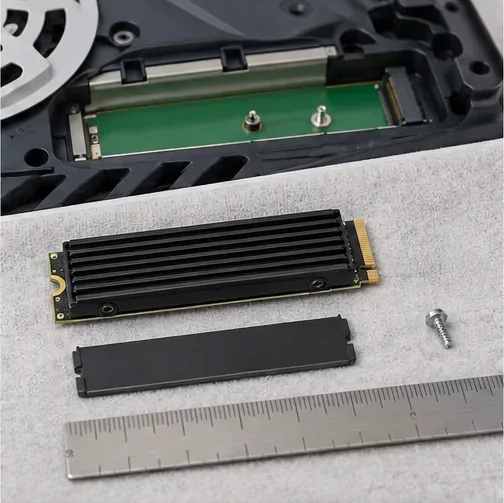
Check the SSD and its cooling assembly as one unit; the complete assembly must fit the console’s limits.
Requirement
PS5 specification
What to check
Interface
PCIe Gen4 x4 M.2 NVMe, M Key
M.2 SATA is not supported.
Capacity
250 GB to 8 TB
Choose a capacity within this range.
Supported sizes
2230, 2242, 2260, 2280, or 22110
The four digits indicate the drive’s width and length in millimeters.
Overall size with heatsink
Up to 25 mm wide; 30, 42, 60, 80, or 110 mm long; up to 11.25 mm thick
Thickness can be up to 8.0 mm above the board and 2.45 mm below it.
Sequential read speed
5,500 MB/s or faster recommended
This is Sony’s recommendation, not a guarantee that every compliant drive will behave identically.
Cooling
A heat-dissipation structure is required
Use a compatible heatsink or heat-transfer structure. Do not stack another heatsink on a drive that already has one.
Work on a stable, well-lit table with a clean, soft cloth. You need a #1 Phillips screwdriver that fits the console screws. A small flashlight and a dish for the screws and spacer can help. Avoid metal pry tools and do not touch the M.2 connector contacts.
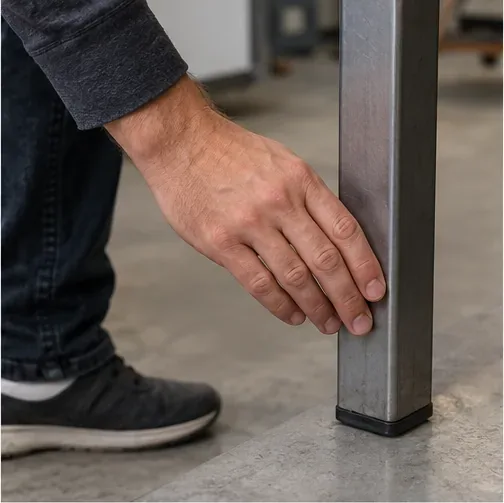
Before touching the SSD or console connector, discharge static by touching a grounded metal object.
Check the model number on the console and open Sony’s guide for the matching model group. The outer-cover removal procedure differs between CFI-1000 and CFI-2000/7000 models.
Fully power down the PS5. Disconnect the AC power cord and all other cables, then wait for the console to cool.
Place it on the protective cloth and remove the base or stand as directed for that model. Do not work on a powered console.
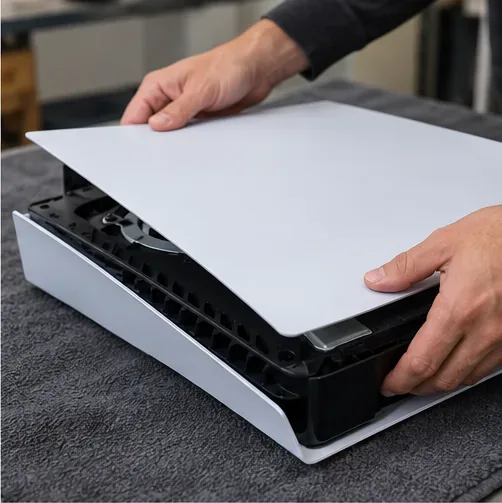
Remove the console’s outer panel using the method for its model group; do not pry against the casing.
How to remove a PS5 M.2 SSD safely
1. Remove the model-specific outer cover
Follow the cover instructions for the model number you checked. The CFI-1000 group uses a different panel-removal sequence from the CFI-2000/7000 group. Keep the console stable and lift or slide the cover only in the direction shown in the official guide. Avoid applying force if a clip or panel does not release.
2. Open the expansion bay
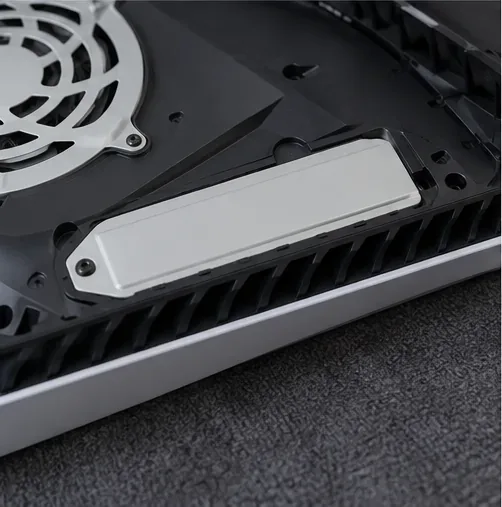
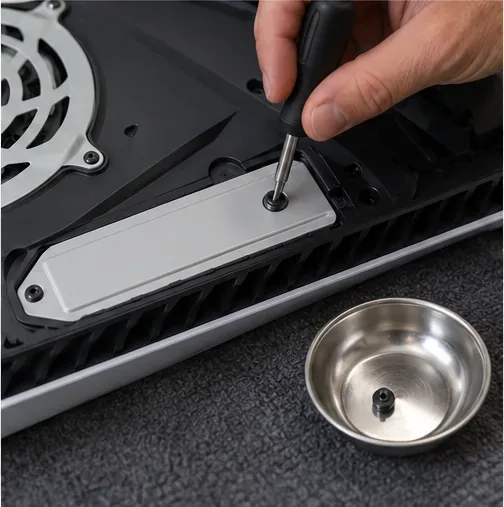
Locate the narrow expansion-slot cover. Remove its screw with the #1 Phillips screwdriver, then lift off the cover and set the screw aside. Do not confuse this bay with the console’s built-in storage or other internal parts.
The M.2 SSD sits under the expansion-slot cover, separate from the console’s built-in storage.Keep the expansion-cover screw and the drive’s retaining hardware together so they are not misplaced.
3. Free and remove the existing drive
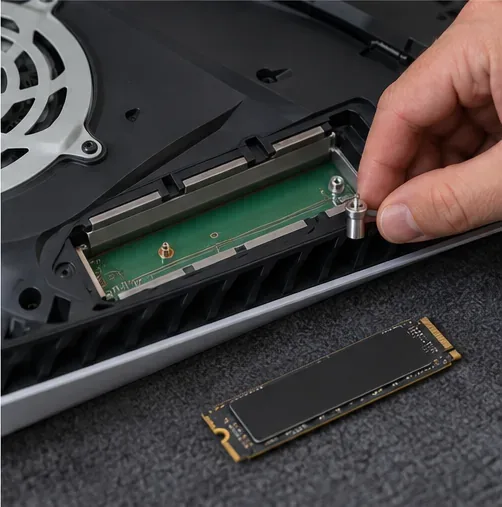
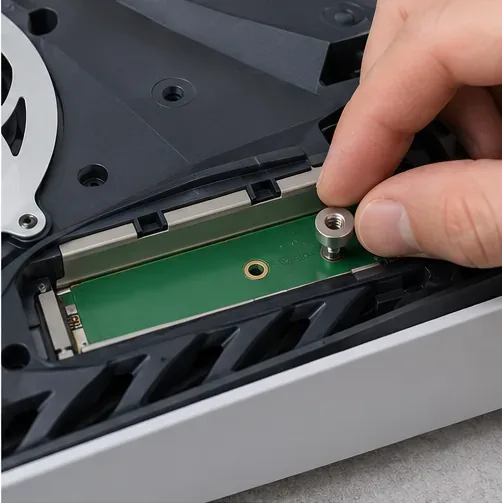
Remove the small retaining screw. Keep track of the spacer and the mounting position for your drive length. Lift the SSD slightly, hold it by the edges, and pull it diagonally out of the connector. Do not touch the gold contacts, bend the board, or pull straight up while it is still engaged.
Keep the spacer and retaining screw; the spacer must match the length of the replacement SSD.Ease the old M.2 drive out at an angle and hold it only by its edges.
Place the removed SSD in an antistatic bag or another safe, dry place. If you are only removing it for service, reinstall the expansion-slot cover and outer panel before reconnecting the console. Sony advises removing the M.2 drive before sending a PS5 for repair.
How to replace or install a PS5 M.2 SSD
4. Set up the heatsink and spacer
If the SSD does not include a cooling structure, attach a PS5-compatible heatsink or heat-transfer sheet using the drive maker’s instructions. Leave a factory-installed heatsink in place; Sony recommends against adding another one over it. Move the spacer to the mounting hole that matches the SSD’s length, such as the 80 mm position for a 2280 drive.
Match the spacer position to the SSD length before securing the drive.
5. Insert the new drive
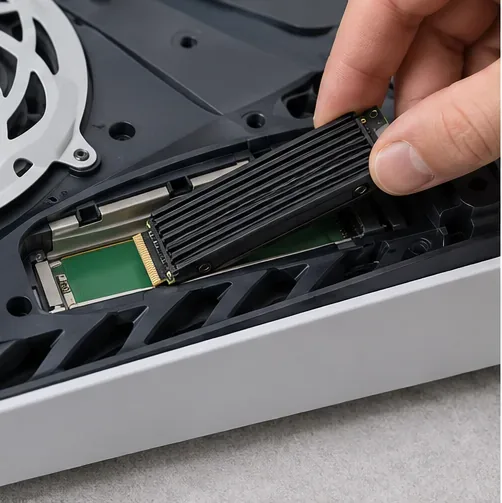
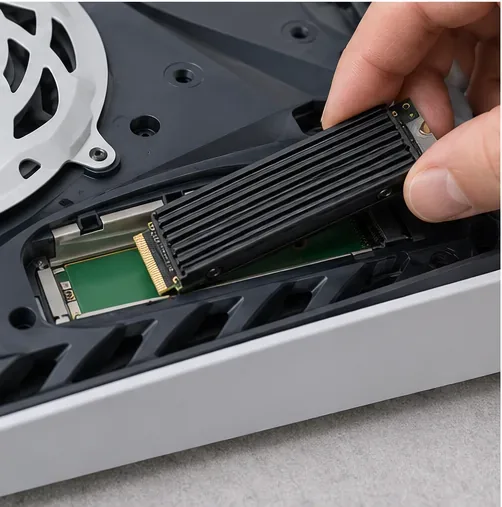
Hold the SSD by its edges, align the connector notch, and insert the drive diagonally until it is firmly seated. The connector should meet squarely and the board should rest over the correct spacer. If it does not seat easily, stop and check the orientation and size; never force the connector.
Align the notch and insert the SSD at an upward angle until it is fully seated.
6. Lower, secure, and close the console
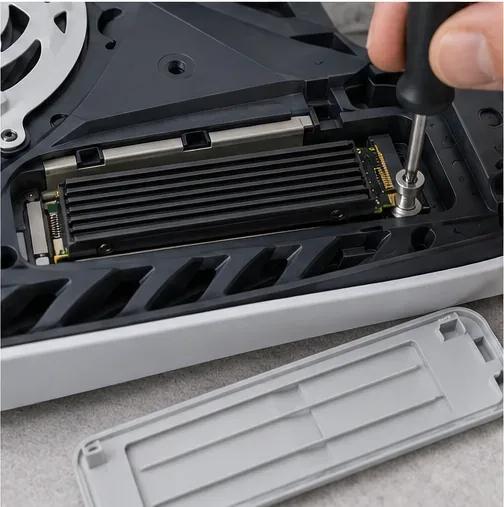
Lower the drive onto the spacer and fasten it with the retaining screw. Tighten it until secure without overtightening. Refit the expansion-slot cover and its screw, then reinstall the exterior cover, base, and other parts for your model. The cover should sit flush. Sony warns not to power on or play on the PS5 while a cover is off.
Secure the seated SSD to its spacer before replacing the expansion-slot cover.
Format the M.2 SSD and verify storage
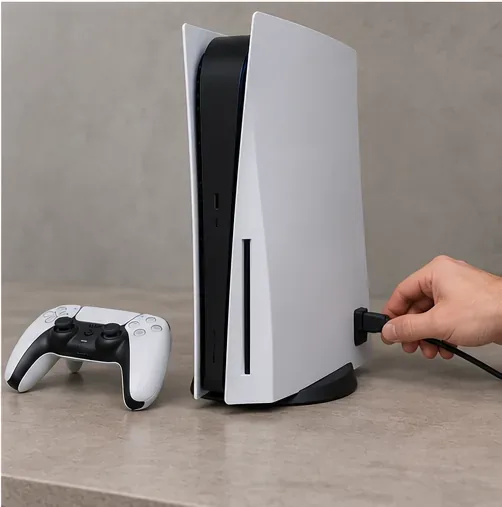
Reconnect the cables and turn on the fully reassembled console. On first use, the PS5 displays a formatting guide for the new M.2 drive. Formatting erases all data on that drive and cannot be undone, so confirm that you selected the correct storage device and have moved or backed up anything you need. Do not switch off the console while it formats.
Reconnect power only after all covers and the base are back in place.
After setup, check Settings > Storage > M.2 SSD Storage to confirm the drive is listed. You can also use the Game Library’s move option to transfer installed games to or from M.2 storage. PS5 games can be played from a properly installed M.2 SSD; if a particular game has performance issues, Sony recommends moving it to the console’s built-in storage.
Common mistakes to avoid
Buying the wrong interface: choose PCIe Gen4 x4 NVMe M.2, not M.2 SATA.
Ignoring heatsink dimensions: check the full assembly, including the cooling parts, against Sony’s width, length, and thickness limits.
Using an SSD without cooling: PS5 use requires a heat-dissipation structure.
Forcing a cover or connector: a cover that does not close may indicate an oversized heatsink or incorrectly seated drive.
Formatting without checking: formatting erases the selected M.2 SSD, and the deleted data cannot be recovered.
Powering on while open: put every cover back before reconnecting power.
Frequently asked questions
Can I replace the PS5’s built-in SSD with a larger one?
This guide does not cover replacing the console’s built-in storage. The user-accessible upgrade is a separate M.2 SSD installed in the expansion bay. Use Sony support or an authorized repair provider for internal hardware faults.
Does installing an M.2 SSD affect the warranty?
Sony says warranty coverage generally should not be affected when a compatible M.2 drive is installed according to its instructions. Damage caused by an incompatible drive or incorrect installation may not be covered, and warranty terms vary. Read the warranty terms that apply to your region.
Can I play PS5 games from the added M.2 SSD?
Yes. After the M.2 drive is installed and formatted, PS5 games can be downloaded, moved, and launched from it. Sony notes that not every game will necessarily perform exactly like it does from the built-in ultra-high-speed SSD.