Home
» 🎮 Esports
»
How to Connect an Xbox Controller to a Tesla
How to Connect an Xbox Controller to a Tesla
How to Connect an Xbox Controller to a Tesla
To connect an Xbox controller to a Tesla, put a Bluetooth-capable controller in pairing mode, open the vehicle’s Bluetooth settings, and select the controller when it appears. Tesla owner manuals describe Bluetooth Classic game controllers for supported vehicles, and say a paired controller connects automatically. You can then use it in compatible Tesla Arcade games while the vehicle is parked. Controller support, menus, and available games can vary by model, software, configuration, and region, so use your vehicle’s current owner manual if its screen differs from these steps.
Check compatibility before connecting
The key requirement is Bluetooth Classic support. Many Xbox Wireless Controllers, including current Xbox Series X|S controllers, can pair over Bluetooth. Some older Xbox One controllers use Xbox Wireless without Bluetooth, so the Xbox One name alone does not guarantee compatibility. Check the exact controller model and Microsoft’s connectivity guide before troubleshooting the Tesla.
Bluetooth-capable controller: It can appear in a Bluetooth device search. Charge its batteries before pairing.
Older or wired controller: It may need a supported USB connection instead. Tesla’s USB port behavior depends on model and build date; check your vehicle manual before buying a cable or adapter.
Parked Tesla: Start and test a game only while the vehicle is in Park. Tesla warns that Arcade features are for use while parked.
One nearby controller: For the first setup, move it close to the touchscreen and disconnect it from a phone, PC, or console that might reconnect to it.
Bluetooth pairing does not require an Xbox console or a Tesla Premium Connectivity subscription. Internet access may still be needed for downloading or using particular entertainment features, and what is available varies by vehicle and region.
How to connect an Xbox controller to a Tesla
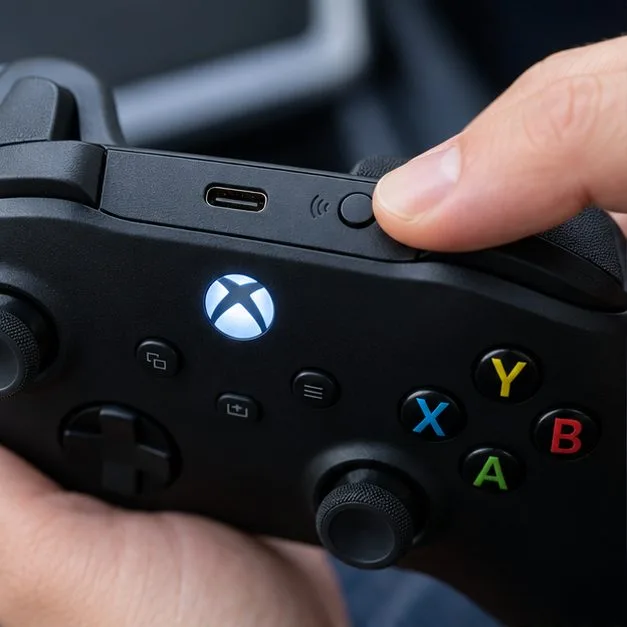
Turn on the controller. Press the Xbox button. Then press and hold the controller’s Pair button for about three seconds, until the Xbox button flashes rapidly. The Pair button is usually on the top edge near the USB port; its position varies by controller generation.
Hold the controller’s Pair button until the Xbox button flashes rapidly.
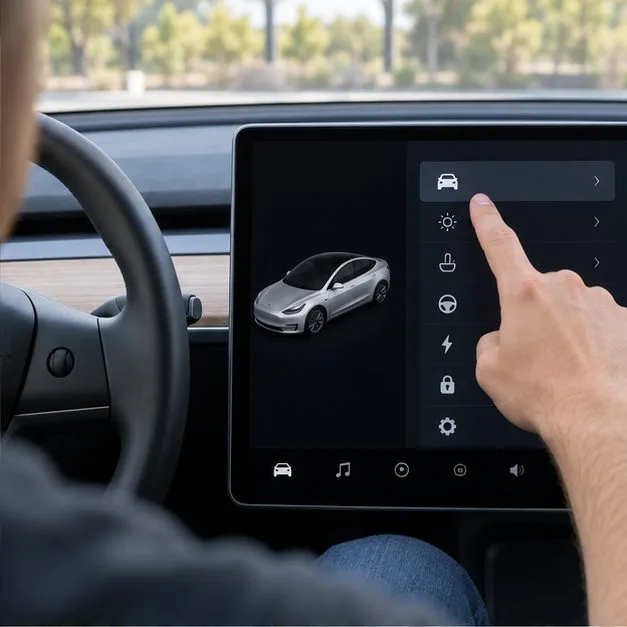
Open Bluetooth settings on the Tesla touchscreen. With the vehicle parked, open Controls and choose Bluetooth. Tesla’s manuals describe pairing a gaming controller through the same Bluetooth flow used for a phone. Depending on the vehicle and software version, the touchscreen may begin searching automatically or show an option such as Add New Device or Start Search.
Open Controls, then Bluetooth; the exact menu layout can vary by Tesla model and software.
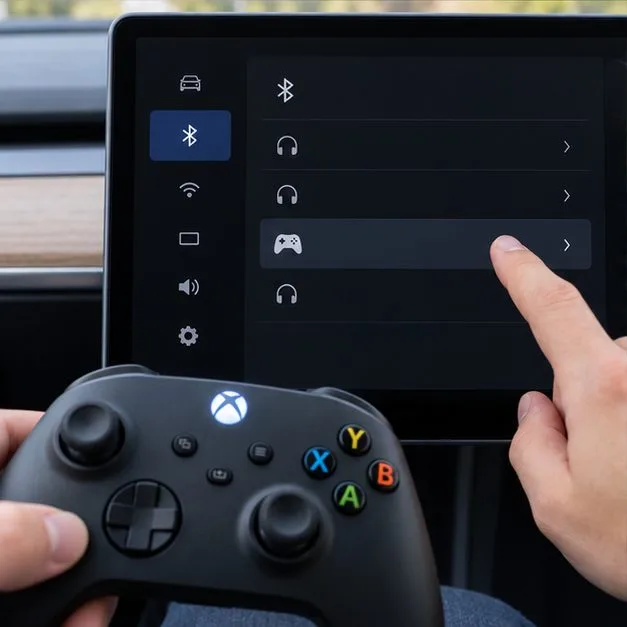
Select the controller from the device list. Look for “Xbox Wireless Controller” or a similar controller name, then tap it on the touchscreen. Follow any prompt that appears. There is no universal Tesla PIN to enter; do not assume a code such as 0000 unless your own screen specifically asks for it.
Choose the Xbox controller when it appears among nearby Bluetooth devices.
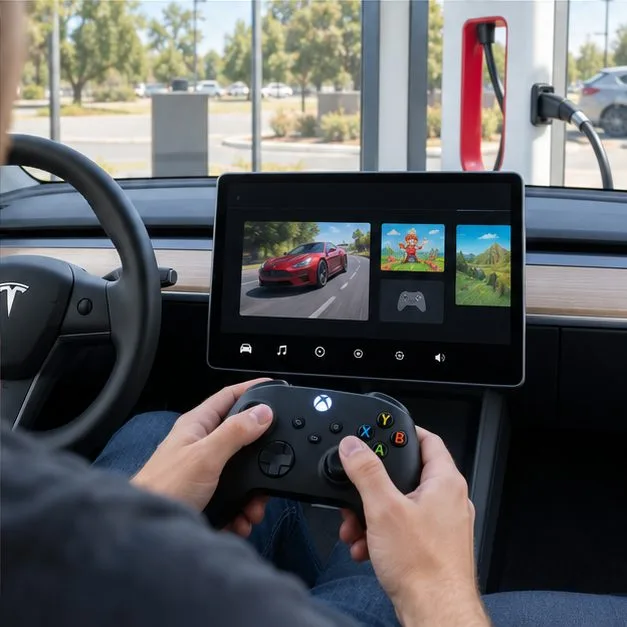
Confirm the connection in a supported game. Tesla says a paired Bluetooth controller reconnects automatically. Open Arcade while parked, choose a title that supports a controller, and test the directional controls and buttons. A successful Bluetooth pairing does not make every Arcade game controller-compatible.
Test the controls in a compatible Arcade title only while the Tesla is parked.
If the Xbox controller will not pair
What you see
What to try
The controller never appears
Hold Pair until the Xbox button flashes quickly; make sure the controller supports Bluetooth; move it closer; and disconnect it from other devices that may have reclaimed the connection.
The controller appears but does not connect
Remove or forget its old entry in Tesla Bluetooth settings, restart the controller, then search and pair again. Follow any on-screen confirmation instead of entering a guessed PIN.
It pairs but does not control the game
Try another Arcade title that supports a gamepad. Game support is title-specific, and some games use the steering wheel buttons or touch controls instead.
Bluetooth is unavailable or the search fails
Check whether Valet Mode is active; Tesla manuals note that Bluetooth is disabled in Valet Mode. Also check your model’s owner manual for its current menu and connection limits.
Tesla manuals for several models list a limit of two Bluetooth devices connected at once, though details can differ by model and screen configuration. If a phone or headphones are already connected, disconnect one temporarily and test the controller again. The older article’s claim of support for four controllers should not be treated as a universal Tesla limit.
Can you use a wired Xbox controller?
Some Tesla owner manuals also describe USB-compatible game controllers. The supported port depends on the vehicle: for several Tesla models, manuals direct owners of vehicles built before approximately November 1, 2021 to the front center-console ports, and later vehicles to the glovebox USB port because some console ports are charge-only. This guidance is model-specific; check your manual before connecting a wired controller. A USB-C cable by itself does not guarantee that a controller will work.
Frequently asked questions
Do I need Premium Connectivity to pair an Xbox controller?
No. Pairing is a Bluetooth connection between the controller and the vehicle. Some entertainment features may need Wi-Fi or cellular data, but that is separate from controller pairing.
Can I play while the Tesla is moving?
No. Tesla says to use Arcade features only while parked. Do not play while driving or rely on driver-assistance features to make gameplay safe.
Will every Xbox controller and every Tesla game work?
No. The controller must support Bluetooth Classic for wireless pairing, and individual games have their own input support. Tesla’s manuals also note that entertainment features vary with market, vehicle configuration, and date of manufacture. Check the manual for your exact vehicle and test the specific game you want to play.