Home
» 🎮 Esports
»
How to Connect an Xbox Controller to a MacBook via Bluetooth in Minutes
How to Connect an Xbox Controller to a MacBook via Bluetooth in Minutes
How to Connect an Xbox Controller to a MacBook via Bluetooth
To connect an Xbox controller to a MacBook via Bluetooth, turn on a supported controller, hold its Pair or Connect button until the Xbox button flashes, then open Apple menu > System Settings > Bluetooth and choose Connect beside the controller. When macOS shows it as connected, open a game that supports controllers and test the controls. Pairing uses the Mac’s built-in Bluetooth settings; you do not need a third-party app for the connection.
Compatibility depends on the exact controller model, and a successful Bluetooth connection does not guarantee that every game supports gamepad input. Use the checks below to confirm the model and get through pairing without relying on outdated macOS menu paths.
Check whether your Xbox controller works with Mac
Apple currently lists these Xbox controllers as supported for connection to Apple devices, including Mac:
Xbox Wireless Controller with Bluetooth (Model 1708)
Xbox Wireless Controller Series S
Xbox Wireless Controller Series X
Xbox Elite Wireless Controller Series 2
Xbox Adaptive Controller
Do not assume that every older Xbox One controller has Bluetooth. Apple’s supported list specifically identifies the Bluetooth-equipped Model 1708; if your controller is an earlier model that does not support Bluetooth, it will not appear in your Mac’s nearby-device list. Check the model information or the manufacturer’s documentation if you are unsure.
Make sure the controller has usable battery charge, and turn on Bluetooth on the Mac. There is no extra app to install for standard pairing. Apple’s instructions do not set a minimum macOS version for basic Bluetooth pairing; macOS Ventura 13 or later is required for the newer Game Controllers customization settings described below.
Pair an Xbox controller with your MacBook in four steps
1. Turn on the controller
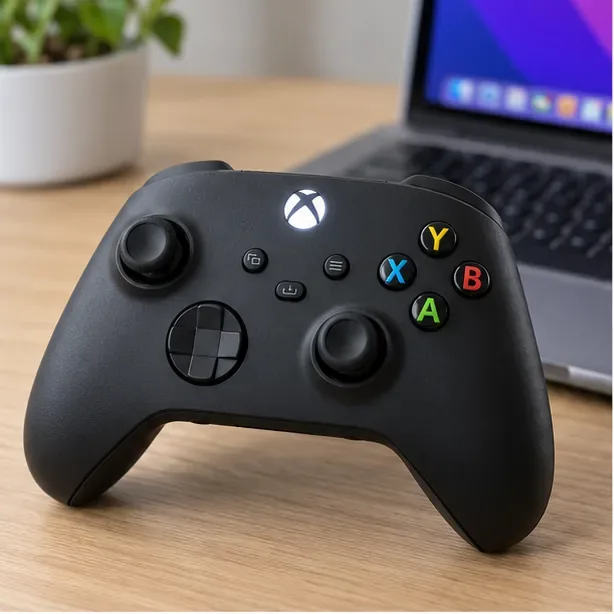
Press the Xbox button in the center of the controller. The button lights up when the controller is on. If it does not light, replace or recharge the batteries using the charging method recommended for your controller.
Start with the controller powered on; its Xbox button should be lit.
2. Put the controller in Bluetooth pairing mode
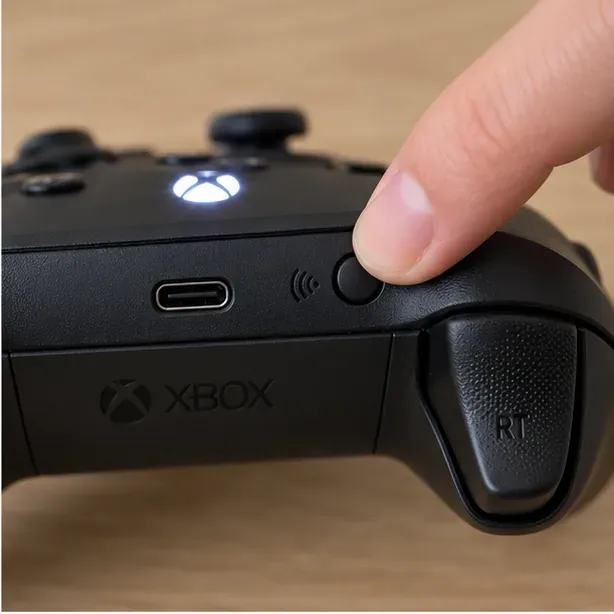
Press and hold the controller’s Pair or Connect button for a few seconds. The Xbox button begins flashing when the controller is discoverable. The button is on the top edge of the controller; its exact appearance and position can vary by model. If the light is not flashing, keep holding the button briefly, then release it and check again.
Hold the controller’s Pair or Connect button until the Xbox button flashes.
3. Choose the controller in macOS Bluetooth settings
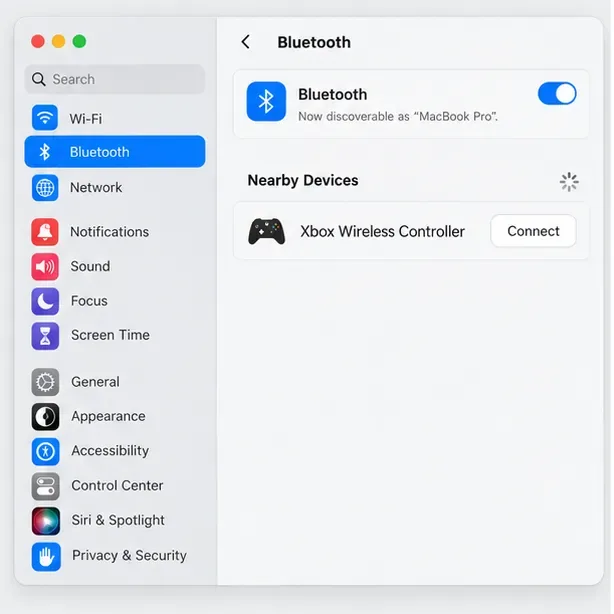
On the MacBook, open the Apple menu, choose System Settings, and select Bluetooth in the sidebar. If Bluetooth is off, turn it on. Find Xbox Wireless Controller under nearby devices and click Connect. If macOS displays a confirmation prompt, accept it; if it asks for a code, follow the prompt on screen.
On older macOS releases, the app may be called System Preferences instead of System Settings. The Bluetooth section is still where you select and connect the controller.
Select Xbox Wireless Controller in Bluetooth settings and click Connect.
4. Confirm the connection and test a game
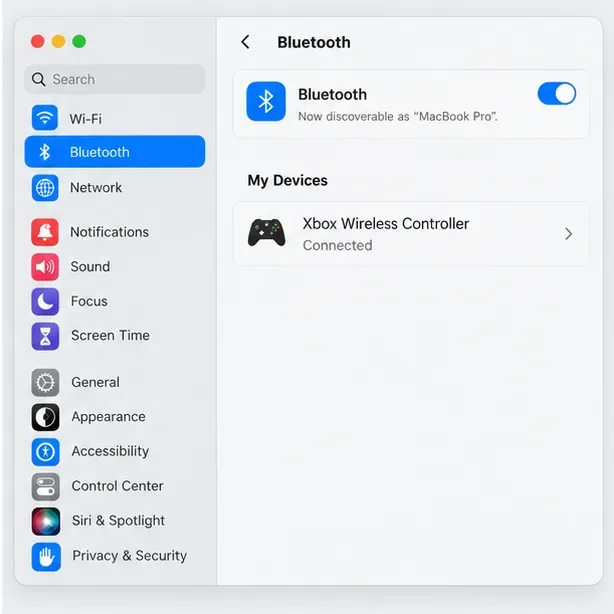
Wait for the controller to appear as connected in Bluetooth settings. Then open a game with controller support and test the left stick, buttons, and triggers in a menu or safe practice area. If a game was already open during pairing and does not detect the controller, close and reopen that game, then check its control or input settings.
Confirm the controller appears in My Devices as Connected.
Fix common Xbox controller Bluetooth problems
The controller does not show up in Bluetooth
Confirm your exact model is on Apple’s supported list and that the Xbox button is flashing. A steady light usually means it is on but not currently discoverable.
Turn the controller off and back on, then hold Pair or Connect again. Keep the controller near the Mac while pairing.
If it is connected to an Xbox, phone, or another computer, disconnect it there or temporarily turn off Bluetooth on that device, then retry pairing with the Mac.
Reduce other active Bluetooth connections if discovery remains unreliable. Apple notes that the number of supported connections varies by device and wireless setup.
It appears in Bluetooth, but pairing will not finish
If macOS already has a stale entry for the controller, open Bluetooth settings, select the controller or its More Info button, and choose Forget This Device. Put the controller back into pairing mode and connect it again. Apple recommends forgetting and re-pairing a controller when it does not connect or work as expected.
It says connected, but the game does not respond
Bluetooth pairing and game support are separate. Check that the game supports controllers on Mac and that its input settings are set to a gamepad. Support for particular buttons and features can differ between controllers and apps. On macOS Ventura 13 or later, open System Settings > Game Controllers to select a connected controller and review available customization options; those settings do not add controller support to a game that lacks it.
macOS asks for a controller firmware update
Install current software updates for macOS and the controller. If a firmware update is required, follow the controller maker’s instructions; Apple directs Xbox users to Microsoft’s update guidance. After the update, return to Bluetooth settings and pair the controller again if needed.
Useful tips after pairing
Reconnect later: Once paired, the controller should be available again from the Mac’s Bluetooth settings when it is on and nearby. If it connects to another previously paired device, use the controller maker’s switching instructions or disconnect that other device.
Customize supported controls: On macOS Ventura 13 or later, select the controller in System Settings > Game Controllers. Available options depend on the controller and macOS.
Try a wired connection if Bluetooth is unavailable: Apple supports compatible wired controllers, but the Mac model and controller may require a USB adapter. Use a cable that supports data, not charging only.
Once the controller appears as connected and the game recognizes its input, your MacBook is ready for controller-supported play. If pairing succeeds but one title still ignores the controller, check that game’s Mac-specific controller support and input settings first.