Home
» 🎮 Esports
»
Minecraft Error World: What Glitched Worlds Are—and How to Escape Safely
Minecraft Error World: What Glitched Worlds Are—and How to Escape Safely
Minecraft Error World: What Glitched Worlds Are—and How to Escape Safely
Minecraft Error World is not a documented vanilla dimension or special game mode. Players may use the phrase for a world with missing chunks, odd terrain, a custom map, a mod, or a server challenge. If you are stuck or seeing broken terrain, first protect your save, then check whether the problem is a temporary loading issue or persistent world damage. The reliable Minecraft escape route depends on what is actually happening; portals, elytra, and a reload key cannot repair a damaged save by themselves.
What “Minecraft Error World” Usually Means
Minecraft’s official guides describe dimensions such as the Overworld, Nether, and End. “Error World” is best treated as a community nickname unless the creator of a specific map, add-on, or server documents it as a feature. The earlier claims about a guaranteed secret seed, “Backrooms Beta,” phantom gliders dropping elytra, and special glitch loot are not supported by the official game material linked below.
A strange view does not always mean your world file is corrupted. A client may temporarily fail to display terrain, while a persistent hole or missing build after restarting can point to a different problem. Edition, game version, installed packs, and whether you are playing on a server all matter. Check the current Minecraft release changelogs for the exact edition and version you use.
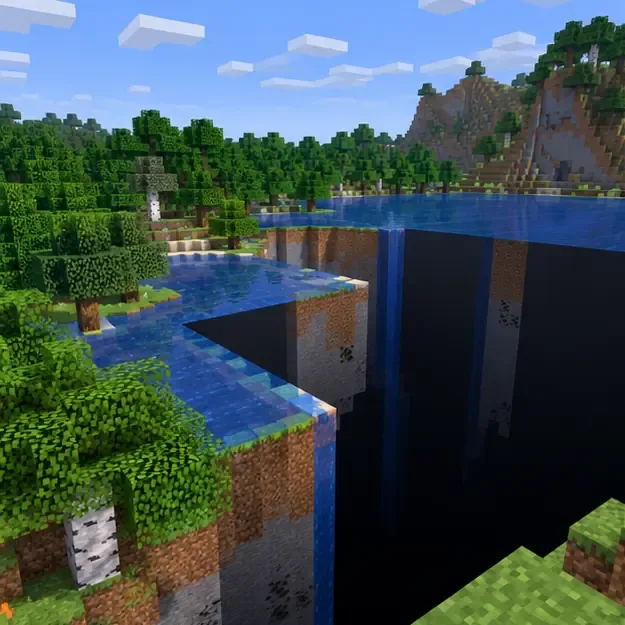
A missing-terrain view can look dramatic, but it does not by itself show whether chunks are unloaded or saved as missing.
Check the Symptom Before You Try an Escape Route
What you notice
What it may indicate
Safest next move
A gap appears briefly, then terrain returns after you reconnect
A temporary chunk-loading or display problem
Quit normally, reopen the world, and reload chunks if you use Java Edition.
The same blocks or structures remain missing after restarting
A persistent world, version, or add-on issue
Make a backup before testing anything else.
The problem happens only on one multiplayer world
A server or Realm issue may be involved
Record the location and ask the owner or operator to check the world.
The game crashes while loading the affected save
A crash or save compatibility issue needs separate troubleshooting
Keep an untouched copy and note your edition, version, and installed packs.
These clues are a triage guide, not a diagnosis. A texture pack or shader can change how terrain looks without changing the saved blocks, while a persistent world problem needs a backup-first approach.
A Safe Minecraft Error World Escape Checklist
1. Stop experimenting and protect the world
If the world still opens, leave it normally and make a separate backup before testing fixes. On Java single-player, the official Help Center’s steps are to select the world, open Edit, and choose Make Backup. Save the backup somewhere you can find, and do not overwrite your only copy while trying repair tools or changing game versions.
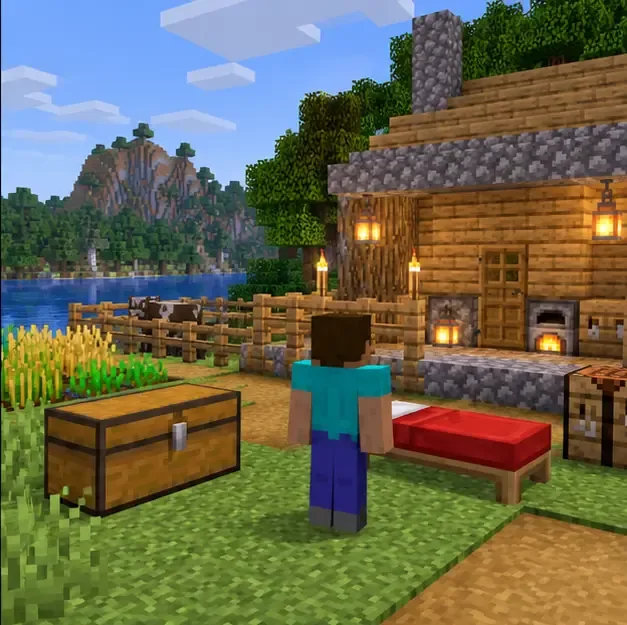
A familiar base is a useful landmark when planning recovery; back up the world before changing it.
For a Java Realm, the owner can use the Realm’s World Backups area to restore an earlier save. For Bedrock, backup and restore steps depend on the platform and whether a manual or cloud backup is available. A restore rolls the world back to the selected save point, so later builds and items may be lost. Follow the edition-specific instructions for saving a Java single-player backup, restoring a Java Realm backup, or restoring or recreating a Bedrock world.
2. Reload the world if the terrain may only be stuck loading
Save and quit to the title screen, then reopen the world. In Java Edition, press F3+A to reload all chunks; some laptops require the Fn key as well. Mojang’s hotkey guide lists F3+T for reloading textures, sounds, and client resources—not chunks. That distinction matters: reloading chunks can refresh what the client displays, but it is not a world-file repair. In Bedrock Edition, leave and re-enter the world; Java’s F3 shortcuts do not apply.
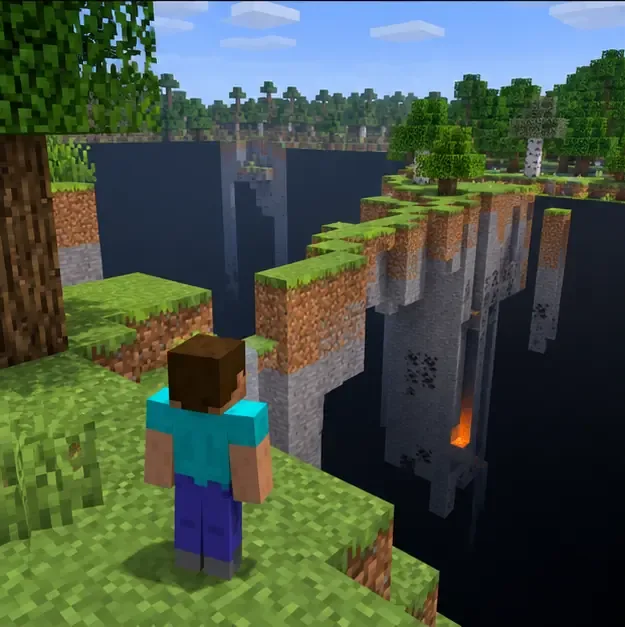
Stay on solid ground while checking a gap; do not jump or glide into terrain that has not loaded.
If the gap disappears after reconnecting, continue cautiously and keep the backup. If the same missing blocks remain, stop repeating reloads and move to backup recovery or ask the server owner for help. Read the official Java Edition hotkey reference for the current control list.
3. Move to known-safe ground—or use a command only if you have permission
If you are physically stuck in a cave, hole, or enclosed build but the terrain is intact, use a route you can verify: place blocks, climb a ladder, or retrace your path. Avoid running or flying across a void-looking gap. An elytra is not a guaranteed rescue tool, and it is not a glitch-world drop; Mojang’s guide says elytra are found in End ship treasure rooms, while phantom membranes are used to repair them.
If commands are enabled and you know a safe destination, a coordinate teleport can move you out of a trap: /tp @s <safe_x> <safe_y> <safe_z>. Use coordinates for solid, loaded ground that you recognize; do not assume 0 100 0 is safe in every seed or dimension. Commands require permission in multiplayer, so ask the Realm owner or server operator rather than trying to bypass access controls. In Bedrock single-player, enabling cheats permanently disables achievements for that world, even if cheats are turned off later. See Mojang’s guide to using commands in Minecraft.
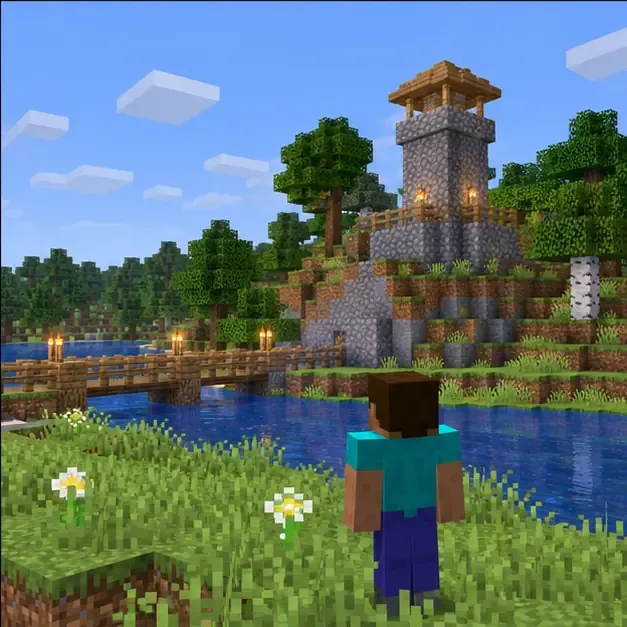
A recognizable landmark is a better destination than guessed coordinates when using a permitted teleport command.
4. Restore a backup if the damage persists
If the same terrain is missing after a normal restart, or the save repeatedly crashes, stop making new changes to the original. Restore a copy from before the problem appeared, then check whether it loads correctly. Realm owners should compare the available backup dates before selecting one. Bedrock players should use the backup method available for their device or Realm. If there is no backup, first copy the world as it currently exists; then record the game version, edition, add-ons, and steps that reproduce the issue before contacting support or reporting a reproducible bug through the official Minecraft bug tracker.
Escape-Route Myths to Skip
F3+T fixes missing chunks: It reloads client resources. Use F3+A for Java chunk reloads.
Phantoms drop elytra: Official Minecraft material places elytra in End ships; phantom membranes are a repair item.
A portal is a universal reset: A portal is not a guaranteed way to return to safe terrain or repair a world.
A specific seed guarantees an Error World or special loot: Treat seed claims as unverified unless the creator identifies the exact edition, version, and reproducible steps.
For the elytra’s normal location and use, see Minecraft’s official elytra guide. The dependable Minecraft Error World response is simple: protect the save, test a normal reload, use only a known-safe route, and restore a backup if the problem is persistent.