Home
» 🎮 Esports
»
Best Attack Move Click Keybinds in League of Legends: Which Fits You?
Best Attack Move Click Keybinds in League of Legends: Which Fits You?
For League of Legends’ Mouse (Point & Click) controls, A is a good starting key for Player Attack Move Click. It is close to the usual QWER ability keys and lets you issue an attack-move command without a separate confirmation click. Keep right-click available for movement. If you already use Shift + right-click comfortably, keep it; if pressing A disrupts your ability inputs, try Mouse Button 4 or 5 instead.
These are practical recommendations based on reach and input conflicts, not a measured ranking of player performance. The best keybind is the one you can press repeatedly while aiming, moving, and casting without unintended actions.
Which control scheme are these keybinds for?
They are for Mouse (Point & Click), the traditional scheme where mouse clicks direct your champion. Check this before copying any attack-move setup. In WASD mode, A is a movement key and the ability layout differs, so the same recommendation does not transfer automatically.
Riot’s Keyboard (WASD) Input FAQ, dated May 4, 2026, explains that the two input schemes have independent hotkeys. It also recommends configuring them in Practice Tool, where you can experiment before entering a match that matters.
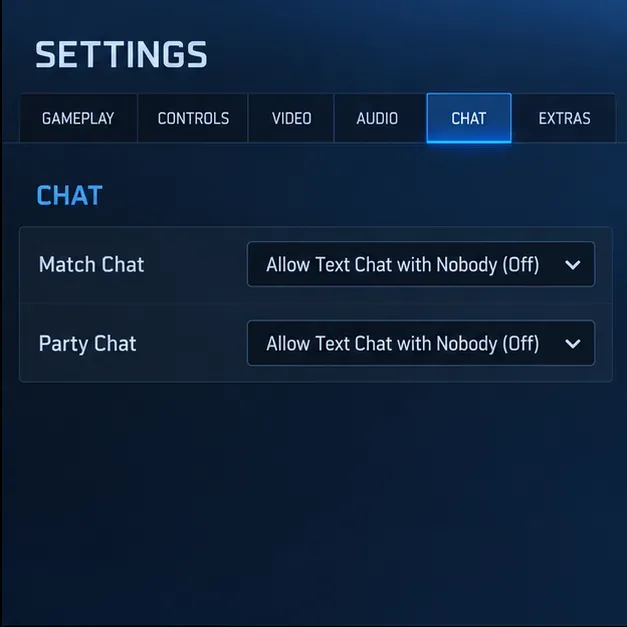
Checked October 8, 2026: Riot’s current documentation includes input selection and champion-specific settings. Older guides that assume one universal hotkey page, or require configuration-file edits for every mouse-button change, may miss these options. The illustrations here show simplified settings excerpts and a proposed A binding; they are not screenshots from a tested account.
Is Attack Move Click the same as pressing A and then clicking?
The two commands serve a similar purpose, but their input sequence differs. Player Attack Move prepares an attack-move command that you confirm at a location. Player Attack Move Click issues the command at your cursor position through its assigned input, without that separate confirmation.
This distinction matters when following advice such as “bind attack move to A.” If you select Player Attack Move instead of Player Attack Move Click, you have changed a different command. An A-then-left-click setup can be useful if you prefer the deliberate confirmation and range feedback; it is not the same one-input setup discussed here.
Attack move combines movement with acquiring an eligible attack target. It does not turn any missed click into a guaranteed attack on the enemy champion you intended. Cursor placement, nearby units, range, and targeting settings still matter. Nor does a quicker input bypass your champion’s attack timing.
Which keybind should you choose?
Binding
Best reason to choose it
Main trade-off
A
Accessible keyboard input near a conventional QWER layout
May share a finger with ability keys; can replace your existing A-confirm habit
Shift + right-click
Preserves a familiar modifier-and-mouse rhythm
Requires coordinating Shift with each attack command
Mouse Button 4 or 5
Leaves the keyboard hand available for abilities
Thumb pressure may affect grip or aiming
Left-click
Creates a direct mouse-button attack input
Requires checking selection, casting, and interface interactions
Should you start with A?
Yes, if you use a conventional QWER layout and can reach A without moving your whole hand. It separates the attack command from your right-click movement input, which can make the attack-then-move rhythm easier to understand.
For an illustrative example, imagine playing a ranged champion in an open area with one nearby enemy. Position the cursor near the intended target, press your Attack Move Click key, let the attack release, then right-click toward safety. Repeat at a pace that matches the champion’s attack speed. This is kiting: attacking while repositioning between attacks.
If you repeatedly miss Q or delay an ability while reaching for A, choose another binding. A convenient keyboard location is only useful if it fits your hand position.
When is Shift + right-click the better choice?
Keep Shift + right-click if it already feels automatic. Riot’s April 2026 input-system development update includes a Player Movement example showing Player Attack Move Click assigned to Shift MB2, where MB2 means the right mouse button. This demonstrates a supported configuration rather than proving that every account currently uses it.
The practical drawback is the modifier. You must alternate ordinary movement clicks with Shift-modified attack clicks, while also using any other Shift combinations in your layout. If you often forget to release Shift, a dedicated key can make that distinction clearer.
Would a side mouse button free your keyboard hand?
It can. Mouse Button 4 or 5 is worth trying if your keyboard fingers are busy with abilities, items, and summoner spells. Riot’s Hotkeys (Keybindings) FAQ lists Mouse 1 through 5 among usable inputs.
Choose the button you can tap without squeezing or shifting the mouse. A binding that is easy to reach but causes cursor jumps is a poor fit for accurate targeting. Test repeated attacks while moving the cursor between a target and a retreat location, rather than judging the button from one press.
Is left-click still an option?
Yes. Riot’s April 14, 2026 development update states that MB1 can be assigned directly within League’s options. Its expanded input system means you should first use the built-in settings instead of assuming an old file-edit workaround is necessary.
Left-click is a larger habit change than A or a side button. Check selecting units, confirming abilities, interacting with the interface, and using the minimap after rebinding it. Do not copy a modifier workaround from an old guide without checking your current client’s behavior. Start with A or Mouse Button 4 if you want fewer interaction changes to evaluate.
Set up the binding in four checks
1. Confirm Point & Click and the settings scope
Enter Practice Tool, press Esc, and open Hotkeys. Confirm Mouse (Point & Click) in the input selector. Check whether you are editing Global settings or a champion-specific profile. Use Global for a shared layout; choose a champion profile only when you deliberately want an exception.
Step 1: The input selector shows Mouse (Point & Click), the control scheme used for these recommendations.
2. Preserve your essential ability inputs
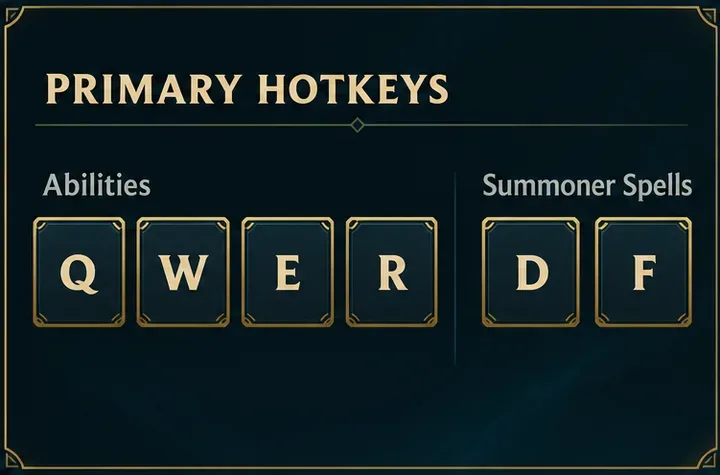
Before changing attack movement, check your ability and summoner-spell keys. Keep the layout you already use unless there is a specific conflict. QWER and D/F are shown in the example, but a customized layout is equally valid. Check item and camera bindings as well before choosing a key that already has a job.
Step 2: The example retains QWER ability keys and D/F summoner spells while the attack binding is evaluated.
3. Assign Player Attack Move Click
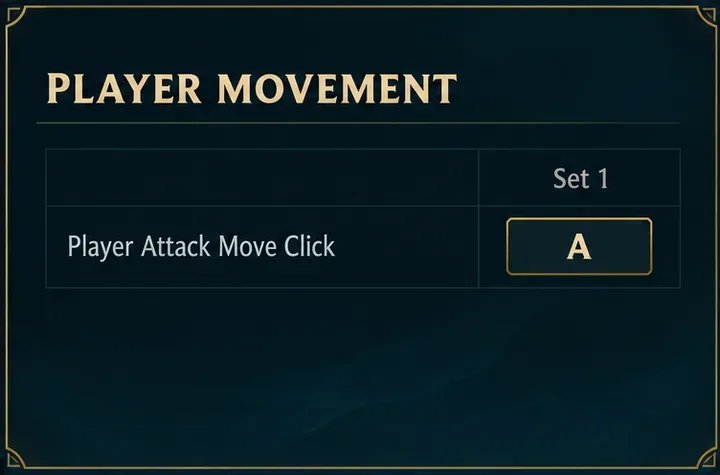
Find Player Movement, scrolling or expanding the section as needed. Select the binding field for Player Attack Move Click and enter A, Shift + right-click, or your chosen mouse button. Check the displayed assignment rather than assuming the input registered.
Keep Player Move Click assigned to a usable input, normally right-click in a traditional layout. Riot’s input update specifically identifies movement click as required for Point & Click. If choosing A displaces an existing command, review that change before accepting it.
Step 3: A is assigned to Player Attack Move Click in this proposed setup; it is not presented as the default.
4. Save, then test the actual command
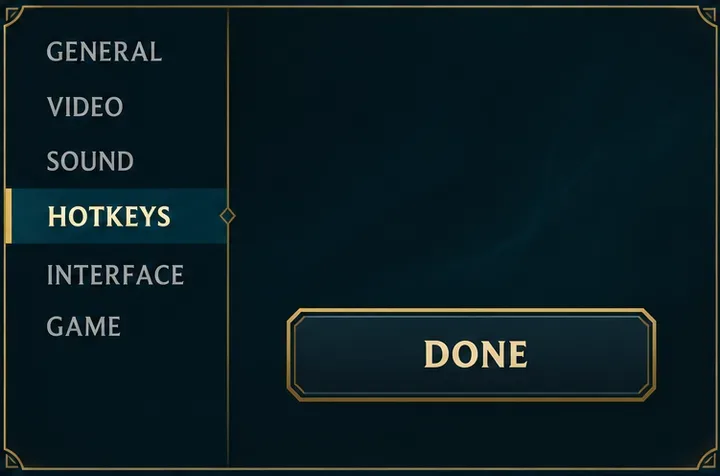
Confirm the settings using the completion control available in your menu. In Practice Tool, try an attack near a target, a movement click away from it, and an ability cast. Reopen Hotkeys to confirm the intended input and profile remain selected. This catches both a wrong command assignment and an accidental champion-specific edit.
Step 4: The Done button represents completing the settings change before testing the command in Practice Tool.
Should Attack Move on Cursor be enabled?
It is worth trying when you want cursor position to guide attack-move target selection. Look for Attack Move on Cursor in gameplay settings. Compare its enabled and disabled behavior with multiple nearby targets, placing the cursor near different units. Do not assume it means “always attack the unit I had in mind,” especially when clicking far from any eligible target.
Riot’s current input articles do not fully specify every acquisition rule or champion-specific edge case. The useful check is whether your selected setting produces the intended target in realistic spacing, not whether it worked once against an isolated target.
Will Target Champions Only prevent every wrong attack?
Do not rely on Target Champions Only to make attack move ignore all minions. Treat direct champion targeting and attack-move acquisition as separate behaviors. When a precise champion hit matters in a crowded wave or near a turret, use a deliberate direct attack on the champion and verify your Target Champions Only configuration.
The current official articles checked do not document the complete interaction between that setting and Attack Move Click. Test it separately in a custom game rather than assuming two settings combine into a champion-only attack-move command.
How do you know the keybind is working for you?
Evaluate three things: whether the intended target is attacked, whether you can move after the attack releases, and whether abilities remain easy to press. Moving too early can interrupt an attack in Point & Click; changing the key does not solve that timing problem.
Use the same champion and similar situations when comparing two bindings. Include a crowded minion wave and normal interface interactions, not only a stationary target. Keep the setup that reduces unintended commands and feels sustainable. If a previously customized input stops behaving correctly, record your layout first; Riot recommends restoring defaults for input problems and contacting Player Support if they persist.
A is the sensible first experiment, Shift + right-click is sensible to retain when familiar, and a side mouse button is sensible when keyboard reach is the problem. Once the binding works reliably, practicing target selection and attack timing will matter more than continually changing keys.