Home
» 🎮 Esports
»
Quick Cast vs. Instant Cast in SMITE: Best Modes by Ability
Quick Cast vs. Instant Cast in SMITE: Best Modes by Ability
Quick Cast is the most useful starting choice when you want an aiming preview without a separate confirmation click. Instant Cast is a better fit for abilities you already aim reliably and want to activate as soon as you press their button. For many players, the best SMITE casting setup combines modes by ability instead of forcing one mode across every god.
The deciding question is simple: do you need to inspect the target area before committing, or are you ready to commit when your finger presses the button? Choose around that decision. Removing an input can help execution, but a faster missed ability is still a missed ability.
Quick Cast vs. Instant Cast: the practical difference
A casting mode determines how your input confirms an ability. A targeter is the aiming indicator that shows where an ability is directed or placed. For ordinary abilities that use an aiming preview, the modes work as follows:
Mode
Input sequence
Most useful for
Main tradeoff
Normal Cast
Press the ability button to prepare the targeter, then confirm separately
Learning unfamiliar targeting and deliberate placement
An additional confirmation action
Quick Cast
Hold the ability button to preview and aim; release it to cast
Targeted abilities where you value a preview
Holding the button can complicate movement, and an unintended release can commit the cast
Instant Cast
Press the ability button to commit immediately, without a held preview stage
Familiar abilities and reactions that do not need an extra aiming check
The initial press commits before you can reconsider placement
On keyboard and mouse, Normal Cast traditionally uses left-click to confirm. Rebound controls and controller layouts may use different buttons. An ability with special activation rules, multiple stages, a channel, or no aimed placement may not follow every detail of this simplified comparison. Check the particular ability rather than treating the mode name as a universal description of every action.
Scope: original SMITE, not an assumed SMITE 2 menu
This reference concerns the original SMITE. The manufacturer maintains an original SMITE learning page, while the official SMITE 2 website identifies the newer game as a sequel. Do not assume a menu location, controller layout, or saved setting behaves identically in both games.
The official pages retrieved for this article did not expose a complete, current casting-controls manual. Consequently, the recommendations below are decision criteria, not a claim that the present client was tested or that every platform has identical controls. Confirm mode labels, cancel bindings, and saved overrides in your installed game before relying on them in a match.
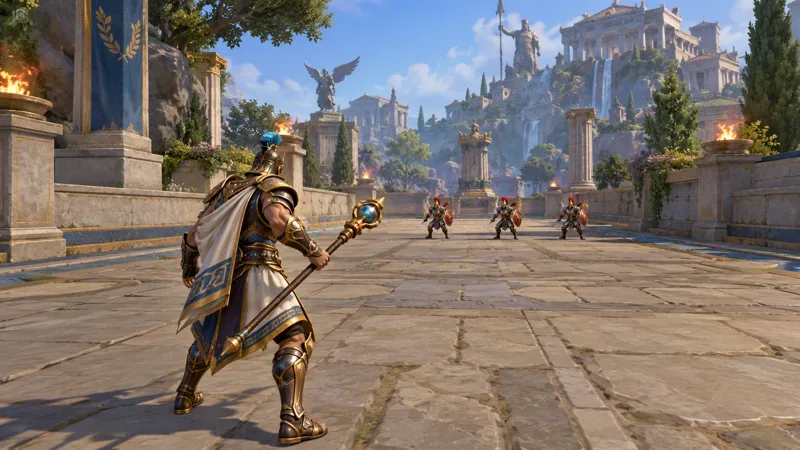
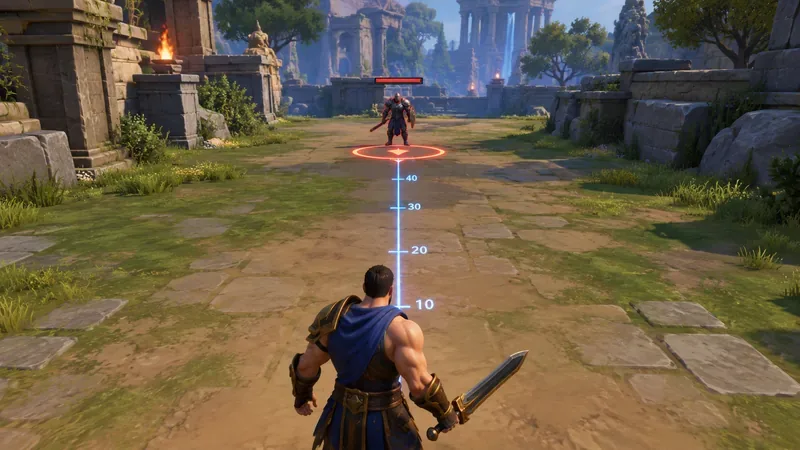
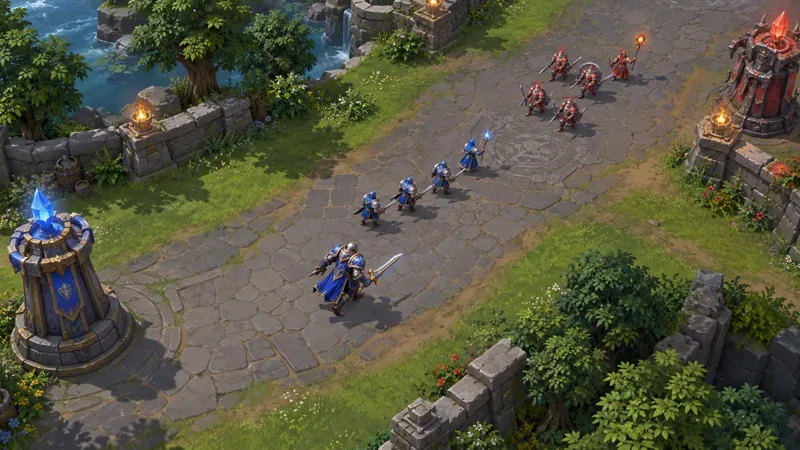
An armored staff wielder faces three opponents across a stone arena lane. The view illustrates the distance and direction a player judges before committing an aimed ability.
Choose by what the ability asks you to do
For unfamiliar range or ground placement, start with Quick Cast
Quick Cast gives you time to inspect placement while holding the ability input. This is useful when you are still learning how far a skill reaches, how wide its area is, or whether a target is inside the intended zone. An area-of-effect ability, often shortened to AoE, affects a region rather than just a single point or target.
Imagine placing a circular attack near a moving enemy. With Quick Cast, you can watch the preview, adjust your aim, and release when the position makes sense. The example illustrates a decision process; it is not evidence that Quick Cast increases accuracy by a measured amount.
If the enemy frequently escapes while you keep holding the preview, focus on making the decision sooner. Switching modes will not by itself teach you when to act. Once you can place the ability without inspecting its outline, Instant Cast becomes worth comparing.
For familiar reactions, consider Instant Cast
Instant Cast is useful when the aim or placement is already settled before you press the ability button. It removes the need to wait for your release or a separate confirmation. That can make a familiar sequence easier to execute, especially if holding an ability key would interfere with your movement fingers.
This is an input advantage, not a change to the ability’s rules. Instant Cast does not remove a built-in wind-up, accelerate a projectile, bypass a cooldown, or make a target reachable outside the ability’s range. A cooldown is the wait before an ability can be used again.
Try Instant Cast on one familiar ability first. Keep it when presses happen at the intended time and your aim remains reliable. Return to Quick Cast if the missing preview leads to repeated placement errors or accidental activations.
For narrow projectiles, familiarity matters more than the category
A skillshot is an attack you aim rather than one guaranteed to select an enemy. Narrow skillshots can work well on either mode. Quick Cast helps when you still need to inspect the line. Instant Cast can suit a player who already knows the path and has positioned the camera before pressing.
A preview is not automatic accuracy. You still need to judge movement and, for a traveling projectile, lead the target by aiming where it will be. Equally, removing the preview does not establish that your prediction is correct. Keep the mode that produces fewer avoidable aiming errors under comparable conditions.
For high-cost commitments, keep room to reconsider
An ultimate is a god’s major ability, often important enough that wasting it changes your options for the next fight. Movement abilities can also create a costly commitment when the wrong destination puts you in danger.
Quick Cast is a reasonable choice when you benefit from inspecting that destination or target area. Normal Cast remains useful if you want a prepared targeter without keeping the ability button held. Instant Cast can still be appropriate after the decision and targeting become dependable. The importance of the ability does not dictate the mode; the kind of mistake you are trying to prevent does.
Use a mixed setup without making it confusing
Original SMITE supports individual ability casting selections through its ability interface. On PC, K is the conventional binding for the abilities screen, but inspect your binding if you have changed controls. Look for the casting selection associated with each ability and distinguish an explicit choice from a setting that uses the default.
A global default provides a baseline. A per-ability override is an explicit selection intended to differ from that baseline. Verify the resulting behavior in practice instead of assuming that changing the global choice changed every ability. Also check whether the selection remains after leaving and returning; this article does not guarantee persistence across every platform or profile.
Keep the exceptions purposeful. For example, Quick Cast can remain your baseline while one familiar reaction ability uses Instant Cast and one delicate placement ability uses Normal Cast. That is an illustrative setup, not a prescribed configuration for all gods. Avoid creating exceptions you cannot remember during combat.
Common mistakes and what to check instead
Releasing Quick Cast to cancel: release is normally the cast trigger. Inspect your cancel binding and practice canceling before releasing. On the standard PC layout, right-click is commonly used to cancel a prepared ability; verify it with your own bindings and the ability in question.
Changing everything at once: change one ability so you can identify whether missed casts come from targeting, timing, or unfamiliar input.
Calling Instant Cast a latency fix: it removes a manual confirmation stage, not network delay or a frame-rate problem.
Choosing only while standing still: a mode that feels comfortable against a stationary target may become awkward when you also move and turn.
Copying settings from another game: similar names can describe different input behavior. Judge SMITE’s actual press, hold, release, and cancel behavior.
A short checklist for keeping the better mode
Compare the same ability with the same sensitivity, bindings, and target situation. Include stationary aiming, moving while aiming, and deciding not to fire. A short practice session is useful for detecting input mistakes; ordinary matches help you judge whether the setup remains comfortable under pressure.
Does the cast happen on the input you expect?
Can you aim while moving without awkward finger changes?
Do previews help placement, or do they make you hesitate?
Are unintended casts becoming less frequent?
Can you cancel a prepared ability reliably when the opportunity disappears?
Do you remember your per-ability exceptions without checking the menu?
Choose Quick Cast when its preview supports dependable placement. Choose Instant Cast when you are ready at the initial press and removing the preview does not cause avoidable mistakes. Keep Normal Cast where separate confirmation makes the input easier to manage. The best result is consistent execution, rather than a particular label applied to every ability.
Sources reviewed October 7, 2026. No reaction-time measurements, live-client screenshots, or hands-on performance results are claimed.