Home
» 🎮 Esports
»
How to Fix Rainbow Six Siege Inverted Sound: Check Channels and Audio Settings
How to Fix Rainbow Six Siege Inverted Sound: Check Channels and Audio Settings
If footsteps on your left consistently play in your right ear in Rainbow Six Siege, first check whether the same reversal happens outside the game. That comparison determines whether you should troubleshoot your headset and audio output or focus on Siege. A full game restart is a reasonable first recovery attempt for a session-only problem, but it is not a confirmed permanent fix.
This guide separates a true left/right reversal from missing stereo separation and confusing sound direction. The checks below are diagnostic recommendations, not results from a tested fix. Sources were reviewed on October 8, 2026; no universal fix or current patch resolving every inverted-audio symptom was verified.
What is confirmed about the inverted sound bug?
Ubisoft explicitly acknowledged inversed audio in its Year 5-era Rainbow Six Siege Status Report. The report also explained that some apparent direction problems arise from sound traveling through openings rather than directly through a wall.
That is historical confirmation, not proof that your current symptom has the same cause. Ubisoft subsequently announced an audio overhaul with Siege X in 2025, described in its Year 10 roadmap reveal. An old workaround should therefore be treated as something to evaluate, not an established fix for today's installation.
Your next action: identify what is actually wrong before changing settings. Is every clear left-side sound reversed, does everything sound centered, or do only footsteps behind walls seem misplaced?
What you hear
What it suggests
Useful next check
A labeled left-channel test plays in your right ear outside Siege
Headset orientation, channel routing, or another output-chain problem
Check earcup labels and another connection
Left and right tests both sound centered
Mono output or lost channel separation
Inspect mono settings
Outside audio is correct, but visible sources in Siege consistently reverse
A Siege-specific or per-app audio problem
Restart, simplify processing, and retest
Only concealed sources are confusing
Propagation, obstruction, or a localized game issue
Compare visible and obstructed sources
Check the headset before changing the game
1. Confirm the physical left and right sides
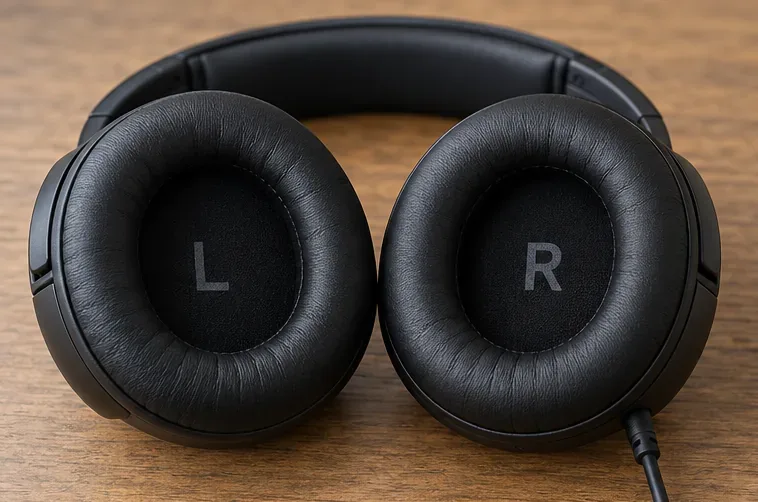
Check the L and R markings on your headphones. Wear L over your left ear and R over your right ear. For separate speakers, confirm that the physical left speaker is connected to the left output. Do not wear the headset backward as a workaround: that may conceal one symptom while reversing correctly routed audio elsewhere.
Check the L and R earcup markings before testing whether audio channels are reversed.
Use your headset manufacturer's channel test if available, or a known stereo test that identifies each channel separately. An ordinary song is a poor reference because you may not know where its instruments were mixed. Listen at a comfortable volume and note which ear receives each labeled channel.
Interpretation: reversal outside Siege shifts the investigation toward the output chain. Correct channels outside Siege do not prove the game is at fault, but they make a permanent physical reversal less likely. Keep this external test as your reference throughout troubleshooting.
2. Compare a simpler connection and a fresh game session
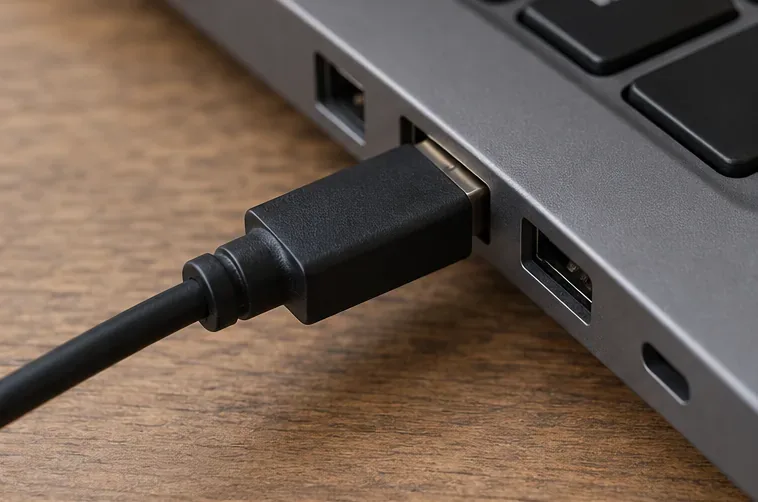
When practical, compare the headset through a direct compatible connection instead of an extra hub or adapter. A second headset is another useful comparison. Change only one component at a time so the result remains interpretable.
A direct compatible headset connection provides a simpler comparison than an additional hub or adapter.
If the external test remains correct, fully close Siege and relaunch it. On consoles, close the application rather than merely returning to the home screen. Do this after your match or in a private test session; leaving a live match can disrupt your team.
A restart that restores direction suggests a temporary state problem, but it does not identify the underlying cause. Note whether the symptom returns after a mode change, a new match, spectating, or reconnecting the headset. These are observations to collect, not verified triggers for every player.
On PC, isolate output settings and audio processing
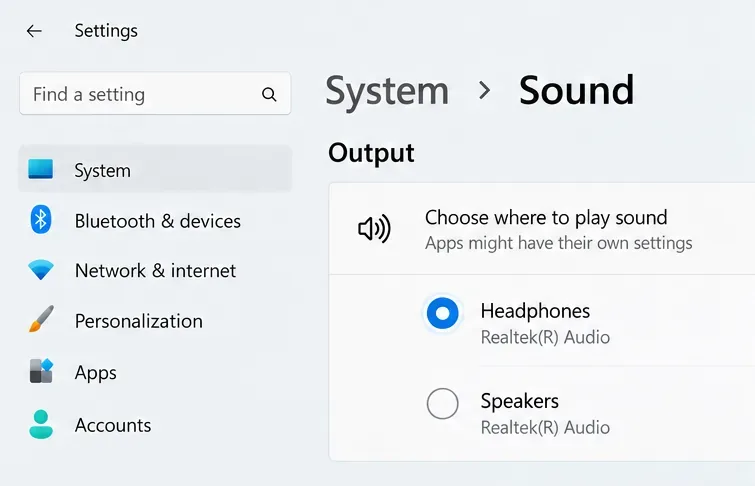
The following examples use Windows 11. Menu layouts and available properties depend on your Windows build and audio driver. The images show example settings views, not evidence that a particular configuration repairs Siege.
Example Windows output view with Headphones selected for the playback-device check.
Check for similarly named physical and virtual outputs. A headset application may expose more than one device, and an HDMI monitor may also appear. Choose deliberately; a familiar device name alone does not establish which processing path you are using. Repeat your external channel test through that output before reopening Siege.
4. Check mono audio without confusing it with channel reversal
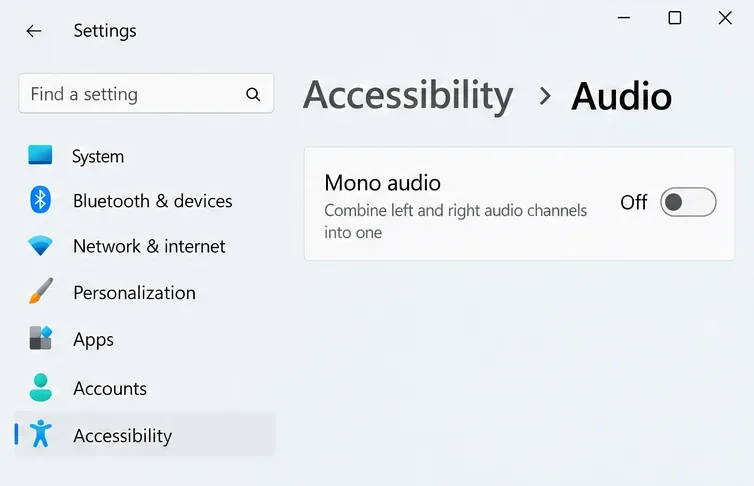
Mono audio combines stereo channels. It can remove useful left/right separation, but it does not swap the channels. Microsoft explains this in Make Windows easier to hear.
For a stereo diagnosis, open Settings > Accessibility > Audio and set Mono audio to Off. If you rely on mono for accessibility, decide whether a temporary stereo comparison is appropriate for you and restore your preferred setting afterward.
Example Windows mono setting switched off for a stereo channel comparison.
Your next action: repeat the labeled channel test. If channels now separate correctly, you have addressed a stereo-separation issue. Do not describe that result as confirmation of the inverted sound bug.
5. Temporarily disable audio enhancements
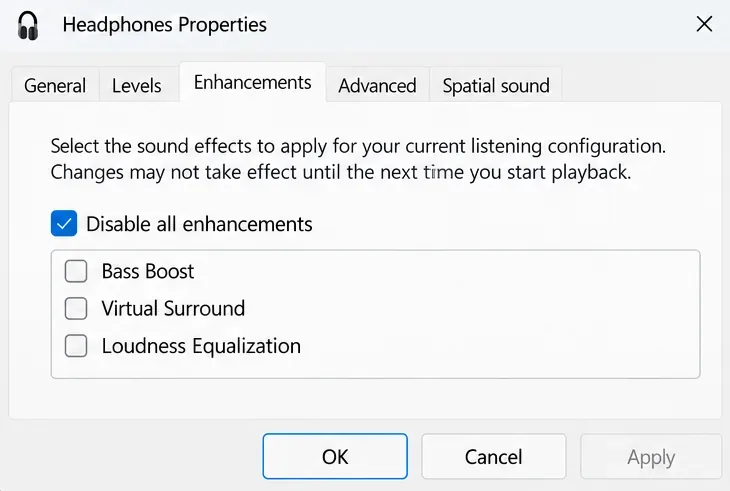
Microsoft recommends disabling enhancements when troubleshooting audio problems. In your output device properties, turn Audio enhancements Off when that control is available. Older device dialogs may instead offer an Enhancements tab and a disable-all checkbox.
Example device properties with enhancements disabled to compare the output without those effects.
This is a comparison, not a claim that every enhancement reverses channels. Save your original configuration and test the same sound with processing disabled. If the direction improves, reintroduce optional effects individually. Avoid changing volume, equalization, output device, and surround mode together: you would lose the ability to identify which change mattered.
6. Compare spatial processing with a simpler baseline
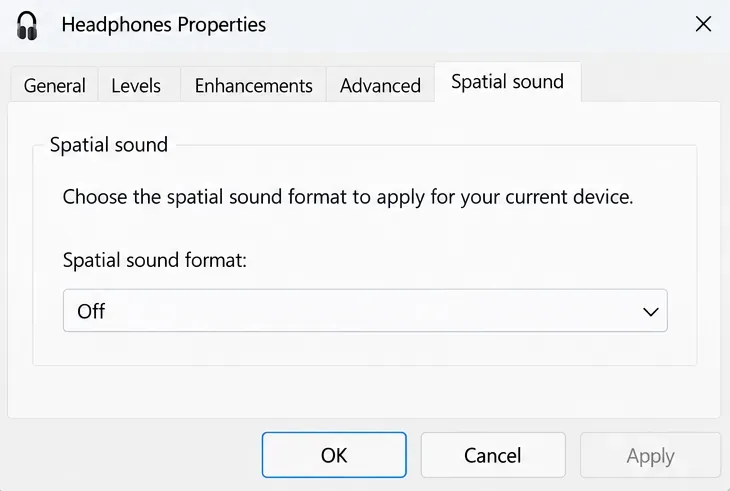
Spatial audio processes sound to convey position around the listener. Microsoft documents Windows Sonic and related options in its Windows spatial sound guide. In the selected output device's properties, temporarily set Spatial sound to Off.
Example spatial sound setting turned off for a simpler processing baseline.
If your headset software separately provides virtual surround, compare it disabled as well. Controls vary by manufacturer, so use its documentation rather than hunting for an invented universal switch. A simpler output path can help isolate processing, but this article does not establish that Windows Sonic, Dolby Atmos, or DTS universally causes inverted Siege audio.
Your next action: retest with the simplified configuration, then restore features one at a time if direction remains correct. Keep whichever supported setup produces consistent results on your equipment.
Repair persistent problems without jumping to a reinstall
7. Update Siege and verify the PC installation
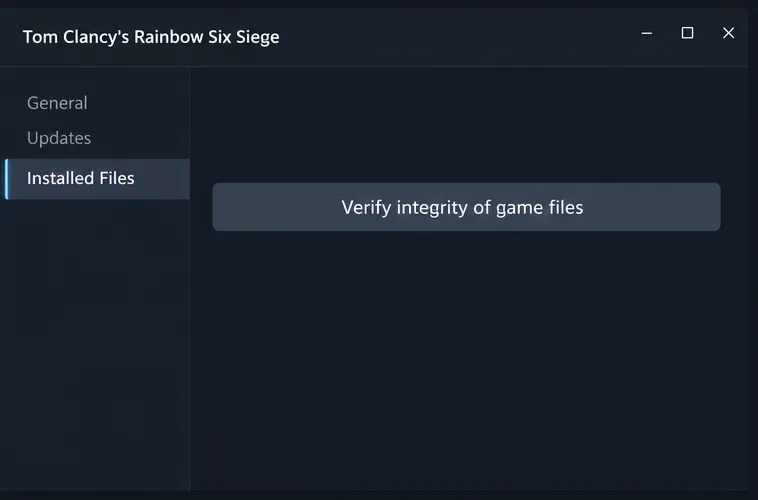
Install any pending game update before evaluating a recurring Siege-only issue. For a Steam installation, close the game, right-click it in your Library, choose Properties > Installed Files, and select Verify integrity of game files. These steps come from Valve's file-verification instructions. For another launcher, use that launcher's supported verification or repair function.
Example Steam Installed Files view showing the verification control for checking the installation.
Verification checks installation files; it cannot establish whether a runtime audio defect has been fixed. If no files need repair and the issue remains reproducible, repeating verification adds little information. Reinstalling the entire game should come later, especially when other evidence points to the headset or a repeatable game-state problem.
8. On consoles, inspect output and mono settings
Skip Windows controls when playing on PlayStation or Xbox. First compare the headset in another game, then check your console and headset's supported output settings. Avoid borrowing PC registry edits or configuration-file fixes for a console problem.
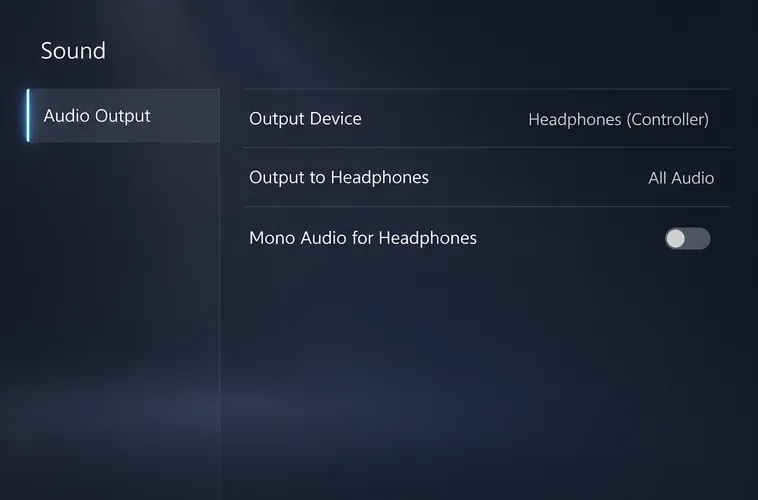
On PS5, go to Settings > Sound > Audio Output. Confirm Output Device and check Mono Audio for Headphones. Sony states that mono plays the same audio through both headphones in its PS5 audio output documentation.
Example PS5 output view showing the selected headset and the mono control used in the console check.
On Xbox, compare the available headset output formats using your console's current menu and your headset manufacturer's instructions. Treat changes to surround processing as diagnostic comparisons, not confirmed fixes. A second compatible headset or controller connection can help narrow the problem without resetting the whole console.
Two misconceptions that can send troubleshooting in the wrong direction
Every misleading footstep means the stereo channels are inverted
Ubisoft's historical explanation describes sounds following routes through doors, windows, and destruction openings. A sound arriving through a doorway can feel different from the source's straight-line position behind a wall. Current behavior should still be tested rather than assumed correct.
Your next action: in a Custom Game with another player, compare a visible source on your left and right before testing through a wall. Keep your viewpoint fixed. Consistent reversal with a visible source is stronger evidence than one confusing footstep through a damaged room.
Changing dynamic range is the same as fixing left/right routing
Dynamic range concerns the difference between quieter and louder sounds. Ubisoft's accessibility spotlight confirms dynamic-range controls, but it does not document them as an inverted-channel repair.
Your next action: leave your preferred range setting unchanged during channel testing. Adjust listening comfort afterward. Louder footsteps do not establish that their direction is now correct.
How to confirm recovery and report a recurring bug
Use the same checks before and after each change: an external left/right test, a visible in-game sound source on each side, and an obstructed source. Repeat after a fresh session. Successful external playback plus consistent in-game direction is more meaningful than a single match that feels better.
If the problem returns, report it through Ubisoft's R6Fix bug reporting site. Search for a matching issue and contribute relevant evidence where appropriate. Ubisoft has specifically requested reproducible sound reports.
Record platform, installed game version, headset model, and connection type.
Describe whether outside audio remains correct and whether restarting changes the symptom.
Include map, mode, viewpoint, visible source position, and the sequence leading to the problem.
Provide a short clip with stereo audio preserved, if possible, and explain what sounds reversed.
A mono recording cannot demonstrate a left/right reversal. Likewise, a recording captured before headset processing may miss a problem introduced later in the output chain. Describe how you captured it. When a repeatable Siege-only reversal survives these checks, a useful bug report is a better next move than permanent channel swapping or repeated full reinstalls.