Home
» 🎮 Esports
»
How to Clear Honor of Kings Cache: In-Game Options and Android Steps
How to Clear Honor of Kings Cache: In-Game Options and Android Steps
To clear Honor of Kings cache, first distinguish an in-game cleanup option from your phone's app-storage controls. On a Samsung Galaxy device, the verified system path is Settings > Apps > Honor of Kings > Storage > Clear cache. This clears Android-managed temporary data; it does not establish that every downloaded patch or game resource has been removed.
If you specifically want to clear patch cache data in Honor of Kings options, there is an important limitation: as of October 8, 2026, the reviewed official sources did not verify a current universal menu item named “Clear patch cache data.” Do not substitute Clear data, account deletion, or a full reinstall just because that exact option is missing.
Quick reference: choose the cleanup that matches your goal
Your goal
Relevant option
What to check first
Remove temporary Android app files
Clear cache in phone settings
Select Honor of Kings, not another app
Remove old patch downloads or optional resources
A game-provided cleanup control, if your build offers one
Read its description; its scope is not verified here
Reset the app's local state
Clear storage or Clear data
This is a broader reset, not routine cache cleanup
Reduce iPhone app storage
Storage recommendations or Offload App
Offloading retains documents and data
A cache is temporary data kept for reuse. A patch is a game update. Those terms can overlap in casual troubleshooting advice, but they do not identify the same set of files. The useful question is what the particular control says it will remove.
What is known about Honor of Kings in-game cache options?
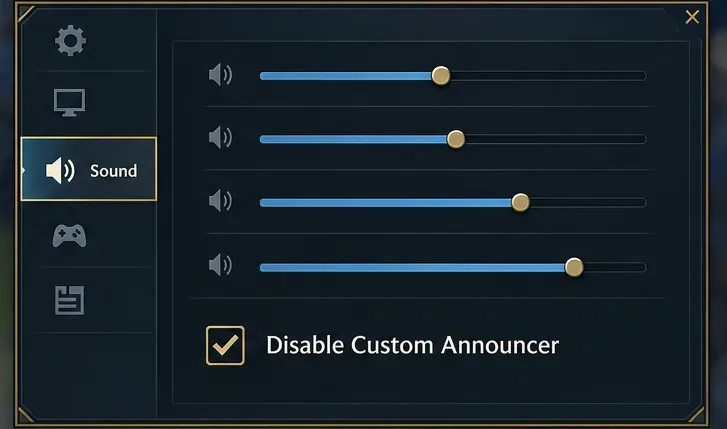
The official July 13, 2022 closed-alpha FAQ recommended trying cache cleanup through Settings > Image Settings for performance problems. It also explicitly said that the test did not represent the game's final quality.
That document supports a historical cache-cleanup recommendation, not an exact menu path for every current Android or iOS release. It does not establish today's patch-cache label, the amount of space it frees, or precisely which resource files a current cleanup operation deletes.
Practical use: inspect the settings and help text available in your installed game. If you find a clearly described cleanup control, read its confirmation screen before proceeding. Check whether it mentions temporary files, downloaded resources, settings, or a required restart. If its scope is unclear, cancel and use the verified phone-level cache procedure below or ask official support.
If the option is absent, stop searching for an exact button based only on an old screenshot. Record your platform and installed game version so support can tell you whether your build includes the feature. This guide does not show an unverified game menu.
Before clearing anything: a short preparation checklist
Finish your match and close the game before changing its storage.
Confirm which sign-in method you use and that you can access that account. Guest players should avoid broad resets until recovery is clarified.
Record the original problem: an update error, missing resource, loading failure, or storage concern.
Have a stable connection available if the game requests downloads afterward.
Note your phone's free space and the app's cache amount, if displayed, for comparison.
These checks are especially useful when troubleshooting after a patch. Without a baseline, a smaller cache number may look like success even though the update still fails. Decide what you are trying to improve before you begin.
How to clear Honor of Kings cache on Android
These Samsung Galaxy steps follow Samsung's app-cache instructions. Illustrations show example system-settings views, not a tested game result.
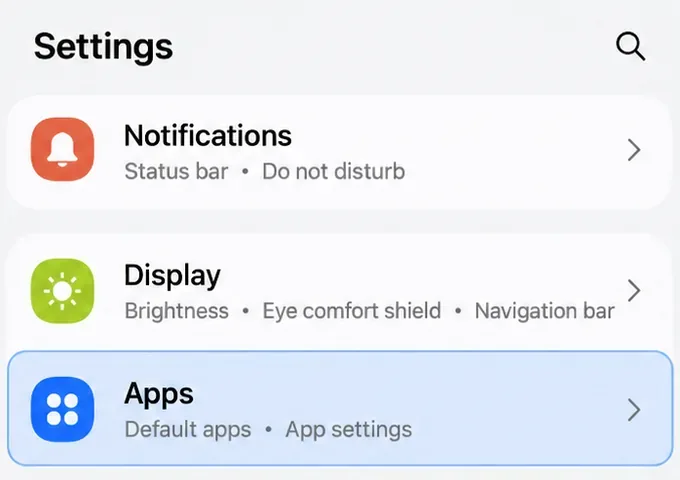
1. Open Settings and choose Apps
Open your phone's Settings app and tap Apps to find installed applications.
Open Apps in your phone settings.
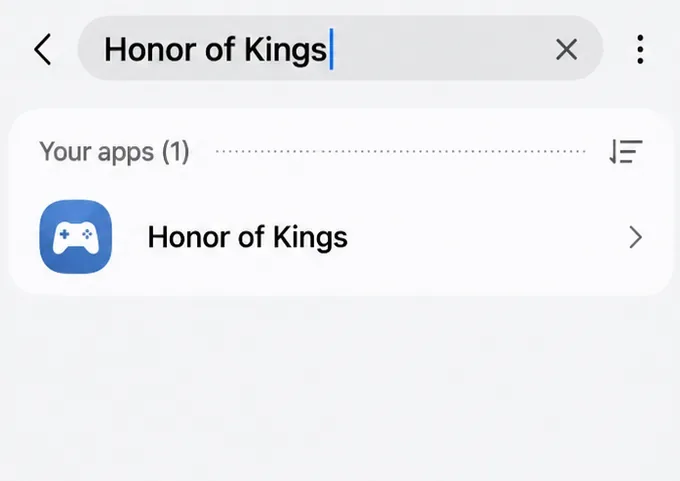
2. Select Honor of Kings
Select Honor of Kings in the app list. Confirm the name if you have multiple editions installed.
Select Honor of Kings in the app list.
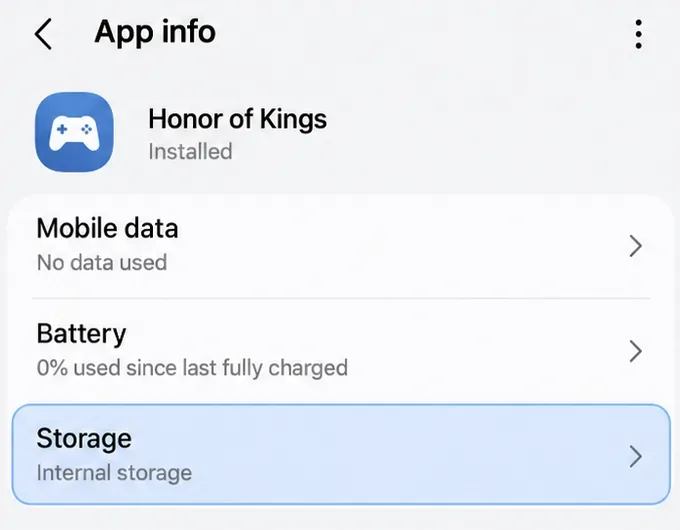
3. Open the app's Storage page
Tap Storage. Other Android brands may call the equivalent page Storage & cache; check your manufacturer's instructions.
Open the selected app’s Storage page.
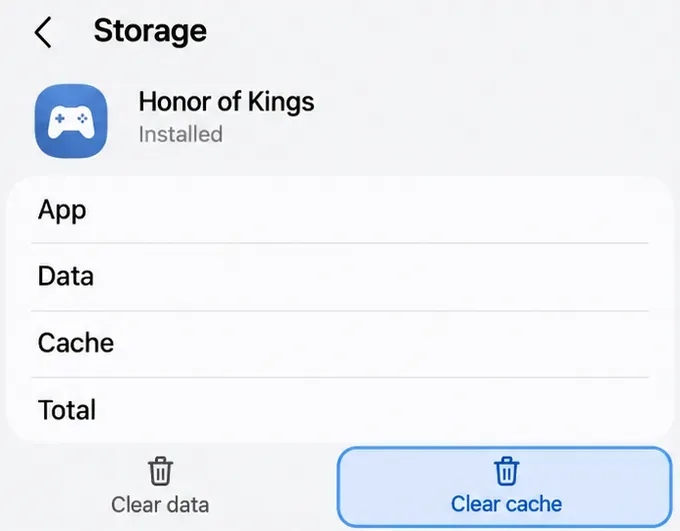
4. Tap Clear cache
Tap Clear cache, leaving Clear data or Clear storage alone. Reopen the game afterward.
Choose Clear cache; leave Clear data untouched.
Google's Android storage guidance says that Clear cache deletes temporary data and that some apps may open more slowly afterward. It distinguishes Clear storage, which permanently deletes the app's data. These are general Android behaviors; they are not a guarantee that cache cleanup fixes a particular Honor of Kings patch failure.
What should change afterward?
Compare the cache amount if your phone reports it, then focus on the game behavior that brought you here. A smaller temporary-data figure confirms a storage change, not a repaired patch. Cache can also grow again as the app uses temporary files.
For a failed update, check whether the same error returns at the same stage. For missing content, check whether the affected content becomes available after any requested download finishes. For a loading problem, compare a fresh launch under the same network conditions. These are verification suggestions, not claimed test results.
Do not expect a fixed number of gigabytes to disappear. A game can occupy space through its installed app, persistent data, and downloaded content as well as temporary cache. If the cache amount is small, clearing it is unlikely to satisfy a large storage target. Do not repeatedly clear it hoping that the rest of the app will vanish.
What can iPhone and iPad players do?
The Android instructions do not apply to iOS or iPadOS. Apple's iPhone and iPad storage guide explains that Settings > General > device Storage shows app usage and storage recommendations. Its documented app actions include offloading and deletion, rather than a universal per-app Clear cache button.
Offload App removes the app itself while retaining its documents and data. It should not be described as a guaranteed way to erase Honor of Kings patch cache. Delete App removes the app and related data, making it a broader action that requires attention to account access and downloads.
If your game exposes a cleanup control on iPhone, use its own description to judge its scope. Otherwise, review Apple's storage recommendations and contact game support for a build-specific repair instruction. Clearing Safari website data is unrelated to this game's local patch files.
If cache cleanup does not solve the patch problem
Observed result
Useful next direction
Cache decreases, but the same update error remains
Check available storage, connection stability, and the error message
The game works after cleanup, but the issue returns
Record what happens immediately before recurrence
No cache button appears
Consult your phone manufacturer's app-storage instructions
The game requests resources again
Let the requested download finish before judging the result
Repeated cleanup is not a substitute for identifying the failure. If the store offers an update, check that you are using the official game listing and the intended regional edition. The Honor of Kings Google Play listing identifies the international app and lists its support contact.
For unresolved errors, use the game's available customer-service access or contact support@honorofkings.com, the address listed in that official store entry. Include your device model, operating system, game version, exact error text, when it occurs, and whether cache cleanup changed anything. Add a screenshot of the error or missing option without exposing passwords or login codes.
For routine troubleshooting, keep the distinction clear: phone-level Clear cache is a defined temporary-data action; an in-game patch cleanup must be judged by the control actually present in your build. Neither should be silently replaced with a full data reset.