Home
» 🎮 Esports
»
Best Camera Scroll Speed in Heroes of the Storm: Inertia Explained
Best Camera Scroll Speed in Heroes of the Storm: Inertia Explained
If the camera races past a fight or feels reluctant to move, aiming becomes harder even when your hero is doing exactly what you intended. The best camera scroll speed in Heroes of the Storm is a setting that lets you reveal useful ground quickly and stop where you meant to stop. A faster number is only helpful when it improves that result.
Start with a moderate mouse scroll speed, keep your existing mouse sensitivity stable, and adjust only the camera control you actually use. Treat recommendations to disable “camera inertia” cautiously: the official Blizzard material reviewed for this article does not establish a separate, user-facing inertia setting. That is a documentation limit, not proof that every camera transition is instantaneous.
Recommended camera settings at a glance
These are practical starting recommendations, not Blizzard defaults or settings proven to increase win rate. Preserve your current values before experimenting so you can return to a familiar setup.
Control or behavior
Useful starting point
Reason to change it
Mouse scroll speed
A moderate position on the slider; if your client shows percentages, 50% is a convenient trial value
Lower it when brief edge contact overshoots; raise it when deliberate pans take too long
Keyboard scroll speed
Keep your current value unless you use camera movement keys
Adjust for controlled key presses without interfering with ability inputs
Drag scroll speed
A value that makes a comfortable mouse drag reveal the area you intended
Lower it if small drags travel too far; raise it if you repeatedly run out of comfortable hand movement
Camera Follow
Choose according to whether following your hero helps you maintain orientation
Reconsider when it makes looking ahead awkward or manual panning makes you lose your hero
Camera inertia
No verified standalone value to recommend
Identify the source of unwanted motion before looking for an undocumented switch
For the speed controls, begin in Options under Mouse and Keyboard and read the labels in your installed client. Menu presentation can change, and this article does not claim to reproduce the current settings screen. If a label is absent, do not substitute an unrelated sensitivity control just because its name sounds similar.
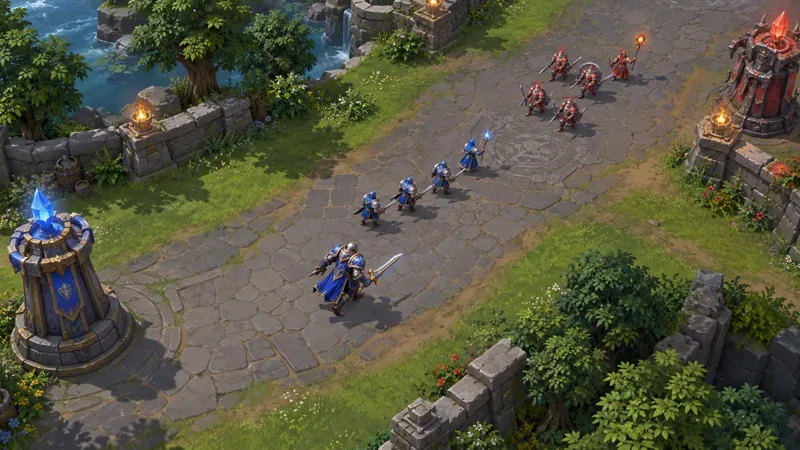
A top-down lane view leaves room ahead of the blue hero to observe approaching minions and space behind for retreat. The scene illustrates camera framing rather than a settings menu.
Misunderstanding: maximum scroll speed gives the best awareness
Camera scrolling means moving the visible view across the battleground. Edge scrolling moves that view when the pointer reaches an edge of the game viewport. The viewport is the portion of the battleground currently visible on your screen; scrolling does not increase your hero’s vision or reveal enemies hidden by the game’s visibility rules.
A high speed can make looking nearby feel immediate, but it can also carry the view beyond the location you wanted to inspect. You then spend another input correcting the movement. Conversely, a very low speed may leave you watching the wrong part of a developing fight while the view catches up.
The useful target is a controlled pan, not the largest setting. With the same hero and location, move the pointer to the edge briefly, then bring it back toward the middle. Judge where the view ends up. If you repeatedly need to reverse direction, lower the speed slightly. If a purposeful pan consistently falls short, raise it slightly. Leave the setting alone when neither problem occurs.
Misunderstanding: mouse sensitivity and camera speed are the same
Mouse sensitivity controls how far the pointer moves for a given hand movement. DPI, or dots per inch, is the mouse’s sensitivity measurement. Camera scroll speed concerns how the view moves when you issue a camera input. Changing DPI can affect how easily you reach the screen edge, but it is not interchangeable with changing the camera speed slider.
Blizzard’s March 29, 2016 patch notes documented a fix so the game would no longer override operating-system mouse sensitivity. The same historical notes mention middle-mouse drag scrolling. They establish that pointer sensitivity and camera movement have been distinct concerns; they do not provide a modern optimal DPI or scroll-speed formula.
Keep DPI and operating-system pointer settings unchanged while comparing camera speeds. If aiming is also uncomfortable, address pointer sensitivity separately, then repeat your camera comparison. Otherwise, you cannot tell which change caused the improvement.
Misunderstanding: a drifting view proves inertia is enabled
Camera inertia generally describes continued movement or gradual deceleration after a movement input stops. Camera follow, cursor position, and uneven rendering can produce different kinds of motion that a player might describe as “floaty.” Those descriptions alone do not identify the underlying behavior.
No official source checked for this article documented a dedicated Heroes of the Storm camera-inertia toggle, a numerical inertia range, or a supported configuration-file change for disabling it. Blizzard’s September 28, 2026 live patch notes also do not document such a control. The absence of an entry in those notes is not an exhaustive inventory of the client.
Your useful next action is to observe when the motion happens. Does it occur only while the pointer remains at the edge? Only when your hero moves with follow enabled? Only during a mouse drag? Or does the whole scene stutter during busy fights? Test those situations separately. A camera slider should not be presented as a guaranteed cure for a frame-rate problem, and an unexplained movement is not a reason to paste hidden settings from another game into your configuration.
Misunderstanding: all camera movement methods need matching values
Edge scrolling, keyboard scrolling, and drag scrolling are different ways to request a camera move. A brief key press and a physical mouse drag do not feel alike, so matching their displayed numbers is not a useful goal by itself. Nor does a percentage tell you a universal distance per second across every control method.
Give priority to your main method. If you mostly use edge scrolling, tune that first and keep the other values stable. If you prefer dragging, judge a comfortable drag by how reliably it frames the next area. Blizzard documented middle-mouse drag scrolling in the historical patch notes linked above, but check your own bindings rather than assuming a default survived every profile change.
For bindings, Blizzard’s official hotkey customization article explains access through the Escape menu and the separation of Basic and Advanced hotkeys. Use the client to inspect camera-related assignments and check for conflicts before adding new camera keys. A convenient pan key is not convenient if it prevents you from using an ability comfortably.
Camera follow is a separate choice from scroll speed
Camera Follow keeps the view associated with your hero’s movement. Manual camera control gives you more responsibility for framing what matters. Neither choice is a measure of player skill. Following can reduce the effort needed to keep your hero visible; manual panning can make it easier to position the view ahead of a fight.
Inspect your Camera Follow option and the camera-related hotkeys in the client. Learn which assignment returns the view to your hero before experimenting with a less automatic setup. The goal is to regain orientation without searching for your character during a dangerous moment.
If following makes remote inspection uncomfortable, compare it with manual control in a low-pressure session. If manual control makes you lose track of your hero, restore follow or practice smaller camera movements. Keep the speed unchanged during that comparison so you are evaluating follow behavior rather than two changes at once.
How to recognize a better setting
A good result has observable signs: short pans finish near the intended location, your hero remains easy to locate, and camera corrections do not interrupt targeting. You should be able to look toward an approaching fight and return to your immediate surroundings without repeatedly overshooting.
Use the same low-pressure situation for an initial comparison, then assess the setting during ordinary play. Note whether you reverse pans, accidentally touch an edge while aiming, or fail to reveal enough ground ahead. One unfamiliar session does not prove that a setting is bad, but persistent correction work is a reason to adjust it.
Keep the mouse, display mode, and resolution consistent while comparing. Recheck your preference after a hardware or display change rather than assuming the old percentage must feel identical. This recommendation is about preserving a useful comparison, not a claim that Blizzard specifies a particular resolution-to-speed conversion.
The best setup is the one that gives you reliable framing with manageable effort. Start moderate, change one relevant control at a time, and retain the setting when it solves a recurring camera problem without creating another. For inertia, the honest recommendation remains to diagnose the behavior and use verified client controls; there is no documented magic value to supply.
Official sources reviewed October 7, 2026. The recommendations are adjustment criteria, not measurements from a hands-on test of the current client.