Home
» 🎮 Esports
»
How to Fix Halo Infinite High Ping and Server Search Issues
How to Fix Halo Infinite High Ping and Server Search Issues
If Halo Infinite finds matches but the ping is high, change Search Region from Expanded to Local. Local keeps matchmaking in your current region, which can lower latency, but it may lengthen the queue or make it harder to find a match. If you cannot find games, switch back to Expanded. If the game says “No ping to our datacenters,” treat that as a network-blocking problem, not as an ordinary high-ping match.
Ping is the time it takes for your device and a game server to communicate and return a response. High ping can make actions feel delayed. “Matchmaking” is Halo’s system for finding and assembling players. Both can be affected by region choice, but a slow search and a high in-match ping are different symptoms. The steps below use Halo Support guidance checked October 8, 2026; menu labels can change with updates. The figures below are simplified interface examples, not live captures of a player’s game or router.
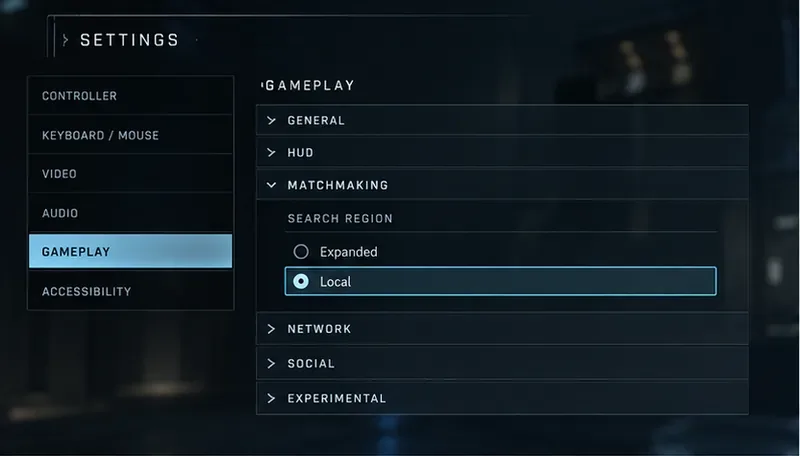
The Search Region example shows Local selected in the Gameplay settings; this can favor lower latency while narrowing the match search.
Choose the setting that matches your symptom
What you see
First action
What to expect
Matches start, but ping is consistently high
Set Search Region to Local
Ping may improve; queues may take longer
Local searches take too long or time out
Change Search Region to Expanded
A broader search may find a match sooner, sometimes at higher latency
“No ping to our datacenters”
Check the network path, firewall, router, or network administrator
Halo Support identifies blocked access to an essential server as a possible cause
Only one match has high ping
Check Network Statistics in a few more matches
Different datacenters within a region can produce different results
1. Set Search Region to Local when latency matters most
From the main menu, open Settings, choose Gameplay, and look under Matchmaking for Search Region. Select Local. Halo Support describes Local as restricting matchmaking to players in your region and says it may improve ping and latency. It does not let you choose a specific city or individual server.
Use Local if most matches are playable but routinely feel delayed, especially when you are playing solo or with teammates in the same region. After changing it, run a few searches and compare the in-match Network Statistics counter rather than judging from the queue screen alone.
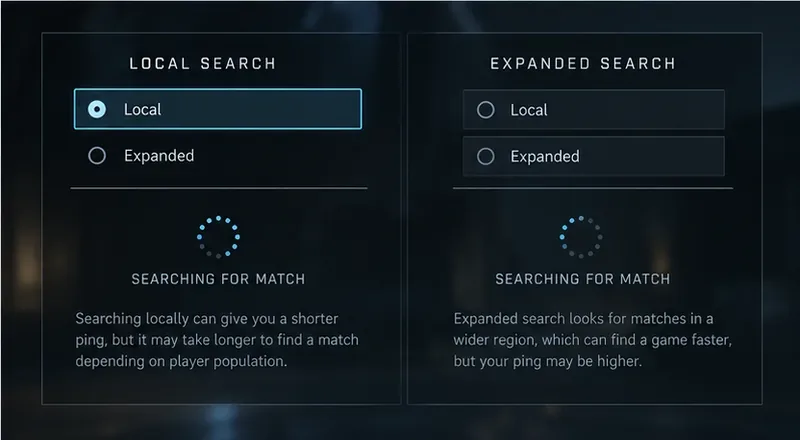
Switch back to Expanded if your local player pool is small, the playlist is less active, or the queue becomes impractical. Expanded searches more broadly and may improve wait time and skill matching, but a match can be placed on a server farther away. The right choice depends on whether you value a shorter wait or more consistent latency in that session.
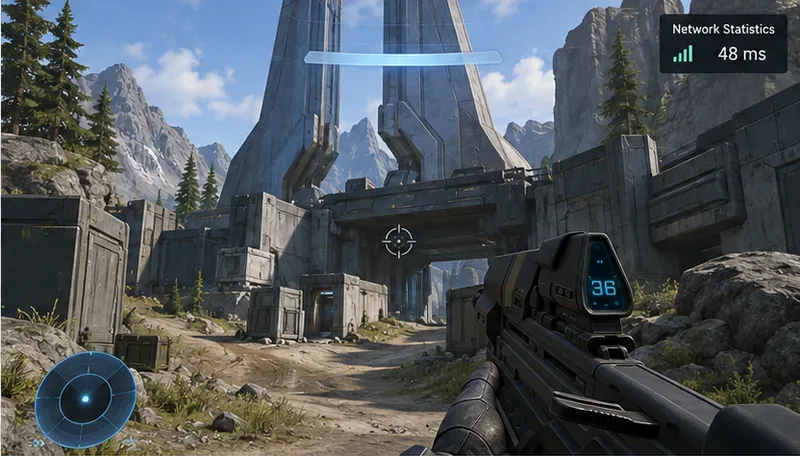
The HUD example displays a sample 48 ms Network Statistics value; it is illustrative and is not a measurement of your connection.
2. Measure ping in matches, not just while searching
To see the network latency counter during play, open Settings and enable Network Statistics under the HUD settings. Halo’s settings guide says this displays a network latency counter in the top-right of the screen. Ping is commonly shown in milliseconds (ms); a lower number generally means less round-trip delay, but there is no single threshold that guarantees a smooth experience for every player or connection.
Compare the counter across several matches. If Local produces lower and steadier readings, keep it when the queue time is acceptable. If it is still high in every match, changing the search region may not solve the underlying route or home-network issue. If one match is high but the next is normal, remember that Local can still use different datacenters in your region, and their routes are not identical.
When you play in a fireteam, Halo uses the fireteam leader’s Search Region setting. The system also takes members’ locations into account when determining a local region. If you are in a group spread across continents, a setting that suits the leader may not give every teammate a low ping. For example, a player in North America joining a leader in Asia may see more delay even though the leader is using Local. Test the group’s connection together, and have the leader switch between Local and Expanded only if the trade-off suits everyone.
3. Check for a service outage before changing your router
If multiplayer menus will not load, the game shows Offline or Transitioning, or several players cannot connect at the same time, first check Halo’s network outage information and the Xbox or Steam service status for your platform. Halo Support lists dedicated-server, lobby-service, and multiplayer-unavailable errors among possible outage symptoms. A local router change will not repair an outage on the game service.
Also allow the main menu to finish loading before launching a search. The Halo Infinite Multiplayer Known Issues page, listed as updated November 18, 2025 when checked October 8, 2026, describes a case where quickly entering gameplay on Xbox One can prevent matchmaking or Custom Games from loading; it says the issue is less common when menu content finishes loading first. On Xbox, fully quit and relaunch Halo Infinite if you resumed it through Quick Resume and multiplayer is unavailable. That same dated page notes that Quick Resume or Instant-on can cause the error on Xbox consoles.
4. Stabilize the connection if ping stays high across matches
First compare the same device on a wired Ethernet connection, if practical. Otherwise, move closer to the Wi-Fi router and pause large downloads, cloud backups, or streams on the same network while you test. Restarting the router and console or PC can clear a temporary network issue. These checks are useful when other online games or devices also lag; if only Halo is affected, check service notices and Halo Support’s network guidance before making broad changes.
On Windows: check that the PC is online and use Microsoft’s network troubleshooting steps if the connection drops or other apps also fail.
On Xbox: run the console’s network test, then use Xbox Support’s connection troubleshooting if it reports NAT or connectivity problems.
On Steam: use Steam’s Network Connectivity troubleshooting guidance if Steam itself reports connection trouble or other Steam games are affected.
A speed-test download number is not the same as game ping. A fast plan can still have an unstable Wi-Fi link, busy household traffic, or a long route to the selected datacenter. Look for fewer sudden spikes and fewer disconnects, not just a larger bandwidth figure.
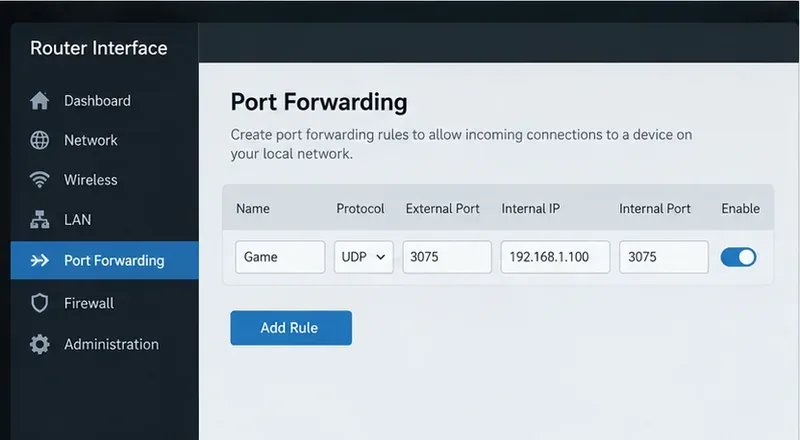
The generic router panel shows a UDP 3075 entry and a sample private IP; this setting is relevant only to the specific “No ping to our datacenters” troubleshooting case.
When should you open a port?
Do not forward ports just because a match has high ping. Halo Support’s “No ping to our datacenters” article says this exact error can occur when a router, firewall, internet provider, or managed network blocks an essential server. Its workaround for PC and Xbox is to allow UDP port 3075, along with the required Xbox network ports, or ask the internet provider or network administrator to unblock it.
Only change port forwarding if you have that error or a clear network test indicating a blocked connection. Follow your router maker’s instructions, forward to the correct device on your home network, and avoid copying the sample IP shown in the image. If you do not administer the router, are on campus or workplace Wi-Fi, or are unsure what a rule changes, contact the network owner or internet provider. Avoid putting a console or PC in a router’s DMZ as a general fix; that exposes more of the device to incoming traffic and is not the documented first step.
The Local and Expanded comparison summarizes Halo’s documented trade-off: a region-limited search may improve latency while taking longer.
How to tell whether the change helped
Keep a simple note of the Search Region setting, approximate queue time, and Network Statistics reading over a handful of matches. You are looking for a repeatable pattern: Local gives you steadier or lower latency without an unacceptable wait, or Expanded gets you into games faster when the player pool is limited. Do not expect every match to show the exact same ping.