Home
» 🎮 Esports
»
Best Audio Night Mode Setting for Footsteps in Rainbow Six Siege
Best Audio Night Mode Setting for Footsteps in Rainbow Six Siege
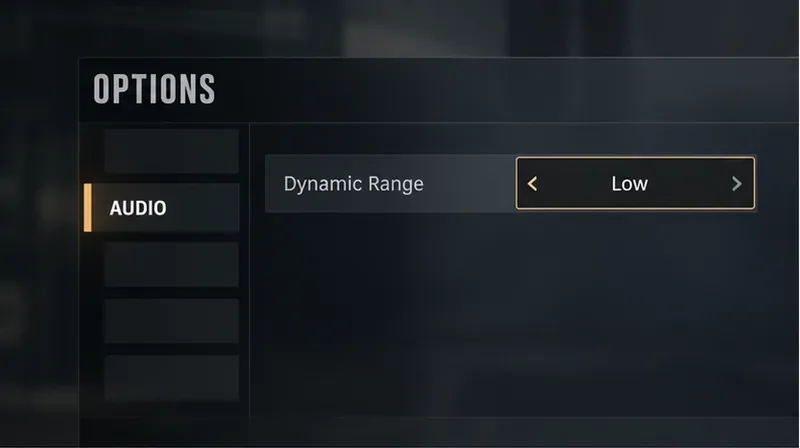
Short answer: For most players trying to hear movement without letting gunfire and explosions dominate, start with the current Dynamic Range: Low option. It reduces the loudest sounds, which can make quieter cues easier to notice by narrowing the gap. It does not make every footstep louder, and there is no single setting that wins on every headset or room.
One important update changes how older advice applies: Rainbow Six Siege X launched with an audio overhaul, including changes to how sound propagates and reverberates through spaces. Ubisoft’s current accessibility guidance describes configurable dynamic range as a way to lower the loudest sounds and help avoid auditory fatigue. Older guides that say “Night Mode” may refer to the previous menu and mix. Check the option in your current client instead of assuming the old label still exists.
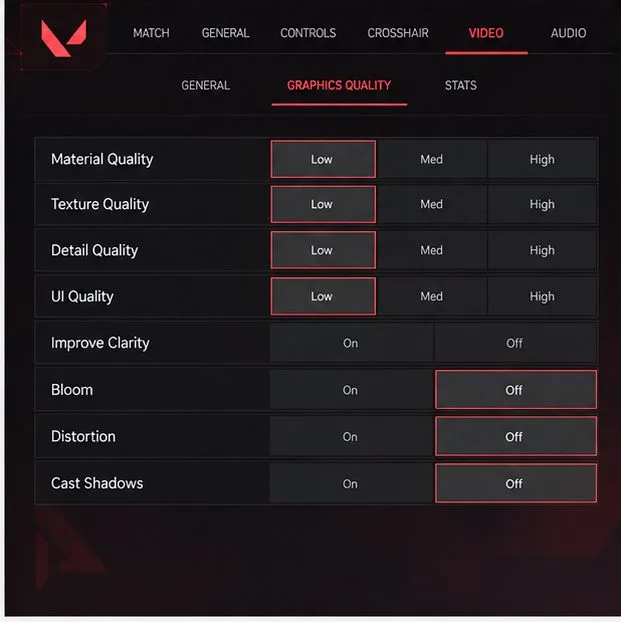
A simplified audio-menu view shows Dynamic Range set to Low, the starting point when loud effects mask quieter movement.
Which dynamic range setting should you use?
Setting or approach
Good starting point when
Trade-off
Low
Explosions, gunfire, or sudden effects overwhelm quieter sounds, or you want a less dramatic volume swing.
Big impacts can feel less forceful; the mix may sound more compressed.
High
You play at a comfortable level in a quiet room and prefer a wider difference between soft and loud sounds.
Quiet cues can be harder to pick out when loud effects happen at the same time.
If your menu uses different wording, choose the option whose description says it reduces the loudest sounds. Ubisoft’s current public accessibility notes confirm the purpose of dynamic-range control, but do not publish a measured footstep gain, compression ratio, or a universally best setting. Treat Low as a practical first test, not a guaranteed competitive advantage.
Set up the audio path before changing the game mix
Open the current Options menu and find Audio. The menu was overhauled for Year 11 Season 3, so its layout can differ from older screenshots. Look for the current dynamic-range control and note the starting value.
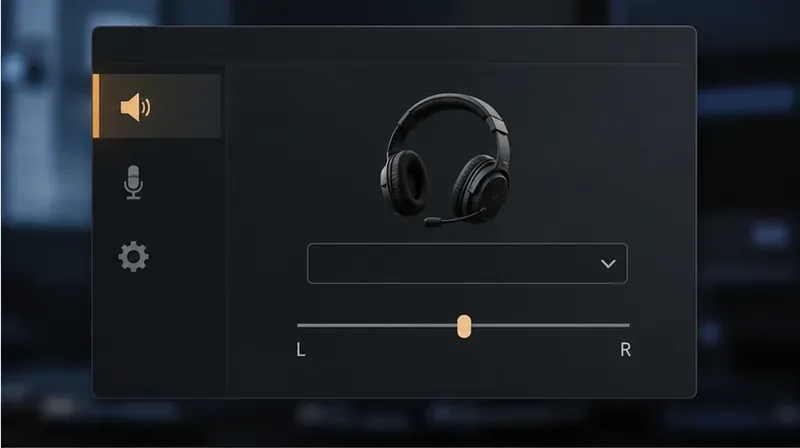
Use the headset or speakers you actually play on. Select the intended output device in your platform or PC sound settings, and check that left and right channels are balanced. Keep any headset software profile consistent while testing.
Start with Dynamic Range: Low. Make no other changes yet. Keep your master volume at a comfortable level; raising it sharply to hear steps can make sudden effects uncomfortable.
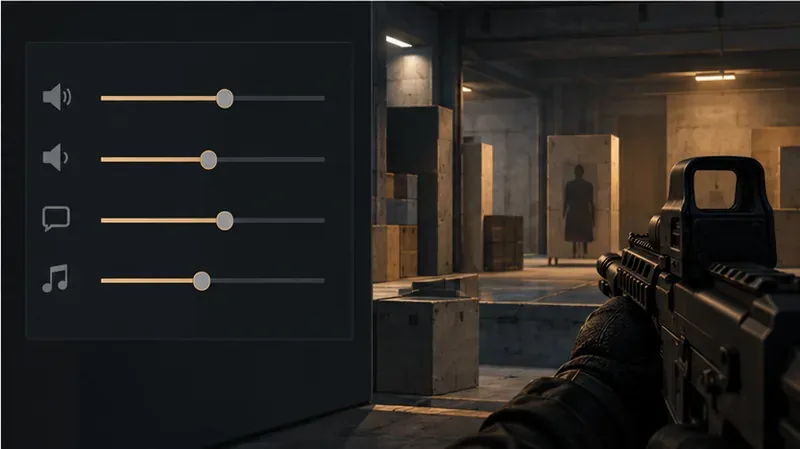
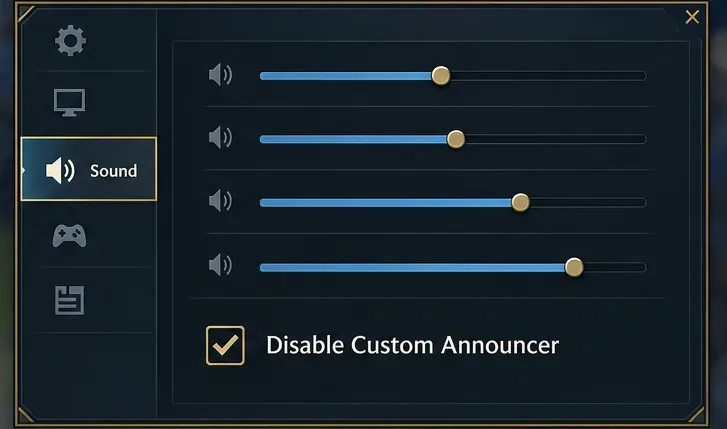
Reduce competing game audio selectively. If music or voiceover distracts from play, lower those separate sliders a little while leaving in-game effects audible. Siege provides separate volume controls for elements such as music, sounds, and voiceovers. Avoid copying exact slider numbers from another player: headsets and personal listening levels differ.
Test in a low-pressure mode. Use a training or custom environment rather than relying on one ranked round. Listen for approaching footsteps, changes in distance, and whether walls or floors alter the sound. Siege X’s revised propagation and reverberation mean the path through the map matters; sound does not behave like a simple left-right indicator.
A centered left-right balance control helps confirm that the headset output is not favoring one ear.
How to compare Low and High fairly
Use the same output device, volume, map area, and movement pattern for both settings. Have a friend walk the same route at a similar pace in a custom session, or repeat a safe training route. Listen once on Low and once on High. You are comparing how clearly you notice the cue and locate it, not just which mix sounds louder overall.
Change only the dynamic-range option between passes. If you also change a headset EQ, spatial-audio mode, or several volume sliders, you will not know which change helped. If the game seems to lose direction or sounds become muddy, return to the previous setting and remove any extra surround or enhancement layer temporarily. Some headset and operating-system processing can affect the result; test the configuration you intend to use.
A player pauses in a quiet training area to focus on faint movement cues before changing another setting.
What Dynamic Range: Low can and cannot do
Low is useful when loud effects mask quieter information, because the game’s dynamic-range control is designed to lower the loudest sounds. That can make the overall mix easier to monitor at a moderate volume. It is not a footstep boost, wall detector, or directional-audio fix. It cannot reveal a sound that is fully masked by another cue, and it cannot remove the effects of distance, intervening surfaces, destruction, or other action in the room.
For that reason, do not chase maximum volume or extreme equalizer curves based on a generic “footstep frequency” chart. Ubisoft does not publish a guaranteed Siege EQ profile that isolates enemy steps across all platforms, and different headphones reproduce sound differently. If you have tinnitus sensitivity or find explosions fatiguing, use the comfort-oriented range setting and keep your playback level moderate; the game also offers separate tinnitus sound-effect controls for relevant stun and explosion effects.
Keep the mix consistent during practice, then adjust only the slider that is competing with useful game sounds.
Quick recommendation
Start at Low if loud effects routinely cover footsteps or you need a more even mix.
Try High if you play in a quiet room, prefer stronger contrast, and can hear movement comfortably without turning the output up.
Keep the rest stable while comparing. Confirm headset balance and lower distracting music or voiceover only if needed.
Choose by repeatable listening in training or a custom match. If neither setting makes footsteps reliably clear, check output routing, channel balance, and added headset or system processing before changing several game controls.
In short, “Night Mode” is no longer a dependable name to look for in current Siege advice. Start with the current low dynamic-range option, then compare it against High on your own setup. The best choice is the one that lets you notice movement at a comfortable listening level while preserving enough direction and detail for your play.