Home
» 🎮 Esports
»
How to Fix Halo Infinite’s Multiplayer Is Unavailable Error
How to Fix Halo Infinite’s Multiplayer Is Unavailable Error
Start by checking for a Halo service outage, then fully close and relaunch Halo Infinite. Those checks should come before reinstalling the game or changing router settings. Halo Support lists “Multiplayer Is Unavailable” among possible outage symptoms, and its known-issues page also documents this error when Xbox players return through Quick Resume or Instant-on.
The same message can therefore have different causes. A fresh launch can address the documented Xbox resume problem, but it cannot repair a server outage. This guide takes you from those simple checks to updates, network troubleshooting, Steam file verification, and a useful support report. Stop when multiplayer loads and you can enter a match; completing every step is unnecessary.
Before you start: identify your platform and save the error
Write down whether you play on Xbox One, Xbox Series X|S, Steam on Windows, or the Xbox app/Microsoft Store on Windows. A launcher is the application that installs and starts your PC game, such as Steam. Instructions for one launcher do not automatically apply to another.
Take a screenshot of the exact message and note when it appeared, including your time zone. Also record whether it followed waking the console, installing an update, or changing networks. Keep your account credentials available if a sign-in prompt appears, but do not share passwords or verification codes in a support report.
The instructions below were checked against official documentation on October 8, 2026. The Halo multiplayer known-issues page displayed an update date of November 18, 2025 when researched. These are troubleshooting references, not a claim that a particular outage is happening now. Launcher labels and layout can change.
1. Check whether the problem is outside your device
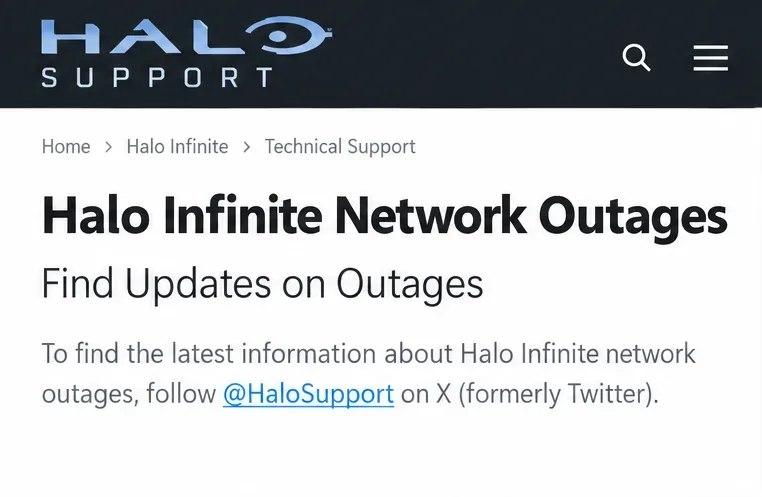
Read the official Halo outage guidance and follow its link to Halo Support’s current announcements. Check the Xbox service status page as well. A broader platform issue can affect Halo even when the game installation is intact.
If an announcement describes your symptom and platform, wait for the provider’s next update. Do not repeatedly reinstall while the service is unavailable. If no matching incident is reported, continue; the absence of an announcement does not prove every Halo service is working.
Illustrative outage-reference view: check official announcements before changing your installation.
2. Fully quit Halo Infinite and open it again
Quick Resume is an Xbox Series X|S feature that preserves a game session so you can return quickly. Returning to a preserved session is different from starting the game fresh. Halo Support’s multiplayer known-issues page recommends closing and relaunching Halo Infinite for the documented resume-related connection problem.
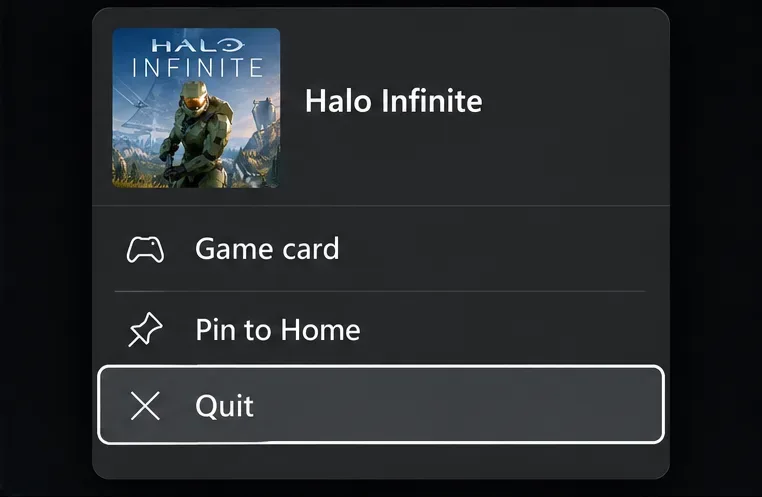
On Xbox, open the guide with the Xbox button, highlight Halo Infinite, press the controller’s Menu button, and select Quit. Launch the game again. On PC, exit the game completely before reopening it through your launcher. Going back to the dashboard or minimizing the PC window does not necessarily close the game.
Allow the main menu to load before trying matchmaking, the system that finds other players for an online match. If a fresh launch restores access, you can stop here. If the error returns after using Quick Resume again, record that pattern rather than changing unrelated settings.
Illustrative Xbox menu: Quit closes the game so the next launch starts a fresh session.
3. Install any pending game update
A pending update is worth resolving before further troubleshooting. Use the branch matching your installation, following Halo Support’s update instructions:
Xbox console: Close the game and check the Updates area in My games & apps. Install any Halo Infinite update and let it finish.
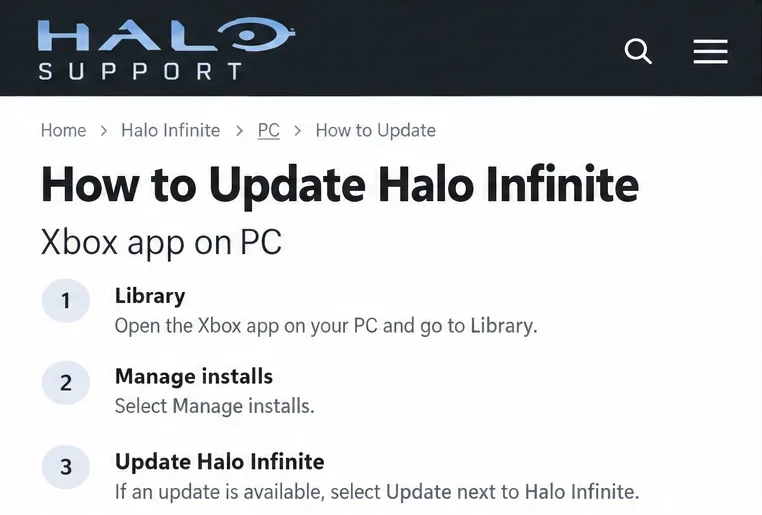
Xbox app on Windows: Open Library, select Manage installs, and check Halo Infinite for an update.
Microsoft Store installation: Open Library and check for an available update. The documented Get updates control refreshes the list when needed.
Steam: Find Halo Infinite in Library and install any update offered by Steam before launching.
Do not cancel an update halfway through and then interpret another connection error as a new diagnosis. Once the installation finishes, relaunch and try multiplayer again. If the documented controls differ from your view, check the current launcher help rather than guessing at similarly named buttons.
Illustrative update reference for the Xbox PC app; use the update branch matching your installation.
4. Restart the PC or console
If quitting the game did not help, restart the device once. This is a basic troubleshooting check, not a confirmed cure for every instance of the error.
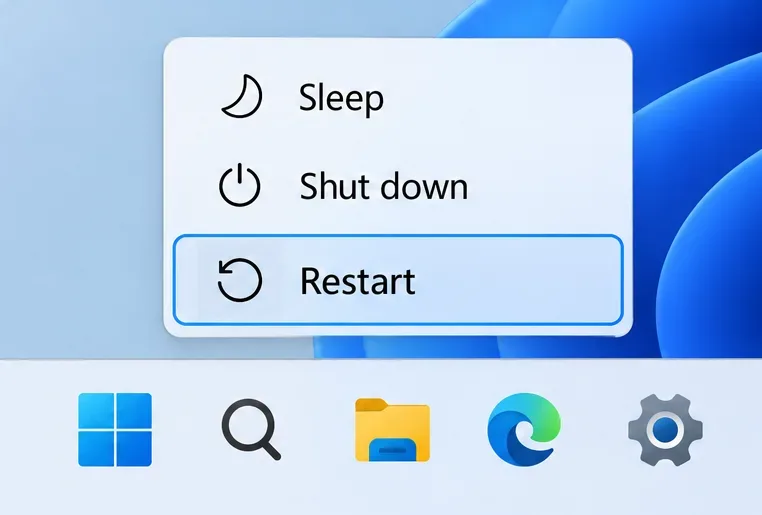
On Windows, save other work, then choose Start > Power > Restart. On Xbox, use the console’s restart option from its power menu. After the device starts again, open Halo Infinite normally and retest. Keep this separate from restarting your router: the first restarts your gaming device; the second interrupts the network for everyone using it.
If restarting helps only temporarily, note how long access lasts and what happens before the next failure. That information is more useful than repeatedly restarting without tracking the result.
Illustrative Windows power menu: Restart reboots the PC rather than merely closing Halo Infinite.
5. Check the internet connection on the gaming device
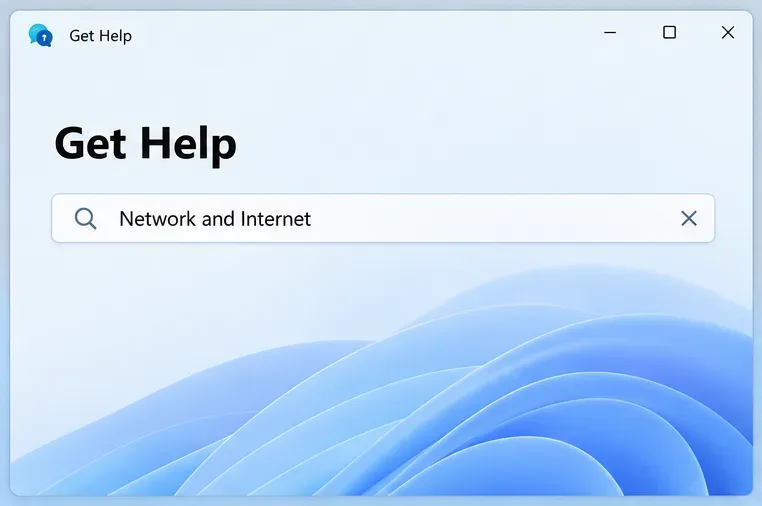
Try opening another online service on the same PC or console. On Xbox, use the network connection test in Network settings. On Windows 11, Microsoft recommends the Network and Internet troubleshooter in the Get Help app. The Windows Wi-Fi troubleshooting reference also explains basic connection checks.
If ordinary internet access fails, address that problem before returning to Halo. If websites work but Halo does not, you have narrowed the problem, not ruled out networking: reaching a website does not prove the game can reach its required services.
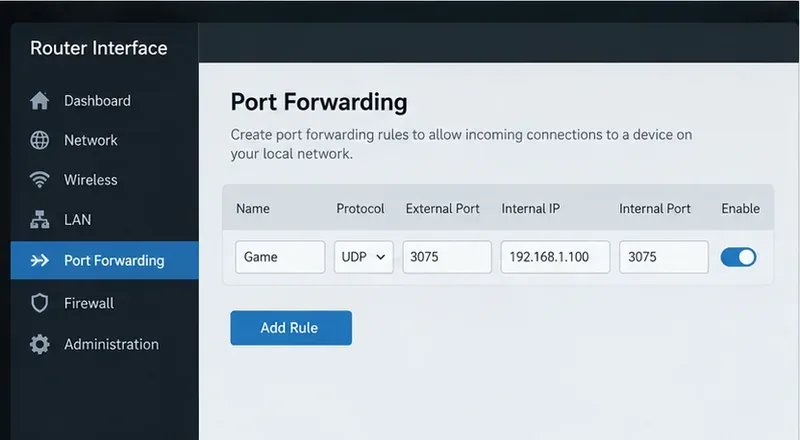
Pay attention to a different error such as No ping to our datacenters. Here, “ping” refers to a connectivity check involving the game’s server locations. Halo provides specific datacenter-error guidance, including UDP port 3075. A port is a numbered network communication endpoint; UDP is a transport protocol. That remedy is for the documented error, not a reason to open ports indiscriminately for every unavailable message. On a managed network, ask the administrator.
Illustrative Get Help view for Windows network troubleshooting; no diagnostic result is shown.
6. Restart your home network equipment if the checks point there
If the connection itself is unreliable, restart your modem and router using the manufacturer’s directions. A modem connects to your internet service provider; a router distributes that connection to your devices. Some homes use one combined unit.
Microsoft’s general procedure is to disconnect power, wait about 30 seconds, reconnect the modem first, wait for it to become ready, and then reconnect the router. Follow the relevant instructions for your equipment and allow the connection to recover before retesting.
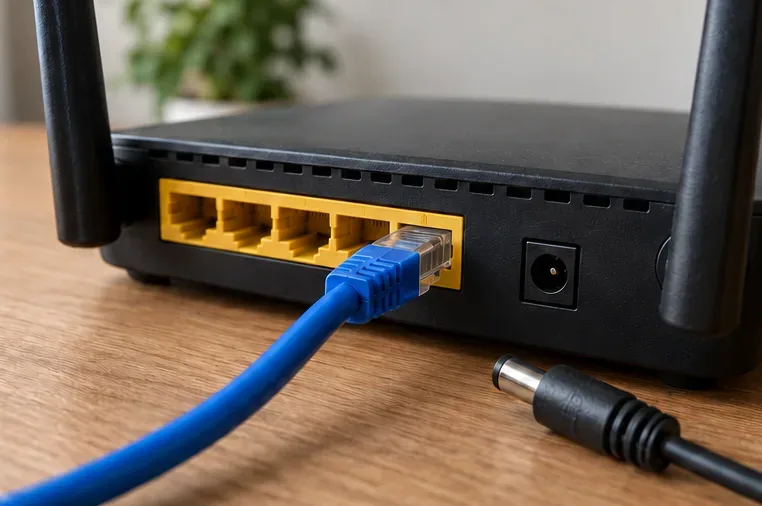
Use a power restart, not the recessed factory-reset button, which can erase configuration. If possible, briefly compare a wired Ethernet connection with Wi-Fi. A successful wired test suggests investigating the wireless connection, but it does not establish that Halo’s servers are fault-free.
The router’s power connector is unplugged while the Ethernet cable remains attached; a power restart differs from a factory reset.
7. Verify installed game files on Steam
This step applies to Steam installations. File verification checks whether the installed game files match what Steam expects. It is a reasonable installation check if the earlier steps failed, especially after a disrupted update; it cannot repair an outage or an account restriction.
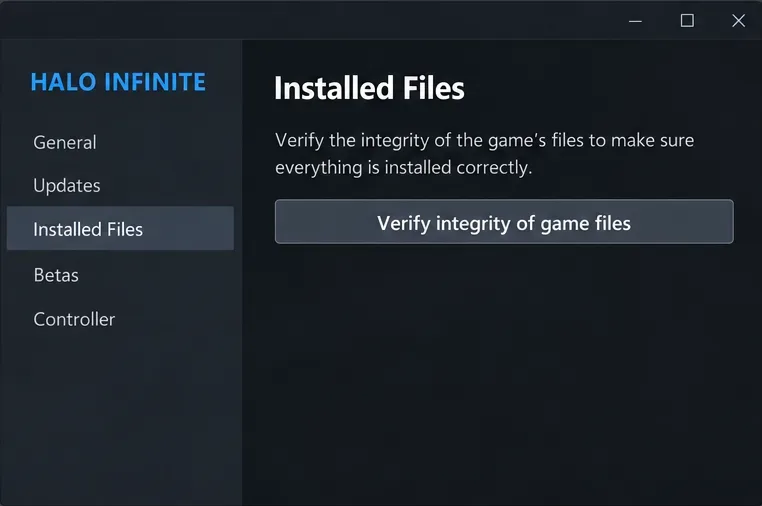
Close Halo Infinite. In Steam Library, right-click the game and choose Properties > Installed Files > Verify integrity of game files. Let the process finish, then relaunch. These controls are documented in Steam’s file-verification instructions.
Avoid verifying multiple games at once or running other intensive maintenance tasks during the check. Steam notes that some local configuration files may fail verification normally, so that message alone does not prove a damaged installation. If you use the Xbox app or a console, skip this Steam-specific branch and use the appropriate platform support instructions.
Illustrative Steam Properties view: file verification checks the installation, not Halo service availability.
8. Send a focused report if the problem persists
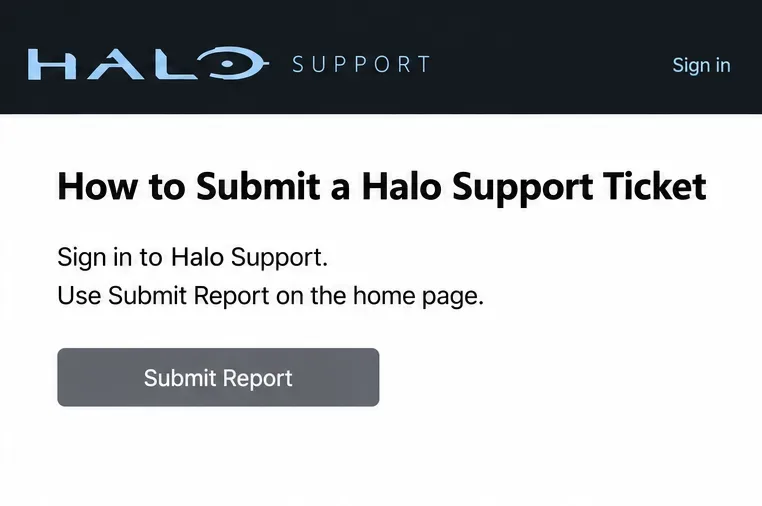
When service checks show no matching incident, the game is updated, and the home connection appears functional, follow Halo Support’s ticket instructions. Sign in to Halo Support and use Submit Report. A ticket records the problem for investigation; it does not guarantee an immediate fix.
Include the exact error, platform and launcher, occurrence time with time zone, whether Quick Resume was involved, and each check with its result. Attach your own screenshot if available. For a PC in-game issue, the support guide requests an up-to-date DxDiag report, a Windows diagnostic file describing your system. Follow the linked guide if that information is required.
Submit one ticket for the same issue rather than duplicates. Halo Support distinguishes in-game bugs from network, hardware, and Microsoft Store purchase problems; those may need Xbox Support or your internet provider instead.
Illustrative support reference: sign in, then use Submit Report on the support home page; include your own error details.
How to interpret the result without guessing
What you observe
Useful next action
A matching outage announcement
Wait for a service update, then relaunch and retest.
Fresh launch works after Quick Resume fails
Use a fresh launch and document any recurrence.
Other internet services fail on the device
Resolve the device or home-network problem first.
Only the datacenter ping error appears
Use its dedicated Halo network guidance.
Halo alone still fails after basic checks
Submit a report with the evidence already collected.
Success means the online menus load and you can enter a multiplayer match, not merely that the error box disappears once. Make one change at a time and retest. Avoid disabling security tools wholesale, deleting account credentials, factory-resetting the router, or reinstalling immediately: these actions are not established fixes for this general error and can add work without identifying the cause.
The best starting path remains short: check service announcements, fully quit the game, and update it. Continue through the appropriate device, network, and installation checks only if necessary. If the cause is service-side, the solution depends on the provider; if it is local, your recorded results help isolate what needs attention.