Home
» 🎮 Esports
»
How to Fix the Low Client FPS Error in VALORANT: 8 Steps to Try
How to Fix the Low Client FPS Error in VALORANT: 8 Steps to Try
You queue into a match expecting smooth aim, then VALORANT flashes a Low Client FPS warning and the screen starts to stutter. That warning points to the frame rate your own PC is producing; it is different from high ping or low server FPS. Riot says a brief indicator can disappear on its own, but frequent or long-lasting warnings mean you should diagnose the client rather than chase network fixes.
Work through these checks in order. Start with the in-game performance graphs and simple changes, then move to drivers, power, and a clean-boot test only if needed. This guide is for VALORANT on Windows PC. The screenshots below are illustrative interface examples; menu wording and appearance can vary by game version and Windows build.
Checked October 8, 2026: Riot’s frame-rate guidance was updated October 7, 2026. It recommends lowering VALORANT’s Material, Texture, Detail, and UI Quality settings, and testing several visual effects turned off. The exact cause still depends on the individual PC.
1. Confirm that the warning is about client FPS
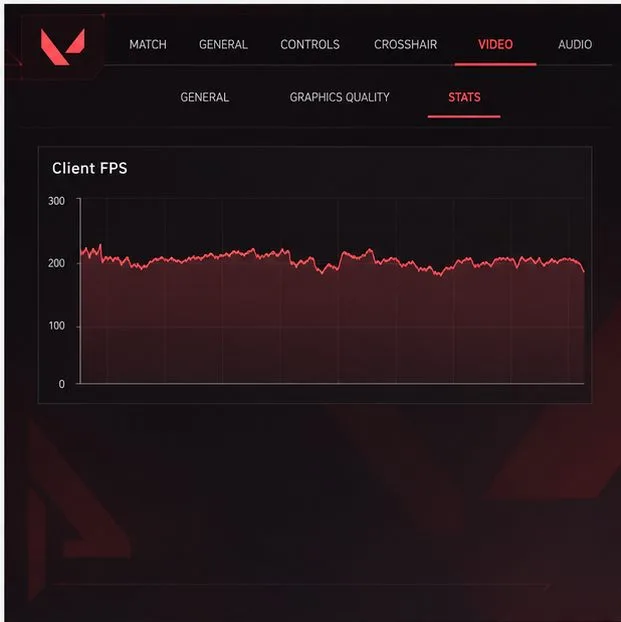
Open Settings > Video > Stats and turn on the performance graphs you need. Riot specifically recommends these graphs to help determine whether the game is limited by the CPU or GPU. Watch what happens when the warning appears: does the client FPS fall at the same time, or does the game feel delayed while the FPS remains steady?
The in-game Stats tab includes a Client FPS graph. The plotted line is illustrative; compare your own readings while playing.
A low client frame rate can make motion look choppy or jump between frames. High ping and packet loss affect communication with the server and can make actions feel delayed or inconsistent, but they are different problems. If your FPS graph stays stable and the network indicators change instead, use Riot’s network troubleshooting guidance rather than lowering graphics settings.
Riot notes that a warning that appears briefly and clears quickly can be safe to ignore. Continue below when the warning returns often, lasts through a round, or matches a clear drop in smoothness.
2. Close apps competing for PC resources
Before changing graphics or Windows settings, close software you do not need during a match. Browsers with many tabs, video editors, game launchers downloading updates, recording tools, streaming software, and overlays can use CPU, memory, or GPU time.
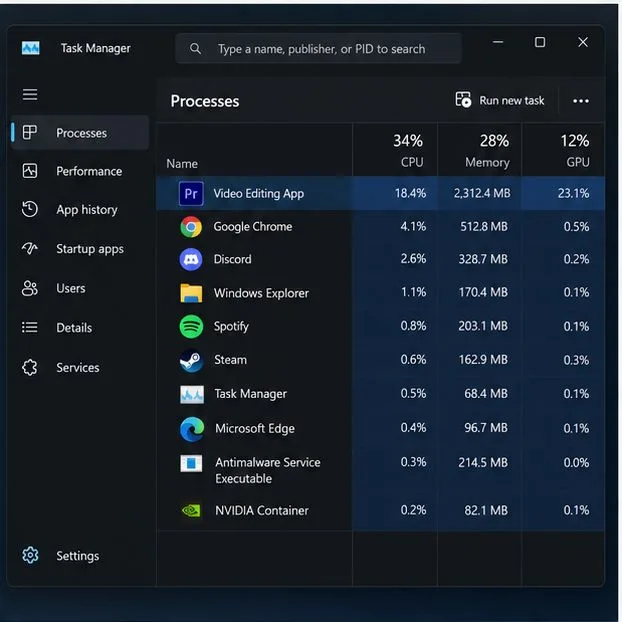
Task Manager can help identify resource-heavy apps running beside VALORANT; the process names and usage values shown here are illustrative.
Press Ctrl + Shift + Esc to open Task Manager, then review the Processes list while the slowdown is happening. Close only apps you recognize and do not need. Avoid ending Windows system processes, Riot Client, or Vanguard components. If closing an app helps, reopen your usual programs one at a time later to identify which one causes the conflict.
3. Lower the graphics settings that matter first
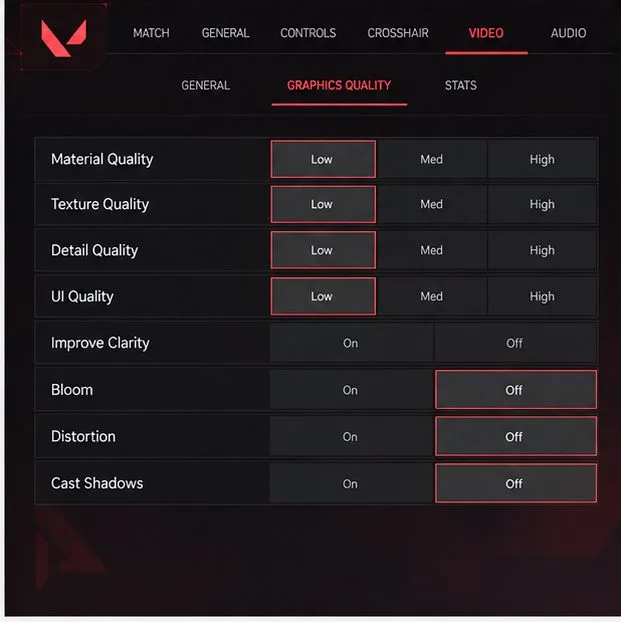
In VALORANT, open Settings > Video > Graphics Quality. Riot’s current FPS guidance highlights Material Quality, Texture Quality, Detail Quality, and UI Quality as useful settings to adjust. Lower these a few at a time; if the warning is severe, use Low as a temporary diagnostic baseline.
Lowering the quality options and disabling Bloom, Distortion, or Cast Shadows is a useful performance test; this menu view is illustrative.
Riot also lists Improve Clarity, Experimental Sharpening, Bloom, Distortion, and Cast Shadows as effects you can try disabling. The visual tradeoff is reduced detail or clarity, so treat Low settings as a diagnostic step. Once FPS is stable, raise one setting at a time until you find a balance you prefer. Test in a Custom Game before returning to ranked matches.
4. Make sure VALORANT uses the intended GPU
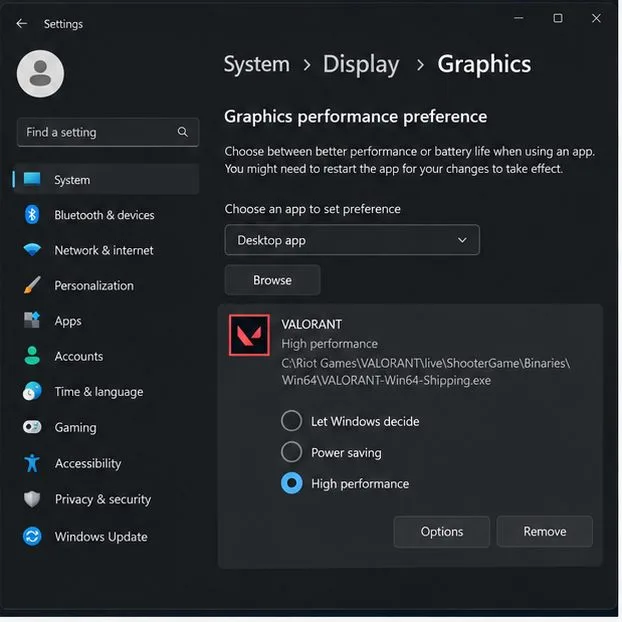
This check matters most on laptops and PCs with both integrated and dedicated graphics. In Windows 11, open Settings > System > Display > Graphics, select or add the VALORANT executable, choose Options, and select High performance if that option corresponds to your dedicated GPU. Save the change and restart the game.
On a multi-GPU PC, Windows lets you choose a graphics preference for an app; the pictured VALORANT entry is illustrative.
Do not expect a gain on every system. A desktop with one graphics processor may not benefit, and a high-performance GPU choice can use more battery and generate more heat on a laptop. If Windows does not show a choice for your PC, move to the next step.
5. Update the graphics driver and Windows
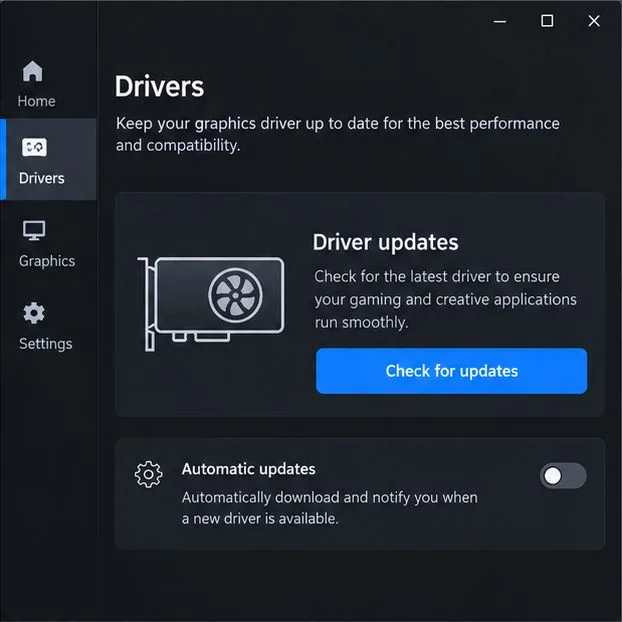
Riot’s frame-rate troubleshooting page recommends updating the graphics-card driver and Windows. First identify the GPU model using Windows Device Manager or Riot’s recommended dxdiag method, then use the official update tool or support page from NVIDIA, AMD, or Intel. Avoid third-party driver-updater utilities.
Check for a driver through the official utility or support site for your GPU maker; this unbranded update screen is a generic illustration.
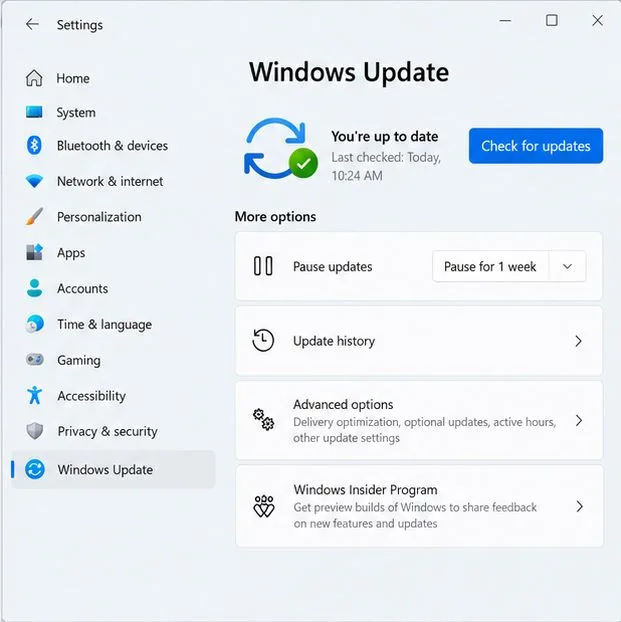
Also open Settings > Windows Update and install available updates, restarting when Windows asks. A driver update can occasionally change application profiles or introduce a new issue. If FPS became worse immediately after a specific driver change, note the driver version and consult the GPU maker’s official support guidance before rolling back.
Windows Update is the built-in place to check for current Windows updates; the displayed status is illustrative.
6. Check power, temperature, and FPS limits
On a laptop, connect the charger and use the manufacturer’s normal performance profile for gaming. Riot also recommends checking whether a PC gets unusually hot during play and improving ventilation if it does. Keep vents unobstructed, place the system on a firm surface, and clean dust only using the manufacturer’s instructions. Do not open a laptop or use compressed air in a way its manufacturer warns against.
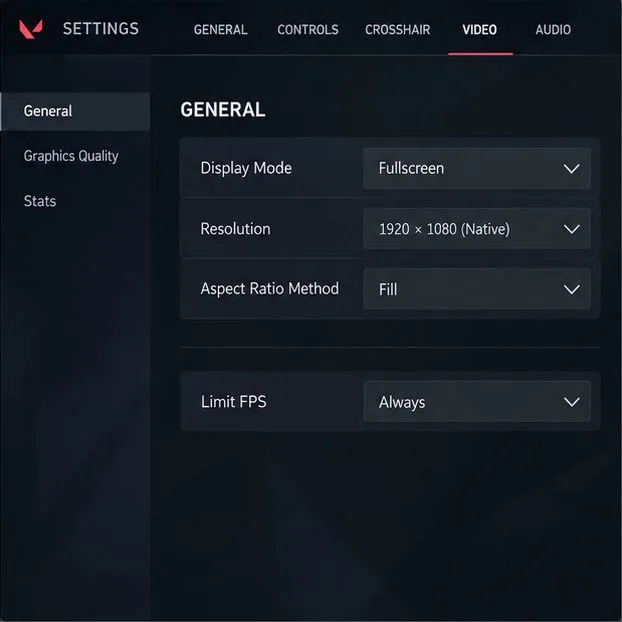
In VALORANT’s Settings > Video > General, review Limit FPS Always. A very low cap can make FPS appear stuck below what your PC can otherwise deliver. Riot suggests testing a cap below the average FPS if the system is working too hard or heating up. That can reduce power use and temperature, but it also limits peak frames. Compare uncapped play with a cap your PC can hold steadily, and choose based on smoothness and heat rather than a bigger number alone.
Review display mode and the always-on frame limit when checking whether a cap is holding performance down; menu values shown are illustrative.
7. Test for background-software conflicts with a clean boot
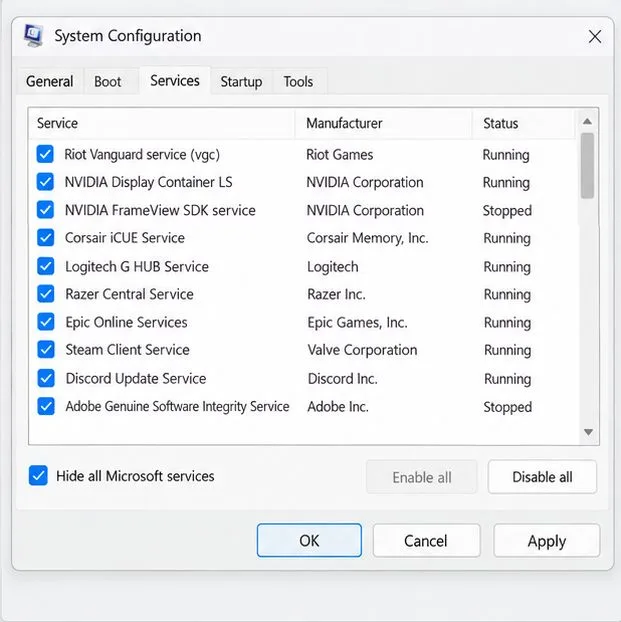
If the warning continues after the basic steps, Riot recommends a clean boot to check whether background software is interfering. A clean boot starts Windows with a limited set of startup software, but it can temporarily disable useful services and features. It is an advanced diagnostic step, not a routine FPS tweak.
In System Configuration, the clean-boot procedure hides Microsoft services before changing startup services; this screen is illustrative.
Follow Microsoft’s current clean-boot instructions exactly, record which startup items you disable, and restore normal startup afterward. Because VALORANT relies on Riot Vanguard, disabling its service may stop the game from launching; if that happens, return Windows to normal startup instead of trying to bypass Vanguard. If VALORANT works in a clean-boot state, re-enable items in small groups to find the conflict, then update or remove only the software responsible.
8. Retest and decide whether the fix worked
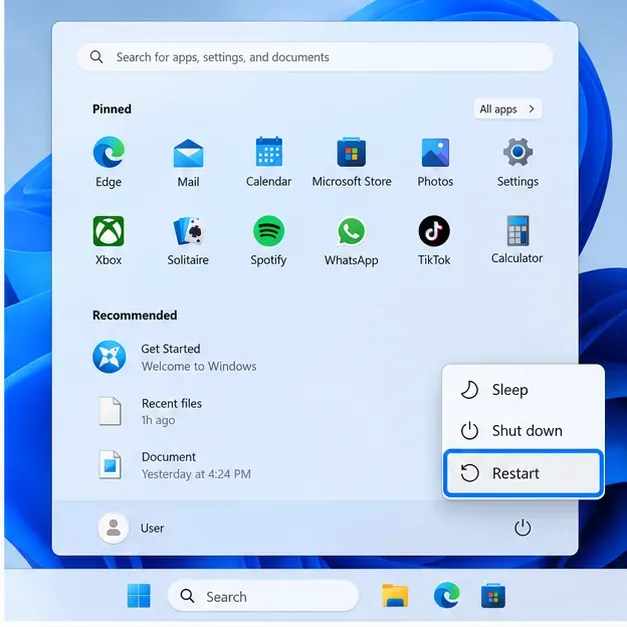
Restart the PC after driver, Windows, or graphics-preference changes. Then use the same practice area or a Custom Game for a short comparison. Keep the same resolution, graphics settings, frame limit, and background apps during each test so the results are useful. Watch the Client FPS graph and note whether the warning appears less often, lasts for less time, or disappears during the same type of action.
FPS improves after closing an app: check that app’s overlay, recording, or hardware-acceleration settings.
FPS improves only at lower graphics quality: keep a reduced setting or check whether the PC meets Riot’s current minimum requirements.
FPS drops after several minutes: investigate heat, blocked airflow, and laptop power mode.
FPS stays steady but play still feels delayed: check ping and packet-loss indicators separately.
No change after these checks: collect Riot logs and submit a support ticket with your PC specs, driver version, and the steps you tried.
Success means the Client FPS graph is steadier and the warning no longer appears repeatedly during ordinary play. There is no single setting that fixes every PC: use the graph to narrow the cause, keep changes that measurably help, and restore settings that only reduce image quality without improving frame stability.