Home
» 🎮 Esports
»
How to Change the Announcer Voice in League of Legends
How to Change the Announcer Voice in League of Legends
If you are looking for a League of Legends announcer voice selector, the short answer is that the game does not have a documented, universal voice-pack picker in its public settings guide. The option you may see in some matches is narrower: a checkbox called Disable Custom Announcer can turn off a mode’s custom announcer and return that match to its default voice. It does not let you choose any champion, actor, or announcer you want.
That distinction matters because “change the announcer” can mean three different things: switch away from a temporary or mode-specific voice, lower the announcer volume, or select another voice pack. The first may be available in a match; the second is an audio-level adjustment; the third is not documented as a general League client feature. Use the steps below only if the relevant control appears in your current game.
First, identify what you want to change
Your goal
What to try
Practical tradeoff
Restore the usual announcer during a match with a special voice
Look in the in-game Sound settings for “Disable Custom Announcer.”
It disables the custom voice for that match or mode; it does not select a different custom voice.
Keep the same announcer but make it quieter
Adjust “Announcer Volume,” if your Sound panel shows that control.
This changes loudness, not voice identity.
Choose a specific champion or celebrity voice for every queue
Check whether Riot has announced a supported pack for your current mode or event.
A universal picker is not documented in the public Riot sources linked below.
Change only the announcer’s language
Do not assume a voice-only language switch exists; check the current Riot Client language options for your region.
Language settings may affect more than announcer audio, and availability can vary.
How to turn off a custom announcer in a match
The following route is conditional: it applies when the current queue or event has loaded a custom announcer and the checkbox is present. Riot’s public support pages do not document this control as a permanent, account-wide voice selector, and menus can change between patches. If the checkbox is missing, you may be in a mode without that option rather than overlooking a hidden voice library.
Enter the match where you hear the different voice. The setting is reported in the in-game audio menu, so check it in the match using the custom announcer. If you are still in the client lobby, start the affected mode first.
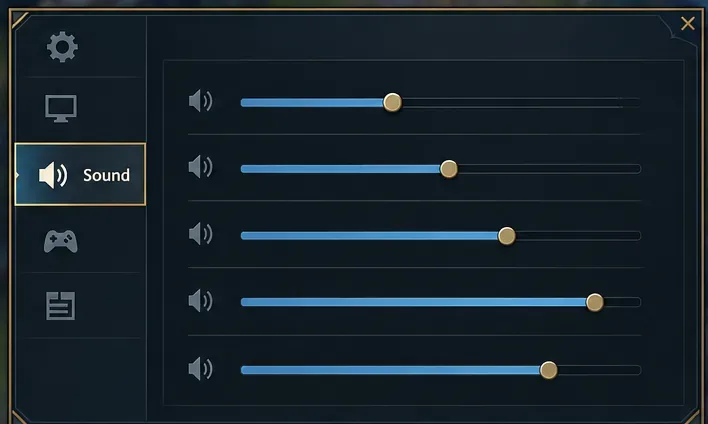
Open the game settings and select Sound. Press Esc during the match, then choose the Sound or audio tab. The exact tab artwork and layout may vary; use the visible Sound label rather than relying on a particular icon.
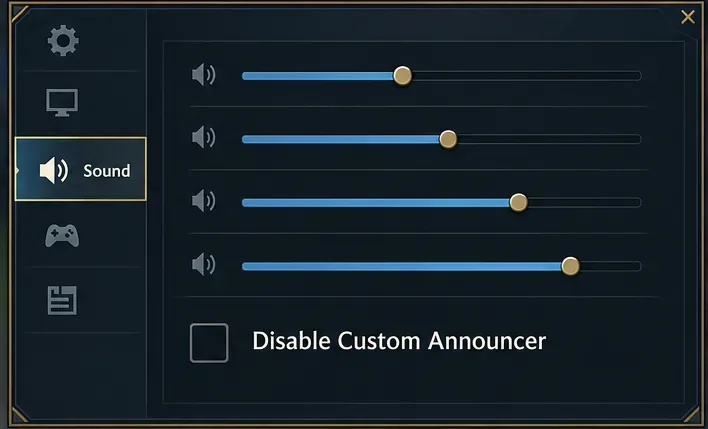
Find “Disable Custom Announcer.” Scroll through the Sound options. If the checkbox is present, note whether it is currently checked. This control is a switch between a mode’s custom voice and its default announcer, not a menu of voice choices.
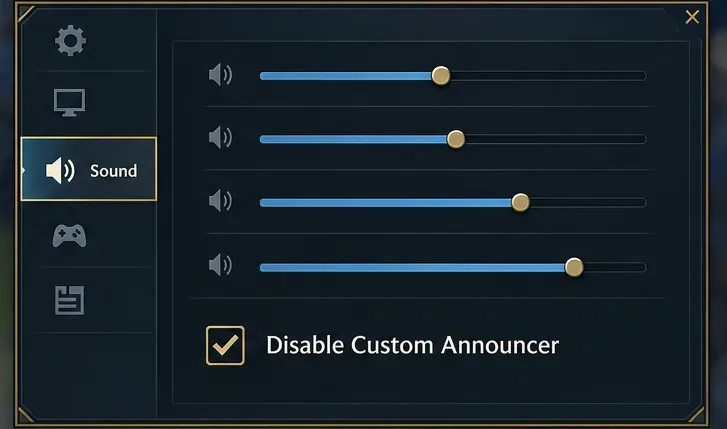
Check the box and return to the match. Listen for the next announcer line. If the special voice remains, reopen Sound and confirm the setting stayed enabled; some settings can behave differently across modes or matches.
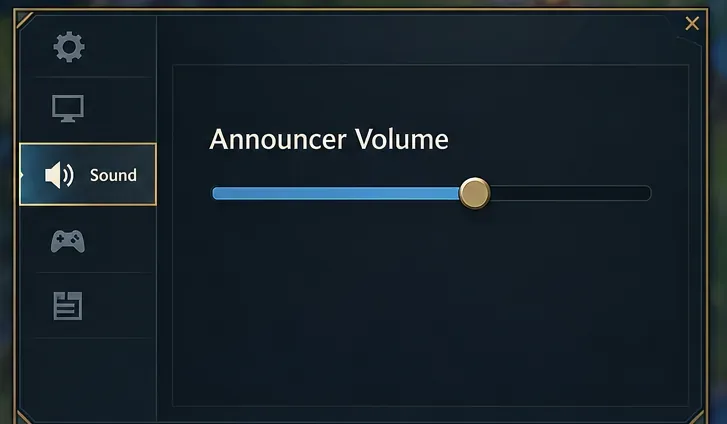
The Sound tab is the place to inspect during a match; the pictured layout is illustrative and may differ from the live client.The Announcer Volume control changes how loud the announcer is, not which voice is speaking.An unchecked “Disable Custom Announcer” box indicates that the custom announcer is not being suppressed in this example.Checking “Disable Custom Announcer” is the available fallback when you want the mode’s default announcer back.
What the setting can and cannot do
It can restore the mode’s default voice
When a special event or mode supplies a custom announcer and exposes the checkbox, disabling the custom announcer is the direct, reversible option. It is useful if the event voice is distracting or hard to understand. The tradeoff is that you generally give up that custom performance for the default match voice; the checkbox does not offer a third voice. Try it in the affected match, then uncheck it if you prefer the special announcer.
It cannot turn volume into a voice selector
An “Announcer Volume” slider is an audio mix control. Lowering it can make callouts less prominent while preserving the same voice and game sounds. It cannot replace the announcer with a champion’s voice or change the spoken language. If the voice itself is the issue, search for the custom-announcer checkbox instead of moving volume all the way down; otherwise you may lose useful callouts without changing the voice.
It does not prove that announcer packs are available to buy
Riot’s May 2020 Ask Riot post about game modes and announcer packs said work on announcer packs had been put on hold at that time. That post is historical, not a current catalog of every later mode or event. More recently, as of October 7, 2026, Riot’s Hall of Legends 2026 page for Caps describes a bundle item as a “Custom Visual Announcer.” “Visual” is not evidence that the item changes match audio. Check the exact item description and its supported features before purchasing anything for a voice change.
If you cannot find the checkbox
Confirm the mode. A special announcer and its toggle may be limited to a specific mode, event, or map. Return to the mode where the voice changed and inspect its in-game Sound options.
Restart the client after a patch. If a seasonal mode has just changed, fully close League and the Riot Client, reopen them, and check the current patch notes or event page. This is a low-impact check; reinstalling the game is not a sensible first step for a missing audio toggle.
Check whether you mean volume or language. Use the volume control for loudness. For language, review the Riot Client’s current language options for your region and expect that the change may affect other game text or voice audio as well. The public materials reviewed here do not verify a setting that changes only the announcer’s language.
Do not treat an event’s visual reward as an audio pack. Read the official item description. If it names a visual announcer effect, do not infer that it installs a new voice.
Recommendation by situation
If a temporary announcer is the problem, first look for “Disable Custom Announcer” in that match’s Sound settings. If the setting exists, it is the lowest-effort way to return to the default voice. If you only need quieter callouts, adjust Announcer Volume instead. If you want a specific alternate voice across every queue, there is no generally documented in-client picker to recommend; wait for Riot to describe a supported feature for the relevant mode or event and avoid paying for a visual-only item under the assumption that it includes new audio.
Because Riot’s public documentation does not promise that this checkbox appears in every mode or patch, treat its presence as conditional. The useful test is simple: open Sound in the match where the custom voice plays. If the named checkbox is there, toggle it and listen; if it is not, use the mode’s current official information rather than changing unrelated client files or repeatedly reinstalling the game.