Home
» 🎮 Esports
»
PS5 “Database Is Corrupted” Error Loop: Safe Fixes & Recovery
PS5 “Database Is Corrupted” Error Loop: Safe Fixes & Recovery
PS5 “Database Is Corrupted” Error Loop: Safe Fixes & Recovery
If your PS5 displays a database corruption message and keeps restarting, begin with Repair Console Storage, then clear the system cache, rebuild the database, and update system software. These steps use Sony’s current Safe Mode menu. Save factory resets for last: two Safe Mode options erase user data.
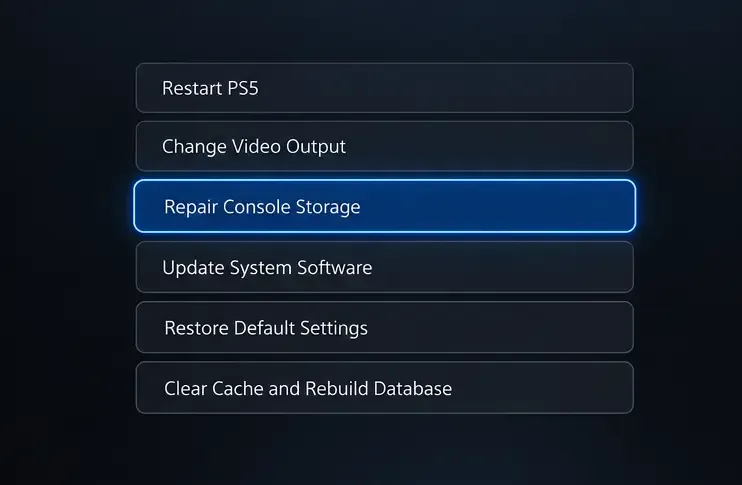
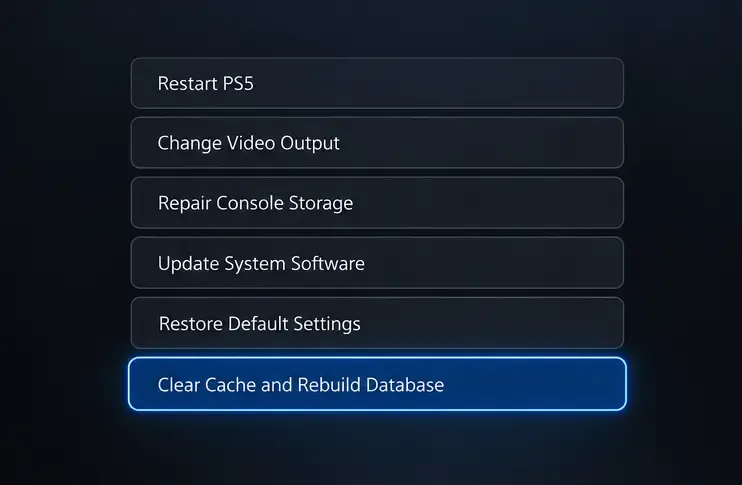
The menu artwork below is illustrative, not a console screenshot. Names and option numbers follow Sony’s current support documentation; screen layout can vary slightly by software version.
What the PS5 database error means
The database helps the console organize the content on its storage. Sony describes Rebuild Database as scanning the drive and creating a new database. The error message alone does not confirm that the SSD has failed or identify what caused the corruption. If a specific CE error code also appears, check Sony’s instructions for that code before using a reset.
Fix the PS5 “Database Is Corrupted” loop safely
1. Power down fully and disconnect external storage
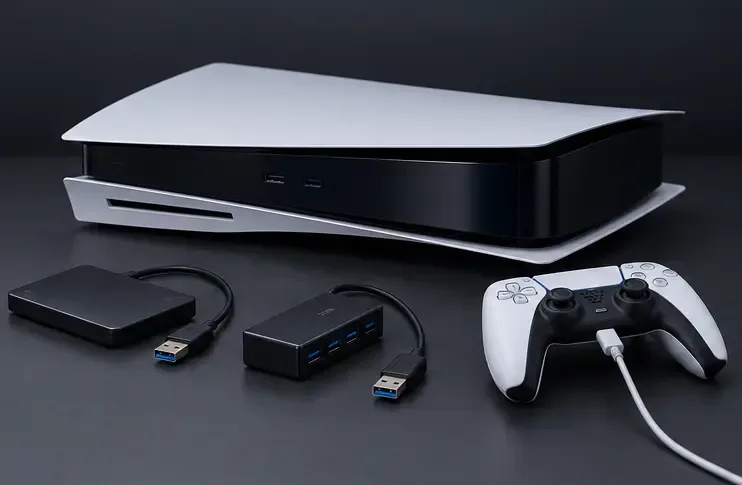
Hold the PS5 power button for about three seconds to turn it off, then wait until the power indicator is completely off. Only then disconnect USB extended storage and nonessential USB hubs or accessories. Sony instructs users to select Settings > Storage > USB Extended Storage > Safely Remove from PS5 before disconnecting it while the console is on; otherwise, wait until its indicator is off. See Sony’s USB extended storage instructions. Leave the internal M.2 SSD in place.
Power down completely before disconnecting USB extended storage; reconnect devices one at a time after testing.
Try starting the console once with the external devices removed. If it still loops, continue to Safe Mode. After recovery, reconnect external devices one at a time to see whether one triggers the problem again.
2. Use Safe Mode’s Repair Console Storage option
With the console off, press and hold the power button again. Release it after the second beep—the second beep comes about seven seconds after the first. Connect the controller with a USB cable and press the PS button. In Safe Mode, select 3. Repair Console Storage. Sony says this option does not erase data and recommends it when the PS5 has startup or storage trouble.
Let the repair finish, then restart normally and check whether the loop has stopped. For Sony’s button sequence and full option list, see How to use Safe Mode on PS5.
3. Clear the cache, then rebuild the database
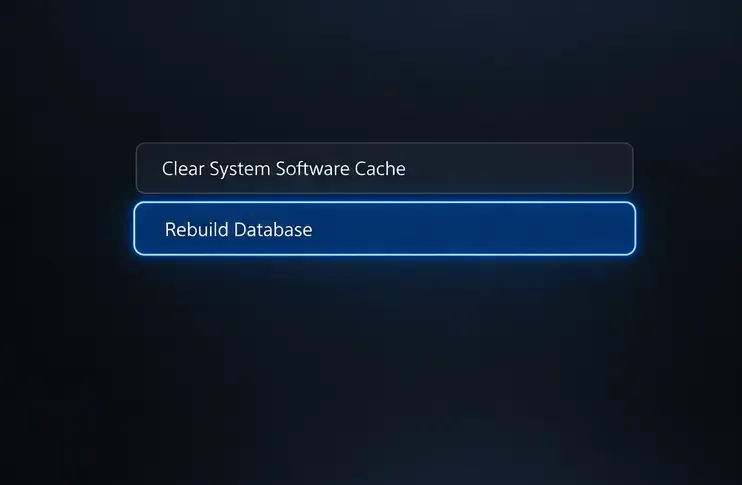
If the error returns, open Safe Mode again and choose 6. Clear Cache and Rebuild Database. Select Clear System Software Cache first, confirm, and test a normal restart. If the loop remains, return to the same menu and select Rebuild Database. This asks the console to scan the drive and create a fresh content database; it is different from initializing the PS5.
Open option 6 to reach the separate cache-clearing and database-rebuild actions.Choose Rebuild Database only after trying Clear System Software Cache.
Keep the console connected to power while either process runs. The duration depends on the console and its stored content; do not interrupt it just because it takes longer than expected.
4. Update PS5 system software
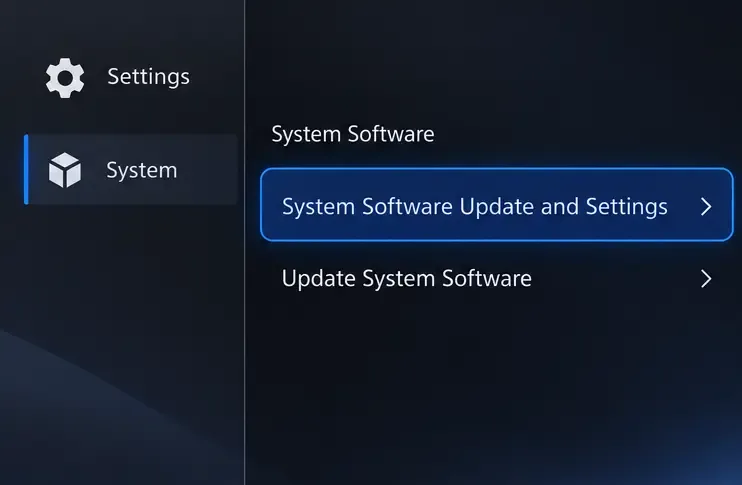
If you can reach the home screen, open Settings > System > System Software > System Software Update and Settings, then choose the update option. If the console cannot start normally, Safe Mode option 4. Update System Software can update through the internet or from a USB drive.
Illustration of the Settings route to system software updates.
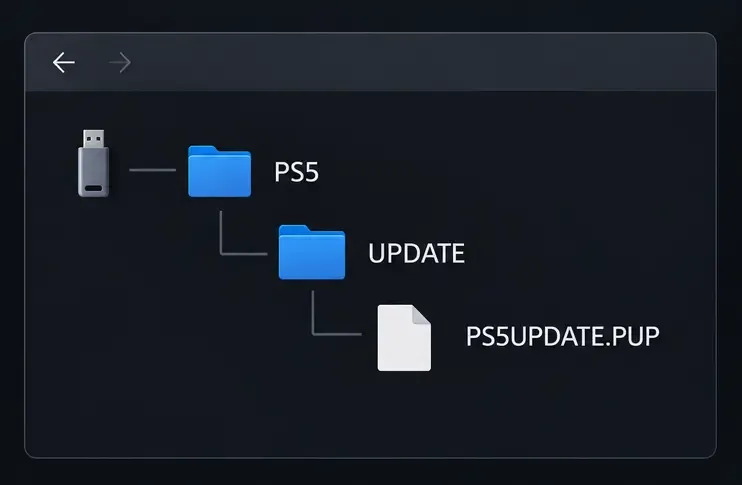
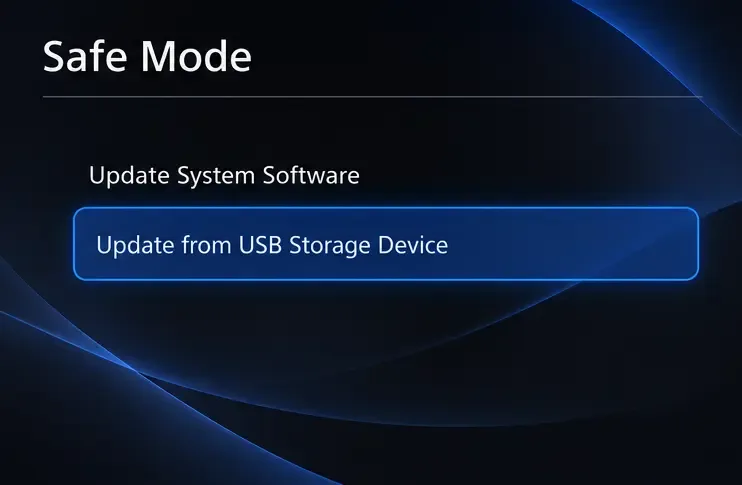
For a USB update, format a compatible USB drive as FAT32 or exFAT, create folders named PS5 and UPDATE in that order, then place Sony’s regular update file named PS5UPDATE.PUP inside UPDATE. In Safe Mode, select 4. Update System Software > Update from USB Storage Device. Download the regular update file from Sony’s PS5 system software page; do not use its separate reinstallation file for this update step.
USB update file structure: PS5/UPDATE/PS5UPDATE.PUP.In Safe Mode, choose Update System Software and then Update from USB Storage Device.
5. If only one game triggers the error, check its code
For example, Sony’s guidance for error CE-108262-9 is to update the system software, delete and reinstall the affected game or app if the error starts after launch, and then try Rebuild Database. Follow the instructions for the exact code on screen; do not assume every database loop has the same cause or fix. See Sony’s CE-108262-9 support page.
Last resort: back up before resetting the PS5
If the console will boot far enough to open Settings, make a USB backup before any reset: Settings > System > System Software > Back Up and Restore > Back Up Your PS5. Sony supports FAT32 or exFAT backup drives; a drive formatted as USB extended storage for games cannot be used for this backup. See Sony’s PS5 backup and restore guide.
Safe Mode option
What it does
Data impact
3. Repair Console Storage
Repairs storage startup issues
Sony says it does not erase data
5. Restore Default Settings
Restores default settings
Does not delete console content
6. Clear Cache and Rebuild Database
Clears cache or scans storage and builds a new database
Not a factory reset; back up when possible
7. Reset PS5
Restores the console to its original state
Deletes all user data
8. Reset PS5 (Reinstall System Software)
Removes PS5 system software and reinstalls it
Deletes all user data
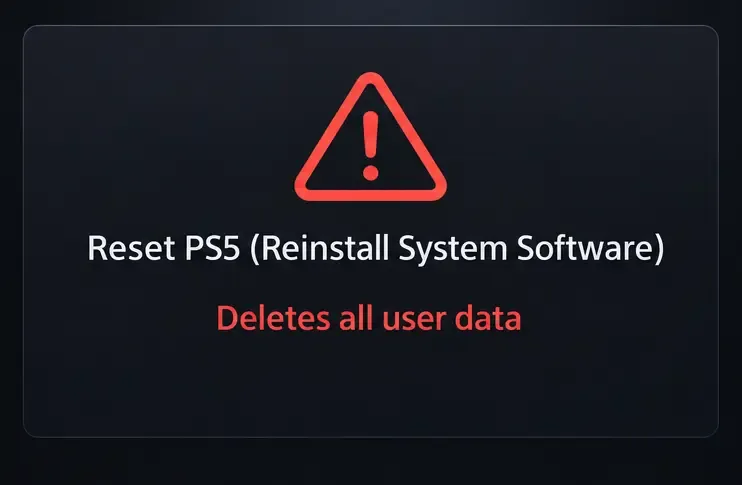
Options 7 and 8 are destructive. Use 7. Reset PS5 only after backing up data. Choose 8. Reset PS5 (Reinstall System Software) only if a full software reinstall is needed. That process requires Sony’s separate reinstallation file—not the regular update file—and erases all console data. Follow Sony’s system software reinstallation instructions exactly.
Do not select Reset PS5 (Reinstall System Software) until you understand that it erases all user data.
When to contact PlayStation Support
If the error persists after storage repair, cache clearing, database rebuild, and a system update—or returns after a reset/reinstall with external drives disconnected—stop repeating resets and contact PlayStation Support or Repairs. Sony can guide you through diagnosis. Avoid opening the console or formatting a drive as a troubleshooting shortcut.
Reduce the chance of another database loop
Keep PS5 system software current and install updates from Sony’s official page.
Do not unplug the console or its USB storage while an update, repair, backup, or restore is running.
Use Safe Mode repair only when needed; Sony does not require a monthly database rebuild routine.
Back up important console data before major troubleshooting.
Safely remove USB extended storage through Settings, or power the console off and wait for the indicator to go dark.
For most loop cases, the sensible order is Repair Console Storage, clear cache, rebuild the database, update system software, and only then consider a data-erasing reset. That sequence gives the console a chance to recover before you take an irreversible step.