Paladins Killcam and Top Play Options: What You Can Use Now
Paladins removed killcam and Top Play. Learn what replaced them and compare practical recording options for reviewing deaths or saving highlights.
There is no verified current killcam or Top Play display setting to recommend in Paladins. The developer removed both systems with the Sands of Myth update in 2020. If you are a new or returning player looking for an On/Off switch, that history matters more than any suggested setting value.
For reviewing deaths or saving highlights today, the practical choice is between watching your own recorded gameplay and playing without recording. On Steam, background recording suits unexpected moments, while on-demand recording suits sessions you deliberately want to capture. Neither restores an enemy-perspective killcam or an automatic Paladins Top Play sequence.
Official sources reviewed on October 8, 2026, confirm the removal; no official restoration announcement was found in that review. This article does not claim to have inspected every platform's live settings menu or measured recording performance.
A killcam is a replay associated with your elimination, commonly used to show the opponent's perspective. Top Play was Paladins' automatically selected highlight presentation. These are different from a video you record yourself.
A Death Card is a cosmetic presentation associated with the player who eliminated you. A death recap presents information about an elimination rather than replaying a complete scene. Commendations are recognition given to teammates. None of these terms means that you can watch a reconstructed enemy viewpoint.
The distinction prevents a common beginner mistake: purchasing or equipping a cosmetic does not bring back a removed replay system. Likewise, a video titled “Top Play” may simply be a creator's edited highlight rather than a feature available in the current game.
The developer's Sands of Myth announcement on Steam states that killcam and Top Play shared a system with longstanding technical problems. The team chose to remove them rather than rebuild that system, prioritizing core gameplay and other fixes.
Xbox Wire’s March 4, 2020, launch coverage confirms that Death Cards replaced the killcam presentation and that the Commendation system replaced Top Play's place in the match flow. The changes were part of the update itself, not a personal preference that players could reverse through a settings switch.
That explains why an old menu screenshot can send you in the wrong direction. Changing graphics quality, reinstalling the game, or copying an old configuration line does not establish that an unsupported feature will return. When a guide promises to enable it, look for a dated official announcement that actually supports the claim.
Start with the question you want your display or recording arrangement to answer. Do you want fewer distractions during play, a way to revisit positioning mistakes, or clips to share? Those are separate goals, and they do not require identical settings.
| Your priority | Practical choice | Important limitation |
|---|---|---|
| Play without reviewing video | Leave your recording tool off | You will not have footage of an unexpected moment. |
| Review surprising deaths | Use background recording on a supported platform | Your recording shows your own captured view, not the opponent's hidden perspective. |
| Capture a planned practice session | Use on-demand recording | You need to start capture before the moment you want to keep. |
| Share a strong play | Select and save a clip from your footage | The clip is your selection, not an official automatic Top Play award. |
For most newcomers who specifically want to understand unexpected deaths, a modest background recording setup is a reasonable starting point. For players who never watch their footage, leaving capture off is just as reasonable. These are recommendations based on the intended use, not benchmark results.
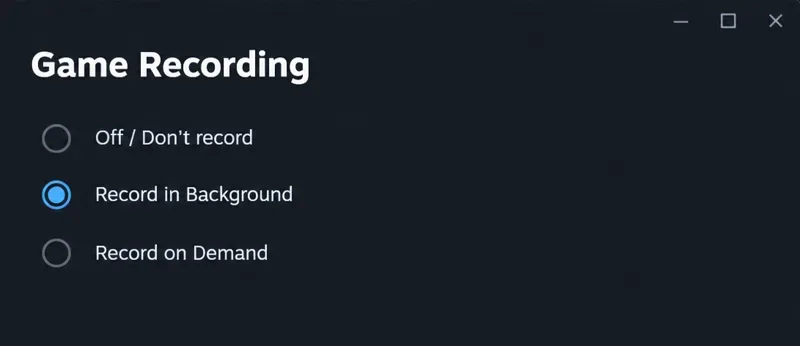
Valve's Steam Game Recording documentation describes Off/Don't record, Record in Background, and Record on Demand. The feature is available through Steam's Game Recording settings and works with games that support the Steam Overlay, the interface opened over a running game.
Background footage is temporary and can be overwritten as its reserved storage fills. Save a clip when you want to keep a moment. On-demand mode records when you deliberately activate it. Neither mode automatically gives Paladins an enemy camera or selects the match's best player.
The image shows a simplified Steam recording view, not a Paladins settings screen or a capture from a tested session. Its purpose is to distinguish external recording choices from the removed in-game replay systems.
Check your platform before following a capture recommendation. A Steam menu does not apply to a console or another PC launcher. Use the recording facilities actually supported by your platform, and confirm their behavior before relying on them to save a match.
Before recording an important session, make sure you have available storage and know which shortcut controls capture. Choose a shortcut that does not compete with an ability, movement input, or communication key. Test it somewhere low pressure rather than discovering a conflict during a close fight.
Decide whether you need voice audio. A gameplay review can be useful without recording unrelated conversations. If you plan to share a clip, listen to its audio first and check whether it includes anything you did not intend to publish.
A useful recording should let you see your position, the nearby action, and the relevant on-screen information clearly. Increasing quality indefinitely is not the goal. If capture makes your play feel less responsive, reduce the recording workload or use shorter planned sessions. No universal quality or frame-rate setting is established here.
Your recording is most useful for evaluating decisions you could actually see and control. Look at the moments before the elimination rather than only the final hit. Ask where cover was available, whether you moved away from teammates, and whether you entered a fight without a clear exit.
Consider a hypothetical example: a new player repeatedly dies while pursuing a weakened opponent around a corner. A recording may show that the chase took them into an exposed area before help could arrive. That supports practicing safer pursuit decisions. It does not prove what the opponent saw or establish that the match was unfair.
For highlights, preserve enough lead-in to explain the play. A clip of the final elimination alone can hide the positioning or teamwork that made it possible. Choose footage that communicates the action clearly rather than treating every multikill as evidence of the best decision.
Separate observation from interpretation. “I crossed an open lane” is something your footage can show. “The opponent knew my location through an exploit” generally requires additional evidence. Personal recordings have value, but they do not contain every player's inputs or all server-side information.
If your priority is uninterrupted play, success means you are comfortable with the presentation and have stopped searching for unsupported replay options. If your priority is review, success means you can retrieve a recent clip, understand what your own view shows, and identify one decision to improve.
For sharing highlights, confirm that the saved clip plays correctly, contains the intended action, and has suitable audio. A recorder finishing a session is not the same as having a permanent clip ready to share.
Future changes should be checked through official update announcements, including those accessible from the Paladins Steam listing. Until a restoration is officially established, the useful choice is how you capture and review your own footage—not which value to assign to a removed killcam or Top Play toggle.
Paladins removed killcam and Top Play. Learn what replaced them and compare practical recording options for reviewing deaths or saving highlights.
Compare Rocket League’s Dynamic Range presets, reduce music that masks match audio, and learn what the 2026 Override Boost Audio option changes.
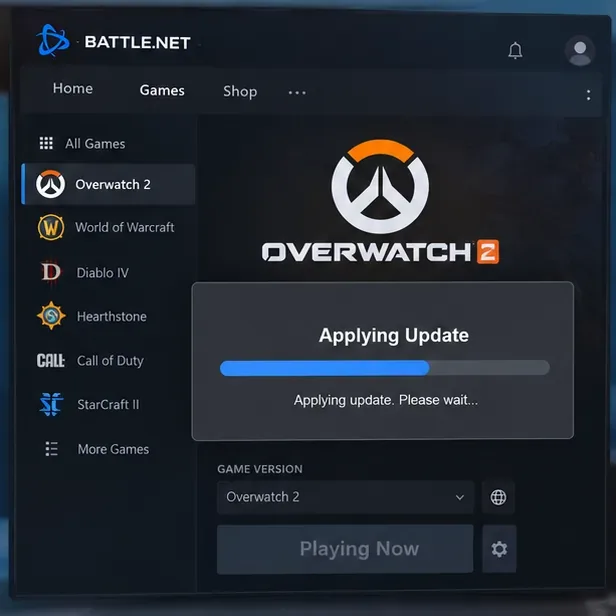
Overwatch 2 stuck on “Applying Update”? Use this current Battle.net troubleshooting order to repair files, clear cache, fix network issues, and avoid unnecessary reinstalls.
Fix PUBG stuck on Initializing on Steam with targeted checks for server issues, launch options, game files, updates, and your internet connection.
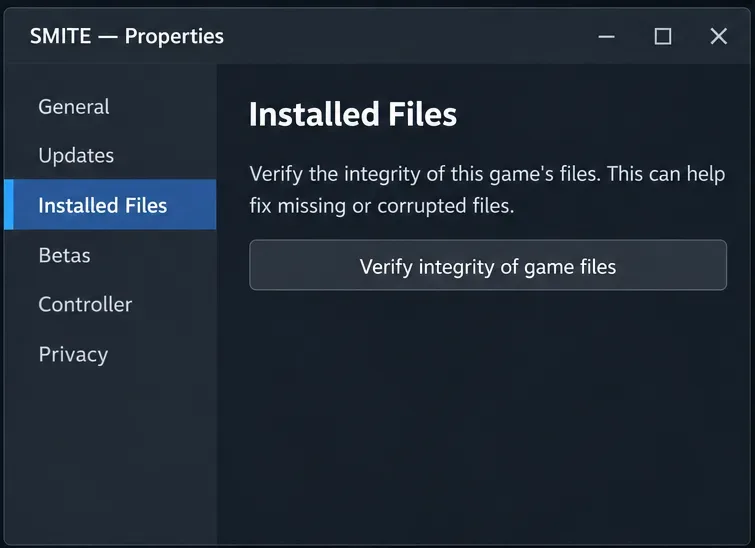
Troubleshoot SMITE’s version vendor mismatch on Steam: check the game entry, finish updates, restart Steam, verify files, and know when to contact support.
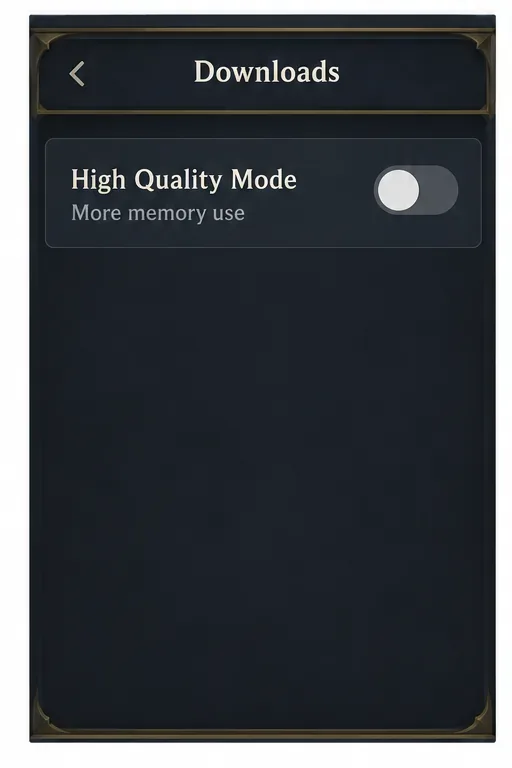
Compare Hearthstone mobile frame-rate settings, High Quality Mode, and phone power options to find a smoother, more stable setup for Android or iPhone.
Warzone shader optimization stuck at 0%? Compare the safest fixes for Steam and Battle.net, from waiting at the Main Menu to file repair and clean boot troubleshooting.
Choose VALORANT ability keybinds that preserve movement and aim, set agent profiles, avoid input conflicts, and test your layout before Competitive.
Unlink a third-party account in Mobile Legends through Account Center. Learn the verification options, account safety rule, and how this differs from changing Moonton email.
Use a hit-focused Tekken 8 audio mix that keeps impact sounds clear without making music, voices, or stage ambience disappear. Includes a practical starting mix and tuning tips.