Paladins Killcam and Top Play Options: What You Can Use Now
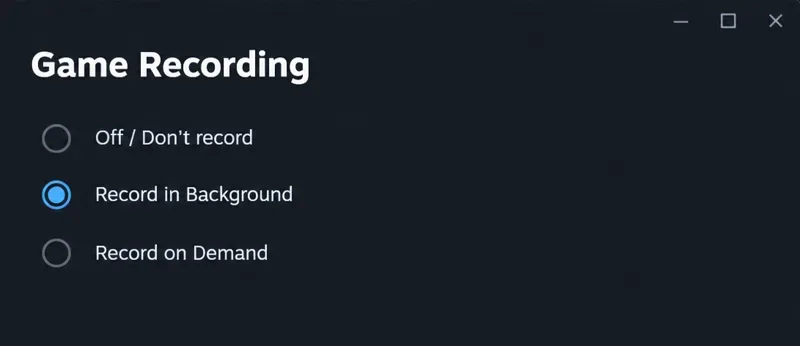
Paladins removed killcam and Top Play. Learn what replaced them and compare practical recording options for reviewing deaths or saving highlights.
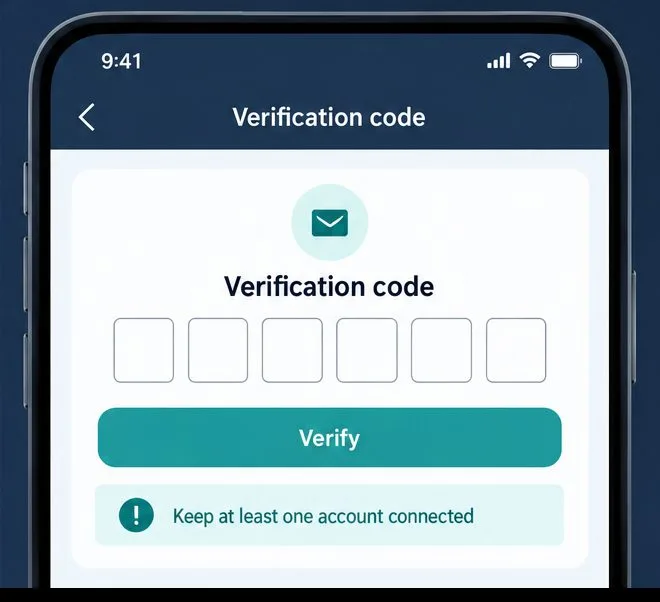
To remove a Facebook, Google, TikTok, or other third-party login from Mobile Legends: Bang Bang, use the in-game Account Center’s “3rd Party Account Disconnect Self-service” option. Moonton’s support instructions say you must keep at least one account connected, and the final connection cannot be removed. Before starting, confirm that another login you control is still linked and that you can access the Moonton email address on the game account.
Moonton’s support article, dated September 5, 2025, describes two verification routes: sign in to the third-party account you are disconnecting, or verify through the Moonton mail address if you cannot access that provider account. It also says a Moonton account itself cannot be disconnected; you can change its bound email address instead. These are different actions, so choose the third-party unlink flow only when that is what you intend.
It is an outside sign-in service linked to your MLBB game account, such as a social or platform account. It is not the same thing as your Moonton account. Moonton’s Terms of Service describe third-party accounts as services that can provide access to game features. The support flow treats Moonton email changes separately from disconnecting those outside accounts.
Unlinking removes that provider as a way to connect to the game account; it does not delete your Facebook, Google, or other provider account, and it is not the same as canceling or deleting the MLBB game account. Moonton’s account terms warn that guest progress may not be transferable or recoverable if the game is deleted. Before changing bindings, make sure your game progress is secured through an account method you control. Do not uninstall the game as an unlinking shortcut.
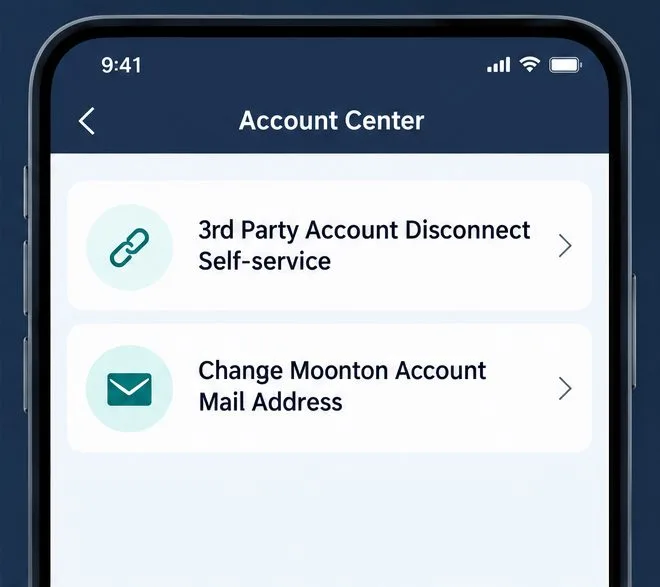
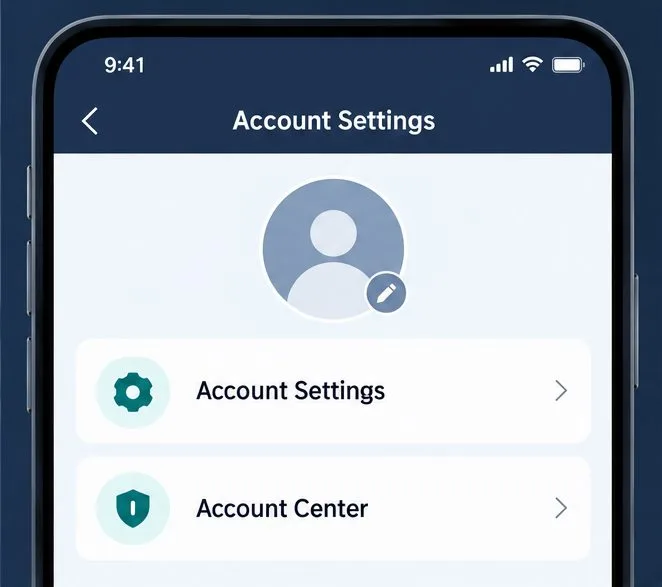
Launch Mobile Legends and sign in to the game account you want to manage. Tap your profile avatar, open Account Settings, then choose Account Center. Moonton’s help article uses this avatar-to-Account-Center route for email management; on some game versions, the entry may appear under an Account label. Follow the equivalent Account Center path if the wording is slightly different.
In Account Center, tap 3rd Party Account Disconnect Self-service. Select the connected provider you want to remove. The service list shown in your client can depend on which providers are available on your platform and which ones are linked, so do not assume every player will see an identical list.
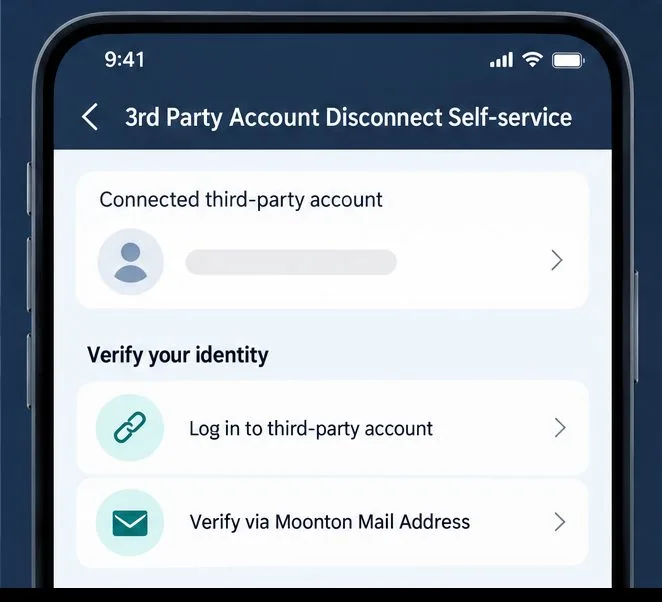
If you can still access the third-party account, choose the provider sign-in and complete the verification shown in the game. If you cannot log in to that provider, choose the Moonton mail-address verification route. Moonton says it will send a verification code to the bound email address; enter the correct code in the game to complete the disconnect.
Only enter the code in the official game flow. Do not share verification codes, passwords, or account screenshots containing private information with anyone claiming they can unlink the account for you. If you cannot access either the connected provider or the bound Moonton email, stop and contact in-game Customer Service. The public instructions do not describe a universal bypass or promise that support can remove a connection without ownership verification.
After the game confirms the disconnect, return to Account Center and check that the selected provider is no longer shown as connected. Also verify that at least one other login you control remains available. If you removed a provider because you plan to use a different one, bind and verify your replacement login through the game’s supported account flow rather than assuming the old provider’s credentials will carry over.
No. Moonton’s help article says a Moonton account cannot be disconnected from Account Center. If you need to change the email address bound to it, use Change Moonton Account Mail Address and follow the confirmation sent to the original address. Do not select that option if your goal is simply to remove a connected Facebook or other third-party login.
It is also useful to separate disconnecting a login from removing app access in a social network’s own privacy settings. The in-game self-service is Moonton’s documented route for disconnecting a third-party account from MLBB. If you are also concerned about what permissions the provider granted, review that provider’s account security and connected-app settings separately; one action should not be assumed to substitute for the other.
Check that you are logged in to the correct MLBB profile and that the selected provider is actually linked to that profile. Close and reopen the game, then check for an available game update. If the self-service option still does not appear, or the email code does not arrive, use the in-game Customer Service entry and describe the exact menu or error. State whether you can access the third-party account and the Moonton email, but never include your password or one-time code in a support message.
If you are removing an unknown connection after suspected account access, first change the passwords for the Moonton email and any provider accounts you control, and enable the security protections those services offer. Then use the in-game disconnect flow and review the remaining linked accounts. Do not follow unofficial “unlink tools” or share recovery details with a stranger. Menu names may change by release or region, and Moonton does not publish a promise that every provider can be removed in every account state; use the support page or in-game customer service for a decision on your specific account.
For the current documented process, see the Mobile Legends account-disconnection support article. It distinguishes third-party account removal from changing the Moonton email and explains the required verification and remaining-account condition.
Paladins removed killcam and Top Play. Learn what replaced them and compare practical recording options for reviewing deaths or saving highlights.
Compare Rocket League’s Dynamic Range presets, reduce music that masks match audio, and learn what the 2026 Override Boost Audio option changes.
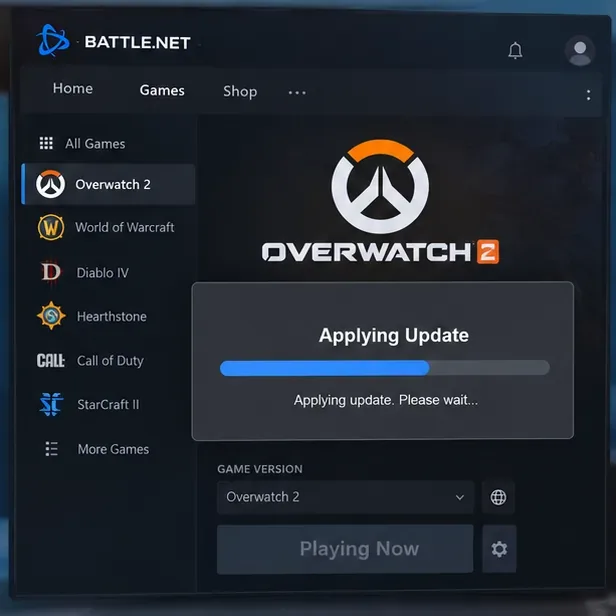
Overwatch 2 stuck on “Applying Update”? Use this current Battle.net troubleshooting order to repair files, clear cache, fix network issues, and avoid unnecessary reinstalls.
Fix PUBG stuck on Initializing on Steam with targeted checks for server issues, launch options, game files, updates, and your internet connection.
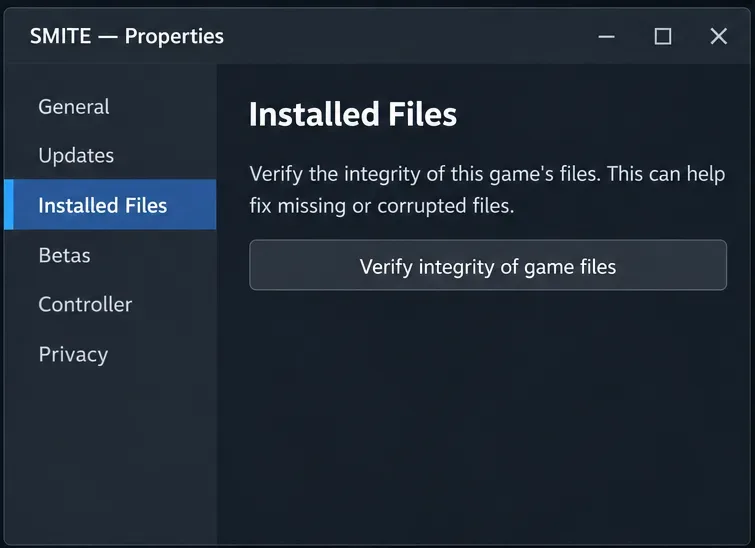
Troubleshoot SMITE’s version vendor mismatch on Steam: check the game entry, finish updates, restart Steam, verify files, and know when to contact support.
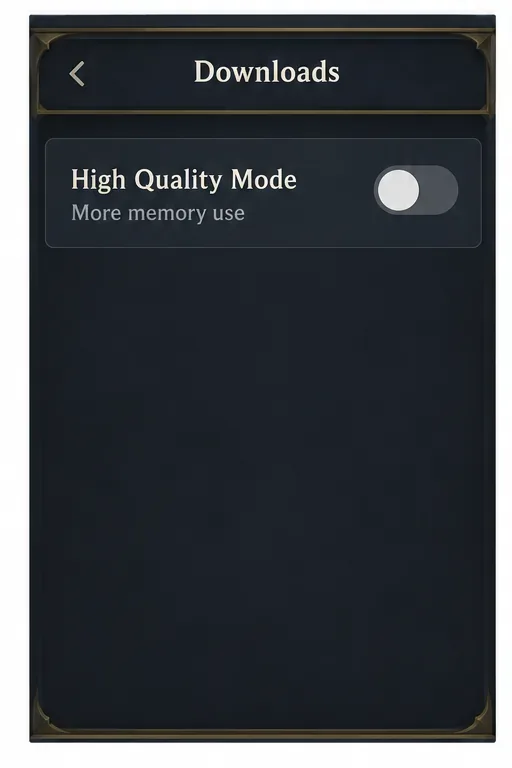
Compare Hearthstone mobile frame-rate settings, High Quality Mode, and phone power options to find a smoother, more stable setup for Android or iPhone.
Warzone shader optimization stuck at 0%? Compare the safest fixes for Steam and Battle.net, from waiting at the Main Menu to file repair and clean boot troubleshooting.
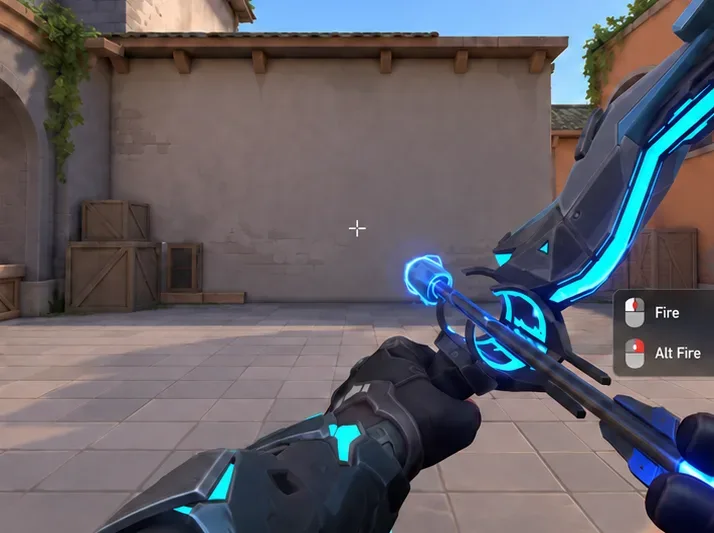
Choose VALORANT ability keybinds that preserve movement and aim, set agent profiles, avoid input conflicts, and test your layout before Competitive.
Unlink a third-party account in Mobile Legends through Account Center. Learn the verification options, account safety rule, and how this differs from changing Moonton email.
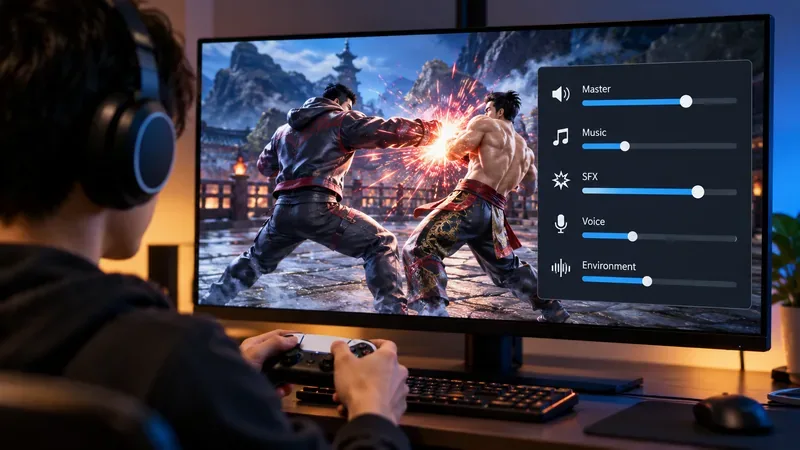
Use a hit-focused Tekken 8 audio mix that keeps impact sounds clear without making music, voices, or stage ambience disappear. Includes a practical starting mix and tuning tips.