Paladins Killcam and Top Play Options: What You Can Use Now
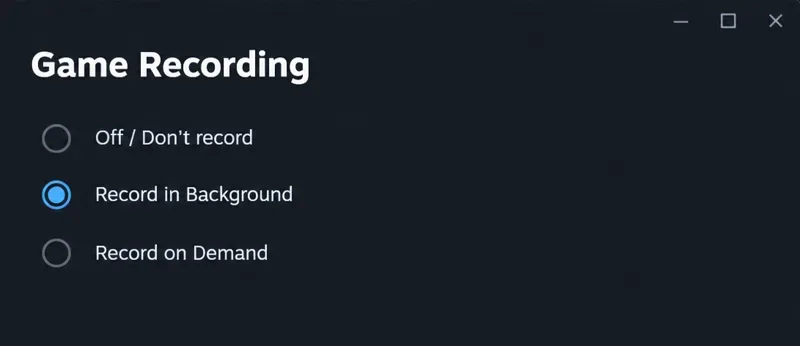
Paladins removed killcam and Top Play. Learn what replaced them and compare practical recording options for reviewing deaths or saving highlights.
You try to throw utility while backing away from an angle, but reaching for the ability key interrupts your movement. Or you press a mouse button quickly and pull your crosshair off target. The best keybinds for fast agent abilities casting in VALORANT solve the input problem you actually have: an awkward reach, a conflicting assignment, or confusion about how the ability activates.
For PC players using WASD, start with familiar ability keys and move only your most time-sensitive ability to a comfortable mouse side button. Keep that change only if you can press it without disturbing your aim. This is a practical starting recommendation, not a measured fastest layout or a universal professional setup.
There are two separate delays to consider: how long it takes you to enter the correct input, and what the ability requires after that input. A new binding can improve the first. It does not remove the ability's built-in preparation, equip sequence, or additional fire input.
For example, Riot's Sova ability descriptions explain that his bolts require equipping the bow and firing. Holding fire adjusts range, while alternate fire adds bounces. Binding the equip action to a mouse button does not combine those actions into one automatic cast.
Other abilities follow a different sequence. Riot's Raze page describes Blast Pack as an immediate throw followed by reuse to detonate. Riot's Jett page describes preparing Tailwind and reusing it to dash. Learn the sequence before deciding that an ability key is slow or broken.
The table below gives suggested assignments. C, Q, E, and X are familiar reference keys; identify the actual ability in your current agent profile rather than assuming the letters describe the same function across agents. Mouse 4 and Mouse 5 refer to mouse side-button inputs, whose physical positions depend on your mouse.
| Action or ability role | Starting choice | When to change it |
|---|---|---|
| Movement | WASD | Keep your established movement layout while testing ability binds. |
| Most urgent ability | Comfortable Mouse 4 or Mouse 5 | Use it when a keyboard reach interrupts movement and the mouse press preserves aim. |
| Other abilities | Keep familiar C, Q, or E assignments | Change a second bind only after identifying another specific input problem. |
| Ultimate | X | Choose another deliberate, comfortable key if X causes missed or accidental activations. |
| Fire and alternate fire | Keep familiar mouse inputs | Preserve reliable confirmation, charging, and alternate-use control. |
| Jump, walk, and crouch | Keep current assignments | Avoid combining a movement overhaul with ability retraining. |
If your mouse has no comfortable side buttons, keeping abilities on the keyboard is a reasonable choice. C may suit a thumb press on one keyboard and require an awkward index-finger reach on another. Q and E may be easy while stationary but compete with fingers used for strafing. Test the reach with your actual hand position.
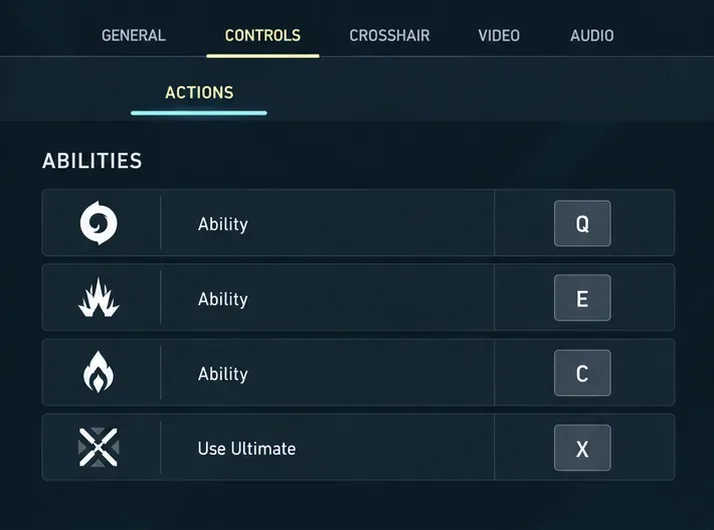
Open Settings, then Controls, then Actions. Riot documented this path and agent-specific profiles in VALORANT Patch Notes 3.12, published December 7, 2021. Those notes also describe conflict reporting and copying default bindings into profiles.
Write down your current ability, weapon, communication, and movement assignments. Decide which ability you most often miss under pressure. Check whether the side button you want already handles voice chat, pinging, or another action. An accessible button is useful only when its assignment is predictable.
The illustrations below show simplified control and practice views. They are explanatory examples, not captures of a live client or evidence of testing. Menu appearance may differ in your installed version; use the action names in your client.
Do not treat every missed cast as an input-speed issue. Availability, charges, cooldowns, and the ability's current state can also explain why a press does not produce the expected result.
Select the binding field for the ability you want to change, then enter your chosen button. Review any reported conflict and resolve it intentionally. Start with one replacement, such as moving an ability previously on Q to Mouse 4. Leave the remaining abilities and movement controls familiar.
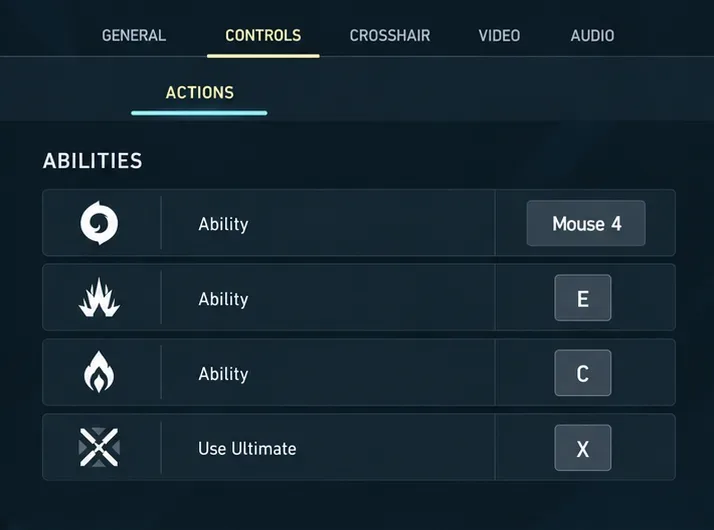
For an illustrative example, imagine a Raze player who struggles to press the Blast Pack key while moving sideways. A side-button assignment is worth testing because the mouse thumb can enter that input while the keyboard fingers continue moving. This is a hypothetical use case, not a claim that the change improved a real player's results.
Now press the chosen button while moving the mouse slowly across a wall in practice. If the crosshair jolts, try the other side button or return the ability to the keyboard. Moving an ability off the keyboard should not come at the cost of reliable aim.
A wheel input is easy to repeat unintentionally. That makes it a poor starting choice for an ability where a second input has another meaning, such as detonating a deployed object. Keep jump on the wheel if that is already comfortable for you, but do not assume the same arrangement will suit utility. A distinct button press is easier to audit while learning a new sequence.
Use an agent profile when one agent needs a different assignment from your general layout. For example, you might reserve a side button for Raze's Blast Pack while keeping a more familiar keyboard arrangement for an agent whose utility you usually prepare from cover.
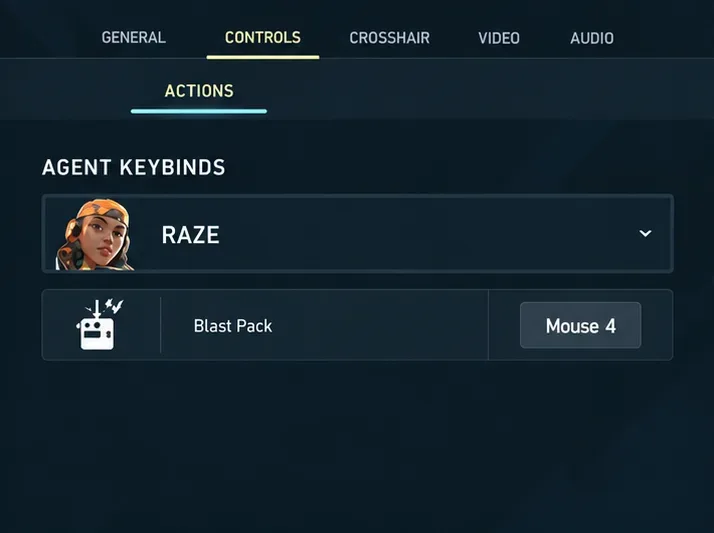
Riot's profile system lets you create an individual profile for an agent. Avoid copying bindings across every profile just to solve one agent's problem. Check the selected profile and its actual ability assignments before starting practice.
For Jett, test both preparing Tailwind and reusing it during movement. A reachable dash button cannot compensate for forgetting the preparation stage. For Sova, practice equipping, selecting the desired bounce behavior, and firing with the intended charge. His keybind problem may be selecting the right utility consistently rather than making the first press faster.
Keep exceptions limited. If the same button performs a different tactical role on every agent you play, switching agents can create hesitation. Consistency is useful, but it should support your ability sequences rather than force every agent into an identical layout.
Use the practice range or a private custom session where you can use the relevant abilities. Start from the same position with the same agent, sensitivity, and weapon. Confirm that the ability is available before each attempt. Keep the test small enough that you can identify the cause of mistakes.
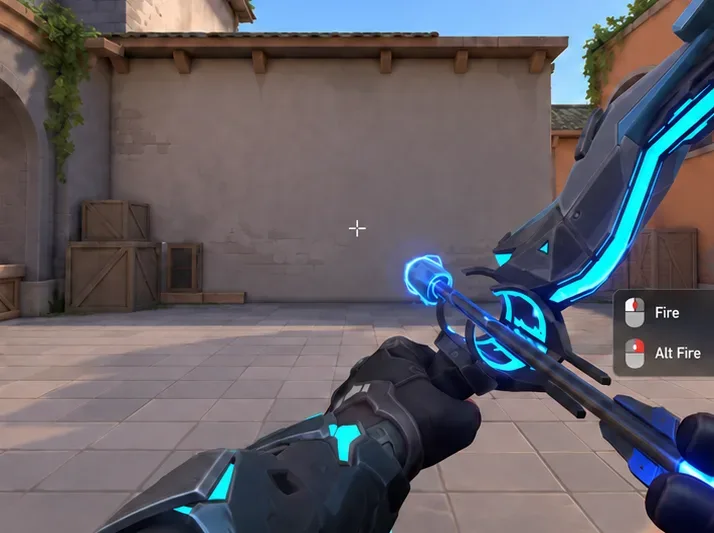
Run a short set of attempts with the original bind, then repeat with the replacement. Ten attempts per layout is a convenient personal check, not a scientifically validated benchmark. Include moving left, moving right, and stopping before using the ability. For abilities that need confirmation or reuse, test the complete sequence.
| Check | What to record |
|---|---|
| Correct selection | Did the intended ability activate or equip? |
| Movement | Did reaching for the input interrupt the intended movement? |
| Aim stability | Did pressing the button visibly move the crosshair? |
| Full sequence | Did fire, alternate fire, or reuse behave as intended? |
| Recovery | Could you return to the intended weapon without confusion? |
If you record your practice, compare the same sequence under similar conditions. Do not interpret an informal recording as a precise latency measurement. The useful outcome is fewer wrong inputs, less hesitation, and reliable control of movement and aim.
Keep the replacement when you can select the correct ability without looking down, maintain your intended movement, complete its activation sequence, and avoid accidental presses. Revert it if mouse grip becomes unstable or if a button is too easy to trigger unintentionally. Give a promising layout some low-pressure practice before judging it in Competitive.
If both layouts produce the same delay after the correct input, further rebinding may not help. Review the ability's activation requirements and preparation timing. Fast ability use comes from a reachable input paired with the correct sequence; verify both before making another change.
Paladins removed killcam and Top Play. Learn what replaced them and compare practical recording options for reviewing deaths or saving highlights.
Compare Rocket League’s Dynamic Range presets, reduce music that masks match audio, and learn what the 2026 Override Boost Audio option changes.
Overwatch 2 stuck on “Applying Update”? Use this current Battle.net troubleshooting order to repair files, clear cache, fix network issues, and avoid unnecessary reinstalls.
Fix PUBG stuck on Initializing on Steam with targeted checks for server issues, launch options, game files, updates, and your internet connection.
Troubleshoot SMITE’s version vendor mismatch on Steam: check the game entry, finish updates, restart Steam, verify files, and know when to contact support.
Compare Hearthstone mobile frame-rate settings, High Quality Mode, and phone power options to find a smoother, more stable setup for Android or iPhone.
Warzone shader optimization stuck at 0%? Compare the safest fixes for Steam and Battle.net, from waiting at the Main Menu to file repair and clean boot troubleshooting.
Choose VALORANT ability keybinds that preserve movement and aim, set agent profiles, avoid input conflicts, and test your layout before Competitive.
Unlink a third-party account in Mobile Legends through Account Center. Learn the verification options, account safety rule, and how this differs from changing Moonton email.
Use a hit-focused Tekken 8 audio mix that keeps impact sounds clear without making music, voices, or stage ambience disappear. Includes a practical starting mix and tuning tips.