Paladins Killcam and Top Play Options: What You Can Use Now
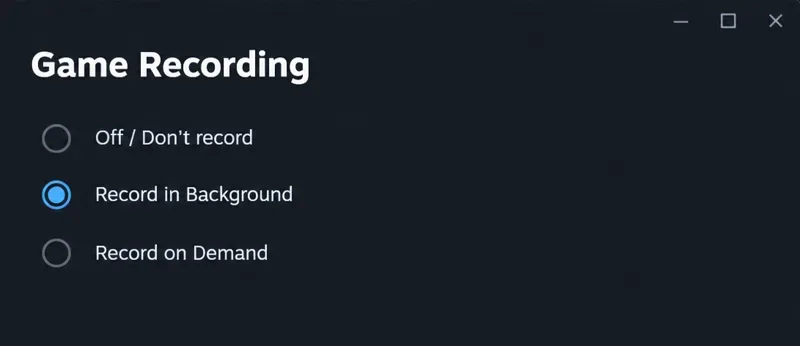
Paladins removed killcam and Top Play. Learn what replaced them and compare practical recording options for reviewing deaths or saving highlights.
Hearthstone can feel choppy on a phone even when the game is playable, especially during Battlegrounds combat or when the device is warm. The most useful first adjustment is the in-game Frame Rate setting. Choose High when your phone can sustain it and your priority is smoother animations; use Medium or Low as a stability or heat-management compromise if those choices appear on your device.
There is no single setting that guarantees a specific frame rate on every phone. Hearthstone’s available choices can vary by device and client, and a game setting cannot make a display or processor exceed its limits. The guide below separates the in-game frame-rate choice from memory and phone power settings that can affect how consistently the game runs.
Current reference point: Blizzard’s official patch listing showed Hearthstone 36.6.3 on October 1, 2026, when checked for this article on October 8. Menu labels and known issues can change with later updates, so check the latest patch notes if a slowdown began after an update.
| Goal or symptom | Setting to try | Tradeoff or limit |
|---|---|---|
| Smoother card, menu, and combat animations | Frame Rate: High | May use more power and produce more heat; the phone may not sustain its highest output. |
| Heat, uneven pacing, or mobile disconnects | Frame Rate: Medium or Low, if available | Animations can look less fluid, but a lower target may be easier for the device to sustain. |
| Phone has 4 GB of memory or less | High Quality Mode: Off under Settings > Downloads | Blizzard says this disables all voice lines, including hero-skin voice lines. |
| ProMotion iPhone used for higher refresh | Low Power Mode: Off while testing | Apple says Low Power Mode limits ProMotion display refresh to 60 frames per second. |
Open Hearthstone’s in-game gear or Options menu and look for Frame Rate. If the phone is reasonably recent, stays cool, and you want the smoothest animation the device can deliver, select High. This setting controls the game’s frame-rate target. It does not upgrade the phone’s screen, guarantee a fixed FPS value, or remove slowdowns caused by heat, memory pressure, or a game bug.
After changing it, fully close and reopen Hearthstone if the game does not apply the selection immediately. Test in the same mode where you noticed the stutter, since busy Battlegrounds scenes can behave differently from browsing the collection. If High looks smoother and remains stable after several turns, keep it. If the phone becomes hot, drains battery faster than you accept, or frame pacing gets worse, step down and compare again.
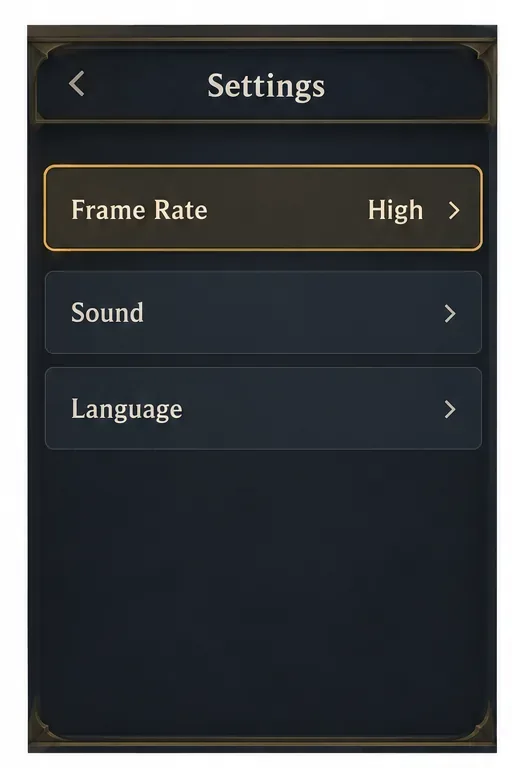
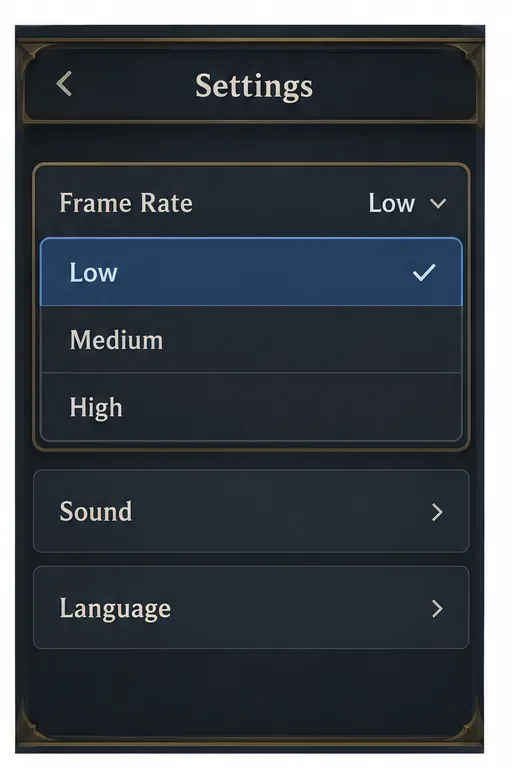
A higher frame-rate target is not automatically the best setting for every phone. If High starts smoothly but then slows down, the device may be heating or throttling. Try Medium if it appears in your settings; it can be a practical middle ground. If the problem includes freezes or disconnects, try Low temporarily and check whether stability improves. Some devices show only a subset of the available choices, so use the choices actually displayed in your client.
This is a diagnostic comparison, not a guaranteed fix. In a March 2026 Blizzard forum response about disconnections on specific Samsung models, a Blizzard staff reply pointed to a temporary Frame Rate: Low workaround. That advice was tied to the issue discussed at the time; it does not mean Low is the best FPS setting for all phones or that every current disconnection has the same cause. If the issue returns, check current patch notes and report the model, OS version, game version, and game mode in Blizzard’s official support channels.
Change one setting at a time. Record whether the problem is low visual smoothness, device heat, an app freeze, or a network reconnect. A lower frame target may ease device load, but it will not repair a server-side problem or unstable Wi-Fi.
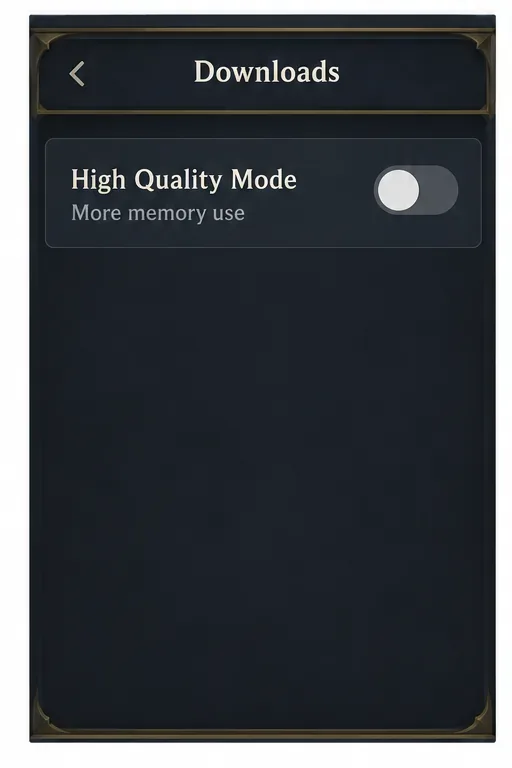
For devices with 4 GB of memory or less, Blizzard’s 31.6 patch notes recommend turning off High Quality Mode at Settings > Downloads. Blizzard specifically notes that disabling it also disables all voice lines, including voice lines from hero skins. Treat this as a memory and stability adjustment for lower-memory devices, not as a universal frame-rate boost or a graphics slider that every player needs to lower.
If your device has more memory and Hearthstone is stable, leave the setting as you prefer. If your device is at or below Blizzard’s stated 4 GB threshold and you see long pauses, hitching, or restarts, switch High Quality Mode off, restart the game, then compare the same activity. The change may reduce resource pressure, but Blizzard does not promise a particular FPS increase.
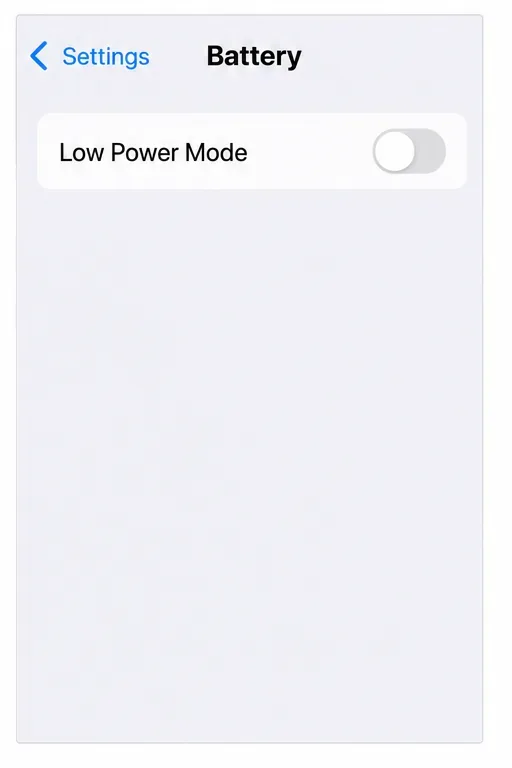
Apple documents that Low Power Mode limits the display refresh rate to 60 frames per second on iPhone models with ProMotion. If you want to test refresh rates above 60, turn Low Power Mode off while playing and compare. On iPhone 15 and later, the control is under Settings > Battery > Power Mode; on earlier models, look under Settings > Battery. This changes the display’s power behavior; Hearthstone still has to render frames at a higher rate for you to see a difference.
If your Android phone offers a Standard, Adaptive, or High refresh-rate option, check the display or manufacturer game settings and select the higher or adaptive mode for testing. Exact names differ by model. A 120 Hz display only describes how often the screen can refresh; it does not prove Hearthstone is generating 120 frames per second. Avoid third-party “FPS unlockers,” modified game files, or configuration edits that bypass the normal settings. They may be unsupported and can make troubleshooting or account security worse.
Keep the setting that gives the most consistent animation without uncomfortable heat, excessive battery drain, or repeated reconnects. A few normal turns are enough to compare; do not judge the setting only from the animated opening screen. If every choice stutters, update the game from the official store, restart the phone, and check Blizzard’s latest patch notes and support forum before assuming another graphics toggle is hidden. Hearthstone mobile does not expose a verified universal low-graphics preset that can be recommended across all devices.
Paladins removed killcam and Top Play. Learn what replaced them and compare practical recording options for reviewing deaths or saving highlights.
Compare Rocket League’s Dynamic Range presets, reduce music that masks match audio, and learn what the 2026 Override Boost Audio option changes.
Overwatch 2 stuck on “Applying Update”? Use this current Battle.net troubleshooting order to repair files, clear cache, fix network issues, and avoid unnecessary reinstalls.
Fix PUBG stuck on Initializing on Steam with targeted checks for server issues, launch options, game files, updates, and your internet connection.
Troubleshoot SMITE’s version vendor mismatch on Steam: check the game entry, finish updates, restart Steam, verify files, and know when to contact support.
Compare Hearthstone mobile frame-rate settings, High Quality Mode, and phone power options to find a smoother, more stable setup for Android or iPhone.
Warzone shader optimization stuck at 0%? Compare the safest fixes for Steam and Battle.net, from waiting at the Main Menu to file repair and clean boot troubleshooting.
Choose VALORANT ability keybinds that preserve movement and aim, set agent profiles, avoid input conflicts, and test your layout before Competitive.
Unlink a third-party account in Mobile Legends through Account Center. Learn the verification options, account safety rule, and how this differs from changing Moonton email.
Use a hit-focused Tekken 8 audio mix that keeps impact sounds clear without making music, voices, or stage ambience disappear. Includes a practical starting mix and tuning tips.