Paladins Killcam and Top Play Options: What You Can Use Now
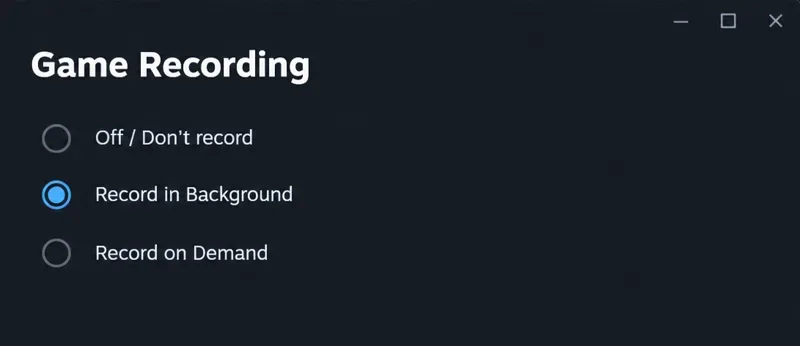
Paladins removed killcam and Top Play. Learn what replaced them and compare practical recording options for reviewing deaths or saving highlights.
If Call of Duty: Warzone shows shader optimization or shader preloading at 0 percent and never appears to move, the best fix depends on what is actually failing. A short delay at 0% can be normal while the game initializes the process, while a persistent 0% state can point to damaged game files, an interrupted preload, a graphics-driver problem, or software interfering with the game.
As of October 2026, Activision's current Warzone PC troubleshooting guidance says shader preloading is an important part of first boot and should be allowed to complete from the Main Menu. Activision also warns that navigating away from the Main Menu can stop the preload. Its known-issues tracker dated September 25, 2026 does not list a broad, platform-wide shader-optimization-at-0% incident, so a local troubleshooting sequence is reasonable unless a new outage or patch-specific problem has just been announced. Check the official Warzone known issues page before making major changes.
Start with the least disruptive option that matches your situation. There is no single fix that is best for every PC.
| Option | Best when | Trade-off |
|---|---|---|
| Wait at the Main Menu | The game has just updated, the driver changed, or the shader process only recently started | Takes time, but changes nothing on your PC |
| Restart Warzone and Windows | The percentage has stayed at 0% for several minutes with no obvious disk or CPU activity | Very low risk, but may not fix corrupted files |
| Verify or repair game files | The problem began after an update, crash, interrupted download, or storage error | Can take several minutes and may redownload damaged files |
| Update Windows and the graphics driver | You also see crashes, graphical errors, or the issue started after a game update | A driver update can itself trigger a fresh shader rebuild |
| Clean boot or test security-software interference | The simpler fixes fail and overlays, monitoring tools, or antivirus software may be interfering | More work and temporarily disables nonessential software |
Launch Warzone and stay on the Main Menu. Do not enter a match, switch into another game mode, or repeatedly move between menus while shader preloading is underway. Activision specifically says leaving the Main Menu causes shader preloading to stop and can lead to performance problems. That makes “wait without navigating away” the lowest-risk first test.
Give the process a reasonable window to start. There is no current official Warzone support document that defines an exact number of minutes at 0% that proves the process is frozen, so do not treat a brief 0% display as a confirmed failure. If the percentage begins moving, leave the game at the Main Menu until it finishes.
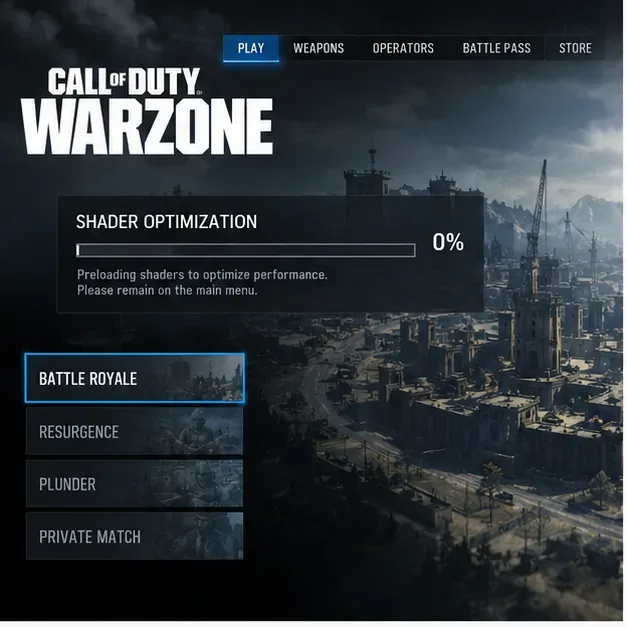
Choose this option if: you installed a game update or GPU driver recently and the PC is otherwise stable. Move on if: it remains at 0% through a fresh launch and there is no sign of progress.
Close Warzone completely, close the launcher, and restart the PC. A restart clears temporary process state, releases locked files, and gives the game a clean opportunity to start shader preloading again. After Windows returns, open only your launcher and Warzone, then remain on the Main Menu.
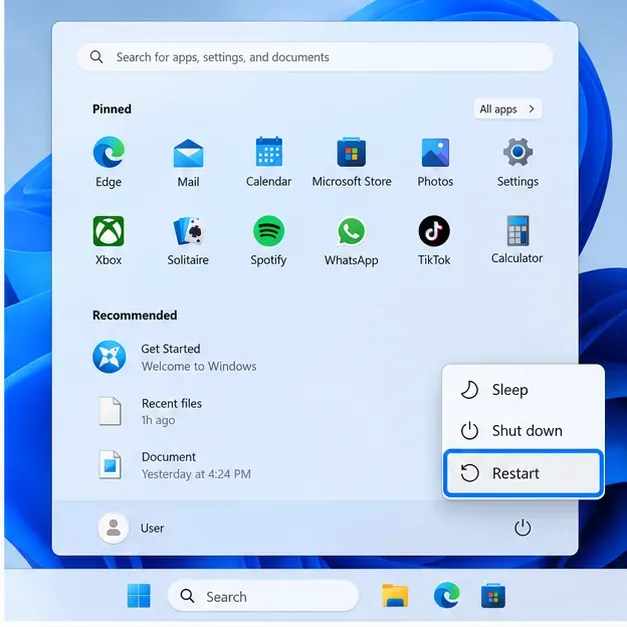
This is preferable to immediately deleting caches or reinstalling the game because it is reversible and fast. If the issue returns immediately after a clean restart, the next useful question is whether the installed game files are intact.
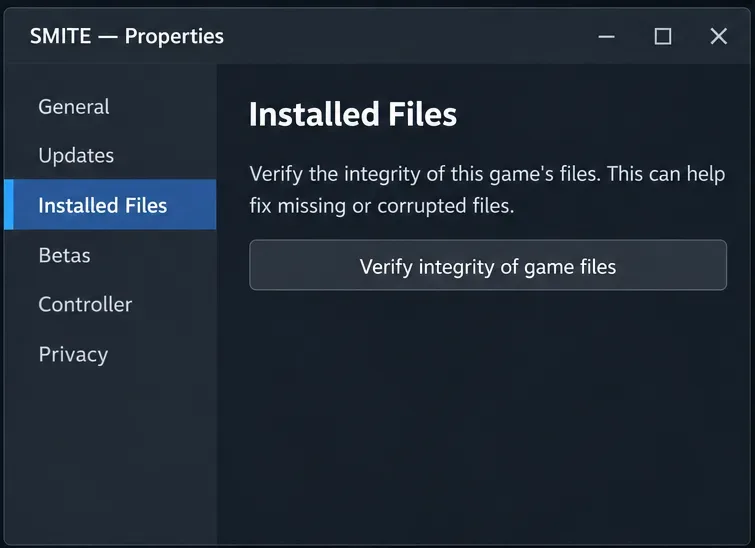
Valve's official Steam support instructions are: restart the PC, open Steam, right-click Warzone in the Library or use the gear icon, choose Properties, open Installed Files, and select Verify integrity of game files. Steam will check the installation and replace files that do not match. Valve notes that one or more local configuration files can sometimes fail verification without indicating a serious problem.
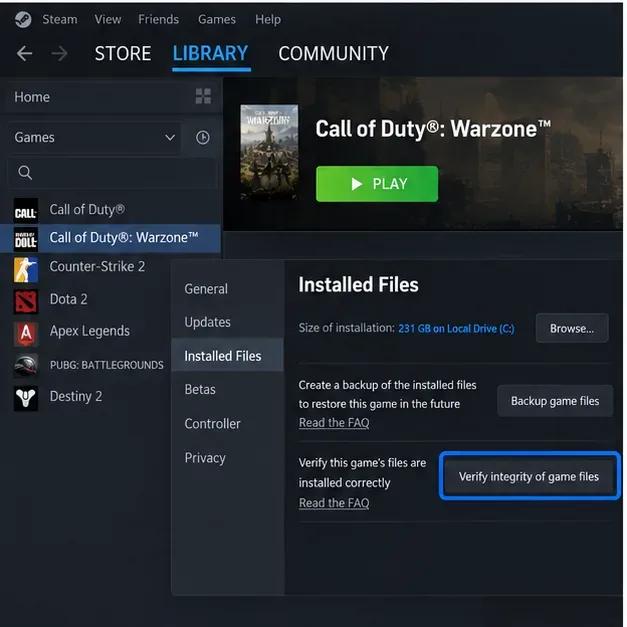
Use the official Steam file verification guide if the menu wording changes.
For Battle.net, Activision's Warzone PC troubleshooting page directs players to use Battle.net's Scan and Repair function. Open Call of Duty in Battle.net, open the game settings menu beside the Play button, and run Scan and Repair. Let it finish before launching Warzone again.
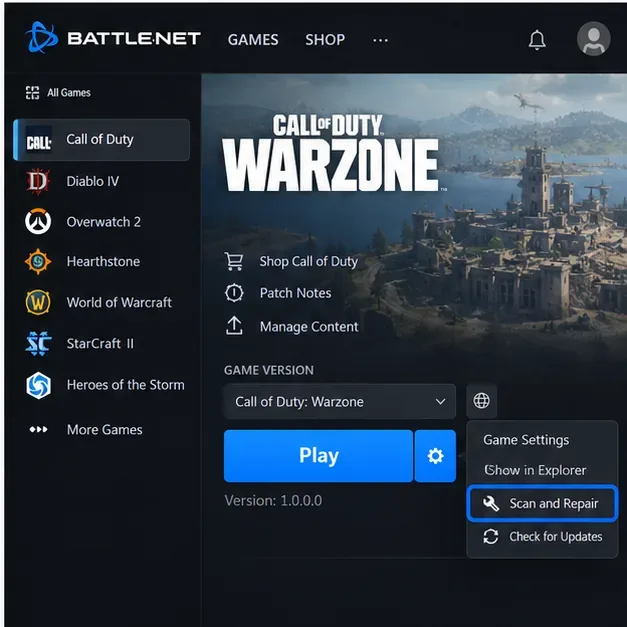
See Activision's official Warzone PC troubleshooting page for the current platform-specific guidance.
Choose repair or verification if: the 0% problem began immediately after a patch, a crash, an interrupted update, or a storage problem. Trade-off: this may take longer than a restart and can download replacement files, but it is still much less disruptive than reinstalling the entire game.
Shader compilation depends heavily on the graphics driver, so a driver problem can show up as a shader-preloading problem. Activision's Warzone PC troubleshooting page, updated March 11, 2026, tells players with graphical issues to use supported graphics drivers and notes that the latest Windows 11 version improves NVIDIA stability. Because driver recommendations can change after game updates, check Activision's current support page and your GPU manufacturer's official driver page rather than relying on an old version number copied from a forum post.
Also install current Windows updates. Microsoft documents driver updates through Windows Update and Device Manager, and recommends restarting after driver installation. If the problem started immediately after a new driver, a newer hotfix or a rollback to the previous known-good driver may be more appropriate than repeatedly reinstalling the same version.
Trade-off: installing a graphics driver can invalidate existing shader caches and force games to compile shaders again. That can make the first launch slower even when the update fixes the underlying problem.
Activision lists background-software conflicts as a troubleshooting target and specifically calls out NZXT CAM, MSI Afterburner, and Razer Cortex as applications that can conflict with Warzone. The support page also recommends a clean boot when problems persist. A clean boot starts Windows with essential Microsoft services and selected startup items so you can test whether another application is interfering.
Microsoft's official clean boot instructions explain how to hide Microsoft services, disable the remaining third-party services, disable startup items, restart, test, and then restore normal startup afterward.
Antivirus software is another possible conflict, but do not disable security protection globally as a first-line fix. Activision recommends adding the Warzone game folder to the antivirus exception list when antivirus interference is suspected. Only do that for a trusted, legitimate installation and only after checking whether the security software is reporting an actual threat. The advantage is that it avoids scanning interference; the trade-off is that an exclusion reduces scanning coverage for that folder.
You will find community advice that tells players to delete Call of Duty folders, DirectX caches, or GPU shader caches. That can help in some graphics problems, but Activision's current Warzone PC troubleshooting page does not provide a universal “delete this specific Warzone shader folder” procedure for a 0% preload. Because folder names and cache locations can change across Call of Duty releases, this guide does not present an unverified deletion path as a standard fix.
If you decide to clear a GPU cache, follow the current instructions from your GPU vendor or Windows rather than deleting unknown folders by name. Remember that clearing a shader cache usually means shaders must be rebuilt on the next launch, so the immediate result may be longer loading or temporary stutter before it improves.
If verification finds damaged files and the shader process starts afterward, the repair was likely relevant. If a clean boot is the only condition in which shaders progress, re-enable startup items in small groups until you identify the conflicting software.
If Warzone still sits at 0% after a clean restart, file repair, current Windows and GPU drivers, and a clean-boot test, check Activision's known-issues page again. A problem that appears immediately after a Warzone update and affects many players may require a game-side fix rather than more changes to your PC.
If the issue is not listed, submit a reproducible bug report through Activision's official feedback and bug-report form. Include when the problem began, your launcher, GPU model and driver version, whether file verification found errors, and whether the behavior changes under a clean boot. That information is more useful than simply reporting “stuck at 0%.”
The practical order is: wait at the Main Menu, restart, repair the game files, update Windows and graphics drivers, then isolate software conflicts. This sequence minimizes unnecessary changes while still covering the causes Activision and platform support documentation actually recognize.
Paladins removed killcam and Top Play. Learn what replaced them and compare practical recording options for reviewing deaths or saving highlights.
Compare Rocket League’s Dynamic Range presets, reduce music that masks match audio, and learn what the 2026 Override Boost Audio option changes.
Overwatch 2 stuck on “Applying Update”? Use this current Battle.net troubleshooting order to repair files, clear cache, fix network issues, and avoid unnecessary reinstalls.
Fix PUBG stuck on Initializing on Steam with targeted checks for server issues, launch options, game files, updates, and your internet connection.
Troubleshoot SMITE’s version vendor mismatch on Steam: check the game entry, finish updates, restart Steam, verify files, and know when to contact support.
Compare Hearthstone mobile frame-rate settings, High Quality Mode, and phone power options to find a smoother, more stable setup for Android or iPhone.
Warzone shader optimization stuck at 0%? Compare the safest fixes for Steam and Battle.net, from waiting at the Main Menu to file repair and clean boot troubleshooting.
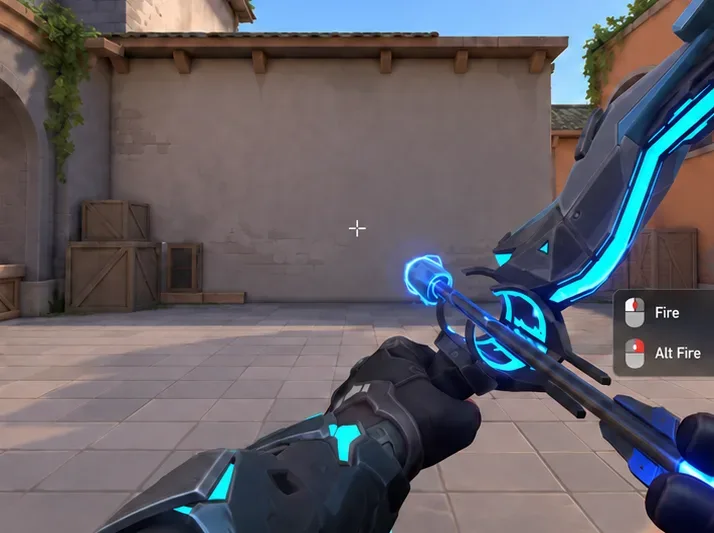
Choose VALORANT ability keybinds that preserve movement and aim, set agent profiles, avoid input conflicts, and test your layout before Competitive.
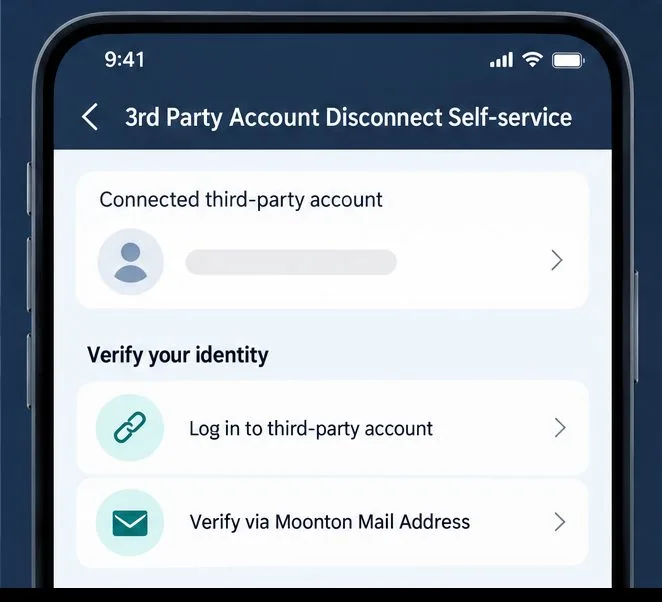
Unlink a third-party account in Mobile Legends through Account Center. Learn the verification options, account safety rule, and how this differs from changing Moonton email.
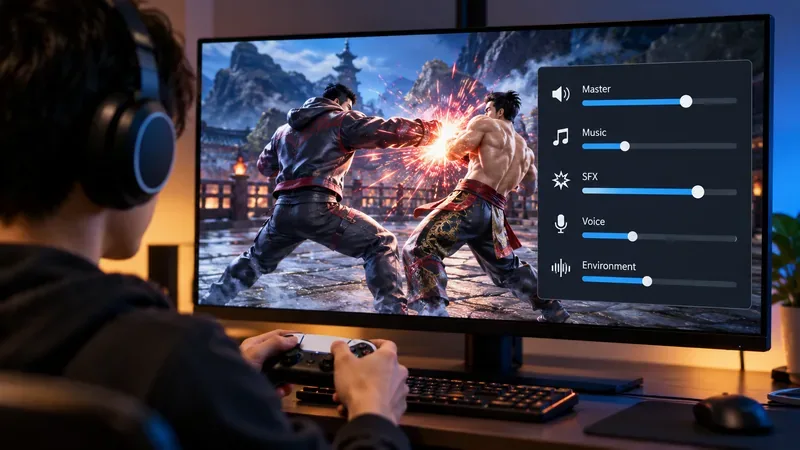
Use a hit-focused Tekken 8 audio mix that keeps impact sounds clear without making music, voices, or stage ambience disappear. Includes a practical starting mix and tuning tips.