Paladins Killcam and Top Play Options: What You Can Use Now
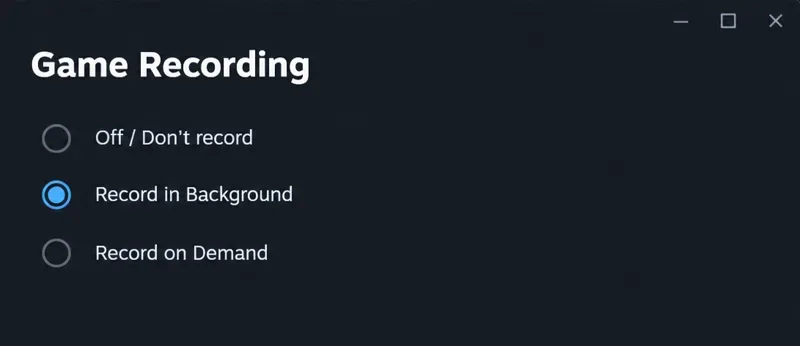
Paladins removed killcam and Top Play. Learn what replaced them and compare practical recording options for reviewing deaths or saving highlights.
If SMITE refuses to connect on Steam and displays a version or vendor mismatch message, begin by confirming that you opened the correct game and that Steam has finished updating it. Then restart the client and verify the installed files. Clear Steam's download cache only if the update process still appears stuck or incomplete.
This guide covers the original SMITE on Windows through Steam. SMITE 2 is a separate game, and a public test installation is not the same entry as the regular release. Before changing anything, read the full title in your library and save the exact error text.
Official Steam and Hi-Rez documents support the maintenance procedures below, but the sources reviewed on October 8, 2026, do not define the exact phrase “version vendor mismatch” or establish one guaranteed cause. Treat the message as a reason to check your installation and update state, not proof that your account is damaged.
The client is the game software installed on your computer. A server is the remote service it connects to for online play. A patch is an update to the game. A build is a particular compiled release of its software.
A version mismatch suggests that some expected software versions do not agree. An unfinished update or an unintended test installation is worth investigating, but the wording alone does not identify the component responsible. The word “vendor” does not, by itself, establish that changing stores or unlinking an account will solve the problem.
Keep three distinctions in mind:
Close SMITE and save a screenshot of the message. Note when it appeared, including your time zone, and whether it started after an update. Make sure your internet connection is available and that you can sign back into Steam if needed, including access to Steam Guard.
Review the developer's announcements available through the official SMITE Steam listing. If an announcement says the relevant service is undergoing maintenance, follow its timing and instructions before making local changes. This article does not assert that a live outage is occurring.
Also check the game title. The Steam listing identifies the original game as SMITE and separately mentions a public test. If you intended to play the regular release, use that library entry rather than a test client or SMITE 2.
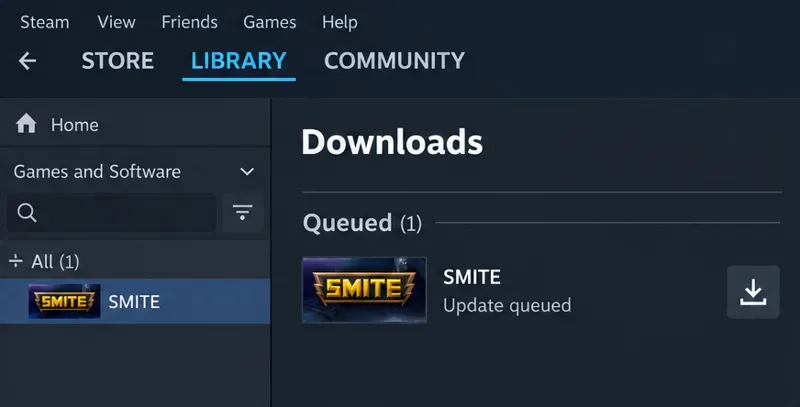
The following images are simplified interface examples for orientation, not captures from a tested PC. Button placement may vary with the installed Steam client; follow the named controls.
Open Steam's Downloads view and look for SMITE. If an update is queued or paused, use the available download or resume control. Let Steam finish downloading and applying the update before opening the game.
Downloading and installing are different parts of the update process. Network activity can stop while Steam is still working with files on disk. Do not assume that a quiet network graph means the patch has failed, and do not interrupt an update just because its final installation phase takes longer than expected.
If Steam displays a specific download error, record that wording. Insufficient disk space, a write error, or a failed connection is a separate obstacle that needs to be resolved before another login attempt. Avoid inventing a target version number from an old forum post: the required build can change.
For example, imagine you opened SMITE while its patch was still queued. Completing that update gives you a sensible next test. It does not establish that every player with the same message has the same problem.
After update activity has finished, close SMITE and choose Steam > Exit. Reopen Steam and start the regular SMITE entry from your library. Closing the Steam window can leave the client running, so use Exit for this check.
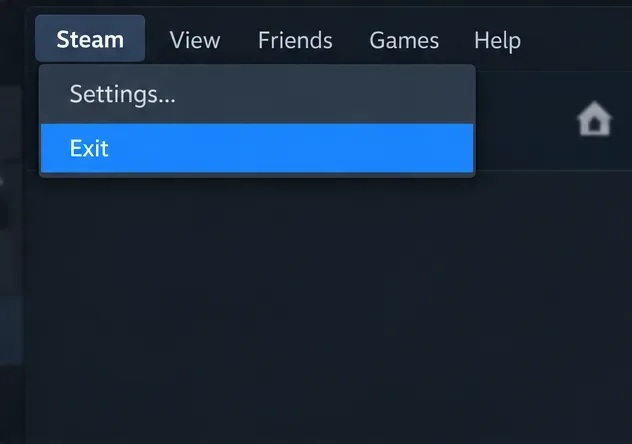
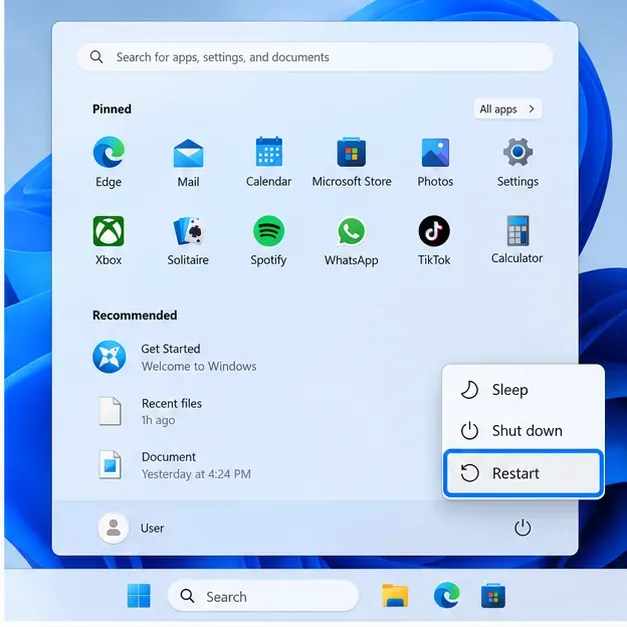
If the same message returns, restart Windows once and repeat the library launch. Valve lists restarting Steam and the computer among the basic measures in its Update & Installation Issues guide. A restart is a reasonable cleanup step, not a way to bypass a server's version requirements.
Launching through the library also makes the selected installation easier to identify. Avoid using a shortcut copied from a different launcher or an executable left in an old installation folder while testing the Steam copy.
Check the result after this step. If you can reach the normal lobby without the mismatch, stop making changes. If a different error appears, save it and investigate that error rather than continuing as though nothing changed.
Verification checks whether the game files are installed correctly and lets Steam reacquire files when necessary. It is more focused than uninstalling the entire game.
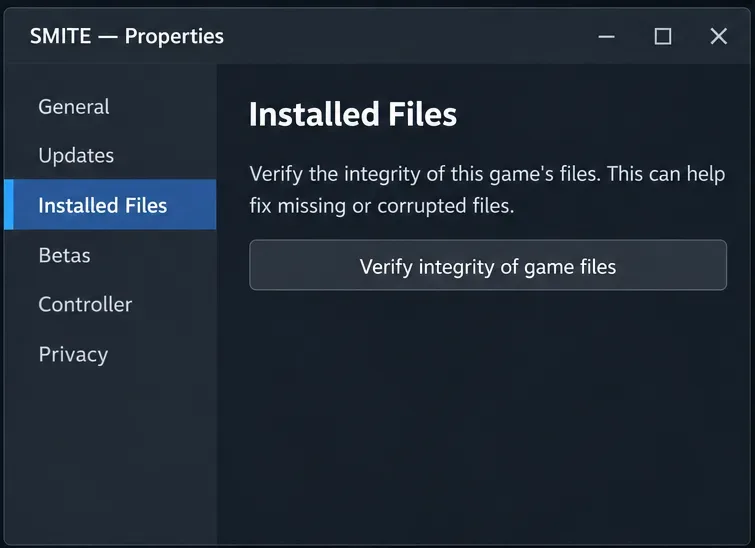
These are the current menu names documented in Valve’s file-verification instructions. Older guides may call the tab Local Files. Hi-Rez also directs Steam players to verification in its game-file validation guide.
Run one verification at a time and avoid other intensive disk work during it. If Steam downloads replacement files, allow that activity to finish before relaunching. Valve notes that some local configuration files may fail verification normally; a small failed-file count alone is not proof of a serious installation fault.
Verification does not prove that the online service is available or that a patch rollout has finished. If the files validate but the mismatch remains, record that result. Repeating the same check indefinitely provides less useful information than reporting a clean verification alongside the exact error.
A cache is temporary data an application keeps for reuse. Steam's download cache is separate from SMITE's installed game content. Clearing it is relevant when Steam will not download or start content correctly; it is not a confirmed repair for every vendor mismatch.
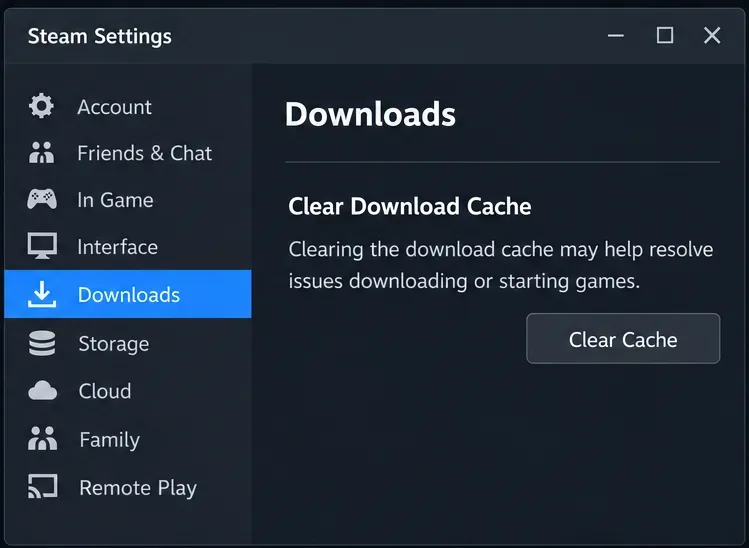
Close the game, then open Steam > Settings > Downloads. Find Clear Download Cache and use its clearing control. Confirm the prompt and sign back into Steam if requested. Return to Downloads and check whether SMITE now has update activity to complete.
Valve's download-cache support article explains this procedure and notes that you will need to log back in. It does not uninstall your currently installed games. Have your login and Steam Guard access ready before proceeding.
Once any newly available update finishes, launch SMITE again from the library. If the download queue is already healthy and the same mismatch persists, further cache resets are unlikely to add useful evidence. Move on to support rather than making unrelated system changes.
If the correct SMITE entry is updated, a full restart has not helped, and verification finishes without resolving the error, contact Hi-Rez through its official PC troubleshooting page. That page explains using the support chat agent and providing a detailed issue description.
Include the exact message, a screenshot, Windows version, confirmation that you use Steam, the time and time zone, and whether the issue started after a patch. List the checks you completed and their outcomes. If a build number is visible in the game, include it; do not guess one or substitute Steam's application ID for it.
For a persistent Steam download or installation error, use Steam Support's installation guidance and preserve the error Steam displays. For a mismatch that remains after successful updating and verification, give Hi-Rez the installation results so it can distinguish local trouble from a game-side issue.
Your final check is straightforward: Steam has no unfinished SMITE update, you launched the intended regular game, and the mismatch no longer appears when you reach its lobby. Until those conditions are met, describe the outcome accurately as unresolved or changed—not as a successful fix merely because a repair tool completed.
Paladins removed killcam and Top Play. Learn what replaced them and compare practical recording options for reviewing deaths or saving highlights.
Compare Rocket League’s Dynamic Range presets, reduce music that masks match audio, and learn what the 2026 Override Boost Audio option changes.
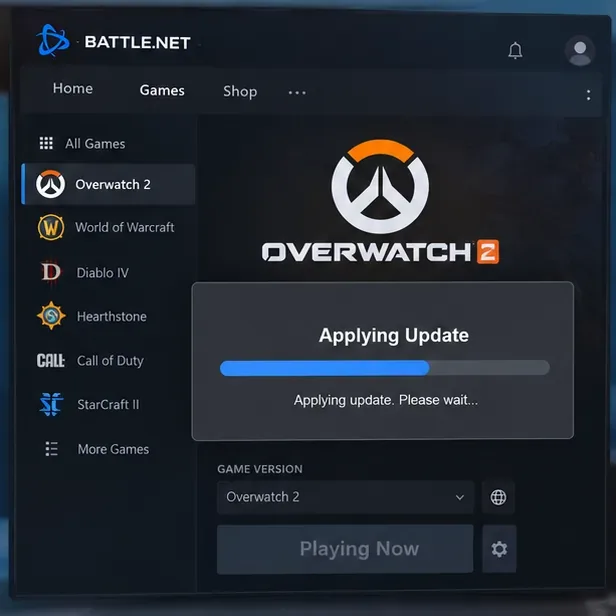
Overwatch 2 stuck on “Applying Update”? Use this current Battle.net troubleshooting order to repair files, clear cache, fix network issues, and avoid unnecessary reinstalls.
Fix PUBG stuck on Initializing on Steam with targeted checks for server issues, launch options, game files, updates, and your internet connection.
Troubleshoot SMITE’s version vendor mismatch on Steam: check the game entry, finish updates, restart Steam, verify files, and know when to contact support.
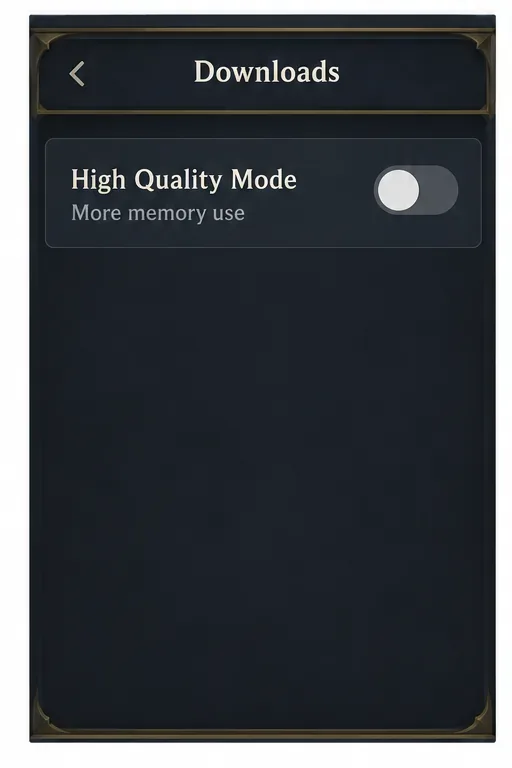
Compare Hearthstone mobile frame-rate settings, High Quality Mode, and phone power options to find a smoother, more stable setup for Android or iPhone.
Warzone shader optimization stuck at 0%? Compare the safest fixes for Steam and Battle.net, from waiting at the Main Menu to file repair and clean boot troubleshooting.
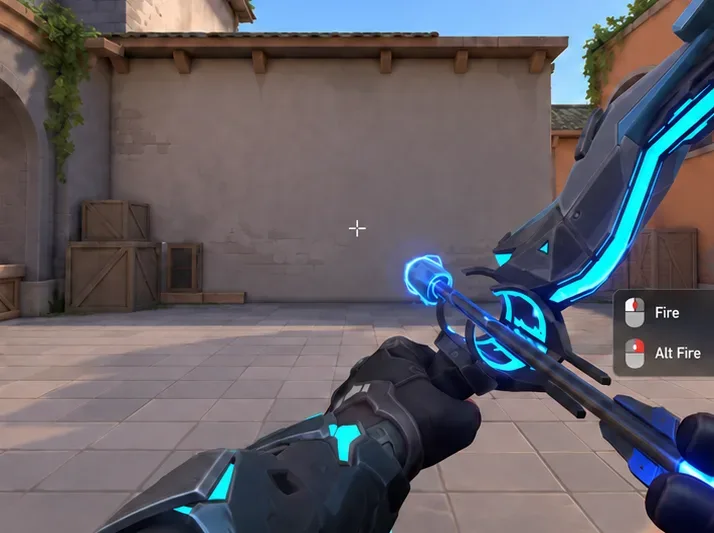
Choose VALORANT ability keybinds that preserve movement and aim, set agent profiles, avoid input conflicts, and test your layout before Competitive.
Unlink a third-party account in Mobile Legends through Account Center. Learn the verification options, account safety rule, and how this differs from changing Moonton email.
Use a hit-focused Tekken 8 audio mix that keeps impact sounds clear without making music, voices, or stage ambience disappear. Includes a practical starting mix and tuning tips.