Paladins Killcam and Top Play Options: What You Can Use Now
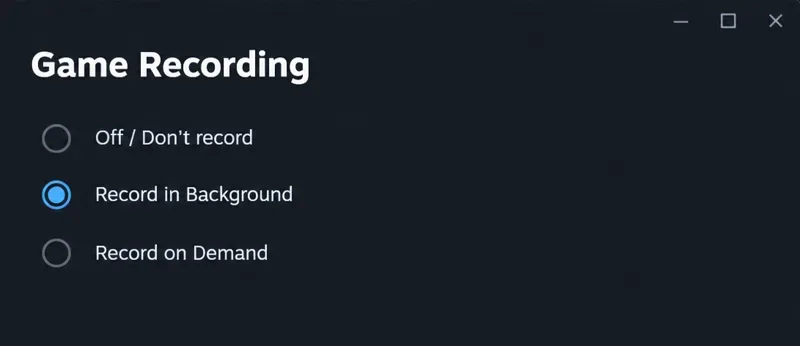
Paladins removed killcam and Top Play. Learn what replaced them and compare practical recording options for reviewing deaths or saving highlights.
If Overwatch 2 sits on “Applying Update” and never reaches the menu, do not assume the October 2026 season patch itself is broken. Blizzard’s current Overwatch patch notes show a retail update dated October 6, 2026, but the published notes do not identify a new widespread “Applying Update” loop. That makes the safest approach the same durable one used for Battle.net patching problems: first rule out a temporary service/update condition, then repair local game data, clear launcher cache, and only escalate to network or reinstall steps if the simpler fixes fail.
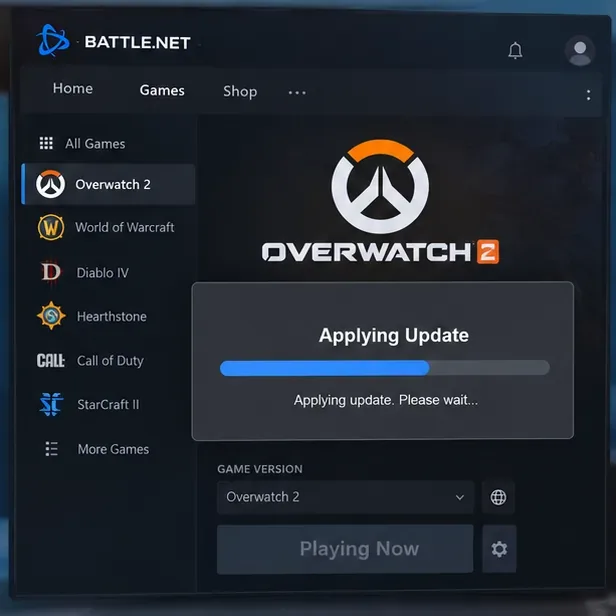
An update can spend time unpacking, verifying, or replacing files after the download appears complete. Before changing anything, give the process a few minutes and check whether disk activity or the Battle.net progress indicator is still changing. If the message is clearly frozen, close Overwatch 2 and fully exit the Battle.net desktop app rather than repeatedly forcing the game back open.
Also check Blizzard’s support channels or patch notes if the problem started immediately after maintenance or a major update. A local reinstall cannot fix a server-side outage, and repeated reinstalls only add download time. If other players can connect and your launcher alone keeps cycling, continue with the local fixes below.
Start with the least destructive reset. Exit Overwatch 2. Then close Battle.net from its menu or system tray. If the launcher refuses to close, open Windows Task Manager and end remaining Battle.net, Blizzard, Agent, or Overwatch processes. Reopen Battle.net and let it finish any pending launcher update before pressing Play.
This matters because the desktop app’s update agent handles downloading and applying Blizzard game files. If an old process is still holding a file open, the next launch may appear to repeat the same update even though the download itself is already present.
If the game now opens normally, stop here. Do not clear folders or reinstall a working client just because the problem happened once.
If the loop returns, use Battle.net’s built-in repair function. Blizzard maintains a dedicated Repairing Battle.net Games support page for this process.
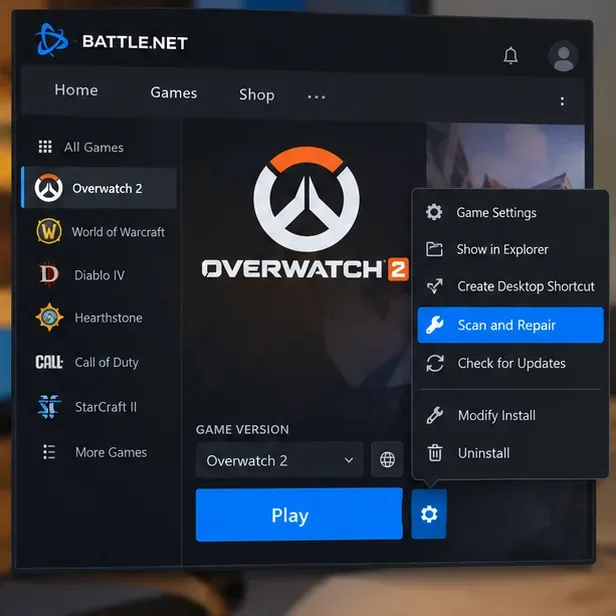
Repair is preferable to reinstalling because it targets missing or damaged files without downloading the entire game again. It is the right second step when the launcher repeatedly believes that an update still needs to be applied.
A damaged or stale launcher cache can preserve bad update state even when the game files themselves are fine. Blizzard has a separate Battle.net cache cleanup support article for this class of problem.
Before deleting cache data, close Blizzard processes completely. On Windows, the Battle.net cache is stored under system data folders rather than inside your Overwatch 2 installation. Follow Blizzard’s current instructions instead of deleting random folders from the game directory.
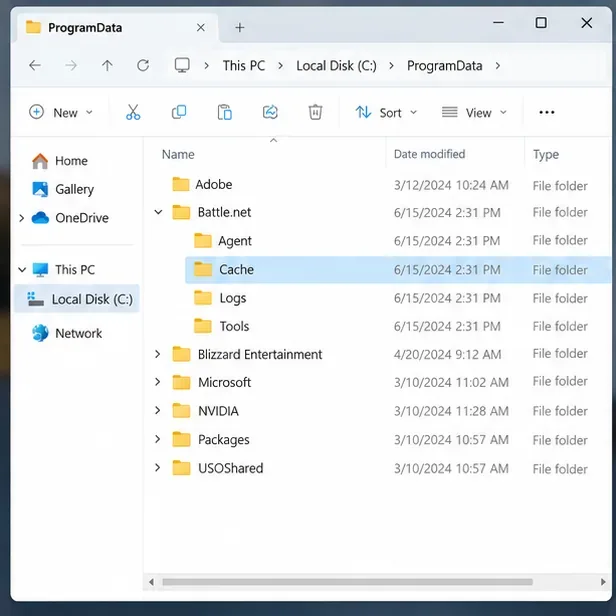
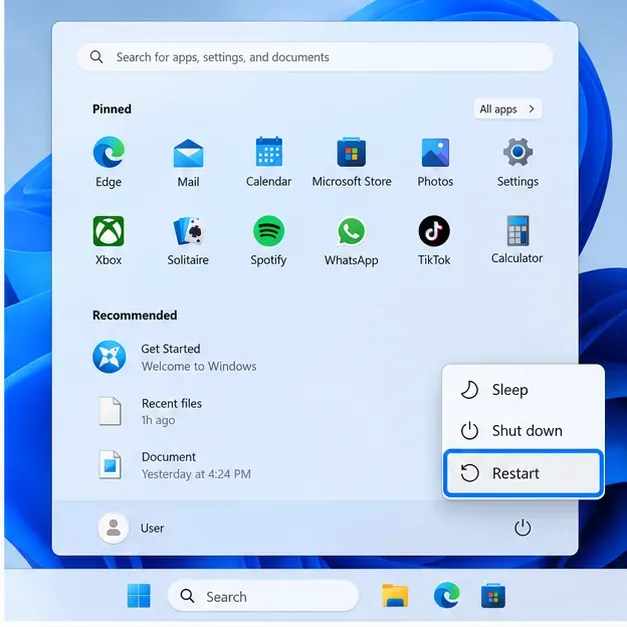
Clearing cache is different from uninstalling Overwatch 2. The goal is to remove launcher state that can be rebuilt automatically, not to erase the installed game. After cleanup, restart Windows, reopen Battle.net, wait for the launcher to initialize, and then try Overwatch 2 again.
If the loop is gone, there is no benefit in deleting additional Battle.net folders. More aggressive cleanup can force the launcher to rediscover games or recreate configuration data, so use it only when a Blizzard support step specifically calls for it.
If Scan and Repair works but the next update still fails, the problem may be the connection between the Battle.net update agent and Blizzard’s content servers. This is especially plausible when downloads stop, restart, or throw connection-related errors in addition to the “Applying Update” loop.
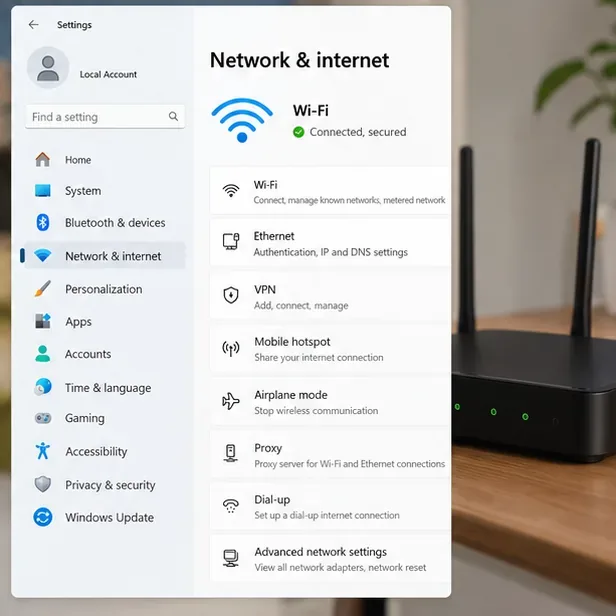
Do not permanently disable antivirus or firewall protection just to make the game work. If temporarily disabling a security layer changes the result, re-enable it and create the proper Battle.net/Overwatch allowance instead.
In 2023, Blizzard staff acknowledged an “Applying Update” issue in the official Overwatch forums and suggested loading into the Practice Range after logging in before queueing for other modes. That was a workaround for a specific incident, not a universal 2026 fix. There is no current October 2026 Blizzard notice establishing that Practice Range step as the required solution for today’s update loop.
You can still use the Practice Range as a quick test after the client opens successfully: if the game can load a local gameplay space and then return to the menu, the update state has probably completed. But if you cannot get past “Applying Update” at all, prioritize launcher repair and cache steps rather than treating the old workaround as a permanent cure.
Reinstallation belongs near the end of the troubleshooting order, not the beginning. Consider reinstalling Battle.net first if the launcher itself repeatedly fails to update multiple Blizzard games, cannot run repair, or keeps recreating the same update state after cache cleanup. Consider reinstalling Overwatch 2 if repair consistently reports damaged data or the game installation remains unusable after the launcher is healthy.
Blizzard also maintains a support article titled Battle.net App Constantly Updating Games, which is the closest official reference when the launcher repeatedly tries to update an installed title.
If you installed Overwatch 2 through Steam rather than Battle.net, use Steam’s own file verification and update workflow instead of looking for Battle.net’s Scan and Repair button. The underlying idea is the same: verify local files first, then clear or refresh the launcher/platform state before downloading the whole game again.
| Order | Action | Why use it | Trade-off |
|---|---|---|---|
| 1 | Fully restart Overwatch 2 and Battle.net | Clears a hung process or update-agent state | Very low risk |
| 2 | Scan and Repair | Finds missing or damaged game files | Can take time on slower drives |
| 3 | Clear Battle.net cache | Rebuilds stale launcher/update state | Requires fully closing Blizzard processes |
| 4 | Test network/security path | Finds blocked or unstable patch traffic | May require router or firewall changes |
| 5 | Reinstall launcher or game | Resets persistent corruption | Largest time and bandwidth cost |
Do not judge success only by whether the “Applying Update” screen disappears once. A reliable fix should survive a full restart. Close the game, exit Battle.net, restart Windows, reopen Battle.net, and launch Overwatch 2 again. Then load a low-stakes mode such as the Practice Range before entering Competitive Play.
If the loop returns after every reboot, collect the exact error text, note whether Battle.net also shows repeated downloads or repair activity, and use Blizzard Support with that information. The key distinction is whether the failure is in the game client, the Battle.net launcher/update agent, or the network path. Troubleshooting in that order avoids unnecessary reinstalls and gives you a clearer symptom if you need to escalate the case.
Paladins removed killcam and Top Play. Learn what replaced them and compare practical recording options for reviewing deaths or saving highlights.
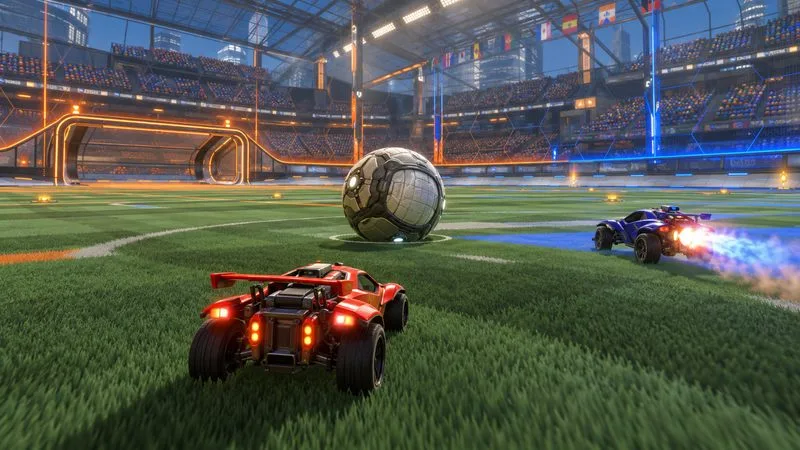
Compare Rocket League’s Dynamic Range presets, reduce music that masks match audio, and learn what the 2026 Override Boost Audio option changes.
Overwatch 2 stuck on “Applying Update”? Use this current Battle.net troubleshooting order to repair files, clear cache, fix network issues, and avoid unnecessary reinstalls.
Fix PUBG stuck on Initializing on Steam with targeted checks for server issues, launch options, game files, updates, and your internet connection.
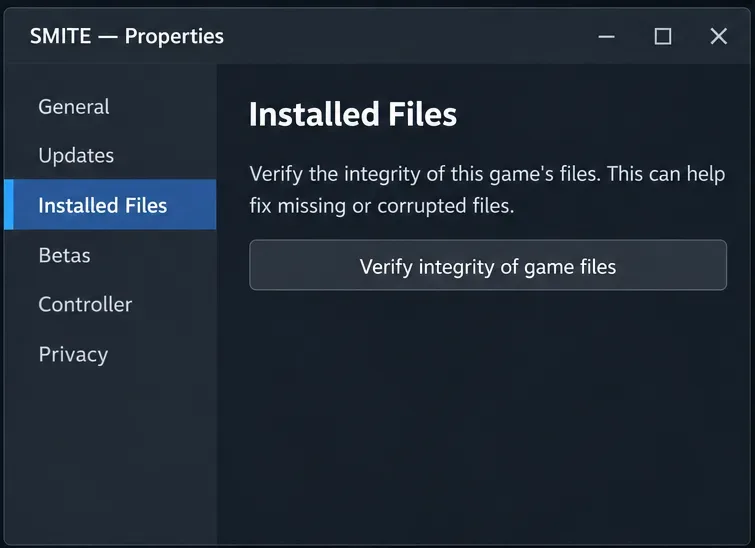
Troubleshoot SMITE’s version vendor mismatch on Steam: check the game entry, finish updates, restart Steam, verify files, and know when to contact support.
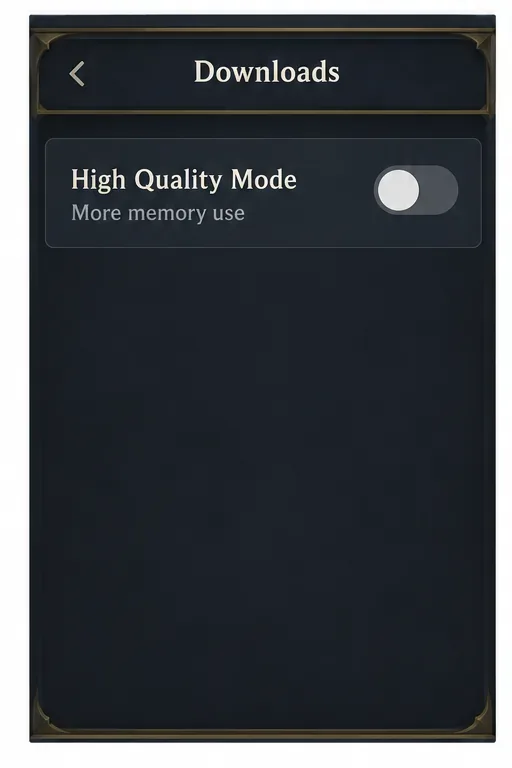
Compare Hearthstone mobile frame-rate settings, High Quality Mode, and phone power options to find a smoother, more stable setup for Android or iPhone.
Warzone shader optimization stuck at 0%? Compare the safest fixes for Steam and Battle.net, from waiting at the Main Menu to file repair and clean boot troubleshooting.
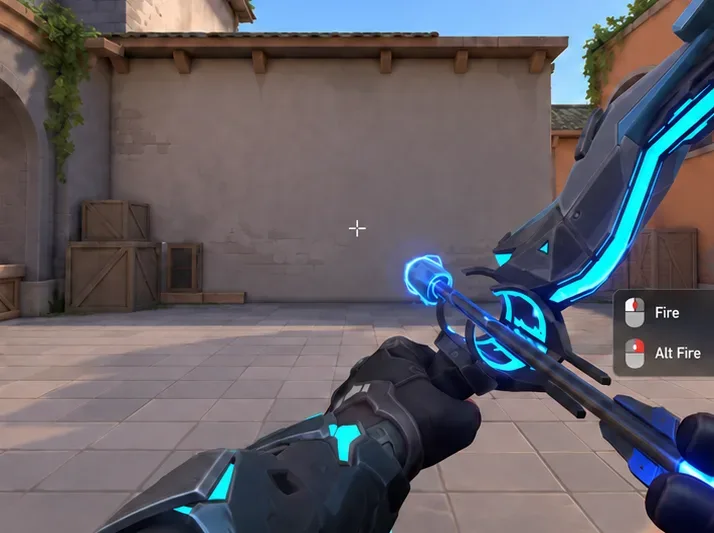
Choose VALORANT ability keybinds that preserve movement and aim, set agent profiles, avoid input conflicts, and test your layout before Competitive.
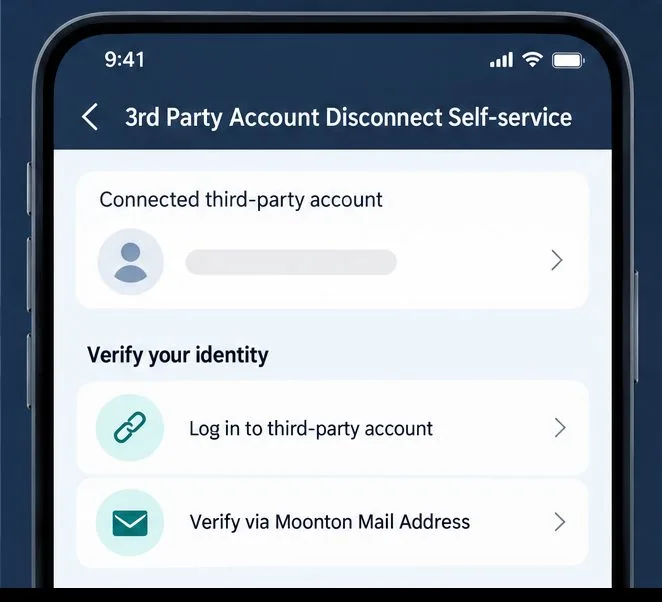
Unlink a third-party account in Mobile Legends through Account Center. Learn the verification options, account safety rule, and how this differs from changing Moonton email.
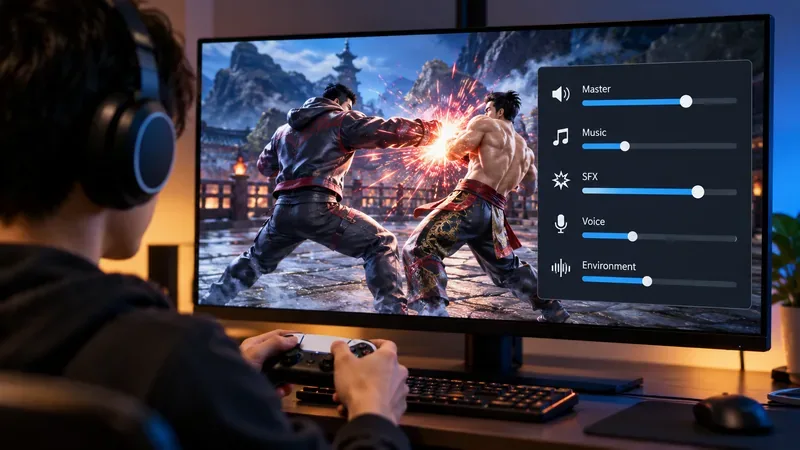
Use a hit-focused Tekken 8 audio mix that keeps impact sounds clear without making music, voices, or stage ambience disappear. Includes a practical starting mix and tuning tips.