Home
» 🎮 Esports
»
How to Turn Off the Special Style Overlay in Tekken 8
How to Turn Off the Special Style Overlay in Tekken 8
How to Turn Off the Special Style Overlay in Tekken 8
To hide the Special Style overlay in Tekken 8, open Options > Player Settings and turn off the setting that matches what you want to hide. Display Opponent’s Special Style UI controls whether you see the other player’s Special Style interface. Display Special Style UI to Opponent controls whether the other player sees your interface. They are separate display settings; turning either off does not disable Special Style or switch your controls to Arcade Style.
The menu illustrations below show the official setting labels in a simplified layout. They are illustrative mockups, not captured game screens. Your menu button prompts may differ by platform, controller, or custom bindings.
Which Special Style setting should you turn off?
Your goal
Player Settings option
Effect
Hide the opponent’s Special Style panel from your view
Display Opponent’s Special Style UI: Off
Hides the other player’s Special Style UI on your screen.
Stop showing your panel to the opponent
Display Special Style UI to Opponent: Off
Controls whether your Special Style UI is shown to the other player.
Stop using Special Style yourself
Switch to Arcade Style or review Controller Settings
Changes your control style or assigned button, rather than hiding a display.
Bandai Namco’s Ver. 1.10.01 update notes added separate on/off controls for the player’s and opponent’s Special Style UI in Player Settings. The update notice is dated December 17, 2024. If an older or unupdated installation does not show these entries, update the game and check again. The label may be translated in your chosen game language.
How to turn off the Special Style overlay
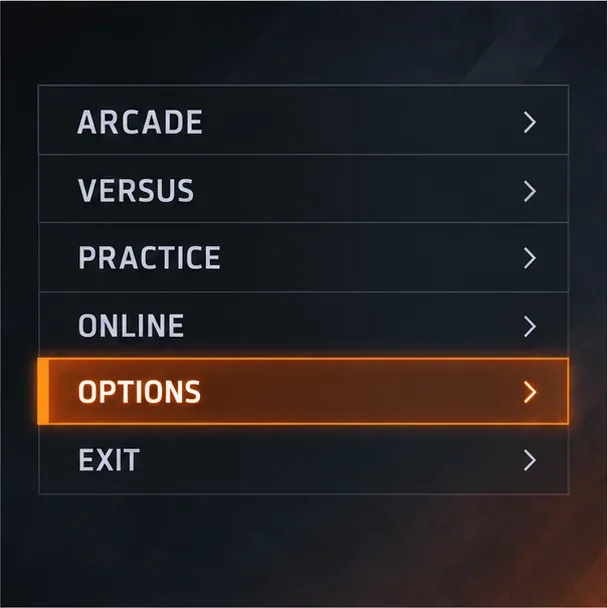
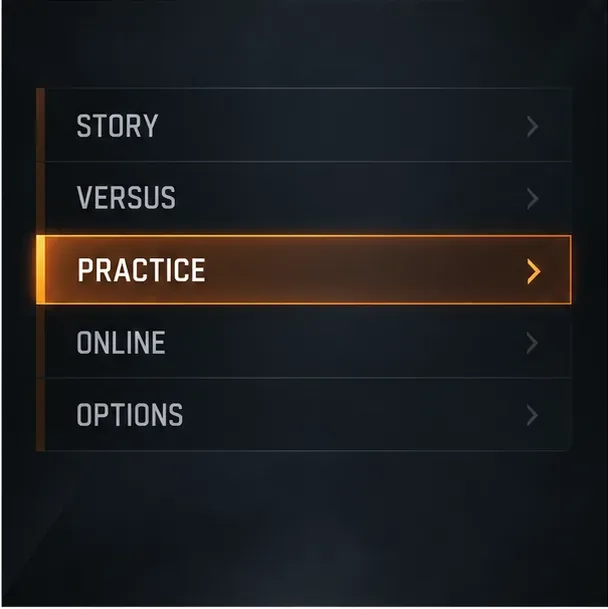
Return to the main menu and open Options. If you are already in a match, leave it or finish it before changing the menu setting. On the main menu, select Options using the prompt shown for your input device.
Select Options from the main menu.
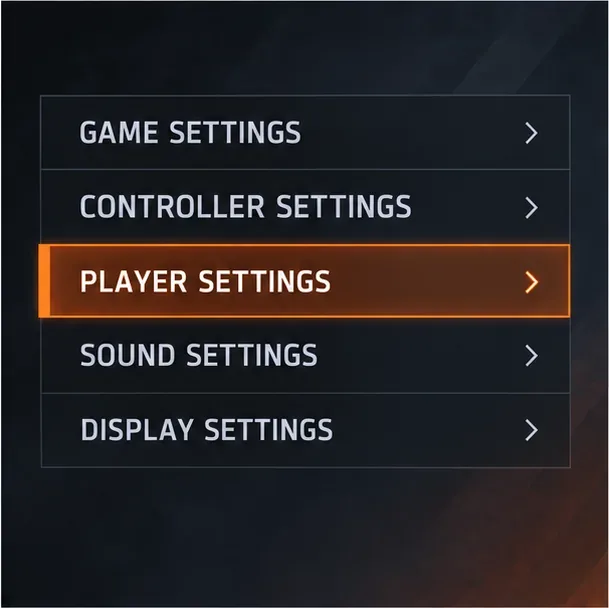
Choose Player Settings. In the Options category list, open Player Settings. Do not look under general Screen or Display Settings; Bandai Namco lists these controls under Player Settings.
Player Settings is the category that contains the two Special Style display controls.
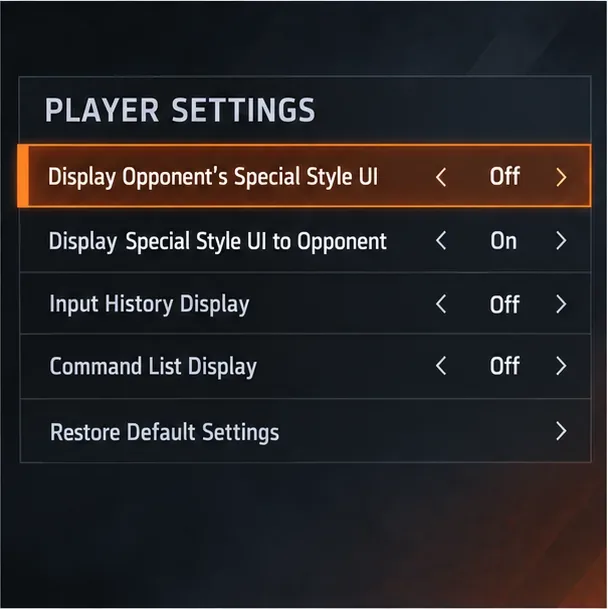
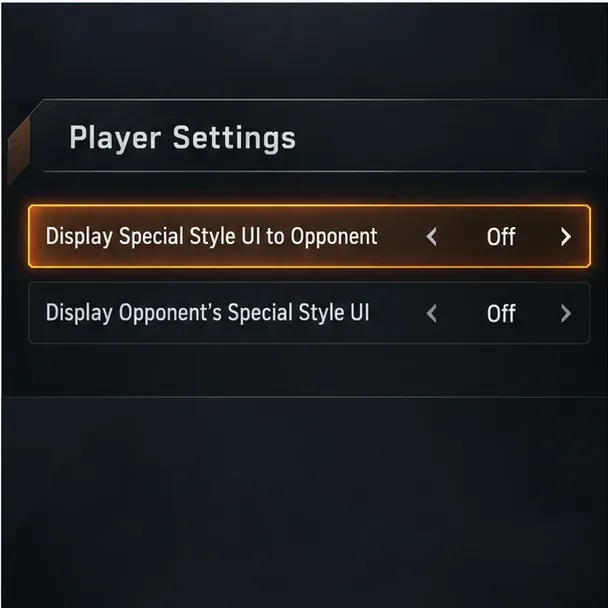
Hide the opponent’s panel from your own screen. Find Display Opponent’s Special Style UI and change it to Off. The word “Opponent” refers to whose interface is being displayed: this is the right option when you do not want to see the other player’s Special Style panel. It does not change what that player sees on their own screen.
The first option can be Off while the separate option for showing your UI to the opponent remains On.
Hide your own panel from the opponent, if that is your goal. Set Display Special Style UI to Opponent to Off. This second toggle is optional if you only want to remove the opponent’s panel from your view. It governs the UI shown to the other player, not the opponent’s UI on your screen.
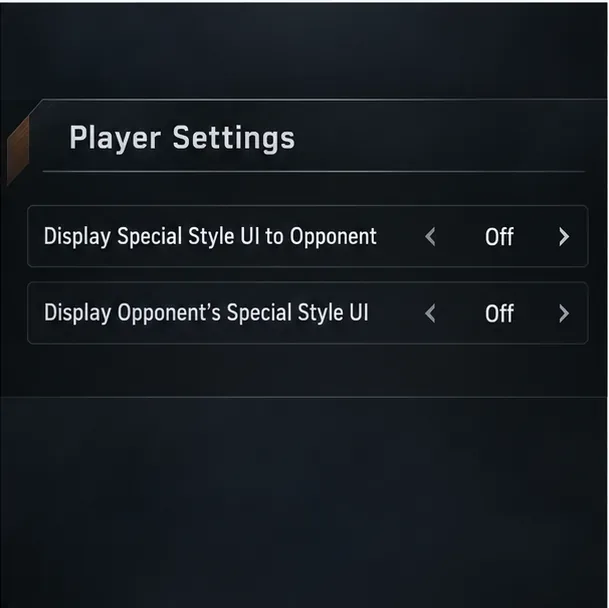
The opponent’s UI display setting is Off in this example.Use the second toggle to control whether your Special Style UI is shown to the opponent.
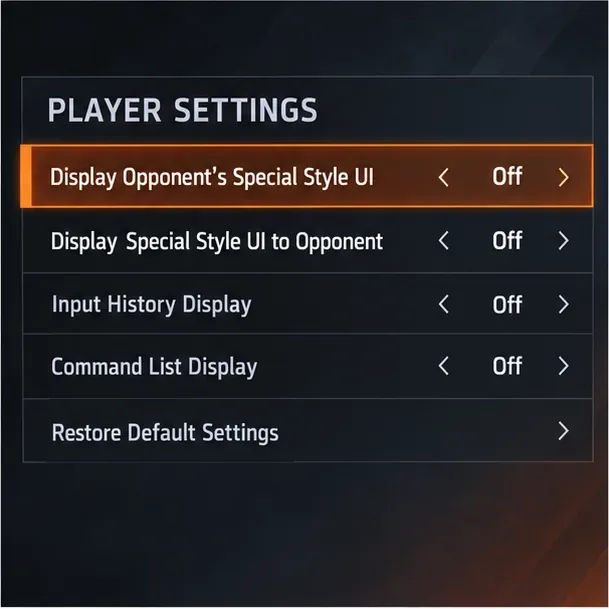
Turn off both options only if you want both display changes. When the first toggle is Off, you will not see the opponent’s Special Style UI. When the second is Off, your UI is not shown to the opponent. You can use just one toggle or both; they do not need to match.
Both display options are Off here; each controls a different player’s view.
Back out and check the values. Use the on-screen Back prompt to leave Player Settings. If you want to confirm the change, reopen the page and make sure the option or options you selected still read Off. Do not change unrelated graphics settings or controller assignments to hide the overlay.
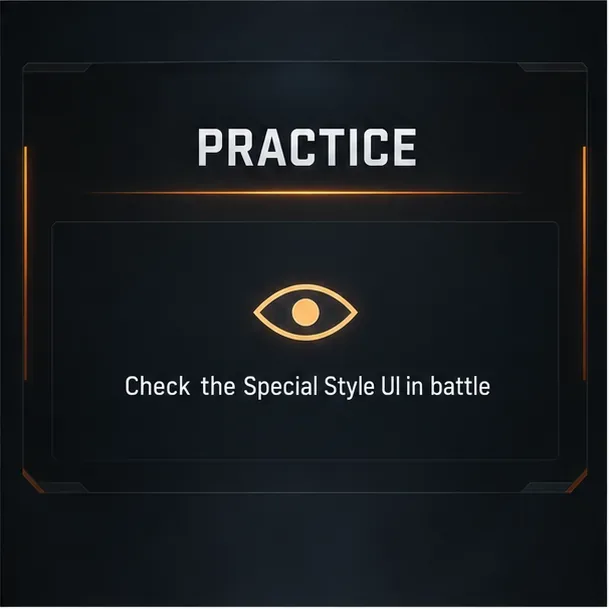
Check the result during play. Start a Practice session or a suitable match and look for the Special Style interface when Special Style is active. Practice is a convenient place to inspect the in-battle display without affecting a ranked result.
Choose Practice for a low-pressure check of the in-battle display.Check the display during battle; a settings page alone cannot show the result.
What the display toggle does—and does not do
Special Style is one of Tekken 8’s controller styles. The official basic-operations guide describes it as a simplified way to access recommended moves and combos with attack buttons. Arcade Style is the traditional control style, and the guide shows that players can switch between the two during battle. The display toggles only determine which Special Style UI is shown; they do not prevent either player from choosing or switching to Special Style.
If you keep activating Special Style by accident, switch back to Arcade Style with the style-switch control shown in your game, or review Controller Settings for the assigned input. The official guide illustrates a one-button style switch, but the prompt and physical control can vary with platform and controller configuration.
If the Special Style UI still appears
Recheck the wording. To hide the opponent’s UI from your own view, use “Display Opponent’s Special Style UI.” To control what the opponent sees, use “Display Special Style UI to Opponent.”
Confirm the value in Player Settings. Reopen Options > Player Settings and check the relevant option directly.
Make sure you are looking at the Special Style panel. Other battle prompts and HUD elements are separate from this setting.
Update the game if the entries are missing. The separate controls are documented in the official Ver. 1.10.01 notes.
Verify the second toggle from the other player’s view. Because that option controls what is shown to the opponent, your own screen may not prove whether it worked. In a friendly match, ask the other player to confirm what they see.