How to Fix Street Fighter 6 Slow Motion Gameplay on PC
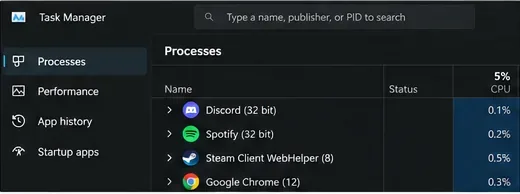
Fix Street Fighter 6 slow motion on PC by checking frame rate, lowering graphics, selecting the right GPU, and verifying game files in a safe order.
To stop the commentator voice in Street Fighter 6, open the match’s Battle Settings before the fight, go to Other, open Commentary Settings, and set commentary to Off. For a local Versus match, choose the mode in Fighting Ground and change the option on its pre-match settings screen. For online play, open Battle Settings from the Multi Menu or matchmaking setup, then look under Other. Controller button prompts vary by platform, so use the on-screen hint for opening detailed settings.
This is a per-match audio choice rather than a reason to turn down all game sound. It lets you keep character voices, hit effects, music, and other cues while removing the real-time play-by-play voice. If you enjoy the tournament atmosphere but find the current voice distracting, changing the commentator lineup is a middle ground. The right option depends on whether you want no spoken commentary, a different voice, or the match audio intact with less narration.
| Choice | Best for | Trade-off |
|---|---|---|
| Commentary Off | Players who want a quieter fight and clear access to character voice lines and sound cues. | You lose the commentator narration and any commentary subtitles that accompany it. |
| Change the commentator lineup | Players who like live match narration but prefer a different voice or combination. | Commentary remains active and may still compete with music, character voices, or effects. |
| Keep commentary on and adjust available support or volume settings | Players who want a tournament feel but less intrusive crowd-style support. | Available controls depend on the screen or mode; lowering a support slider may not silence the commentator itself. |
| Lower the whole game or device volume | A temporary fix when you cannot reach match settings. | It also makes attacks, Drive cues, character calls, and music harder to hear. |
For most people who want the commentator gone, the dedicated Off setting is the most precise choice. Avoid lowering every sound channel unless you also want the rest of the match quieter.
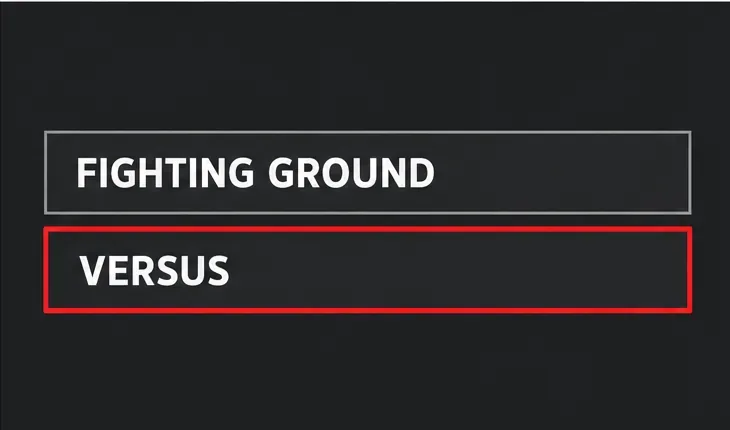
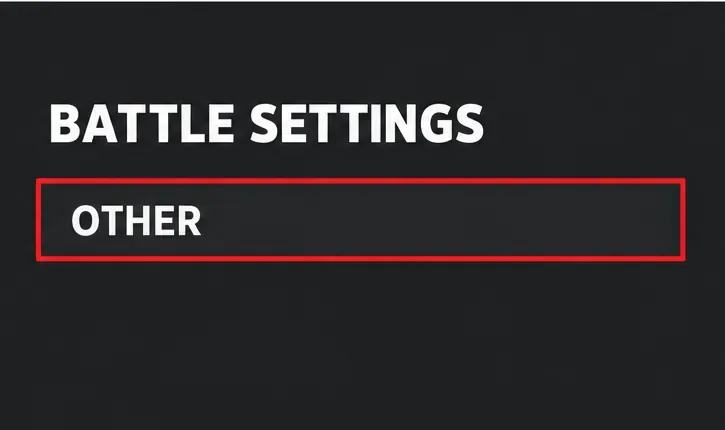
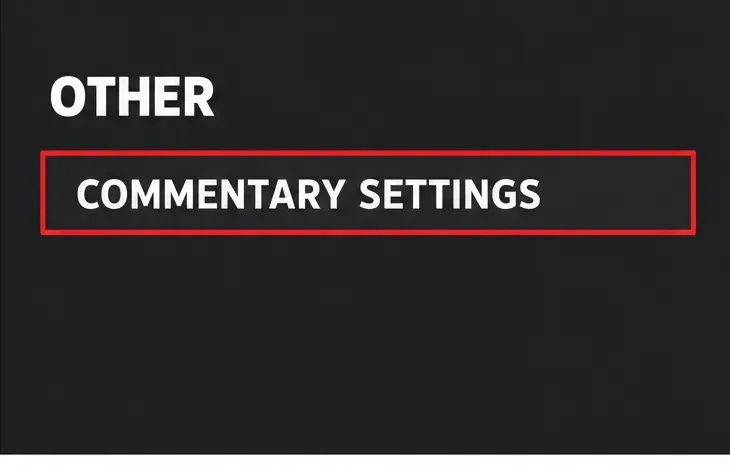
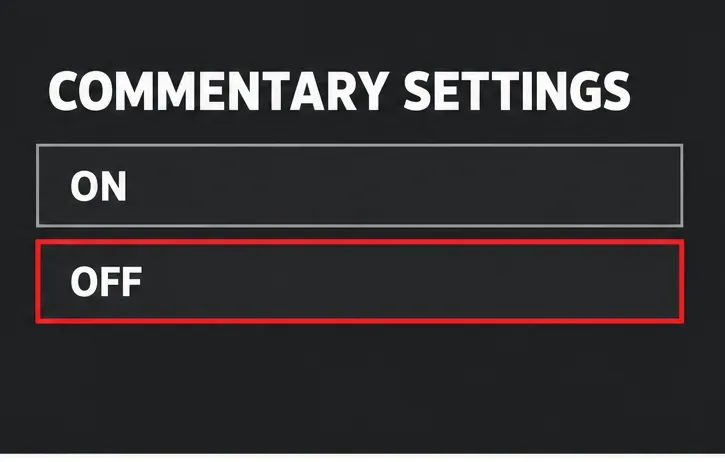
The four menu diagrams show the route and labels to look for, not a pixel-exact capture of a particular platform’s interface. Button prompts and surrounding menu layout may look different on PlayStation, Xbox, PC, or Nintendo Switch 2.
Online match commentary can be controlled from the matchmaking or Battle Settings flow. If you are already in Battle Hub, bring up the Multi Menu, open Profile, and use the Battle Settings control shown there. Then move to Other, open Commentary Settings, and set the option to Off before queuing or starting the next fight.
You can also look for Battle Settings during the match setup for Fighting Ground’s online modes. The important detail is to make the change before the next round begins. The commentary controls are part of match setup, and the standard route may not be available once the round is already underway. If you are in the middle of a match, finish or leave it, then update the setup before entering another one.
Capcom’s official manual describes Battle Settings as the place for online-match preferences and explains that the Multi Menu provides access to game-wide settings and profile-related areas. The manual does not document every platform-specific button prompt or every commentary submenu, so follow the prompt displayed in your game if your layout differs.
Turning commentary off is best when you want silence from the match announcers. It reduces competing narration and makes it easier to focus on the opponent, listen for character voice lines, or hear sound effects that help you recognize an action. The trade-off is that you lose the tournament-style reactions and any explanatory remarks that could help a new player follow what is happening.
Changing the lineup is better if the feature itself appeals to you, but a particular voice, language, or combination does not. Open the detailed Commentary Settings panel and inspect the available commentator choices. Capcom introduced Real Time Commentary as a feature that reacts during matches and can provide accessible explanations; its original announcement also described subtitles in multiple languages. The lineup and language choices depend on the game’s installed content and selected options.
If you want to keep commentary but reduce other vocal noise, inspect the individual audio controls that appear in your version. Do not assume a “rally support” or crowd-volume slider controls the commentators themselves. Test the change in a low-stakes match: lower one setting, listen to a few exchanges, and decide whether the commentator voice is actually quieter. If it is still prominent, turn commentary Off directly.
Start a local Versus or training match after selecting Off and listen through the opening and first exchange. Character dialogue, impact sounds, music, and other match audio should remain audible while the real-time commentator track is absent. If everything is quiet, restore the general game volume and inspect the dedicated commentary option again.
For online play, confirm the setting in Battle Settings before you begin matchmaking. If only one mode continues to use commentary, it may have a separate match setup or a mode-specific limitation. The official manual provides the general Battle Settings route but does not list every possible commentary exception, so rely on the option shown in your current build rather than assuming one global switch controls every event.
Capcom describes the feature in its Street Fighter 6 announcement, including commentary during matches and subtitle support. For the menu structure, consult the Street Fighter 6 Official Web Manual and Capcom’s support page for the online manual. Exact labels and prompts can vary across platforms or updates.
Fix Street Fighter 6 slow motion on PC by checking frame rate, lowering graphics, selecting the right GPU, and verifying game files in a safe order.
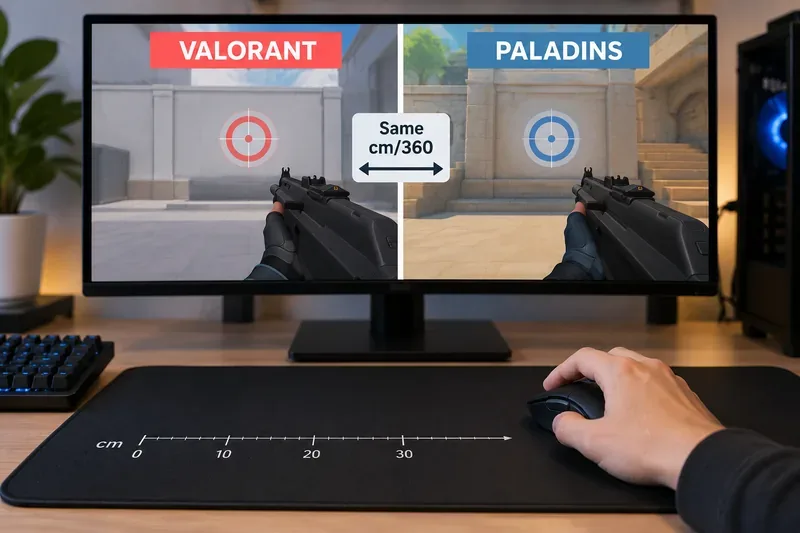
Convert VALORANT sensitivity to Paladins with a practical 7.65× starting ratio at the same DPI, then verify the result with cm/360 for a reliable match.
Use Advanced drone deployment in Rainbow Six Siege, choose a prep-phase transition, and pair fresh intel with a controlled entry routine.
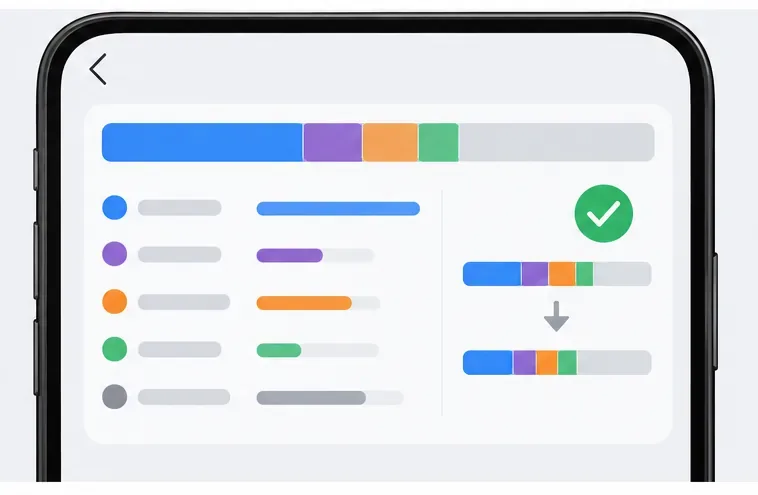
Free up Mobile Legends storage safely. Learn the difference between cache and game resources, clear Android cache, check iPhone options, and avoid deleting account data.
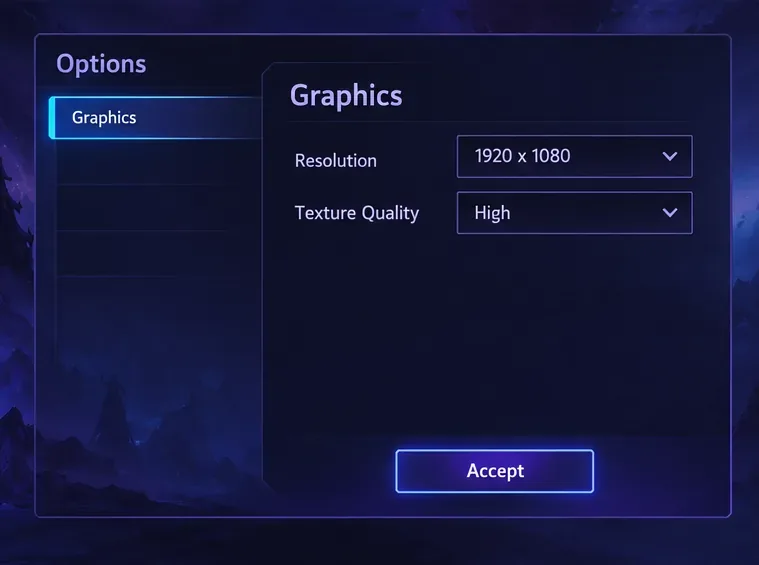
Learn which Heroes of the Storm Variables.txt frame-cap edits are worth testing, when lowering graphics matters more, and how to verify results safely.
Turn off Street Fighter 6 match commentary before your next fight, or compare it with changing the commentator lineup and adjusting audio.
Fix CS2 stuttering on a high-end PC by separating frame-time spikes from network jitter, checking shaders, files, drivers, background apps, and settings.
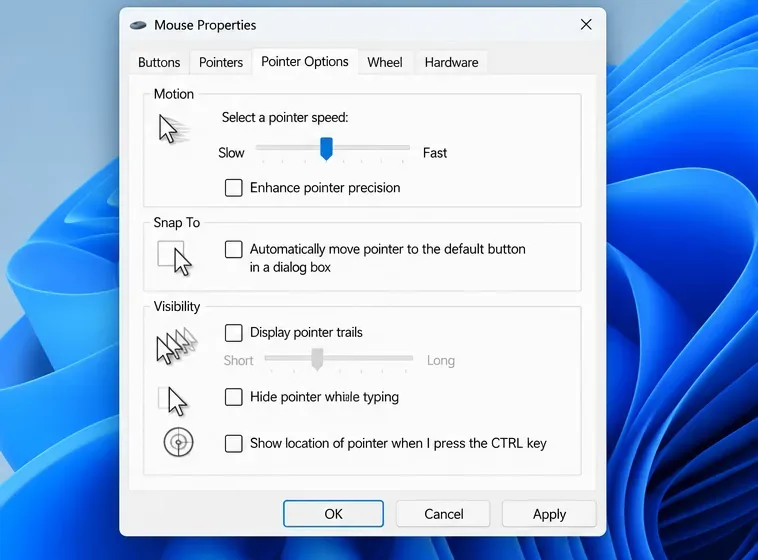
Check the Siege config’s raw-input setting, disable Windows pointer acceleration if needed, and test aim consistency without changing sensitivity by mistake.
Learn when to use Competitive gameplay, Authentic gameplay, or the older Competitive Master Switch in EA SPORTS FC, with practical settings advice.
Choose StarCraft II camera hotkeys that fit your keyboard, organize base locations, avoid binding conflicts, and test your setup with a practical checklist.