How to Fix Street Fighter 6 Slow Motion Gameplay on PC
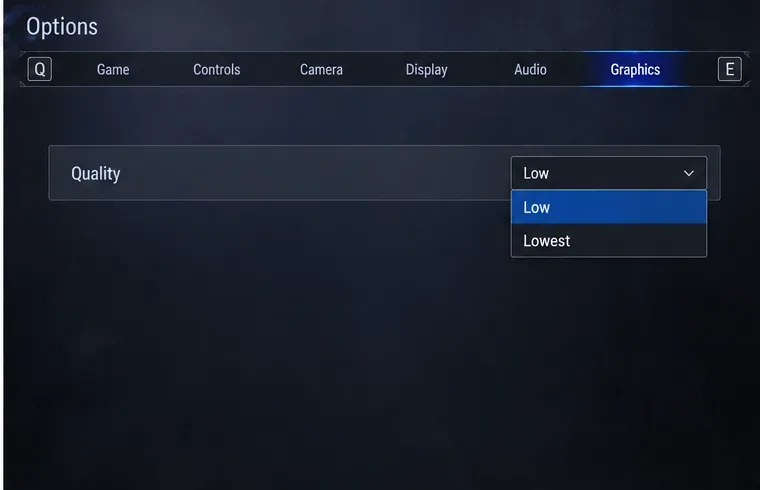
Fix Street Fighter 6 slow motion on PC by checking frame rate, lowering graphics, selecting the right GPU, and verifying game files in a safe order.
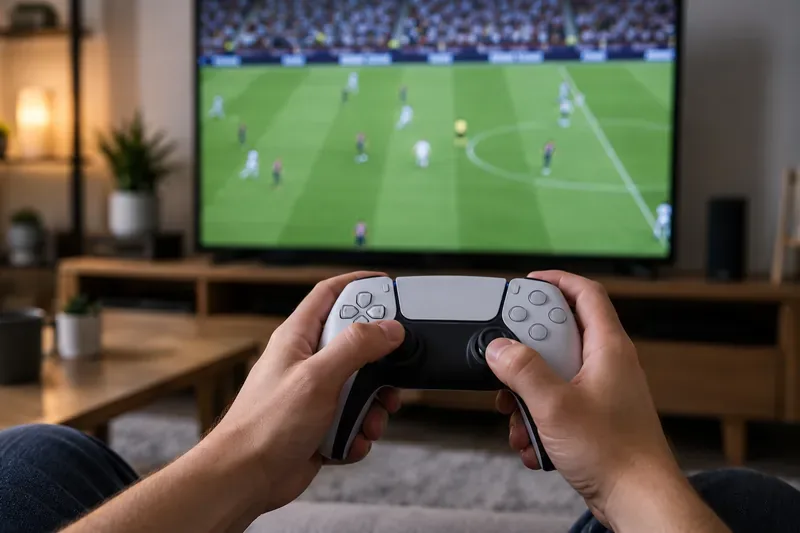
For competitive online play, start with the game’s Competitive setup when your mode uses it. Choose Authentic for a more simulation-focused offline match. If your version still shows a separate Competitive Master Switch, turn it on when you want its bundled, standardized competitive rules. It is not a universal “better controls” button.
The names can be confusing because EA has used related terms across releases. In EA SPORTS FC 26, EA describes two gameplay presets, Competitive and Authentic, rather than presenting the older FIFA 22 Competitive Master Switch as the central choice. EA says Competitive is tuned for responsiveness and player control, especially in online modes such as Ultimate Team and Clubs. Authentic targets realism and match tempo in offline modes such as Career Mode. The old switch remains relevant if you are playing an earlier title or see it in your controller menu.
Choose Competitive for online modes where the game applies that preset or where you want a responsive, player-directed match. It is the clearest starting point for Rivals, Champions, Clubs, and other head-to-head play in FC 26. Competitive is designed around quicker control and less simulation-oriented match behavior; it does not promise wins, remove input delay, or make every action manual.
If you are playing an earlier FIFA or FC release and the menu has a Competitive Master Switch, enabling it is a sound baseline for learning the game’s competitive rules. It standardizes several assists so that timing and directional input matter more. In FIFA 22’s official gameplay notes, EA listed its effects as Contextual Agile Dribbling Off, Auto Clearances Off, Auto Flair Pass Off, Auto Shots Off, Assisted Headers Off, Jockey Manual, and Through Pass Assistance Semi. EA also said some online modes automatically activated these settings and greyed out affected controls. These are documented FIFA 22 rules, not a verified list for every later title.
These are gameplay presets, not controller hardware choices. Competitive focuses on added responsiveness and control, with Ultimate Team and Clubs given as examples. Authentic focuses on a more realistic match feel and is associated with offline modes such as Career Mode. The same controller can be used for either.
This distinction matters if you searched for “competitive master switch” after finding an older guide. A master switch can lock individual assistance settings in older games; the FC 26 Competitive preset shapes the overall match experience. Do not assume that one automatically reproduces the exact settings or mode restrictions from FIFA 22. EA’s FC 26 gameplay notes, published July 22, 2025, explain the preset split. EA’s current support hub does not provide a detailed FC 26 master-switch setting table, so check the Controller Settings in your installed game and the mode you plan to play.
Turn it off when you are practicing offline and want to customize each available assistance option, or when you are returning to a familiar setup and the switch is forcing settings you do not want. This can help a learner who needs more support with shooting, passing, or player switching, and a player experimenting with semi-assisted or manual controls.
Turning it off does not mean every assist becomes disabled. In versions that support the switch, it generally gives you access to individual settings; you still need to review those options. EA’s FC 24 accessibility guide, for example, documents separate choices for passing, shooting, crossing, lob, save, auto switching, and control remapping. It shows that assistance can be configured individually, but it is not a complete FC 26 settings reference.
| Situation | Starting choice | Why |
|---|---|---|
| Ranked or competitive online modes in FC 26 | Competitive gameplay | Matches EA’s responsiveness and player-control focus for online play. |
| Career Mode or offline matches with a simulation feel | Authentic gameplay | Designed for realism and a more true-to-life match tempo. |
| Earlier title with a Competitive Master Switch | On for the competitive baseline | Applies that title’s bundled rules; some modes may enforce them. |
| Practice, accessibility needs, or a custom learning setup | Switch off, then adjust available assists | Lets you test controls individually. |
Start with the assistance that most affects your decisions. Keep passing or shooting at a level that lets you aim consistently, then change one option at a time. If you alter several assists together, it becomes difficult to tell which change caused a pass to go wide or a shot to feel less predictable.
These are starting principles, not universal “pro settings.” Controller comfort, platform, skill level, and game version all affect what feels reliable. If the mode locks a setting, follow the in-game indicator instead of repeatedly trying to override it.
Judge a setup by repeatable control, not by one match result. In a short practice or training session, try five actions: a short pass under pressure, a through ball into open space, a shot aimed across goal, a manual defensive jockey, and a player switch to a nearby defender. Note whether the intended player and action occur consistently.
If passes go to unintended targets, change the relevant passing assistance or improve directional input before changing unrelated settings. If defending feels late, check whether you are controlling the intended player and moving the defender into the passing lane instead of chasing the ball. A control setting cannot correct network delay or compensate for a mode-specific gameplay preset.
For current FC 26 guidance, consult EA’s FC 26 Gameplay Deep Dive. For the original master-switch behavior described above, see EA’s FIFA 22 Gameplay Deep Dive. EA’s FC 24 accessibility guide documents examples of separate controller assistance and remapping options. These sources cover different releases, so the menus in your installed game are the final check.
Fix Street Fighter 6 slow motion on PC by checking frame rate, lowering graphics, selecting the right GPU, and verifying game files in a safe order.
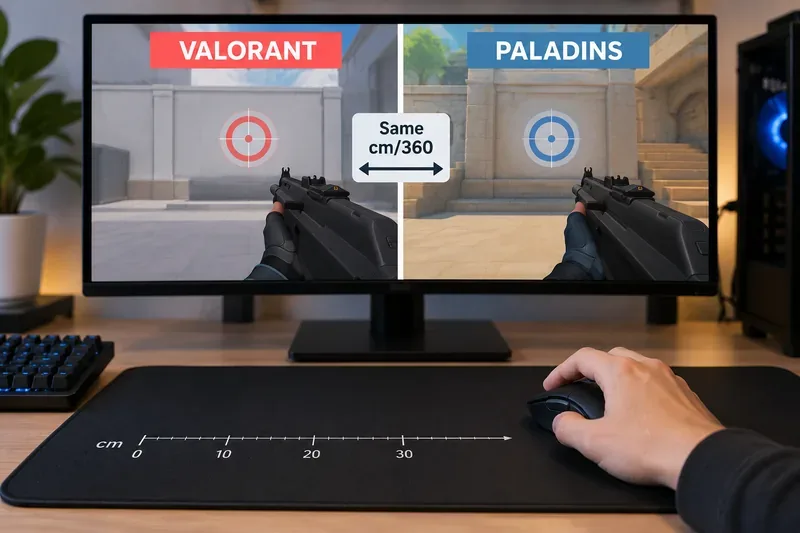
Convert VALORANT sensitivity to Paladins with a practical 7.65× starting ratio at the same DPI, then verify the result with cm/360 for a reliable match.
Use Advanced drone deployment in Rainbow Six Siege, choose a prep-phase transition, and pair fresh intel with a controlled entry routine.
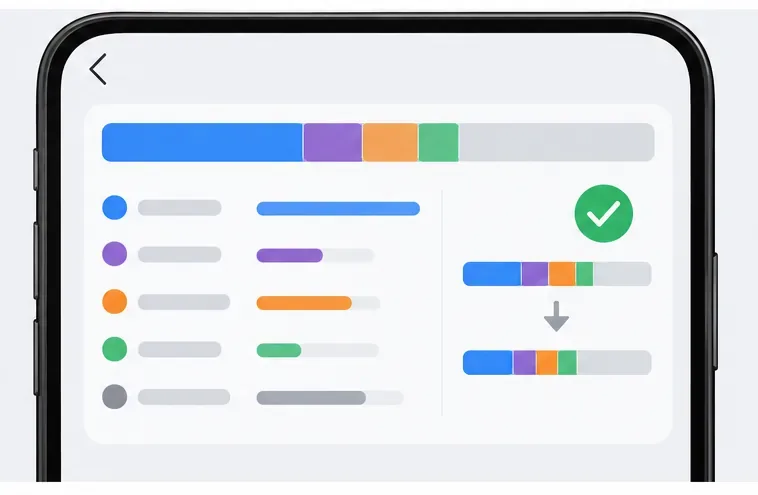
Free up Mobile Legends storage safely. Learn the difference between cache and game resources, clear Android cache, check iPhone options, and avoid deleting account data.
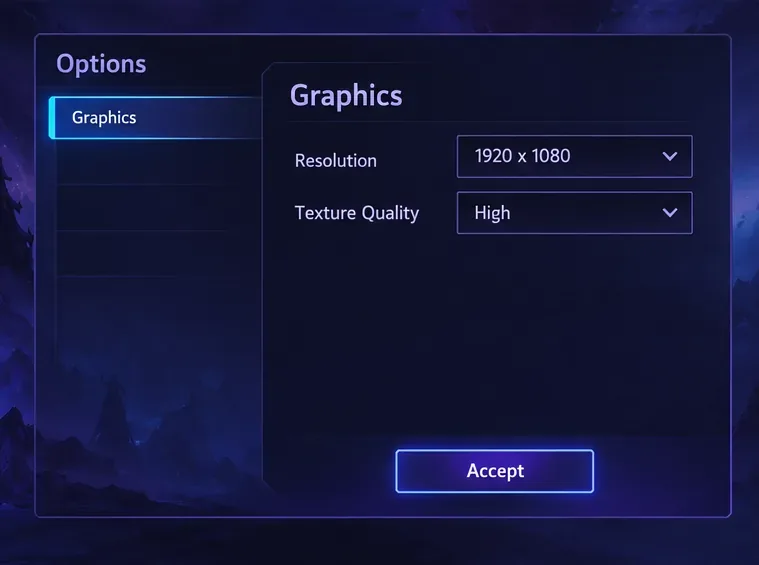
Learn which Heroes of the Storm Variables.txt frame-cap edits are worth testing, when lowering graphics matters more, and how to verify results safely.
Turn off Street Fighter 6 match commentary before your next fight, or compare it with changing the commentator lineup and adjusting audio.
Fix CS2 stuttering on a high-end PC by separating frame-time spikes from network jitter, checking shaders, files, drivers, background apps, and settings.
Check the Siege config’s raw-input setting, disable Windows pointer acceleration if needed, and test aim consistency without changing sensitivity by mistake.
Learn when to use Competitive gameplay, Authentic gameplay, or the older Competitive Master Switch in EA SPORTS FC, with practical settings advice.
Choose StarCraft II camera hotkeys that fit your keyboard, organize base locations, avoid binding conflicts, and test your setup with a practical checklist.