How to Fix Street Fighter 6 Slow Motion Gameplay on PC
Fix Street Fighter 6 slow motion on PC by checking frame rate, lowering graphics, selecting the right GPU, and verifying game files in a safe order.
A high-end PC can run Counter-Strike 2 at a very high average frame rate and still feel uneven. The important question is not “How many FPS am I getting?” but “What exactly is spiking when the hitch happens?” A brief frame-time jump, shader compilation, a background process, an unstable overclock, and network jitter can all feel like stutter, but they require different fixes.
This guide uses an evidence-first order: identify whether the problem is local rendering or network delivery, remove easy software variables, then change only the setting that matches the symptom. That prevents a common mistake on powerful systems: changing ten graphics options at once and never learning which one mattered.
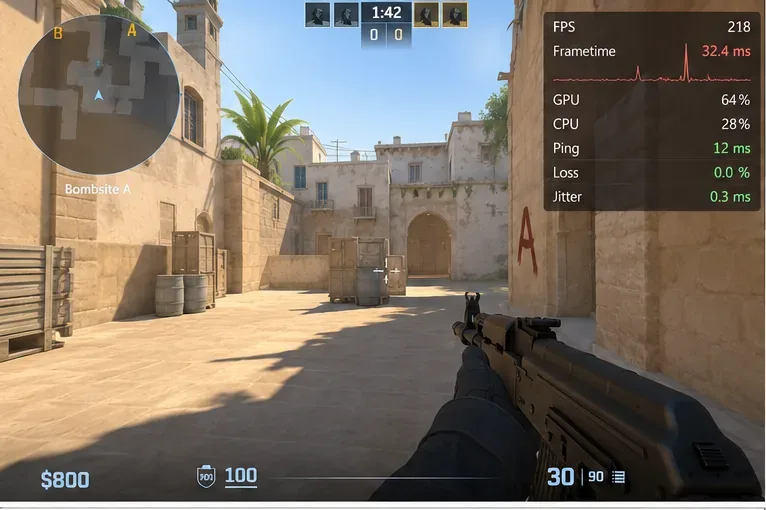
Start here. Valve added telemetry options that can show network jitter, packet loss or misdelivery, and related network-quality information. Valve also changed the network-quality readout in November 2024 so it better reflects packets that actually disrupt gameplay. See Valve's Counter-Strike 2 network and telemetry update notes.
If the image freezes or motion becomes uneven while network loss and jitter stay clean, treat the issue as a local performance problem. If player movement looks delayed, rubber-banded, or inconsistent at the same time the network graph worsens, do not expect a GPU setting to solve it.
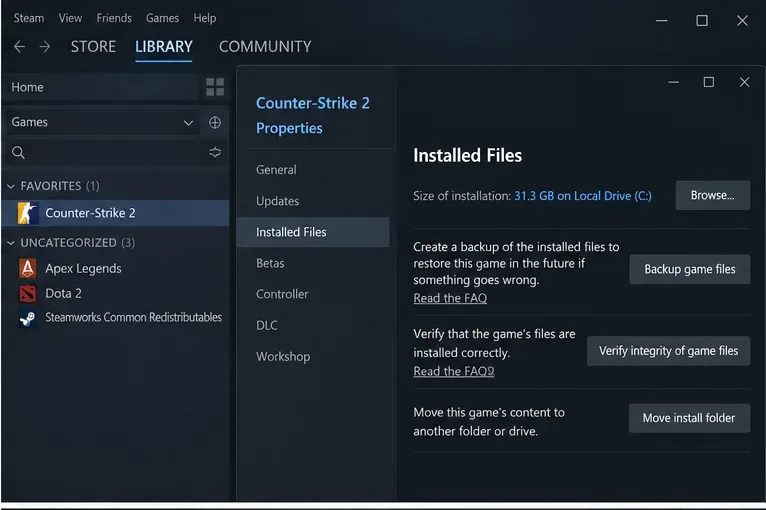
Restart Windows before deeper troubleshooting so you are testing from a clean state. Then verify the game files in Steam: Library > Counter-Strike 2 > Properties > Installed Files > Verify integrity of game files. Steam's official support page confirms this is the current verification path and notes that the process may take several minutes. See Steam Support: Verify Integrity of Game Files.
This step is worth doing even on a fast NVMe SSD. Storage speed does not prevent a file from becoming damaged or incomplete after a failed update, crash, or other interruption.
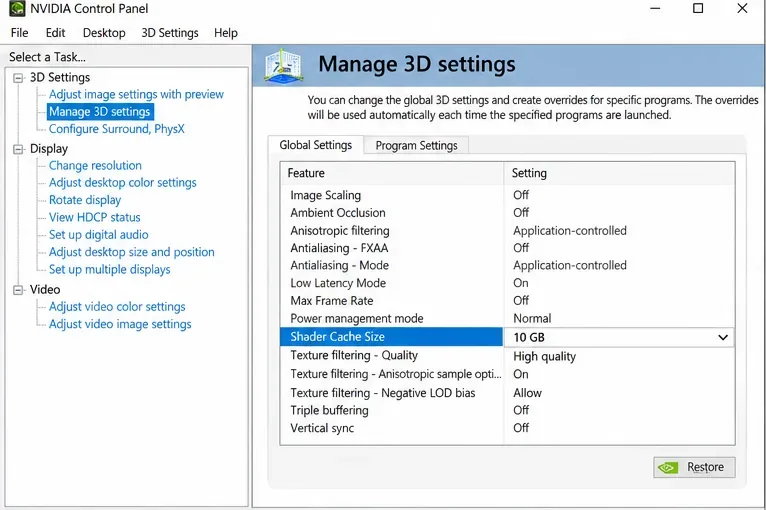
If you use an NVIDIA GPU, a fresh driver install is a special case. NVIDIA's own Control Panel documentation says shader compilation is a common source of gameplay stutter and that installing a new driver deletes the shader cache, so the first run after an update may stutter while shaders are compiled again. NVIDIA also warns that a shader-cache size that is too small can cause useful cached shaders to be removed. See NVIDIA Control Panel: Manage 3D Settings reference.
That means repeatedly deleting shader caches is not a sensible default fix. If the problem started immediately after a driver install, test more than one normal match or practice session before concluding that the driver is permanently bad. If Shader Cache Size is disabled or set unusually low, restore a reasonable setting instead of constantly purging it.
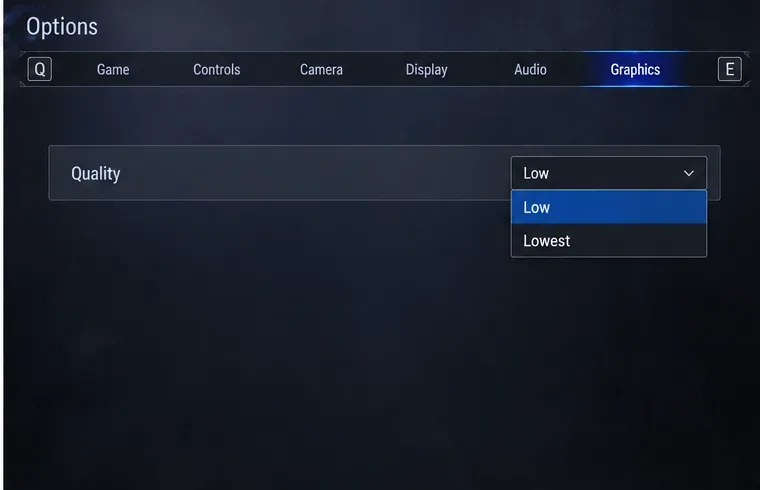
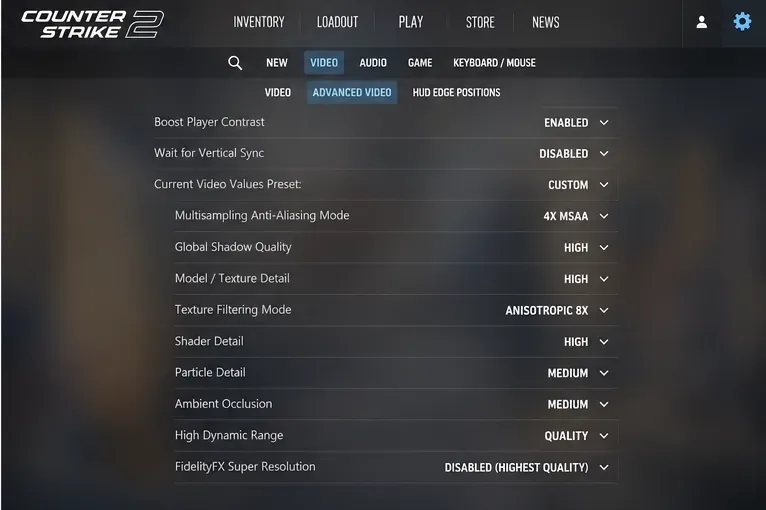
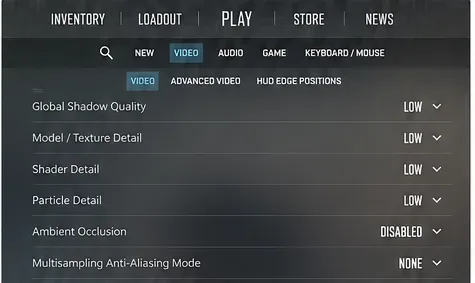
Do not immediately set every option to Low. On a high-end system, that can make the game more CPU-limited without proving that the GPU caused the hitch. Instead, record your current settings, then test a clean baseline: native resolution, a normal fullscreen mode, no unusual supersampling, and conservative values for heavy options such as anti-aliasing, shadows, ambient occlusion, and particles.
Change one group at a time and compare the same map or practice route. The useful result is not simply a higher average FPS. You want fewer obvious frame-time spikes and more consistent motion. If lowering GPU-heavy settings does not change the hitch at all, move on rather than continuing to sacrifice image quality.
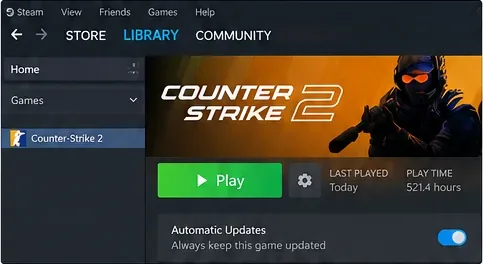
Make sure Steam is allowed to keep Counter-Strike 2 current. Valve continues to ship rendering, animation, networking, and performance fixes through normal CS2 updates. For example, Valve's August 14, 2025 notes included rendering performance improvements across most maps and also changed how fps_max can be modified while connected to a server. That is one reason old tweak lists and copied launch commands can age badly.
Remove launch options you do not understand, especially large collections copied from old CS:GO guides. Test with a plain configuration first. Keep only an option you can explain and can prove improves your own frame-time behavior.
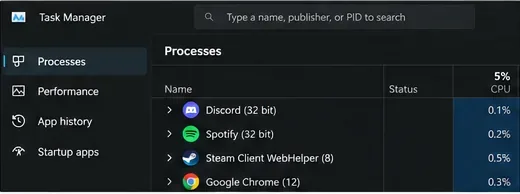
A top-tier CPU does not make background interference impossible. Frame-time spikes can come from capture tools, hardware monitoring with aggressive polling, RGB utilities, browser tabs, sync clients, overlays, antivirus scanning, or other software that hooks graphics, disk, or network activity.
Steam explicitly advises investigating background applications when troubleshooting poor performance and lists categories such as recording software, security tools, VPNs, download managers, and other monitoring or network-modifying programs. See Steam Support: Programs Which May Interfere with Steam.
For diagnosis, close nonessential software, restart Steam, and retest. Do not permanently disable security software just to gain a few frames. The goal is to isolate a conflict; once found, adjust that specific program or its overlay, scan behavior, or startup setting.
If lowering anti-aliasing, shadows, particles, or ambient occlusion clearly reduces the spikes, you have evidence that part of the problem is GPU-side. Raise settings back one at a time until you find the threshold where consistency worsens. On a 240 Hz or 360 Hz display, the best setting is the one that preserves stable frame delivery during smokes, utility, and busy fights—not the one that produces the highest screenshot FPS in an empty area.
If the GPU is nowhere near full utilization during the hitch and lowering graphics changes nothing, the stutter is more likely to be CPU scheduling, shader work, background software, storage activity, a driver issue, or system instability.
Factory overclocks, manual overclocks, undervolts, aggressive memory profiles, and thermal limits can all produce intermittent hitching without a full crash. If the stutter persists across maps and offline practice, test at known-stable CPU, GPU, and memory settings. Watch temperatures, clock behavior, and whether a background hardware-monitoring utility itself changes the result.
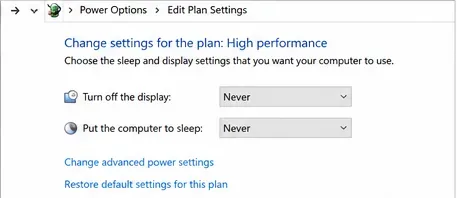
Also confirm that your display is connected to the intended discrete GPU and that Windows is not applying an unexpected power-saving behavior. On desktop systems, a High performance power plan can be a useful comparison test, but it should not be treated as a universal cure. If Balanced performs identically, keep the plan you prefer.
Stop tuning graphics and troubleshoot the connection. Valve's telemetry is specifically designed to expose network conditions that can disrupt gameplay. If the problem occurs only online and coincides with jitter or loss, compare wired Ethernet with Wi-Fi, stop heavy uploads and downloads, disable VPN software for testing, and check whether the issue affects multiple servers.
Steam's official lag guidance also notes that bandwidth-heavy background applications can contribute to choppy gameplay and lag symptoms. See Steam Support: Troubleshooting Lag.
An FPS cap can improve consistency when the system is constantly bouncing against a CPU or GPU limit, but it is not a universal stutter fix. Test a cap only after you establish what the uncapped frame-time graph looks like. Choose a value your PC can sustain in demanding rounds, not a number it reaches only when nothing is happening.
Remember that Valve changed fps_max behavior in 2025 so it cannot be changed while connected to a server. If you use it, set it before joining the test session. Do not mix several external limiters, driver caps, and in-game caps during diagnosis; one limiter at a time makes the result easier to interpret.
Retest the same scenario for several minutes and look for three signs: fewer visible hitches, a flatter frame-time pattern, and no simultaneous network-quality warning. A change that raises average FPS but leaves the same spikes is not solving the core problem. A change that feels smoother for one quiet round but fails during smokes or fights also needs more testing.
If stuttering survives verified files, a clean software test, stable hardware settings, a warmed shader cache, and clean network telemetry, the next step is targeted driver or system troubleshooting. At that point, document your GPU driver version, Windows build, CPU and GPU temperatures, display refresh rate, whether the issue happens offline, and whether it started after a specific CS2 or driver update. That evidence is far more useful than applying another random “optimization pack.”
Fix Street Fighter 6 slow motion on PC by checking frame rate, lowering graphics, selecting the right GPU, and verifying game files in a safe order.
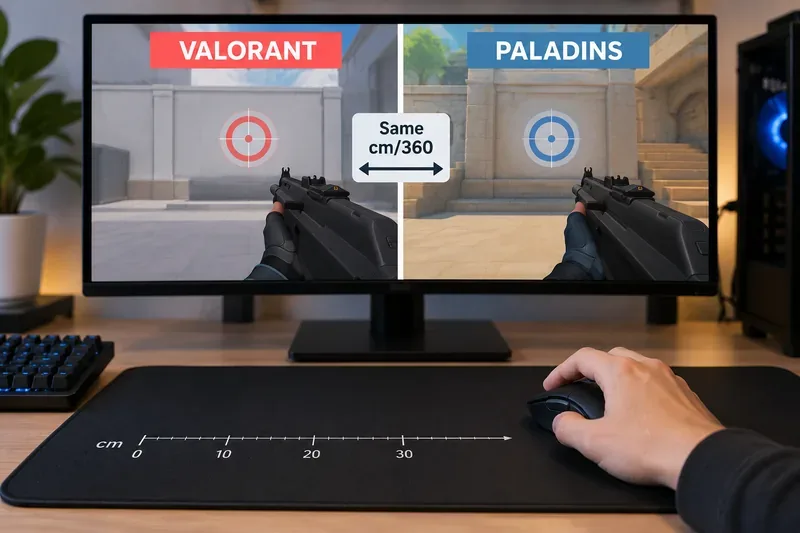
Convert VALORANT sensitivity to Paladins with a practical 7.65× starting ratio at the same DPI, then verify the result with cm/360 for a reliable match.
Use Advanced drone deployment in Rainbow Six Siege, choose a prep-phase transition, and pair fresh intel with a controlled entry routine.
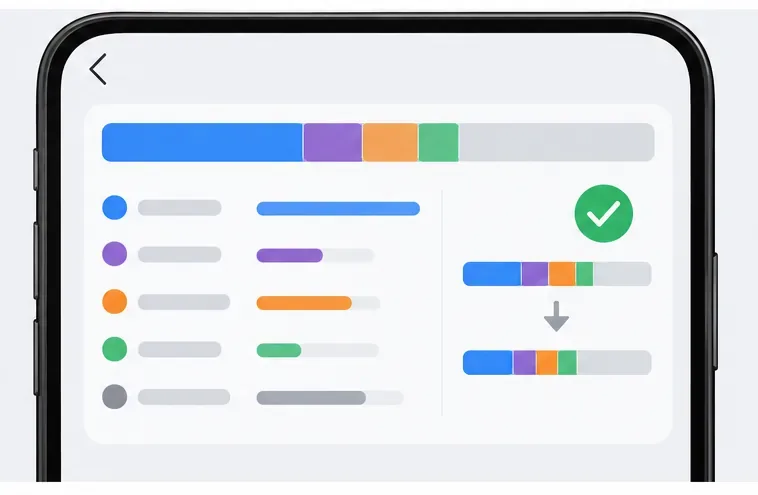
Free up Mobile Legends storage safely. Learn the difference between cache and game resources, clear Android cache, check iPhone options, and avoid deleting account data.
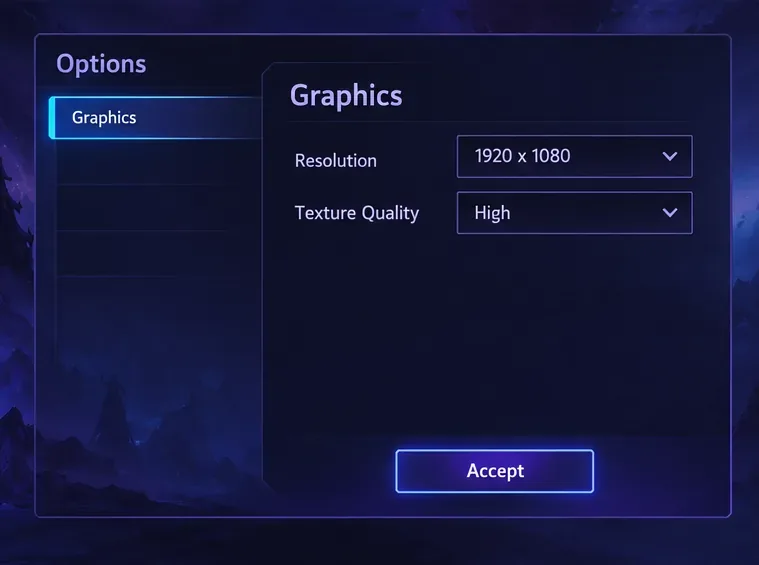
Learn which Heroes of the Storm Variables.txt frame-cap edits are worth testing, when lowering graphics matters more, and how to verify results safely.
Turn off Street Fighter 6 match commentary before your next fight, or compare it with changing the commentator lineup and adjusting audio.
Fix CS2 stuttering on a high-end PC by separating frame-time spikes from network jitter, checking shaders, files, drivers, background apps, and settings.
Check the Siege config’s raw-input setting, disable Windows pointer acceleration if needed, and test aim consistency without changing sensitivity by mistake.
Learn when to use Competitive gameplay, Authentic gameplay, or the older Competitive Master Switch in EA SPORTS FC, with practical settings advice.
Choose StarCraft II camera hotkeys that fit your keyboard, organize base locations, avoid binding conflicts, and test your setup with a practical checklist.