How to Fix Street Fighter 6 Slow Motion Gameplay on PC
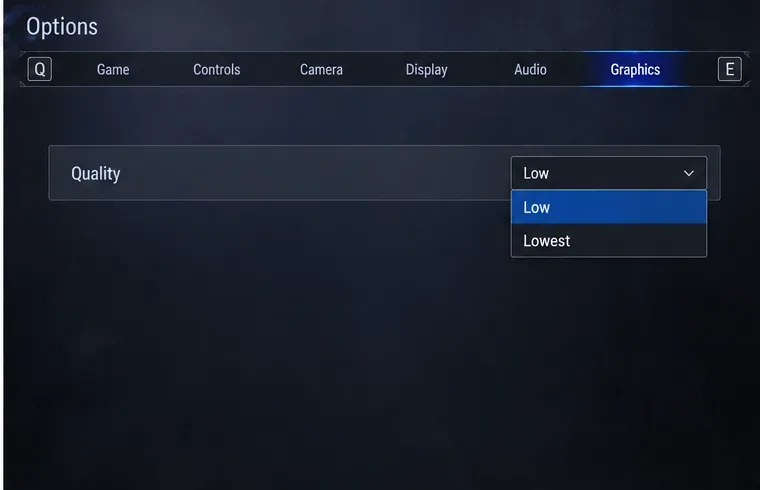
Fix Street Fighter 6 slow motion on PC by checking frame rate, lowering graphics, selecting the right GPU, and verifying game files in a safe order.
If you are moving from VALORANT to Paladins and want your mouse movement to feel familiar, the most useful starting point is simple: at the same mouse DPI, multiply your VALORANT hip-fire sensitivity by about 7.65 to get a starting Paladins sensitivity. That ratio is not an official number published by Riot Games or Hi-Rez Studios, so it should be treated as a practical conversion estimate rather than a guaranteed engine constant. The better final target is matching your physical cm/360—the number of centimeters you move your mouse to turn exactly 360 degrees.
That distinction matters because the two games use different sensitivity scales, different field-of-view behavior, and very different combat pacing. A number that produces the same full-turn distance can still feel different when you are making small corrections, tracking a fast target, or using a scoped weapon.
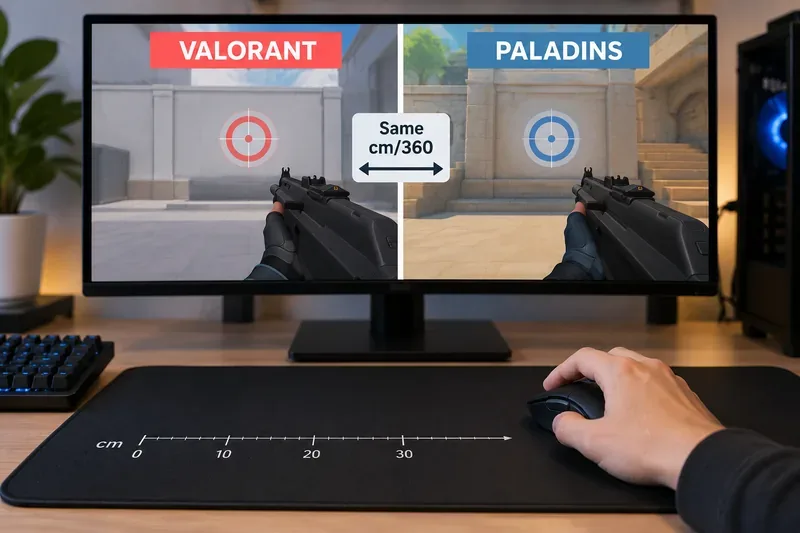
For equal DPI in both games, use this as a starting formula:
Paladins sensitivity ≈ VALORANT sensitivity × 7.65
For the reverse conversion:
VALORANT sensitivity ≈ Paladins sensitivity ÷ 7.65
If your DPI changes between games, compensate for it:
Paladins sensitivity ≈ VALORANT sensitivity × 7.65 × (VALORANT DPI ÷ Paladins DPI)
This is intended to preserve approximately the same 360-degree turn distance. It is not a promise that both games will feel identical on screen.
The following is a hypothetical example, not a real test result or player testimonial. Imagine a player named Alex uses 800 DPI and 0.32 sensitivity in VALORANT. Alex wants a familiar baseline in Paladins without spending an hour guessing.
The first estimate is:
0.32 × 7.65 = 2.448
So Alex would start near 2.45 sensitivity in Paladins while keeping the mouse at 800 DPI. If Paladins only accepts a coarser step in the relevant settings field, Alex should choose the closest available value and then verify it physically.
The purpose of this example is not to claim that 2.45 is universally “best.” It shows how the ratio is applied. A different VALORANT sensitivity produces a different Paladins starting value.
| VALORANT sensitivity | Same-DPI Paladins starting value |
|---|---|
| 0.20 | 1.53 |
| 0.25 | 1.91 |
| 0.30 | 2.30 |
| 0.32 | 2.45 |
| 0.35 | 2.68 |
| 0.40 | 3.06 |
| 0.50 | 3.83 |
Riot exposes mouse sensitivity controls in VALORANT, and its official material has discussed sensitivity settings as part of player configuration. Riot also revised the PC settings screens in Patch 12.07 in April 2026, confirming that the settings interface itself can change over time. You can review the official VALORANT Patch Notes 12.07 and Riot's earlier Community Spotlight on settings and sensitivity.
However, I could not verify an official Riot or Hi-Rez document that publishes the underlying mouse-yaw constants needed to prove one exact cross-game multiplier from first principles. Community measurement tools commonly converge near a 7.6-to-7.7 multiplier for same-DPI hip-fire conversion, which is why 7.65 is useful as a practical baseline. Because that part is not manufacturer-published, the safest method is to check the result yourself with cm/360.
A sensitivity number is only meaningful inside the game that defines it. A value of 0.32 in VALORANT does not describe the same angular movement as 0.32 in Paladins. Cm/360 avoids that problem by measuring a physical outcome: how far your mouse travels on the pad before your view completes one full rotation.
For Alex in the hypothetical example, the process is straightforward. In VALORANT, Alex can aim at a recognizable point, place the mouse at a marked starting position, make one full 360-degree turn, and measure the travel distance. Then Alex can repeat the same measurement in Paladins using the 2.45 starting value. If the Paladins turn requires less physical travel, the Paladins sensitivity is too high. If it requires more travel, the sensitivity is too low.
This physical check is especially valuable because sensitivity converters can differ when they rely on different community-measured constants or rounding rules.
For most players transferring a hip-fire sensitivity between these two games, matching cm/360 is the cleanest baseline. It preserves the relationship between your hand movement and world rotation. That makes large turns, flick distances, and general mouse control easier to compare.
But it does not make the games visually identical. VALORANT is a tactical shooter with a comparatively restrained movement model, while Paladins has champions with large mobility differences, vertical abilities, projectiles, tracking-heavy weapons, and broader on-screen action. Different fields of view also change how fast motion appears even when the physical turn distance is the same.
That means Alex may discover that a mathematically matched Paladins sensitivity feels slightly slow when tracking a highly mobile champion. In that case, a small adjustment is reasonable. The correct way to think about the conversion is: 7.65× gets you to the neighborhood; cm/360 confirms the baseline; gameplay needs decide the final tuning.
In one game, eDPI is commonly calculated as mouse DPI multiplied by in-game sensitivity. It is useful for comparing players who use the same game because the sensitivity scale is shared.
Across different games, eDPI is not a universal unit. For example, 800 DPI × 0.32 in VALORANT equals 256 eDPI, while 800 DPI × 2.45 in Paladins equals 1,960 eDPI. Those numbers look radically different even though the settings are intended to produce a similar physical turn distance. The mismatch happens because each game interprets its sensitivity value differently.
Return to the hypothetical Alex example. Suppose Alex uses 800 DPI in VALORANT but prefers 1600 DPI in Paladins. Doubling DPI means the in-game sensitivity must be cut in half to preserve the same physical rotation.
The calculation becomes:
0.32 × 7.65 × (800 ÷ 1600) = 1.224
So the new starting point is about 1.22 Paladins sensitivity at 1600 DPI. Again, verify with a full-turn measurement instead of assuming the decimal value is exact.
A hip-fire ratio should not automatically be reused for ADS or scoped sensitivity. Zoom changes the visible field of view, and games may apply their own scope multipliers. A setup that preserves full-turn distance at hip fire can still feel too fast or too slow when zoomed.
If your priority is transferring sniper or ADS muscle memory, first get hip fire stable, then tune each scope state separately using a repeatable target and the same mouse DPI. Avoid changing DPI, hip-fire sensitivity, and scope multiplier at the same time because you will not know which change produced the difference.
For Alex, that means starting at 2.45 in Paladins, checking the physical turn distance against 0.32 at 800 DPI in VALORANT, and only then deciding whether a small champion-specific comfort adjustment is worth making.
If you want one number to enter immediately, 7.65× at equal DPI is the best practical starting ratio. If you want the most dependable conversion, do not stop at the ratio. Match cm/360 and treat the multiplier as a shortcut for getting close quickly.
The most important limit is the evidence: neither Riot Games nor Hi-Rez Studios appears to publish an official cross-game conversion coefficient for VALORANT and Paladins. That is why a careful converter should distinguish a community-measured estimate from a manufacturer-documented fact. Use the ratio to save time, then use a physical 360-degree measurement to decide whether the result is actually matched on your setup.
Fix Street Fighter 6 slow motion on PC by checking frame rate, lowering graphics, selecting the right GPU, and verifying game files in a safe order.
Convert VALORANT sensitivity to Paladins with a practical 7.65× starting ratio at the same DPI, then verify the result with cm/360 for a reliable match.
Use Advanced drone deployment in Rainbow Six Siege, choose a prep-phase transition, and pair fresh intel with a controlled entry routine.
Free up Mobile Legends storage safely. Learn the difference between cache and game resources, clear Android cache, check iPhone options, and avoid deleting account data.
Learn which Heroes of the Storm Variables.txt frame-cap edits are worth testing, when lowering graphics matters more, and how to verify results safely.
Turn off Street Fighter 6 match commentary before your next fight, or compare it with changing the commentator lineup and adjusting audio.
Fix CS2 stuttering on a high-end PC by separating frame-time spikes from network jitter, checking shaders, files, drivers, background apps, and settings.
Check the Siege config’s raw-input setting, disable Windows pointer acceleration if needed, and test aim consistency without changing sensitivity by mistake.
Learn when to use Competitive gameplay, Authentic gameplay, or the older Competitive Master Switch in EA SPORTS FC, with practical settings advice.
Choose StarCraft II camera hotkeys that fit your keyboard, organize base locations, avoid binding conflicts, and test your setup with a practical checklist.