How to Fix Street Fighter 6 Slow Motion Gameplay on PC
Fix Street Fighter 6 slow motion on PC by checking frame rate, lowering graphics, selecting the right GPU, and verifying game files in a safe order.
The best camera hotkey configuration for StarCraft II is a small set of predictable location keys that you can reach reliably while keeping your existing unit commands intact. Start with your main base, natural expansion, third base, and one flexible location. Keep the same meaning for each slot across matches, then change the physical keys only if your keyboard or hand position makes them uncomfortable.
This is a practical recommendation, not a claim that one layout produces the highest win rate. The right configuration reduces searching and mistaken inputs during your normal play. A technically compact layout is not useful if you repeatedly press the wrong modifier or lose access to a familiar command.
A camera location is a bookmark for a place on the battlefield. It is different from a control group, which stores a selection of units or buildings. Use location bookmarks for places you revisit and control groups for the units you need to command.
| Need | Useful tool | Configuration priority |
|---|---|---|
| Return to a specific base or defensive entrance | Saved camera location | Predictable slot and easy recall key |
| Find your moving army | Double-tap its control-group key | Keep army groups separate from location bookmarks |
| Respond to a recent warning | Notification camera shortcut | Retain an accessible emergency shortcut |
| Visit headquarters without a specific bookmark | Base-cycle shortcut | Keep it as a fallback |
| Adjust the view around the current location | Mouse scrolling or minimap navigation | Use alongside bookmarks |
Blizzard’s Special Control guide describes double-tapping a control group to center on its units, Backspace for cycling headquarters, and Spacebar for recent notifications. These are documented defaults; a custom profile can change your bindings.
Organize slots by purpose instead of memorizing a new geographic order on every map. Your natural expansion is the nearby expansion commonly taken after the starting base. “Third” means your next planned or established base, not necessarily the third resource cluster clockwise around the map.
| Slot | Recommended purpose | What the view should include |
|---|---|---|
| 1 | Main base | Headquarters, mineral line, and useful production space |
| 2 | Natural expansion | Headquarters, workers, and the nearby entrance where practical |
| 3 | Third base | Its economy and the approach you need to inspect |
| 4 | Flexible task location | Fourth base, defensive choke, forward position, or another recurring task |
For a newer player, three fixed economic locations are easier to maintain than a large collection of temporary bookmarks. Add more only when you can name a repeated task the extra slot will support. A rarely used location can become another memory burden.
Choose the framing deliberately. Centering directly on a headquarters is a reasonable starting point, but a slight offset may show workers and an exposed approach together. Avoid a view that forces another camera adjustment every time you recall it. Camera bookmarks provide navigation, not vision into unexplored or unseen enemy areas.
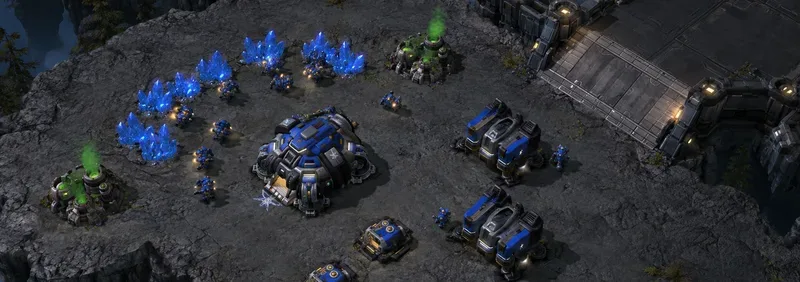
The familiar starting configuration is Ctrl+F5 through Ctrl+F8 to save locations and F5 through F8 to recall them. Blizzard’s Simplified Controls guide documents saved-location shortcuts. Check the actual assignments in your active profile, especially if you previously imported another layout.
This approach minimizes the amount you must relearn. Its tradeoff is reach: the right side of the function row can be awkward while your hand normally rests around the left-side command keys. Keep it if you can return to unit commands without looking down or shifting your hand excessively.
A proposed custom alternative is F1–F4 for recalling the first four locations and Ctrl plus the matching function key for saving them. Treat the pairs as a design pattern: the unmodified key recalls; the modified version saves. Configure both actions explicitly rather than assuming moving one binding also moves its partner.
Audit existing uses first. Blizzard documents F1 as an idle-worker shortcut. If you repurpose it, choose and practice a replacement for that action. Also inspect F2 and every other candidate key in your own profile, including army-selection and interface commands.
An original example of this broader approach is Marcel’s published SC2 hotkey profile, which uses F1–F8 for camera locations and moves other commands. It demonstrates an actual custom configuration, not an official recommendation or evidence that the layout is universally better.
If your keyboard has no dedicated function row, a nearby key with a modifier may be more practical than an Fn-layer shortcut. Evaluate the entire sequence: saving a location, recalling it, and immediately issuing a unit command. A key that is close to your index finger may still be awkward when combined with a modifier.
Do not copy a modifier-and-number layout in isolation. Ctrl and Shift number combinations already matter to many control-group workflows. The camera keys need to fit the rest of your profile, including queued orders and commands used with selected units.
The following suggestions are workflow choices rather than race-specific requirements. Keep the first three slots consistent and adapt the flexible slot when your recurring work changes.
For example, a player defending a third base while attacking can keep the third in slot 3 and locate the attacking army through its group. This separates “check that place” from “command those units,” making the purpose of each input clearer.
Open the hotkey list through Menu > Options > Hotkeys, the path described in Blizzard’s introduction to using hotkeys. Work in a named custom profile and keep your previous configuration available while evaluating changes.
Research checked on October 8, 2026 supports the documented camera mechanisms and custom hotkey support. The linked Blizzard guides are longstanding references, not documentation of a newly released camera feature. This article does not claim a verified current build number or an identical editor appearance on every installation; use the live hotkey list to confirm your assignments.
In a low-pressure practice match, establish two base bookmarks and alternate between them. Then combine a base visit with selecting your army group and returning to the army. The useful question is whether you reach the intended place and command the intended selection without hunting for keys.
Watch for three failure patterns: recalling the wrong base, accidentally saving over a location, and struggling to resume ordinary commands after the jump. Each suggests a different adjustment. A consistent wrong destination may call for clearer slot meanings; accidental saving may call for a safer modifier; awkward follow-up commands may call for different physical keys.
Keep the layout stable long enough to evaluate it across normal play, but change one problem at a time. Expand beyond four locations when repeated tasks justify it. The most useful configuration is the one that makes your next decision easier while keeping selection and command errors under control.
Fix Street Fighter 6 slow motion on PC by checking frame rate, lowering graphics, selecting the right GPU, and verifying game files in a safe order.
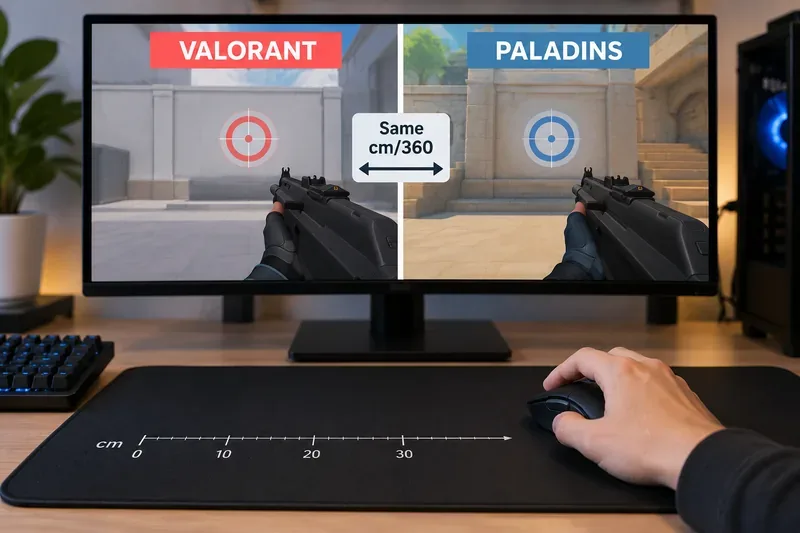
Convert VALORANT sensitivity to Paladins with a practical 7.65× starting ratio at the same DPI, then verify the result with cm/360 for a reliable match.
Use Advanced drone deployment in Rainbow Six Siege, choose a prep-phase transition, and pair fresh intel with a controlled entry routine.
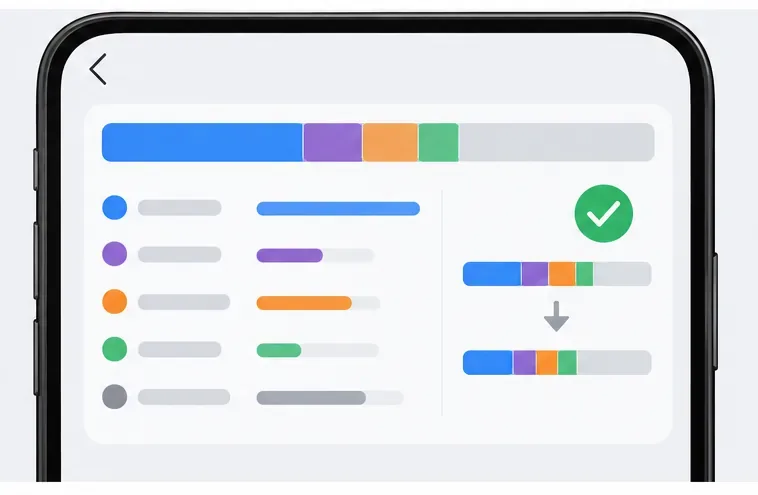
Free up Mobile Legends storage safely. Learn the difference between cache and game resources, clear Android cache, check iPhone options, and avoid deleting account data.
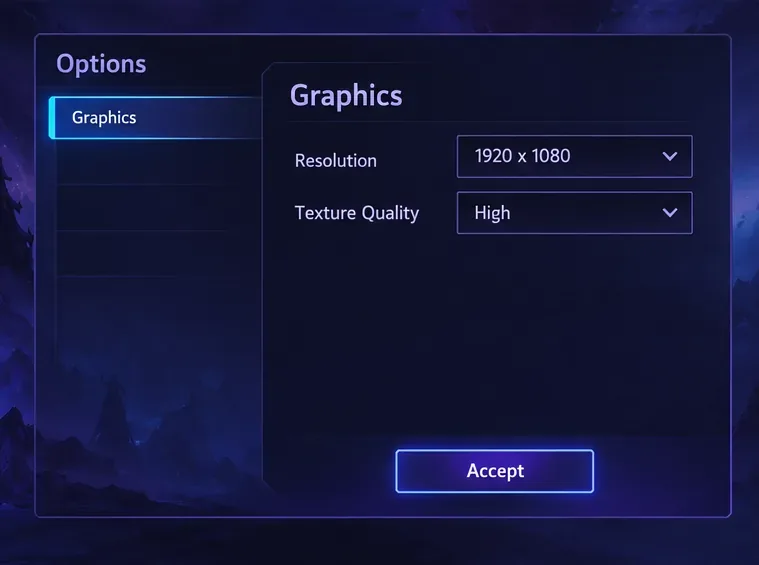
Learn which Heroes of the Storm Variables.txt frame-cap edits are worth testing, when lowering graphics matters more, and how to verify results safely.
Turn off Street Fighter 6 match commentary before your next fight, or compare it with changing the commentator lineup and adjusting audio.
Fix CS2 stuttering on a high-end PC by separating frame-time spikes from network jitter, checking shaders, files, drivers, background apps, and settings.
Check the Siege config’s raw-input setting, disable Windows pointer acceleration if needed, and test aim consistency without changing sensitivity by mistake.
Learn when to use Competitive gameplay, Authentic gameplay, or the older Competitive Master Switch in EA SPORTS FC, with practical settings advice.
Choose StarCraft II camera hotkeys that fit your keyboard, organize base locations, avoid binding conflicts, and test your setup with a practical checklist.