How to Fix Street Fighter 6 Slow Motion Gameplay on PC
Fix Street Fighter 6 slow motion on PC by checking frame rate, lowering graphics, selecting the right GPU, and verifying game files in a safe order.
A team fight starts, the screen fills with effects, and Heroes of the Storm suddenly feels choppy. Editing Variables.txt may help control frame-rate behavior, but a cap does not create extra rendering power: setting a 120 FPS limit will not turn a system that can only render 45 FPS into a 120 FPS system. For low FPS, start with the game’s supported Graphics options. Use the file only for a cautious, reversible frame-cap test.
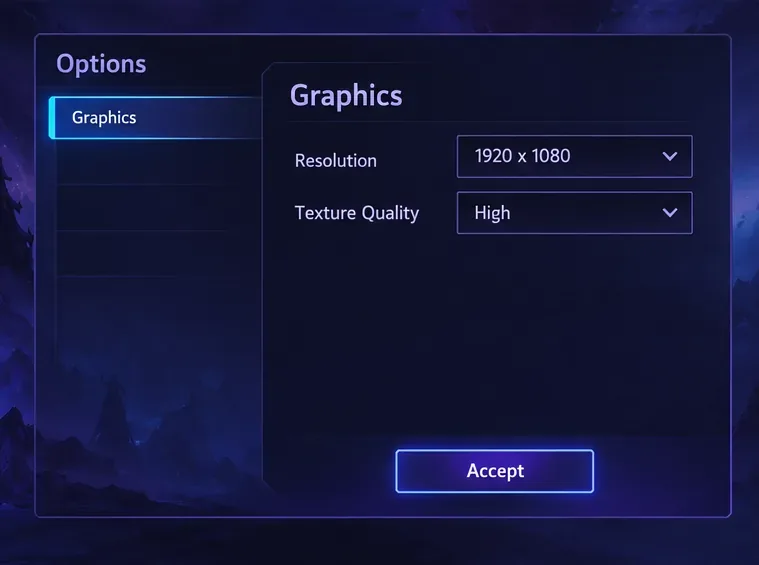
Blizzard’s troubleshooting guidance points players toward lower in-game settings for performance issues, including resolution for renderer problems and texture quality for resource-cache problems. The frameratecap and frameratecapglue edits are commonly described in older Blizzard forum discussions, but the reports are not a current guarantee that every client build will honor them. Treat them as optional tests and verify the result instead of expecting a fixed FPS gain.
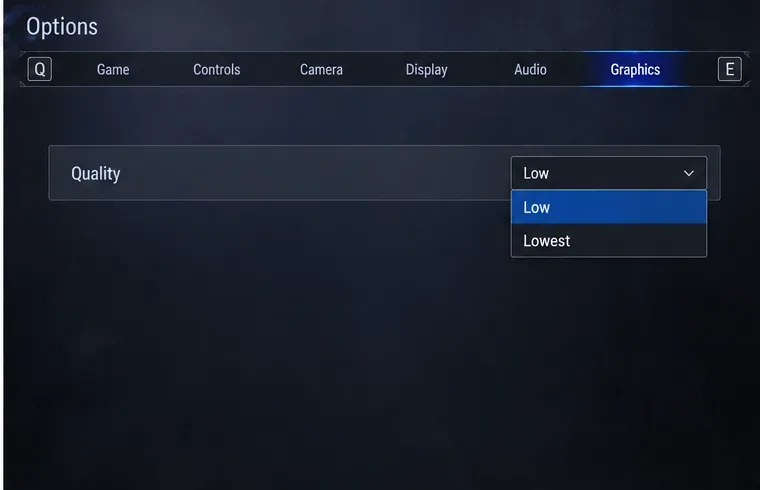
Open the in-game menu and go to Options > Graphics. If FPS falls mainly during fights or busy scenes, lower one graphics setting at a time and test again. Resolution is a useful first test when the graphics processor is struggling: a lower resolution means fewer pixels to render, though the image will look softer. If textures appear to load slowly or the game reports a resource-cache problem, lower Texture Quality and compare. Texture quality can affect memory use, but changing it will not help every CPU-bound or network-related hitch.
Keep a note of the original settings. If image clarity matters more than a small FPS change, restore the original resolution and test a different quality setting. Avoid changing every option at once; otherwise, you will not know which adjustment made the difference.
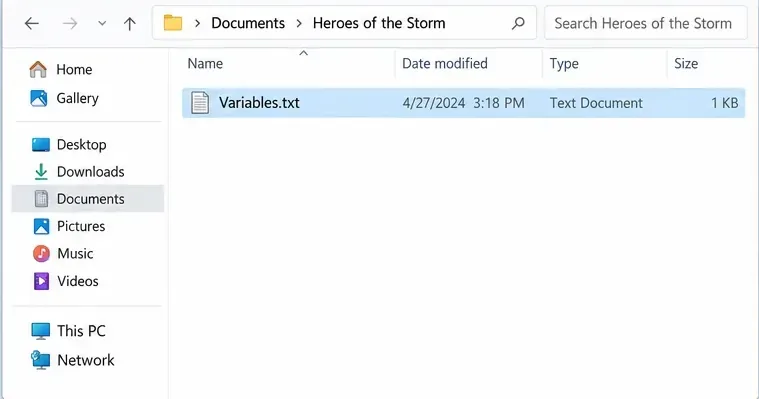
Exit Heroes of the Storm and close the Battle.net launcher before editing. Open your Windows Documents folder, then open Heroes of the Storm and locate Variables.txt. The default location is under Documents/Heroes of the Storm; if Documents is redirected to OneDrive, use that active Documents location.
Make a copy of the file before changing it. Name the copy something like Variables-backup.txt and keep it in a place you can find. Open the original in Notepad. If Variables.txt is missing, launch the game once and check again. Do not create a replacement file from an internet template, because it may omit settings specific to your installation.
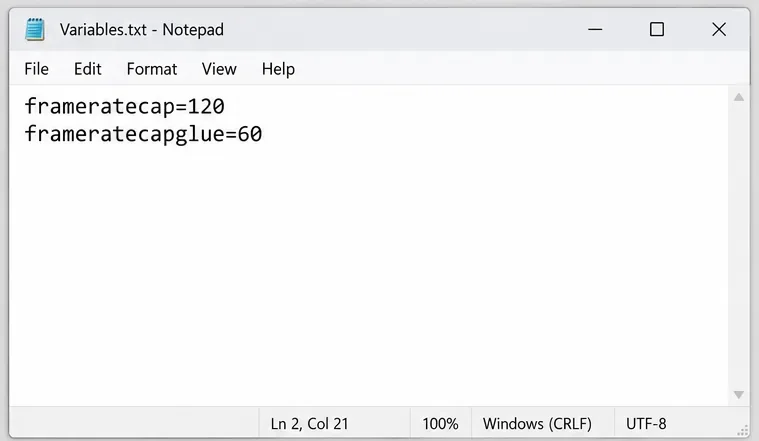
Search the file for frameratecap and frameratecapglue. Older Heroes forum discussions describe the first as the gameplay cap and the second as a cap for menus or other interface scenes. These descriptions come from community troubleshooting posts, not a current Blizzard reference manual, so behavior can differ by game version or setup.
If the variables already exist, change only their numeric values. If they are absent, an older forum workaround suggests adding them as plain lines near the bottom of the file. Because this is not current official documentation, try that only if you are comfortable restoring the backup. Do not add duplicate versions of a variable with different capitalization.
frameratecap=120
frameratecapglue=60
The numbers above are examples, not universal recommendations. Choose a gameplay cap near a frame rate your PC can hold during a demanding fight. If the system usually dips below 90 FPS, a 120 cap will not fix those dips; it may simply leave the game uncapped during them. A lower cap can reduce unnecessary rendering when the computer is producing far more frames than the display can use, which may make frame pacing or system load easier to manage. It can also make motion feel less responsive if set too low.
Keep a separate menu cap only if high FPS in menus or hero selection is causing unnecessary load. If you value fluid menus, choose a higher value or leave that setting unchanged. Do not set both caps to an arbitrary high number to “boost” performance.
Save the file, close Notepad, launch Battle.net, and start the game. Play the same mode or a similar match long enough to reach the scene that usually slows down. Use the same resolution and graphics settings for the comparison. If you have a reliable frame-rate counter, compare the typical FPS and the dips during fights; also note whether input feels consistent. A higher peak number in an empty lane does not prove that team-fight performance improved.
Change only one category between tests. First compare the graphics adjustment with your baseline. Then, if you need it, test the cap change. If the game feels worse, restore the previous values or replace the edited file with your backup. Reopen the file after relaunching to confirm whether the client kept your values or rewrote them.
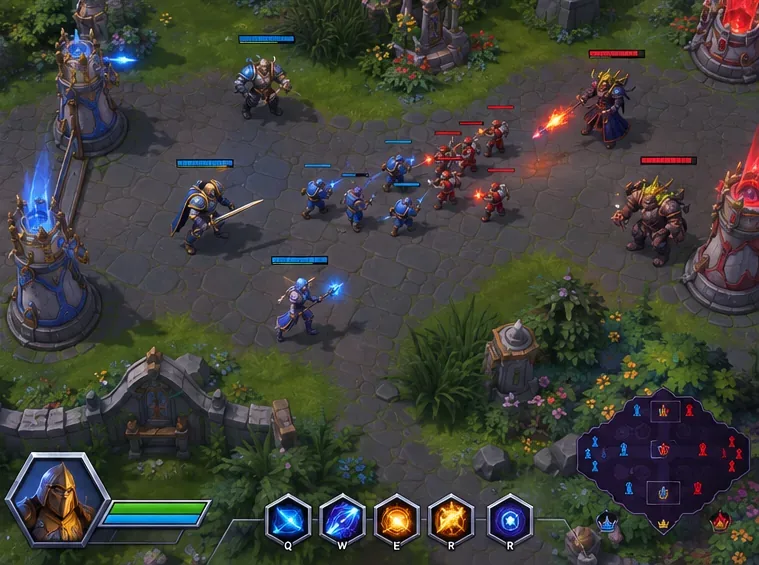
There is no verified universal list of “best” graphics variables to paste into Variables.txt. The most defensible file edit is a reversible frame cap test; the more direct FPS adjustments are the Graphics options exposed by the game. Avoid copying long lists of unknown settings such as shadow, effects, or shader variables from old posts unless you can verify that your current client recognizes them.
If performance remains poor after restoring defaults, lowering resolution, and testing a reasonable cap, check that the game has finished patching, update Windows and your graphics driver, and close unnecessary background applications. Blizzard’s troubleshooting guidance also recommends checking system requirements and laptop power settings. If the problem began after a driver or game update, record that detail and use Blizzard’s technical support channel rather than making more speculative file edits.
Variables.txt?Fix Street Fighter 6 slow motion on PC by checking frame rate, lowering graphics, selecting the right GPU, and verifying game files in a safe order.
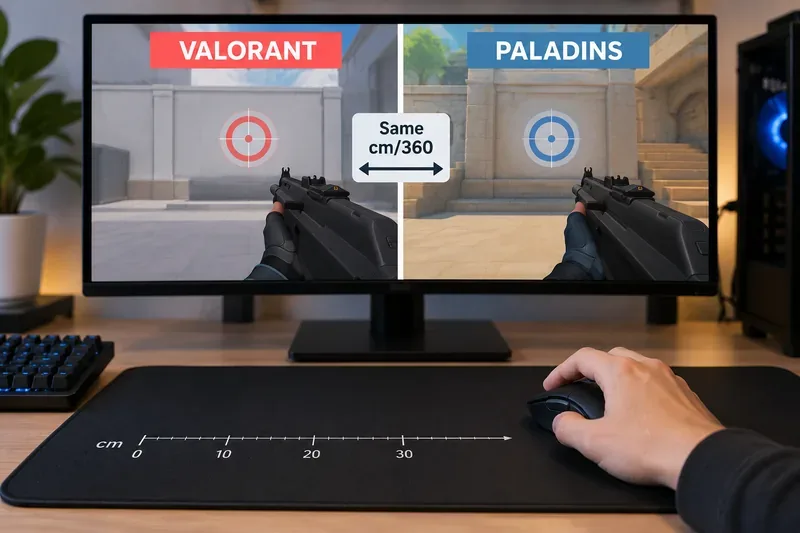
Convert VALORANT sensitivity to Paladins with a practical 7.65× starting ratio at the same DPI, then verify the result with cm/360 for a reliable match.
Use Advanced drone deployment in Rainbow Six Siege, choose a prep-phase transition, and pair fresh intel with a controlled entry routine.
Free up Mobile Legends storage safely. Learn the difference between cache and game resources, clear Android cache, check iPhone options, and avoid deleting account data.
Learn which Heroes of the Storm Variables.txt frame-cap edits are worth testing, when lowering graphics matters more, and how to verify results safely.
Turn off Street Fighter 6 match commentary before your next fight, or compare it with changing the commentator lineup and adjusting audio.
Fix CS2 stuttering on a high-end PC by separating frame-time spikes from network jitter, checking shaders, files, drivers, background apps, and settings.
Check the Siege config’s raw-input setting, disable Windows pointer acceleration if needed, and test aim consistency without changing sensitivity by mistake.
Learn when to use Competitive gameplay, Authentic gameplay, or the older Competitive Master Switch in EA SPORTS FC, with practical settings advice.
Choose StarCraft II camera hotkeys that fit your keyboard, organize base locations, avoid binding conflicts, and test your setup with a practical checklist.