How to Fix Street Fighter 6 Slow Motion Gameplay on PC
Fix Street Fighter 6 slow motion on PC by checking frame rate, lowering graphics, selecting the right GPU, and verifying game files in a safe order.
There is no officially documented MouseAcceleration=0 command for Rainbow Six Siege’s GameSettings.ini. Ubisoft documents the file location and sensitivity variables, but its public guidance does not describe a current config-file acceleration switch. If your existing [INPUT] section contains RawInputMouseKeyboard, you can test changing its value to 1 as a raw-input check; treat that as build-dependent, not as a guaranteed acceleration fix. For Windows pointer acceleration, the clearly documented control is Enhance pointer precision in Windows Mouse Properties.
The goal is consistent aim: moving the mouse the same physical distance should produce a repeatable turn, whether you move slowly or quickly. Change one setting at a time, then compare using the same sensitivity and a repeatable test. If the result feels faster or slower but the turn distance stays consistent, you may be adjusting sensitivity rather than acceleration.
Siege stores per-profile settings in a GameSettings.ini file. Ubisoft’s support instructions give the default PC folder under Documents, in My Games/Rainbow Six - Siege/<UbisoftConnectID>. The profile folder name is unique and may look like a long string of letters and numbers. Ubisoft’s input-sensitivity reference identifies MouseSensitivityMultiplierUnit and XFactorAiming as sensitivity modifiers in this file. These change how much the game turns for a given input; they are not documented as mouse-acceleration switches.
Some existing configs may also contain RawInputMouseKeyboard. The name suggests a raw mouse-and-keyboard input setting, but Ubisoft’s current public references do not define this key or promise that it disables every form of acceleration in every current game build. Do not add a line that is missing from your file just because an older guide lists it. If you want a supported, predictable change, use the Windows setting below and test it in-game.
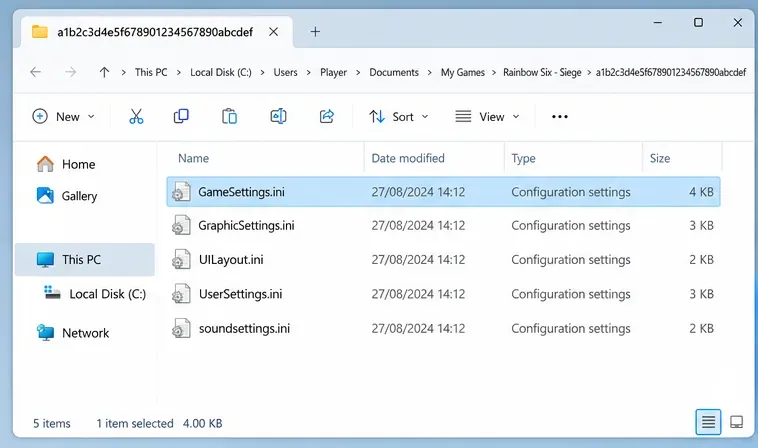
Close Rainbow Six Siege before editing so the game does not save settings over your changes as it exits. In File Explorer, open Documents > My Games > Rainbow Six - Siege, then open the folder associated with your Ubisoft Connect profile. If Windows stores Documents in OneDrive or another location, use the location shown for your Documents folder rather than assuming it is directly under the local user profile.
Look for GameSettings.ini. If you have multiple profile folders, do not edit each one at random. Open the game, confirm which Ubisoft profile is active, then use the matching folder. Ubisoft’s help page shows the default path pattern; replace the account and profile placeholders with your actual folder names.
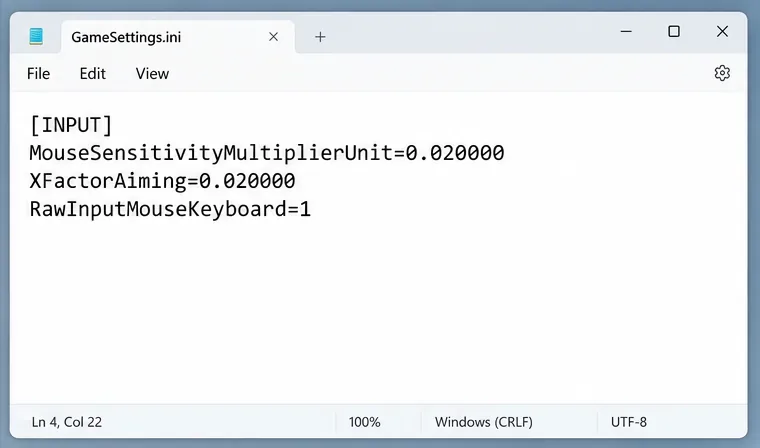
Before changing anything, make a copy of GameSettings.ini in the same folder and name it something clear, such as GameSettings-backup.ini. Then open the original file in Notepad. Use Find to search for [INPUT], then look for RawInputMouseKeyboard.
0, change only the value to 1, save, and test. This is a cautious test of the raw-input setting found in some existing Siege configs, not a verified universal acceleration command.1, leave it alone and test Windows and mouse-software settings instead.Do not change MouseSensitivityMultiplierUnit, XFactorAiming, horizontal sensitivity, vertical sensitivity, or ADS values to try to remove acceleration. Those values tune sensitivity. If your aim simply feels too fast, record the original value and adjust sensitivity separately in small steps.
[INPUT]
RawInputMouseKeyboard=1
The snippet shows the single existing line to inspect. Do not paste it over your whole config file; preserve all other sections and values.
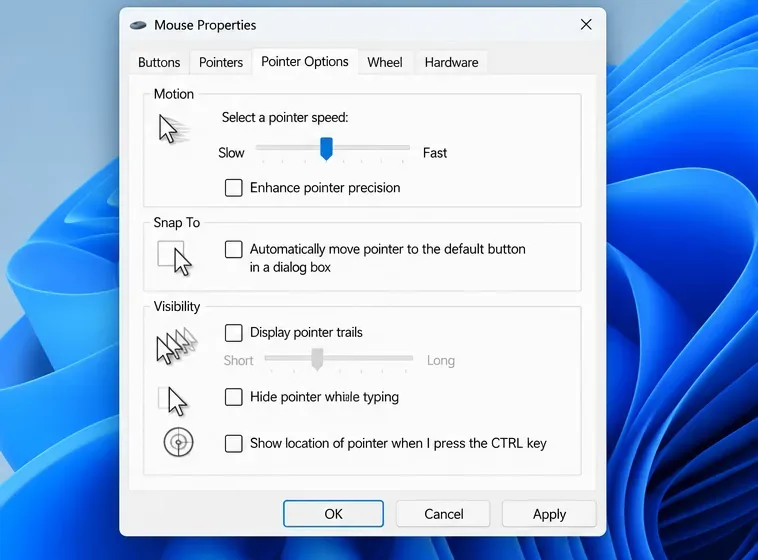
Windows calls this behavior Enhance pointer precision. To reach the control in Windows 11, open Settings > Bluetooth & devices > Mouse > Additional mouse settings. In the Mouse Properties window, select Pointer Options, clear Enhance pointer precision, then select Apply and OK. In Windows 10, open Mouse settings and use Additional mouse options to reach the same Pointer Options tab. Microsoft documents the location of this control; exact labels can vary slightly by Windows version.
This setting affects Windows pointer behavior. If Siege is receiving raw mouse input, Windows pointer acceleration may not affect in-game aim, so the checkbox change might improve the desktop cursor without changing the game. That is why a controlled in-game test matters. Avoid changing the pointer-speed slider at the same time; otherwise you will not know which change affected the feel.
Save the edited file, close Notepad, and launch Siege. If you edited a config value, check the file again after the game starts or closes to see whether the game kept or rewrote it. If it reverts, use the in-game control where available instead of repeatedly forcing a value the game does not retain. Do not set the file to read-only as a workaround; that can prevent normal settings from saving.
Use a practice environment or a quiet custom session to compare the result. Keep your mouse DPI, in-game sensitivity, and ADS settings unchanged during the test. Move the mouse a measured distance slowly, reset, then move it the same distance quickly. Compare the final angle. A similar turn angle at both speeds is the practical sign that acceleration is no longer influencing that test path. Repeat several times; a single flick is not a reliable measurement.
If the game’s aim changes but the Windows cursor behaves the same, that can be expected when the game uses a separate input path. If both desktop and game cursor behavior change, the Windows setting may have been the source. If the aim still accelerates, check any mouse manufacturer software or third-party input utilities for per-game profiles, acceleration curves, or automatic profile switching.
If RawInputMouseKeyboard=1 makes the game feel worse, restore the backup or change the value back to its original setting. Raw input is not the right answer for every mouse setup, and it does not compensate for an acceleration curve configured in mouse software or a separate utility. If the setting is missing, gets overwritten, or produces no repeatable difference, stop editing the file and rely on controls that are present in your current game and Windows menus.
Also separate acceleration from ordinary sensitivity. Acceleration changes the relationship between mouse speed and turn distance; sensitivity changes the turn distance for all movement. A lower sensitivity may feel steadier, but it does not prove acceleration was disabled. Make one adjustment at a time and keep a note of the original values so you can reverse a change quickly.
GameSettings.ini inside the active Ubisoft profile folder?RawInputMouseKeyboard=1 if the line already existed?Fix Street Fighter 6 slow motion on PC by checking frame rate, lowering graphics, selecting the right GPU, and verifying game files in a safe order.
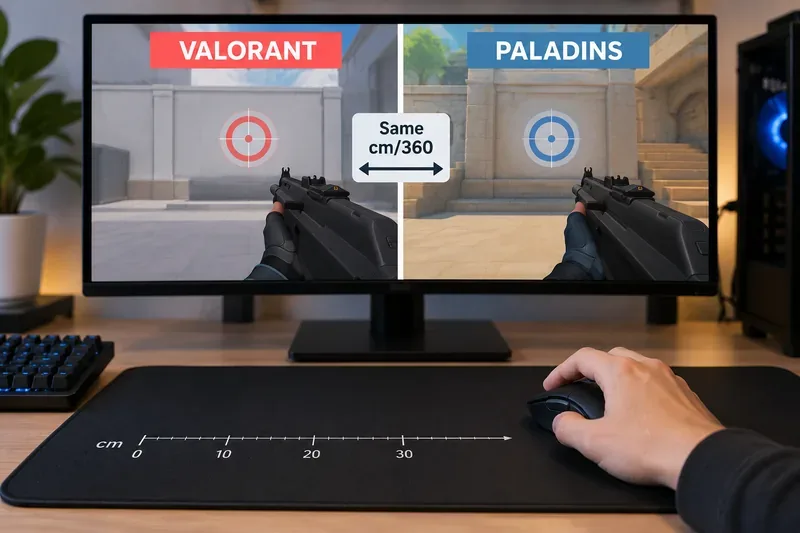
Convert VALORANT sensitivity to Paladins with a practical 7.65× starting ratio at the same DPI, then verify the result with cm/360 for a reliable match.
Use Advanced drone deployment in Rainbow Six Siege, choose a prep-phase transition, and pair fresh intel with a controlled entry routine.
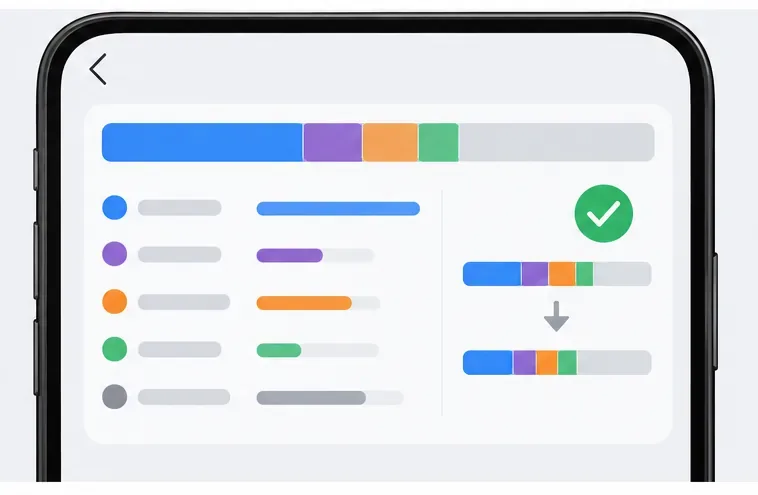
Free up Mobile Legends storage safely. Learn the difference between cache and game resources, clear Android cache, check iPhone options, and avoid deleting account data.
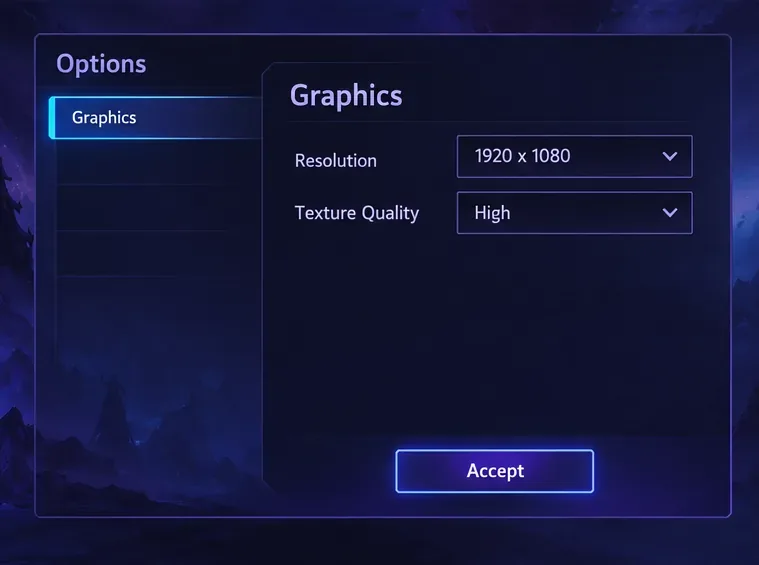
Learn which Heroes of the Storm Variables.txt frame-cap edits are worth testing, when lowering graphics matters more, and how to verify results safely.
Turn off Street Fighter 6 match commentary before your next fight, or compare it with changing the commentator lineup and adjusting audio.
Fix CS2 stuttering on a high-end PC by separating frame-time spikes from network jitter, checking shaders, files, drivers, background apps, and settings.
Check the Siege config’s raw-input setting, disable Windows pointer acceleration if needed, and test aim consistency without changing sensitivity by mistake.
Learn when to use Competitive gameplay, Authentic gameplay, or the older Competitive Master Switch in EA SPORTS FC, with practical settings advice.
Choose StarCraft II camera hotkeys that fit your keyboard, organize base locations, avoid binding conflicts, and test your setup with a practical checklist.