How to Fix Street Fighter 6 Slow Motion Gameplay on PC
Fix Street Fighter 6 slow motion on PC by checking frame rate, lowering graphics, selecting the right GPU, and verifying game files in a safe order.
When Street Fighter 6 seems to run in slow motion on PC, the first question is whether the game is rendering too slowly or an online match is responding late. Slow animation across an offline fight usually points toward frame-rate or system-performance trouble. Delayed inputs, opponent warping, or disconnects only online suggest a connection issue instead. The fixes are different, so identify the pattern before changing settings.
Illustrative example: Suppose Maya, a hypothetical player, notices that Street Fighter 6 runs smoothly in the training room but slows down during certain World Tour fights. This example is only a way to apply the troubleshooting steps; it is not a real player report or test result. Maya should focus first on graphics load and the specific mode where the slowdown appears, not immediately reinstall the game or alter Windows system files.
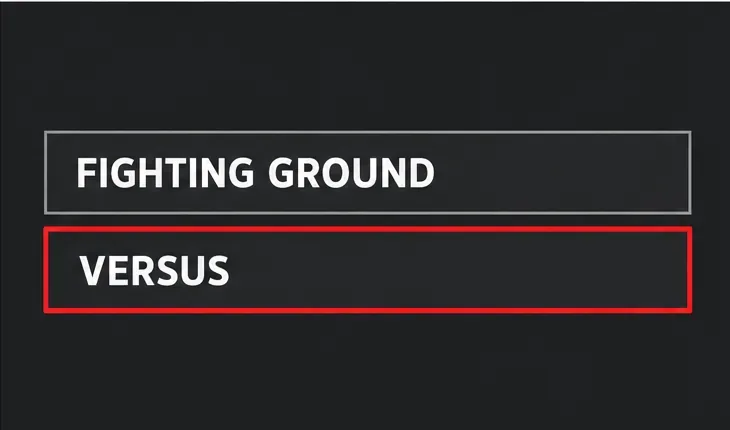
Street Fighter 6 is a fighting game in which consistent timing matters. If the action itself appears to move more slowly, rather than merely looking choppy, the PC may be struggling to keep up with the scene. Check whether it happens in more than one mode: try a short offline Training or Fighting Ground session, then compare it with the mode where you first noticed it. If only online play has delayed responses while offline animation remains normal, graphics changes may not address the main problem.
Also note where and when the slowdown happens. A slowdown limited to a crowded or visually busy area points toward a rendering load that may vary by scene. If the entire game slows down, including menus, check whether other applications are consuming system resources and whether the PC is using the intended graphics processor.
Capcom’s PC troubleshooting guidance says to compare the computer with the game’s system requirements and lower graphics settings when performance is unstable. The Steam listing currently specifies, at minimum, Windows 10 64-bit, an Intel Core i5-7500 or AMD Ryzen 3 1200, 8 GB of memory, and a GTX 1060 with 6 GB VRAM or Radeon RX 580 with 4 GB VRAM. It also warns that frame rate may drop in graphics-intensive scenes. Check the current Street Fighter 6 Steam system requirements before assuming a setting alone can resolve the issue; store specifications can change.
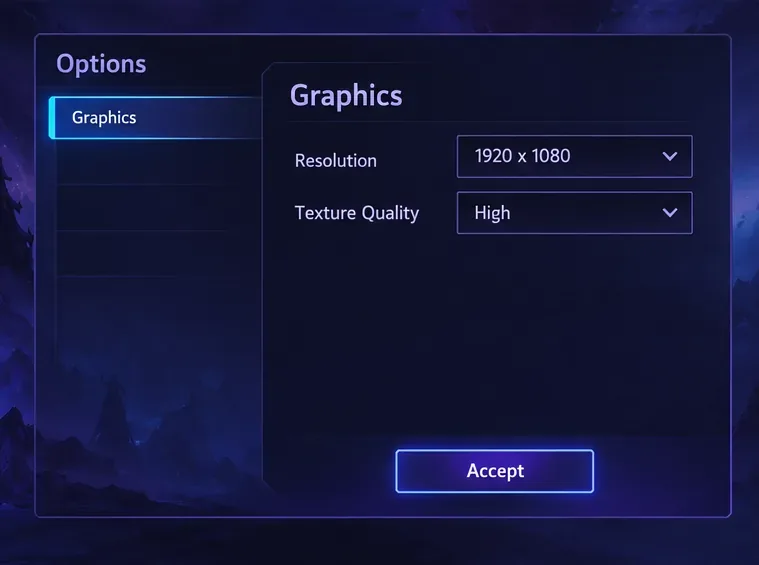
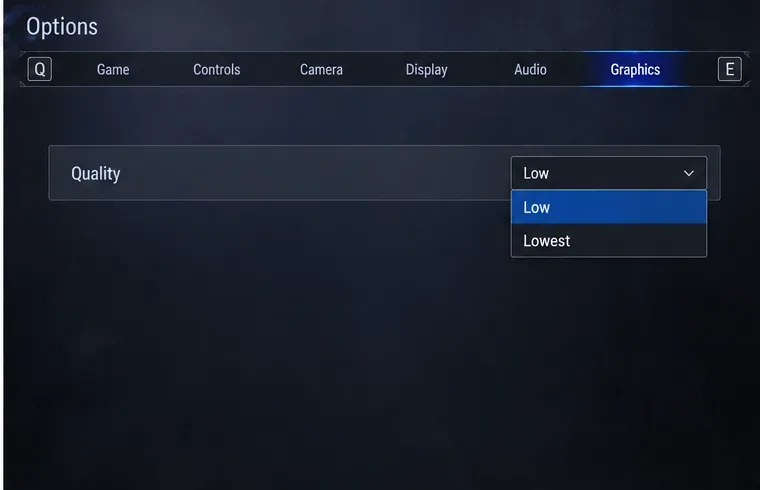
For Maya’s hypothetical World Tour slowdown, the least disruptive first change is inside the game. Open the Multi Menu, choose Options, open the Graphics tab, then set the items under Quality to Low or Lowest. Capcom’s PC troubleshooting post gives this as its recommended starting point for unstable frame rate. If the menu has an overall quality choice, lower that first; if the problem remains, reduce individual quality options as needed.
Lower settings can make environments and effects look less detailed. That is the tradeoff: a clearer, more stable fight may be more useful than extra visual detail when timing is being affected. Change one group of settings at a time if you want to see which adjustment helps. Capcom notes that most graphics changes require restarting the game to take effect, so fully close and relaunch SF6 before judging a change.
If the game provides a resolution choice and Low quality is not enough, try a lower display resolution as a separate test. The image will look softer, but rendering fewer pixels can reduce graphics workload. Avoid stacking multiple unrelated tweaks at once; otherwise, it becomes difficult to tell whether the slowdown changed because of a useful setting or a coincidental scene difference.
If you play on a laptop, connect its power adapter before comparing performance. Capcom’s support guidance specifically recommends keeping a laptop plugged in and checking its power settings. Battery-saving behavior can limit performance on some PCs, while a performance-focused power mode may use more power and produce more heat. Use the manufacturer’s normal Windows power controls; avoid changing BIOS settings unless the computer maker or support staff directs you to do so.
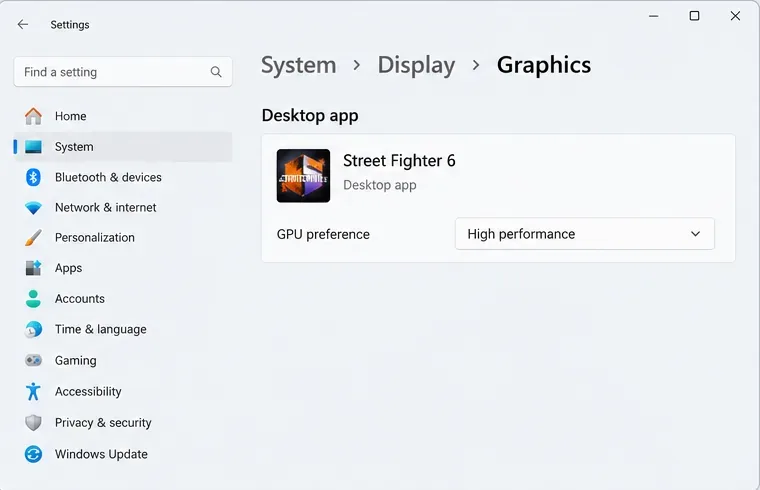
On a Windows 11 PC with both integrated and dedicated graphics, you can ask Windows to prefer the higher-performance GPU for the game. Open Settings > System > Display > Graphics, select or add Street Fighter 6 as a desktop app, choose Options, select High performance if available, and save. Restart the game afterward. The setting is useful when Windows has more than one GPU to choose from; a single-GPU desktop may not show a meaningful alternative. Microsoft explains the per-app graphics preference in its Windows 11 graphics settings guide.
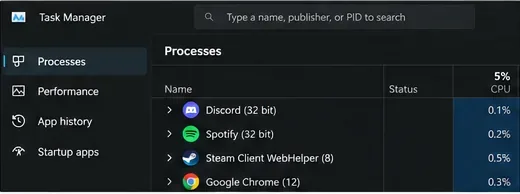
Close demanding background apps while testing, especially video capture, streaming, or other 3D software. Capcom notes that these programs can consume CPU, GPU, memory, or storage bandwidth. You do not need to disable every startup app or security feature; close only nonessential programs temporarily and compare the same in-game situation.
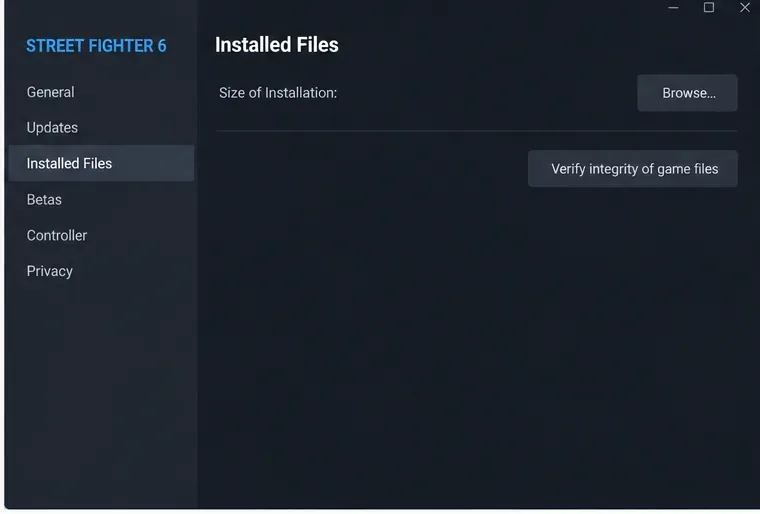
Use file verification if the slowdown began after an update, is accompanied by missing or corrupted assets, or continues after reducing graphics load. In Steam, open Library, right-click Street Fighter 6, choose Properties, select Installed Files, and click Verify integrity of game files. Steam checks the installed files and can reacquire files that are missing or damaged. The check may take several minutes, and Steam warns that some files may fail validation normally because they are local configuration files. Follow Steam’s current verification instructions.
Let the verification finish, then restart Steam and the game. Do not delete the installation folder as a first step: verification is less destructive and is designed to check the installed game files. If you use a version of SF6 installed outside Steam, use that store’s repair or verification feature instead; the Steam menu path does not apply to every PC installation.
After a change, replay the same mode and type of scene that exposed the slow motion. For Maya, that means checking the same kind of World Tour fight first, then comparing with Training. If one mode is smooth and another still slows down, record that distinction instead of describing the whole game as broken. A mode-specific pattern helps narrow whether the issue is tied to scene complexity, the system, or the installation.
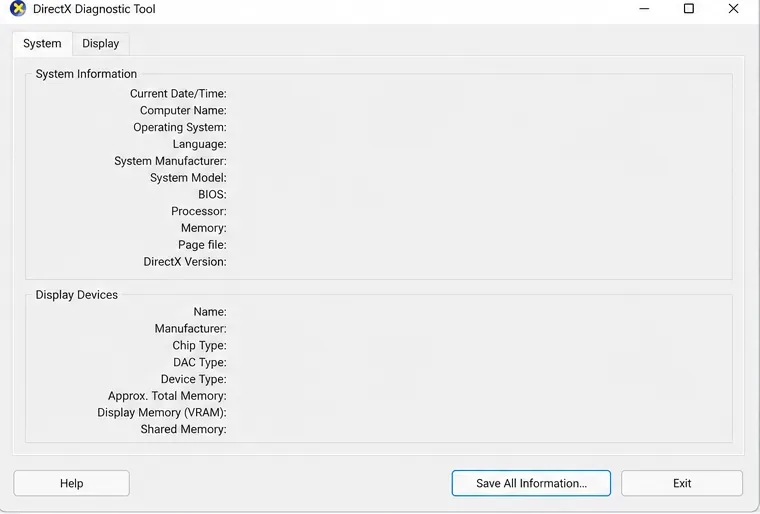
If performance remains poor, gather accurate PC details before contacting support. Press Windows + R, enter dxdiag, and open the DirectX Diagnostic Tool. Review the System and Display tabs for the processor, memory, graphics device, and driver information. Capcom’s troubleshooting post asks users reporting technical issues to include PC specifications, graphics settings, the locations where the issue occurs, and whether restarting resolved it. Do not post account credentials or unrelated personal information with a diagnostic report.
For the illustrative Maya, this order keeps the process focused: lower the game’s quality settings, ensure the laptop is powered and using its intended GPU, verify files if the issue continues, and compare the same mode again. It preserves more time and configuration than immediately reinstalling, while still giving a clear point to collect system details and seek Capcom support if slow motion persists.
Capcom’s Street Fighter 6 PC troubleshooting and issue-reporting thread contains its guidance on requirements, graphics quality, background applications, and support reports. Menu labels and driver options can change with game or Windows updates, so use the current in-game and manufacturer controls shown on your PC.
Fix Street Fighter 6 slow motion on PC by checking frame rate, lowering graphics, selecting the right GPU, and verifying game files in a safe order.
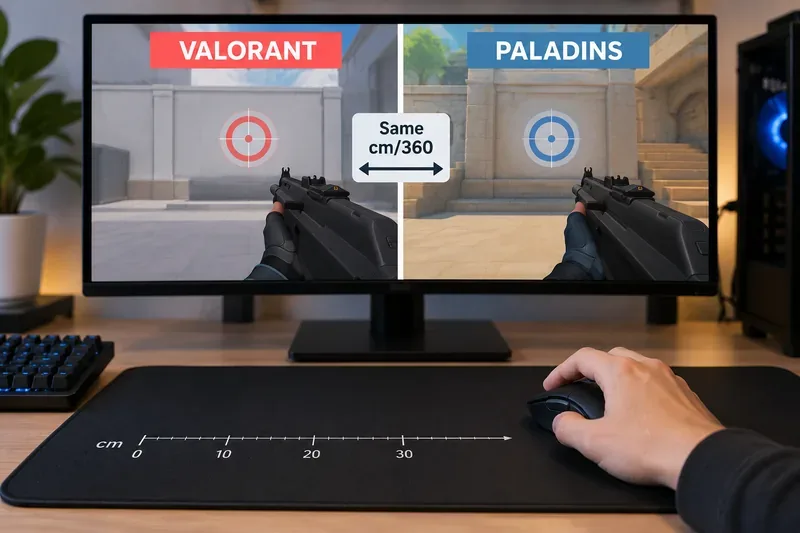
Convert VALORANT sensitivity to Paladins with a practical 7.65× starting ratio at the same DPI, then verify the result with cm/360 for a reliable match.
Use Advanced drone deployment in Rainbow Six Siege, choose a prep-phase transition, and pair fresh intel with a controlled entry routine.
Free up Mobile Legends storage safely. Learn the difference between cache and game resources, clear Android cache, check iPhone options, and avoid deleting account data.
Learn which Heroes of the Storm Variables.txt frame-cap edits are worth testing, when lowering graphics matters more, and how to verify results safely.
Turn off Street Fighter 6 match commentary before your next fight, or compare it with changing the commentator lineup and adjusting audio.
Fix CS2 stuttering on a high-end PC by separating frame-time spikes from network jitter, checking shaders, files, drivers, background apps, and settings.
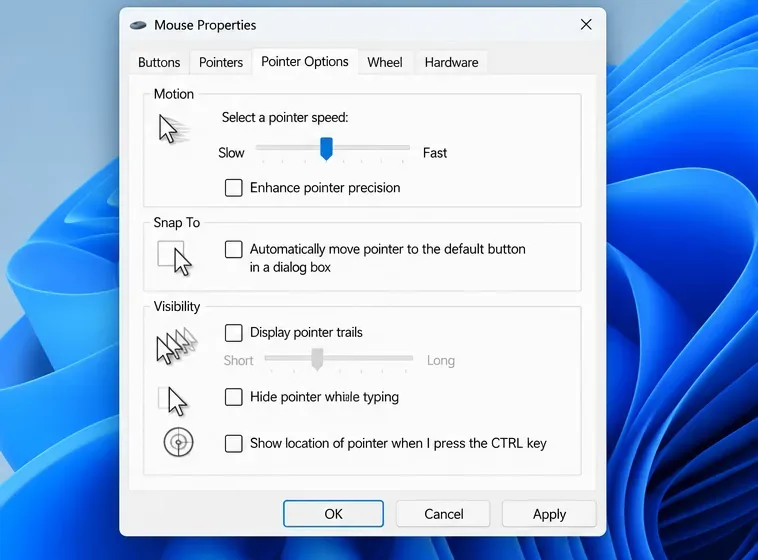
Check the Siege config’s raw-input setting, disable Windows pointer acceleration if needed, and test aim consistency without changing sensitivity by mistake.
Learn when to use Competitive gameplay, Authentic gameplay, or the older Competitive Master Switch in EA SPORTS FC, with practical settings advice.
Choose StarCraft II camera hotkeys that fit your keyboard, organize base locations, avoid binding conflicts, and test your setup with a practical checklist.