How to Fix Street Fighter 6 Slow Motion Gameplay on PC
Fix Street Fighter 6 slow motion on PC by checking frame rate, lowering graphics, selecting the right GPU, and verifying game files in a safe order.
Mobile Legends: Bang Bang can use more storage over time as it downloads maps, hero models, voice packs, and other game assets. The safest cleanup depends on what is taking up space: a temporary cache, outdated resources inside the game, or the app’s full local data. Those are different things, and choosing the wrong “clear” button can make the game download assets again or require you to sign in.
Start with Mobile Legends’ own cleanup tools if they appear in your version. On Android, you can also clear the app cache from system settings. iPhone does not offer the same per-app cache button; Apple’s Offload App option preserves app documents and data, while deleting and reinstalling is a more complete reset that can require a large resource download.
A cache is temporary data an app keeps so it can load or work faster. Android’s Clear cache command removes temporary files; Google notes that an app may be slower the next time it opens. Downloaded game resources are different: they may be required files that Mobile Legends needs to display maps, effects, or voice lines. A resource cleanup tool may remove files the game considers unnecessary, but the game can download assets again later.
On Android, Clear storage (sometimes called Clear data) is broader than Clear cache. Android says it permanently deletes all app data. For a game, that can reset local settings or sign-in state, and you may need to log in and download resources again. Don’t choose it just because the Mobile Legends folder looks large.
Before using a cleanup tool, confirm that you know how to return to the same Mobile Legends account. Check the account center or profile area in the game and make sure the account is connected to a supported sign-in method. A cleanup that only removes temporary files is not the same as deleting app data, but binding your account is sensible preparation before any storage operation or reinstall.
Use a stable Wi-Fi connection if the game needs to check or restore resources. Avoid starting a cleanup while a match is active or a large resource download is in progress. If your phone is nearly full, free a little space outside the game first; the app may need working room to verify or download files.
Open Mobile Legends and look in the in-game Settings menu, commonly opened from the gear icon. Some versions have placed cache and redundant-resource controls under Network Test. Menu names and availability can vary by game version, region, and device, so use the labels visible in your installed build rather than assuming every screen is identical.
“Clear Redundancy” is a game-specific cleanup label that has appeared in some Mobile Legends versions; it is not the same as Android’s Clear storage. Treat the in-game screen as authoritative: if the control is absent, don’t search for hidden folders or install a cleaner to imitate it. The game may later download resources it needs again, so this is not a permanent way to shrink the install.
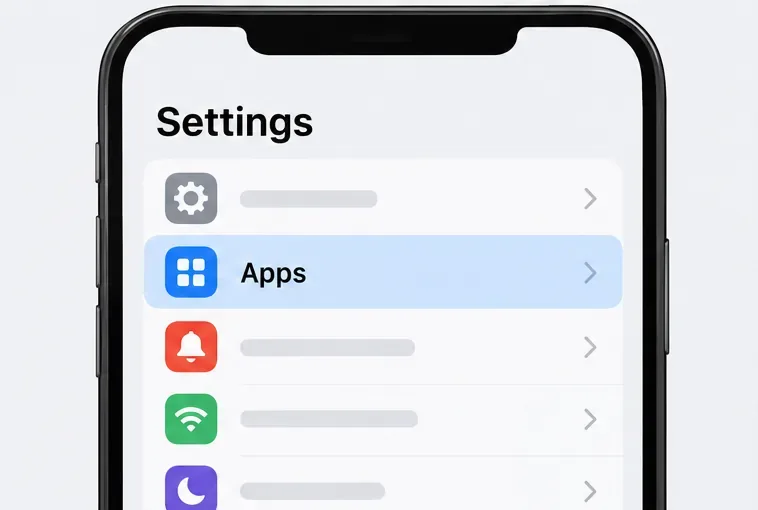
If Mobile Legends still occupies more space than expected, Android’s app settings offer a separate cache command. Exact menu wording differs across Android brands and versions, but the usual route is:
Google explains that Clear cache deletes temporary data, while Clear storage permanently deletes all app data. That distinction matters more than the buttons’ proximity on screen. Clearing cache may free only a modest amount if most of Mobile Legends’ footprint is made up of downloaded game assets rather than temporary files.
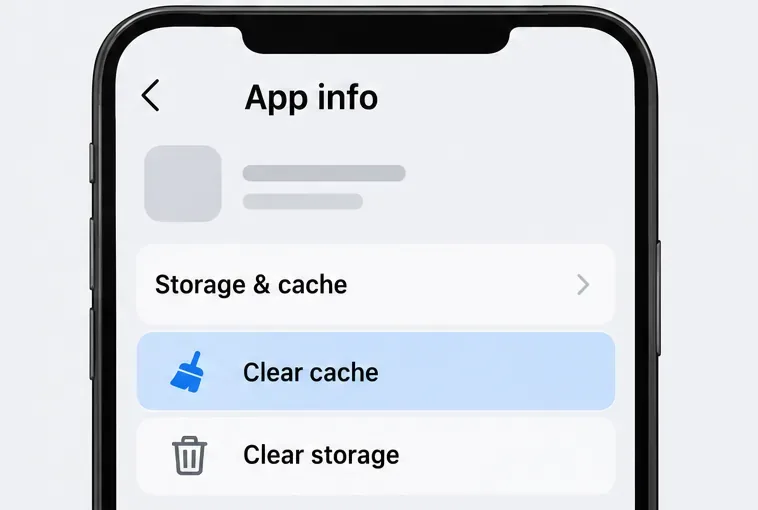
iOS does not provide the same Android-style Clear cache button for each app. Start at Settings > General > iPhone Storage (or iPad Storage) and select Mobile Legends to see the app’s listed size and documents or data.
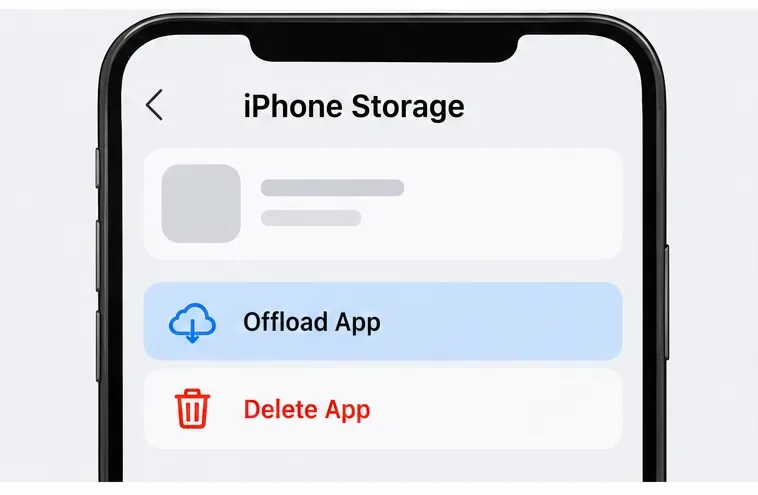
Offload App removes the app itself while keeping its documents and data so the app can be reinstalled later. Because that retained data may include what is taking up space, offloading is not a reliable way to remove a large Mobile Legends resource cache. Delete App removes the app and its related data. Reinstalling can reclaim local app data, but it may also require downloading Mobile Legends and its resources again. Confirm your account is recoverable before deleting.
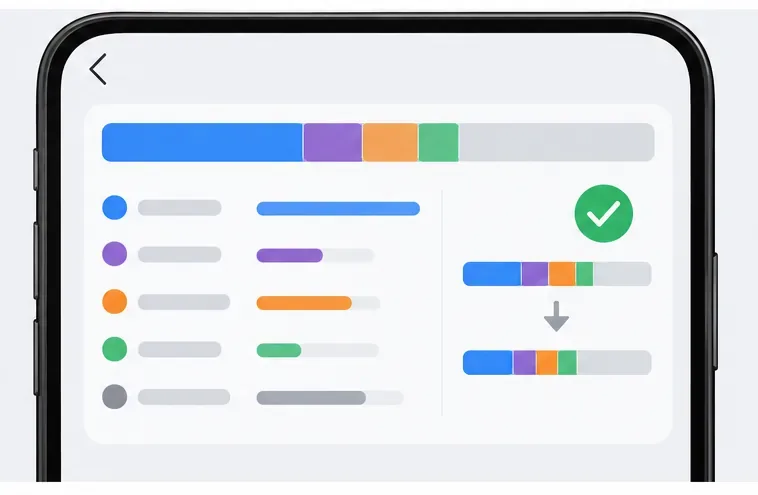
Before cleaning, note the Mobile Legends size shown in your device’s storage screen. After the cleanup, return to that same screen and give the phone a moment to refresh its storage calculation. Compare the app’s size and the phone’s available space, then reopen the game on Wi-Fi. Let any resource verification or required download finish before judging the result.
Storage can rise again as you play, install an update, or download assets. A small change does not necessarily mean the cleanup failed: the game may retain required files while removing only temporary or redundant ones. Likewise, a large change is not guaranteed because the amount of removable data depends on your installed resources and the game’s current build.
| Need | Best first action | Main trade-off |
|---|---|---|
| Remove temporary app files on Android | Settings > Apps > Mobile Legends > Storage > Clear cache | May free little space; the game can rebuild temporary files. |
| Remove unnecessary game resources | Use an available in-game cache or redundancy cleanup control | The game may download required assets again. |
| Free space on iPhone without deleting app data | Review iPhone Storage; Offload App only if removing the app binary is useful | Documents and data stay on the phone. |
| Reset the local install on iPhone | Delete App, then reinstall from the App Store | Related local data is removed and game resources may need to be downloaded again. |
For most players, the practical sequence is simple: confirm the account is linked, try the game’s own cache or redundancy option if it is present, then use Android’s Clear cache if you still need space. On iPhone, inspect the storage breakdown first and reserve Delete App for a deliberate reset. Google’s Android storage guidance explains the difference between clearing cache and clearing storage; Apple’s iPhone storage guide describes offloading and app deletion. For game-specific account or installation problems, use the support contact on the official Mobile Legends: Bang Bang Google Play listing.
Fix Street Fighter 6 slow motion on PC by checking frame rate, lowering graphics, selecting the right GPU, and verifying game files in a safe order.
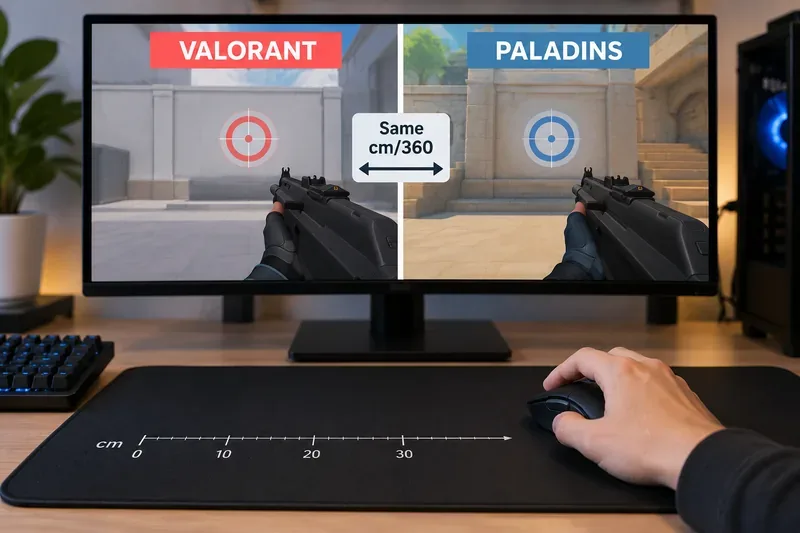
Convert VALORANT sensitivity to Paladins with a practical 7.65× starting ratio at the same DPI, then verify the result with cm/360 for a reliable match.
Use Advanced drone deployment in Rainbow Six Siege, choose a prep-phase transition, and pair fresh intel with a controlled entry routine.
Free up Mobile Legends storage safely. Learn the difference between cache and game resources, clear Android cache, check iPhone options, and avoid deleting account data.
Learn which Heroes of the Storm Variables.txt frame-cap edits are worth testing, when lowering graphics matters more, and how to verify results safely.
Turn off Street Fighter 6 match commentary before your next fight, or compare it with changing the commentator lineup and adjusting audio.
Fix CS2 stuttering on a high-end PC by separating frame-time spikes from network jitter, checking shaders, files, drivers, background apps, and settings.
Check the Siege config’s raw-input setting, disable Windows pointer acceleration if needed, and test aim consistency without changing sensitivity by mistake.
Learn when to use Competitive gameplay, Authentic gameplay, or the older Competitive Master Switch in EA SPORTS FC, with practical settings advice.
Choose StarCraft II camera hotkeys that fit your keyboard, organize base locations, avoid binding conflicts, and test your setup with a practical checklist.