Home
» 🎮 Esports
»
How to Request a Clash Royale Profile Location or Region Change
How to Request a Clash Royale Profile Location or Region Change
How to Request a Clash Royale Profile Location or Region Change
If you want a Clash Royale profile location or region change, first identify which location label is wrong. The current official Clash Royale Support portal and its contact-form guidance, checked on October 16, 2026, do not describe a self-service control for changing a player's country or local-leaderboard region. The practical next step is to ask Supercell Support to review the affected account. Support may tell you whether it can be corrected; submitting a request does not guarantee a change.
“Region” can refer to a personal profile or leaderboard label, a clan setting, the market used for purchase prices, or a language setting. Those are different things. A change to one does not prove that the others changed.
Identify the location you mean before contacting support
Write down exactly where you see the country or region and what you want corrected. This keeps the request focused and helps support distinguish an account question from a clan or purchase issue.
Where the location appears
What to do
Your player profile or a local leaderboard
Ask Supercell to review the personal account location. The official support pages reviewed do not document a player-facing country editor.
A clan profile or clan search filter
Ask the Clan Leader to review the clan setting. Supercell says Clan Leaders choose a clan location freely; it often represents where most members are from. This is a clan detail, not proof that your personal profile location changed.
An external stats or tracking website
Check that site's own data and update policy. A third-party country label does not, by itself, establish what Clash Royale records for your account.
In-game purchase prices or billing
Describe the exact shop or payment screen and contact support about the purchase issue. Supercell's November 12, 2025 regional-pricing announcement describes in-game purchase pricing across more than 100 countries; that pricing system is separate from a documented profile-edit process.
Text displayed in another language
Treat it as a language setting. A language change is not evidence of a country or leaderboard update.
For a clan-only correction, use Supercell's guide to creating or joining a clan and ask the current Clan Leader to check the clan details. If the issue is your personal account, continue with the support request below.
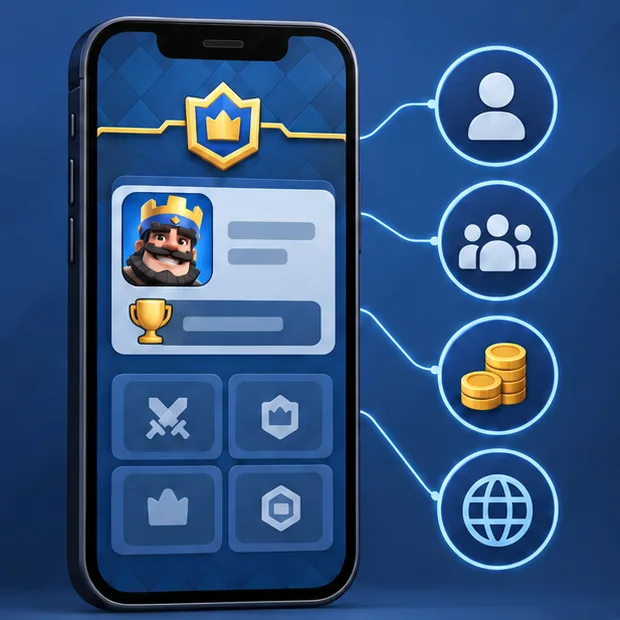
The icons separate player, clan, purchase, and region questions. This is an explanatory mockup, not a Clash Royale settings screenshot or an editable country menu.
Find your Player Tag and gather the relevant details
Your Player Tag is the best starting identifier for the affected game account. It begins with a hashtag. Supercell's Player Tag instructions say Clash Royale players can tap the Profile button in the upper-left corner of the game screen and find the tag beneath the profile icon.
Copy the full tag, including the # symbol, and compare it with the player name shown on the same profile. If you use multiple accounts, confirm both belong to the profile with the location issue before sending the request.
Have these details ready:
Your complete Player Tag and current in-game name.
The exact screen or service showing the unexpected country or region.
The country or region displayed and the country where you currently live.
If relevant, whether you moved from another country and when the issue started.
A short description of the correction you want, such as a personal leaderboard review or a purchase-pricing question.
A Supercell ID is used to connect to and protect game progress; it is not the same identifier as a Player Tag. You do not need to change your login email to ask about a location label. If you attach a screenshot, crop it to show the relevant label and enough screen context to identify it. Redact unrelated personal information such as your full name, address, phone number, or payment details, following Supercell's privacy guidance for screenshots sent to Support.
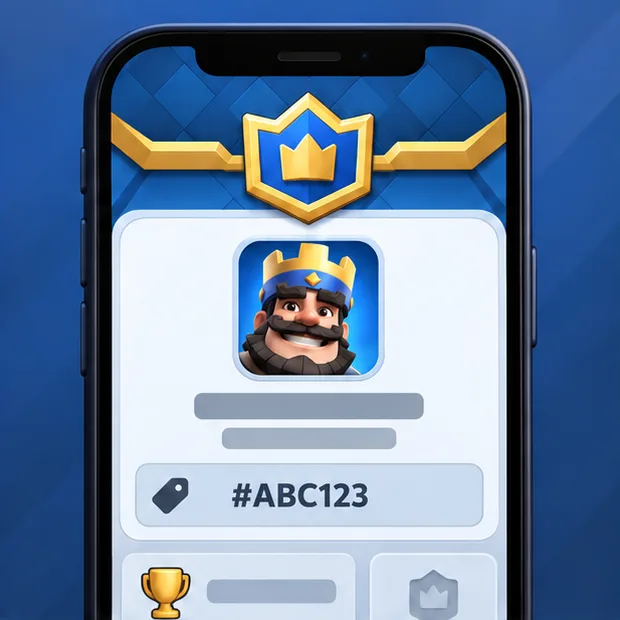
The profile mockup shows #ABC123 as an example only. Copy the tag from your own Clash Royale account.
Contact Supercell through an official support route
Start at the official Clash Royale Support portal and open its Clash Royale contact form. The form currently says players with Supercell ID should log in first and also offers a “Continue without logging in” option. Use the option that matches your access and follow the questions shown in the live form.
You can also look for Help and Support in the game's Settings if you prefer to start in the app. Supercell's account-safety guidance identifies the in-game Help and Support section as an official way to initiate a conversation. Menu positions can change, so use the support controls present in your version rather than relying on an old video or an unofficial “region change” link.
Choose the closest available account or purchase topic, depending on the problem. This guide cannot promise that the form will show a dedicated “Change Region” category. If you cannot access the account, say so separately; account recovery and a location review are different requests, and you may need to recover access first.
This mockup shows the general idea of a help portal and contact form; use the live Supercell portal for its current layout and options.
Send a clear, factual request
Keep the first message brief and specific. You can adapt this template:
Hello Supercell Support. My Clash Royale Player Tag is [your full tag], and my player name is [name]. The location shown on [exact screen] is [displayed country or region], but I currently live in [country]. [I moved from another country in month/year / I believe the label is incorrect.] Could you review the location associated with this account and let me know whether it can be corrected? My request concerns [my profile or local leaderboard / a purchase-price issue / another specific screen]. I have attached a cropped screenshot of the label. Thank you.
Use only the sentence that matches your situation. Do not claim that you moved if you did not, and do not describe a clan-location issue as a personal profile issue. If prices are the problem, name the exact shop or payment screen rather than asking for a leaderboard correction.
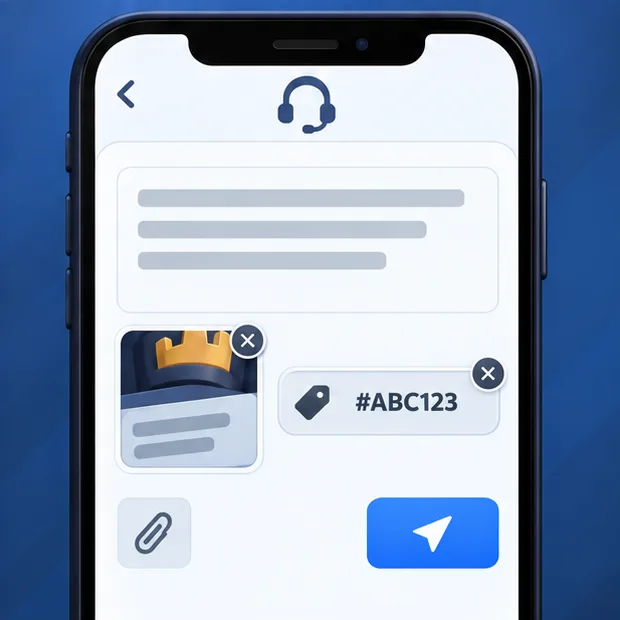
The message-composer mockup is only an example of a concise request. It does not show a submitted ticket, a support reply, or an approved change.
Follow up in the same conversation and verify any update
After sending the form, keep the reply in the same official support conversation. Avoid opening duplicate requests for the same issue. There is no confirmed universal response time or guaranteed approval for this type of request in the official materials reviewed.
If Support confirms a correction, reopen Clash Royale and check the same screen while signed into the same Player Tag. If the label still appears unchanged, reply to the existing conversation with a new, cropped screenshot and ask which location field should have updated. A changed clan label, display language, or shop price is not proof that a personal profile or leaderboard location was corrected.
What not to use as a profile-location fix
A VPN: it changes the network route; it is not a documented account-location editing control.
Changing your phone or app-store country: device, store, billing, and game-account settings serve different purposes.
Reinstalling the game or changing your Supercell ID email: neither is documented as a personal-region correction method.
A third party promising to unlock a hidden region menu: contact Supercell through the official portal or the in-game support route. Do not hand over account access or login credentials.
For a personal Clash Royale region change, the useful outcome is a clear answer from Supercell about the specific account field you asked about. Request a review, provide only the relevant details, and treat any change as complete only after you verify it on the affected profile.