Home
» 🎮 Esports
»
How to Check Your Overall Match Win Rate in Overwatch 2
How to Check Your Overall Match Win Rate in Overwatch 2
To check your overall match win rate in Overwatch 2, open your Career Profile, look for account-wide Games Won and Games Played under the same filters, and calculate Games Won ÷ Games Played × 100. Use All Heroes rather than an individual hero. For the broadest available view, choose All Modes and the widest time range offered; for ranked performance, select the relevant Competitive queue and season instead.
The important distinction is what “overall” means. A percentage for one hero, one season, or one queue answers a different question from your account’s combined match record. You do not need an external tracker if the profile supplies both totals for the scope you want.
Verification note: Official sources were checked on October 8, 2026. No newly verified change to the overall-win-rate workflow is being presented here. Blizzard’s public career pages expose match-stat labels, but they do not establish every detail of the current PC and console menu layout. Follow the labels on your installed version; availability of filters and totals can differ. The illustrations below are simplified interface examples, not captured gameplay or evidence from a tested account.
Check your overall win rate in four steps
1. Open Career Profile and find Statistics
From the game’s menus, open your own Career Profile. Find the Statistics tab rather than stopping at a hero comparison chart or a rank display. Overview can help you orient yourself, but the detailed statistics are where you should look for the counts used in the calculation.
There is no need to make your profile public simply to inspect your own record in the game. If you are looking at another player’s profile, its visibility settings may limit what you can see. An inaccessible profile is not evidence that the player has no matches.
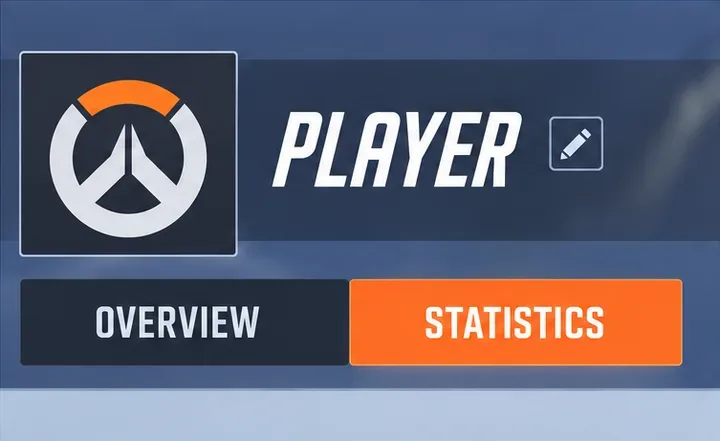
Step 1: The orange Statistics tab marks the detailed-statistics view in this simplified profile example.
2. Select the scope before reading the numbers
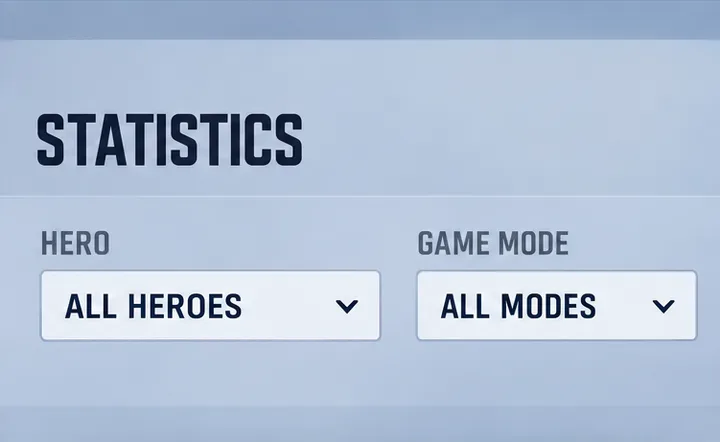
Set the hero selector to All Heroes, where available. Then choose the mode and time range that match your question. For a broad account record, use All Modes and the widest available time range. Do not call a season-filtered result a lifetime win rate.
All Modes is a longstanding combined-stat option: Blizzard documented its introduction in the original Overwatch’s June 2017 patch notes. That historical source explains the purpose of the filter; it does not guarantee that every modern queue or historical season is available in your current profile.
For Competitive, keep Role Queue and Open Queue separate unless the screen explicitly provides combined totals. If the profile offers separate platform or input-pool views, keep that selection consistent as well. “Overall” should describe the available recorded data, not imply that the profile is a complete archive of every match you have ever entered.
Step 2: All Heroes and All Modes illustrate the broad combined scope; use the filters available in your version.
Your question
Scope to use
Label your result
How often do I win across my recorded modes?
All Heroes, All Modes, widest available time range
Overall recorded match win rate
How am I doing in ranked this season?
All Heroes, relevant Competitive queue, selected season
Season and queue win rate
How am I doing on one hero?
Selected hero, mode, and time range
Hero win percentage
3. Read Games Won and Games Played together
Locate Games Won and Games Played in the account-wide statistics for your selected scope. Record both before changing any dropdown. Blizzard’s official public Career Stats page demonstrates these labels alongside Games Lost and Win Percentage in its statistical output. Their presence on a public profile does not guarantee that every in-game filter will expose an equivalent total.
If your screen provides account-wide wins but no matching games-played count, you cannot calculate a reliable overall match win rate from that view alone. Switch to an available scope with both totals, or clearly state that the denominator is missing. Do not replace it with hours played, eliminations, or the number of visible recent reports.
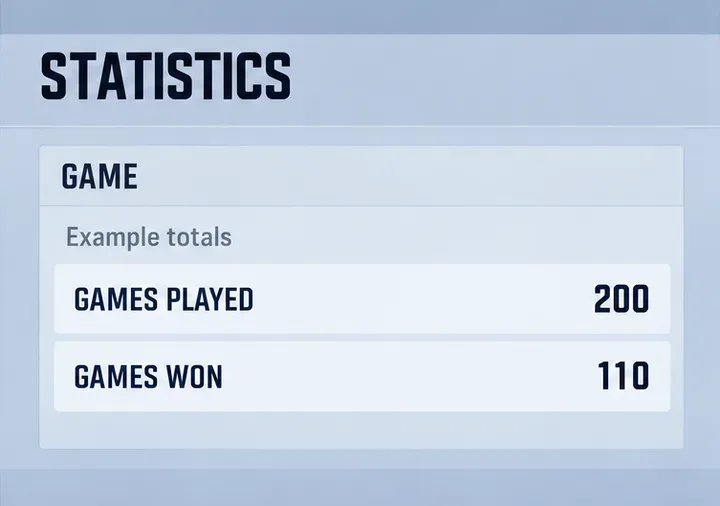
Step 3: The hypothetical totals are 200 games played and 110 games won, read together from one scope.
4. Calculate the percentage
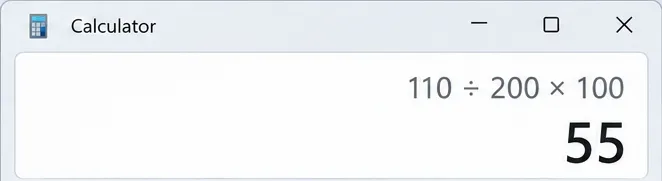
Use a phone or desktop calculator: divide Games Won by Games Played, then multiply by 100. In a hypothetical example, 110 wins out of 200 recorded matches gives 110 ÷ 200 × 100 = 55%. Those example figures are not measurements from a real account.
Save the filters with the result: “55% across 200 recorded matches, All Modes, All Heroes” is more useful than “55% win rate.” Round to one decimal place if needed. If Games Played is zero, the rate is undefined; it is not a meaningful 0% performance result.
Step 4: Dividing 110 by 200 and multiplying by 100 gives a 55% match win rate in the example.
How should you handle draws?
The formula above measures wins as a share of the displayed Games Played total. If that total includes draws, draws remain in the denominator. Do not silently remove them and describe the resulting percentage as the same metric.
For example, a hypothetical record of 50 wins, 45 losses, and five draws contains 100 matches. Wins divided by all matches equals 50%. Wins divided by decisive matches equals 50 ÷ 95 × 100, or about 52.6%. Both calculations are mathematically valid, but they answer different questions.
If you want the second measure, label it “win rate excluding draws” and use wins plus losses only when those counts belong to the same account-wide scope. This guide does not claim that Blizzard’s displayed Win Percentage always uses either formula in every statistical view. Its current calculation rules, including unusual match outcomes, were not fully verified.
Why averaging hero win percentages gives the wrong answer
Your most-played hero’s win percentage is not your overall match win rate. Averaging every hero’s percentage is also unsuitable: it gives equal weight to heroes with very different amounts of play, and switching heroes creates a further distinction between hero statistics and unique match results.
Consider two hypothetical, nonoverlapping sets of matches: 80 wins in 100 matches and two wins in 10 matches. Their percentages are 80% and 20%; a simple average gives 50%. The combined match result is 82 wins in 110 matches, or about 74.5%. This example explains the weighting problem, not Blizzard’s hero-credit system.
For your actual profile, use account-wide match totals instead of adding hero rows. The precise current treatment of partial hero participation was not established by the official sources checked, so there is no dependable conversion from a list of hero percentages to a unique-match record here.
Also avoid confusing your profile with Blizzard’s Hero Statistics website. That page presents hero pick, win, and ban rates with population filters. It is useful for studying hero performance across a player pool, but it is not your personal match history.
What if the profile totals look wrong?
First, check whether you changed the mode, season, hero, or platform selection. Two accurate views can disagree because they cover different matches. Read the selected scope again before concluding that statistics disappeared.
If the counts still appear inconsistent, take a screenshot of the filters and totals. Reopening the profile or restarting the game is a reasonable way to check whether the display refreshes, but it is not a verified repair for missing server-side statistics. Avoid reinstalling the game solely to fix a profile percentage without an official troubleshooting instruction that applies to your case.
Blizzard’s support index lists an article titled Overwatch Career Profile Displays Incorrect Information. Its full troubleshooting text was not accessible during verification, so this guide does not attribute a specific fix or restoration promise to it.
Recent match reports can help document a mismatch. Blizzard’s original Overwatch 2 Competitive overview describes Game Reports under Career Profile’s History tab. Use available reports as supporting evidence, while recognizing that a visible recent list does not prove your lifetime totals.
Confirm that your result answers the right question
Both numbers come from the same account-wide view.
All Heroes is selected for an overall match calculation.
The mode, queue, time range, and any platform filter are recorded.
Draws are handled according to the metric you explicitly named.
The percentage uses match counts, not an average of hero percentages.
When comparing progress later, repeat the same scope and keep the match count beside the percentage. Seven wins in 10 matches and 70 wins in 100 matches both equal 70%, but the smaller record changes much more sharply after one result. A consistent scope makes your win rate useful; an unlabeled percentage makes it easy to misread.