Home
» 🎮 Esports
»
Best Tablet Aspect Ratio Setup for Top Bridge Vision in Clash Royale
Best Tablet Aspect Ratio Setup for Top Bridge Vision in Clash Royale
You may move a card toward the opponent’s bridge and still feel as if you cannot see the top of the arena clearly. On a tablet, that can make a change to “full screen,” “4:3,” or “16:9” sound like the fix. But the screen’s aspect ratio does not automatically expand Clash Royale’s playable view, and Supercell does not publish a recommended tablet ratio for seeing more bridge tiles. The reliable setup is to keep the game in portrait orientation, preserve its proportions, and choose a display mode that shows the entire arena without cropping or stretching.
Checked October 8, 2026. Supercell’s public Clash Royale support material does not provide a tablet-specific field-of-view or aspect-ratio recommendation. Android’s official documentation confirms that per-app aspect-ratio controls are available only on some large-screen devices and that manufacturers determine the options shown. Use the steps below to find the clearest view on your own tablet, rather than assuming one ratio gives every player extra information.
What “top bridge vision” means on a tablet
In Clash Royale, the river and two bridges divide your side of the arena from the opponent’s. “Top bridge vision” usually means keeping the opponent’s half, both bridge approaches, and the top edge of the arena in view while the card hand remains usable. Screen aspect ratio is the relationship between display width and height. Changing it may alter how an app is fitted to a screen; it does not necessarily change the game camera or reveal more of the arena.
There are three different display outcomes to watch for:
Aspect-preserving fit: the game keeps its original proportions. Depending on the tablet, unused bands or margins may appear.
Stretch to fill: the picture fills more of the display but can make the arena and cards look wider or narrower.
Crop or zoom: the picture looks larger, but part of the top, bottom, or sides may disappear.
For accurate troop placement, a complete undistorted board is a better target than a full screen at any cost. A wider picture is not proof that you can see farther into the opponent’s side.
Step 1: start with the tablet’s normal portrait view
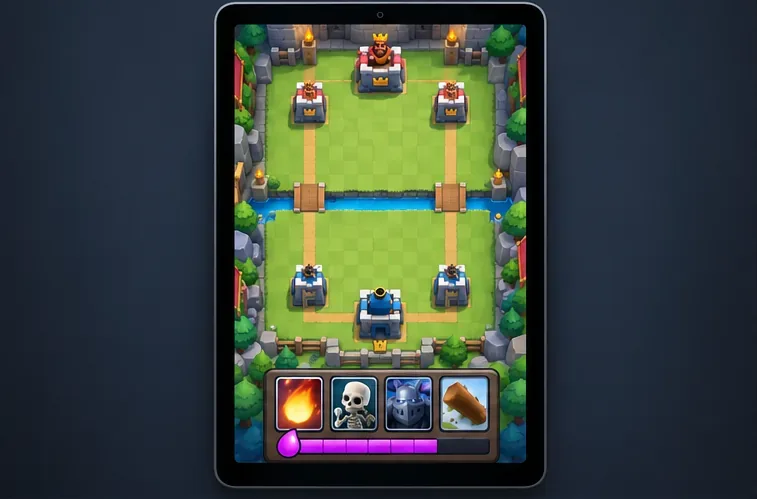
A simplified portrait arena view with both bridges, the opponent’s towers, and the card hand visible. Use this as a checklist of what should remain on screen.
Hold the tablet vertically and open Clash Royale in its normal full-screen mode. Close split-screen or floating windows that cover the arena. Before changing any display setting, check whether the opponent’s King Tower, both Princess Towers, the full river, both bridges, your own towers, and the card bar are visible at once.
If all of those are visible and the game is not distorted, keep the default mode. A tablet’s physical display ratio is not the same thing as a game setting, and there is no universal “best tablet ratio” that applies to every model. Do not rotate the game into landscape with a third-party orientation app simply to make the screen look wider.
Step 2: check whether your Android tablet offers a built-in app ratio setting
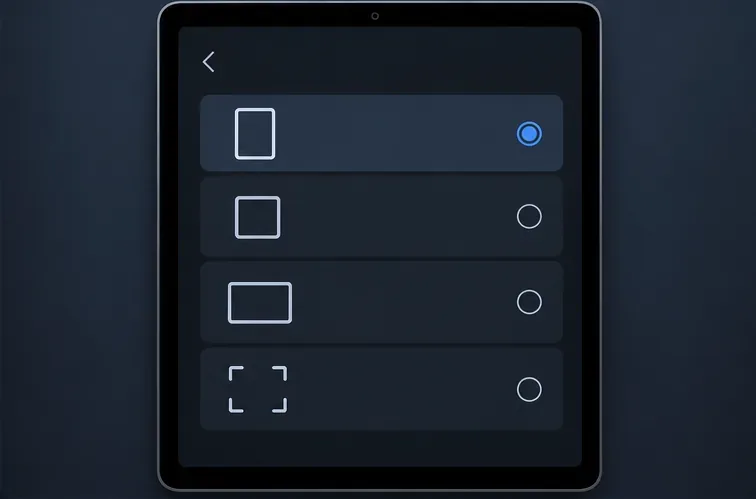
A schematic example of per-app display choices. Android settings labels and available options vary by tablet maker and software version.
Some Android tablets provide a per-app display or aspect-ratio menu for large-screen apps. Android documents options such as the app default, 4:3, 16:9, or full screen on supported devices, but not every tablet exposes every option, and Clash Royale may not appear in the list.
Open the tablet’s Settings app and use its search field for terms such as full screen apps, aspect ratio, or app display.
If you find a per-app list, select Clash Royale only if it is listed. Start with the app’s default setting.
Change one option at a time, reopen the game, and inspect the top and bottom edges before keeping the change.
Menu names and location depend on the manufacturer. Google’s Android documentation on large-screen per-app overrides notes that aspect-ratio choices appear only on supported large-screen devices, and that the available options are configured by the device maker. Later Android behavior also depends on app targeting and game compatibility. If the option is absent, there is nothing you need to unlock; do not install a third-party tool to force it.
Step 3: compare the whole board, not just how large it looks
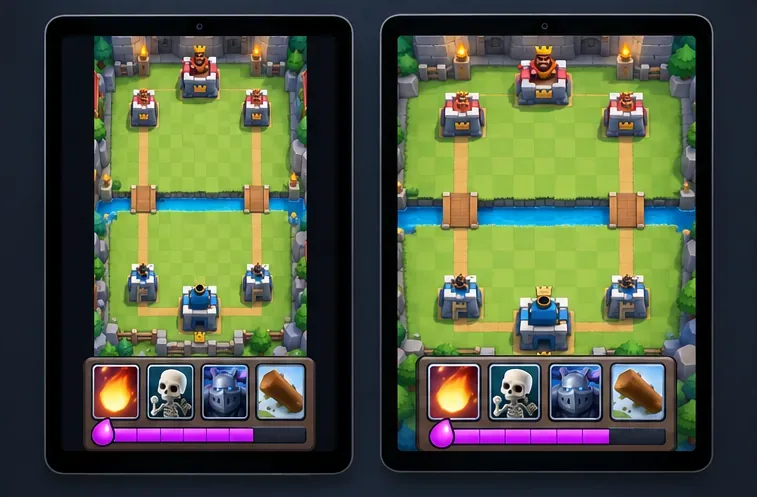
A simplified comparison of preserved proportions and horizontal stretching. A larger-looking arena can still distort cards or leave less usable space.
If your tablet offers more than one supported mode, compare the default with a full-screen or alternate ratio setting in a low-stakes session. Look for these specific signs:
The opponent’s upper towers and the arena boundary remain visible.
Both bridge approaches and the river are fully on screen.
The card hand and elixir area are not cut off at the bottom.
Round shapes and square card artwork do not appear visibly widened or compressed.
You can still tap the arena edges accurately without the game image shifting under your finger.
Do not use only the home screen or loading screen to judge the result. The battle layout is what matters. Android’s built-in full-screen choice can change how an app is fitted, but the resulting view is device- and app-dependent; the option name alone cannot tell you whether it improves the arena view.
Step 4: keep iPad gameplay full screen and verify the view
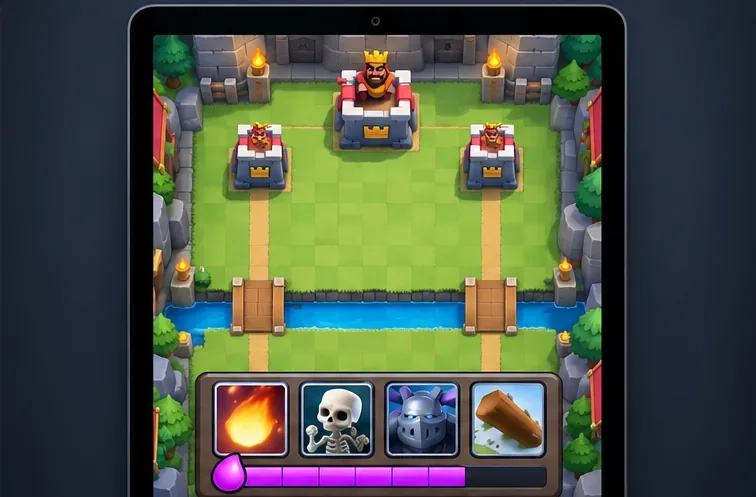
A simplified final-view check: make sure the opponent’s side, both bridge lanes, river, towers, and card area stay within the frame.
On iPad, launch the game in portrait orientation and full screen. If it opens in a window, use iPadOS’s full-screen control rather than shrinking the game window until the arena becomes too small. Apple’s current iPad instructions for windowed apps explain how to switch between windowed and full-screen app use. I could not verify an Apple-documented per-app ratio list comparable to Android’s, so avoid searching for an exact “4:3 Clash Royale” toggle that may not exist.
Now test the setting in an actual battle, replay, or other low-stakes view available in your game. Confirm that the top arena edge stays visible when you focus near the bridge, the bridge lanes remain easy to distinguish, and the card bar does not block the lower field. If the full-screen option cuts off part of the arena or makes the image look stretched, restore the previous setting.
Which ratio should you choose?
For most players, the practical recommendation is portrait orientation with the app’s default, aspect-preserving display mode. Use a device-provided full-screen override only if your test shows that it keeps the complete board visible and does not distort the image. There is no verified reason to switch every tablet to 4:3, 16:9, or another fixed number for a “top bridge” advantage.
Supercell’s Terms of Service prohibit unauthorized third-party software designed to modify or interfere with a game and prohibit modifying game files. A built-in display option is different from editing the game client, but avoid resolution changers, modified clients, and tools that claim to uncover hidden arena space.
Quick self-check before keeping a change
Full arena: both bridges, river, opponent side, and your card hand are visible.
Correct shape: cards, towers, and other round or square elements do not look stretched.
Accurate taps: a placement near either bridge lands where you expect.
Repeatable view: the same mode appears after closing and reopening the game.
If the default view passes these checks, leave it alone. If an alternate setting makes the top bridge area look bigger but hides an edge or distorts the board, switch back. The best setup is the one that preserves the complete playable view and lets you place cards precisely—not the one that merely fills the tablet screen.