Home
» 🎮 Esports
»
How to Fix Warzone Dev Error 6068 on Startup
How to Fix Warzone Dev Error 6068 on Startup
If Warzone closes before the main menu and shows Dev Error 6068, the number alone does not identify one broken file or component. Activision’s current PC guidance treats crashes as a group of possible problems, including outdated drivers, background software, and system requirements. Use the steps below in order, changing one thing at a time so you can tell whether the launch behavior actually changes.
Checked October 8, 2026. Activision’s Warzone crash guidance and PC requirements page are the best starting references. Driver recommendations and game menus change; use the current version of those pages rather than relying on old forum instructions.
Before troubleshooting: note what happens
Write down the exact error text, whether it mentions DirectX, which launcher you use, and when the crash occurs: immediately after pressing Play, during shader loading, or after the menu appears. Also note whether the problem began after a Warzone update, a Windows update, a graphics-driver change, or enabling an overlay or overclock. This gives you a useful before-and-after comparison.
Restart Windows once, confirm that the game has finished updating, and check Activision’s online-service status if the launcher itself cannot sign in or download content. A service interruption will not be repaired by changing graphics settings. Avoid deleting folders, editing the registry, or downloading unofficial “6068 fix” files.
Step 1: close overlays and tuning utilities
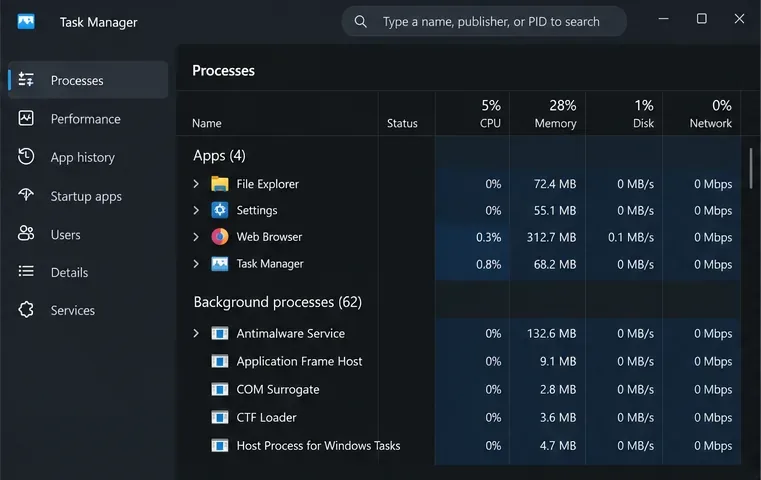
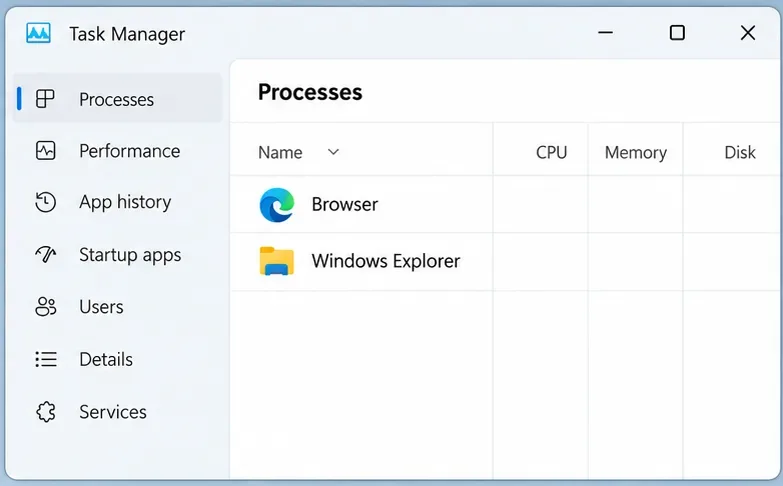
A generic Task Manager-style process list. Close optional overlays and recording tools before testing Warzone; your Windows layout may look different.
Close the game and launcher, then temporarily exit optional programs that hook into a game: performance overlays, screen recorders, RGB or peripheral-control suites, input remappers, and GPU or CPU tuning utilities. Activision specifically warns that overlays, recording software, and input-remapping tools may disrupt gameplay or the boot process, even when they are not visibly open during play.
Use the app’s own Exit or Quit command, then check the notification area near the clock for apps that remain active.
Return CPU and GPU tuning to their normal default settings for this test. Do not raise voltage or change BIOS settings to chase this error.
Leave Windows security protection on. If security software reports a block, check its log and follow Activision’s current support guidance instead of turning protection off broadly.
Restart the launcher and try one launch. If the game opens, re-enable closed apps one at a time; the last one restored before the crash returns is a useful lead. If nothing changes, continue.
Step 2: update Windows and the correct graphics driver
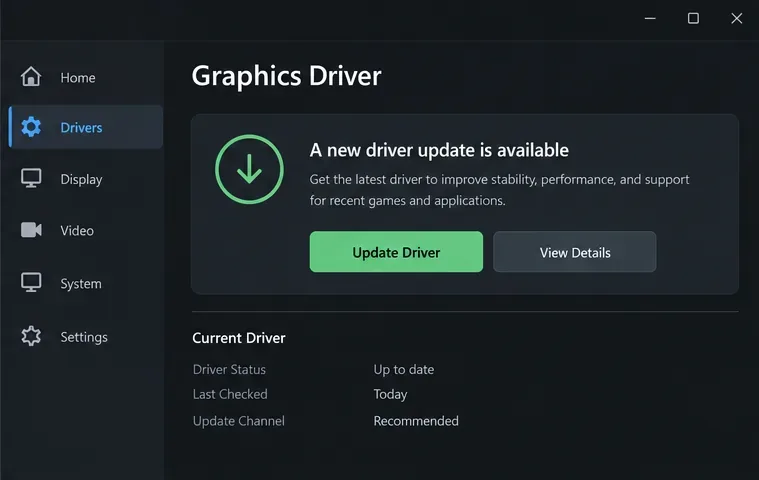
A generic driver utility view. Identify your GPU and use the driver maker’s official download page; available buttons and labels vary by manufacturer.
A graphics driver is the software Windows uses to communicate with the video card. First install pending standard Windows updates and restart. Then identify your GPU so you do not install a driver for the wrong hardware: press Windows + R, type dxdiag, press Enter, and check the Display tab for the device name. Activision’s driver instructions also direct players to the card maker’s site and provide current Warzone recommendations.
Download the matching driver directly from NVIDIA, AMD, or Intel, or from your laptop maker when it supplies a customized package. Read the release notes and restart after installation. Do not assume the newest optional beta is always the best choice. If 6068 started immediately after a driver update, check Activision’s current recommended version and consider returning to that supported release using the manufacturer’s normal rollback or installer process.
Driver version numbers change, so this guide intentionally does not hard-code one. If the crash remains, move on instead of repeatedly reinstalling drivers.
Step 3: repair Warzone’s installed files
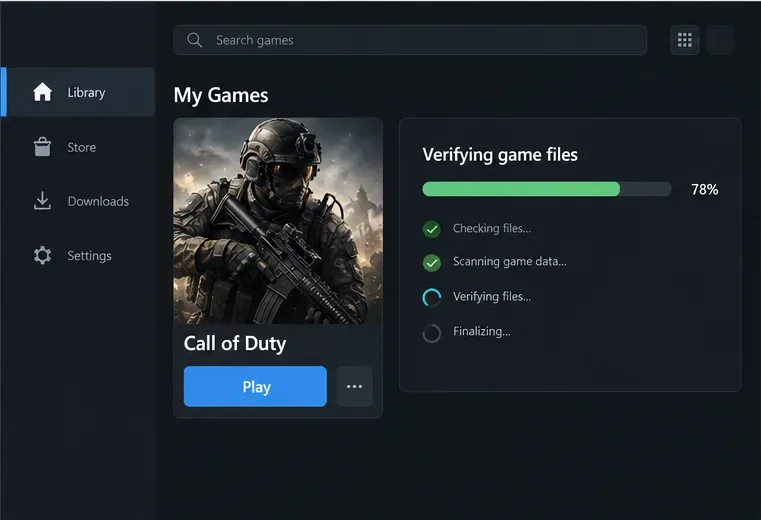
A generic launcher library during file verification. The real controls differ between Steam, Battle.net, and other supported launchers.
A game update can leave a damaged or incomplete file. Use the repair option in the launcher where you installed Warzone. In Battle.net, look for the game’s gear or options menu and choose Scan and Repair. On Steam, open the game’s Properties, choose Installed Files, then Verify integrity of game files. Follow the launcher’s own prompts and let the scan finish before starting the game.
Repair names and menu locations can change. If you use another supported PC storefront, use its built-in verify or repair option if available; do not copy game files from another PC or delete folders based on an old video. The official Steam verification instructions explain Steam’s check. Activision’s PC troubleshooting documentation also points players to the relevant launcher repair path.
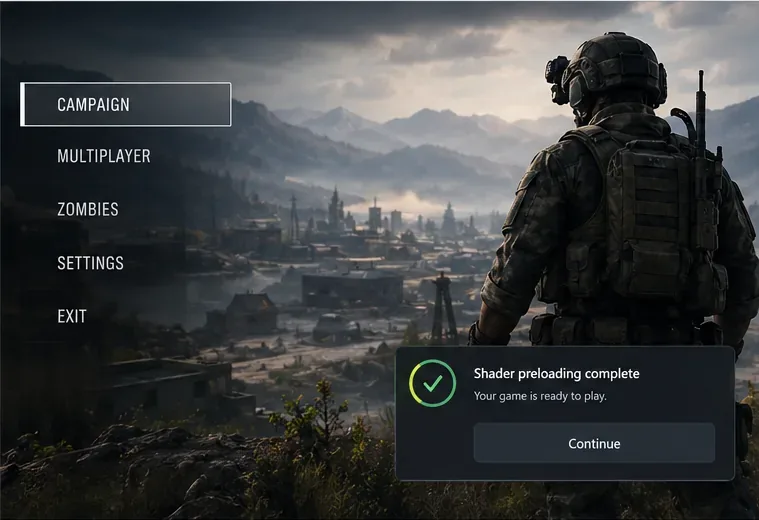
After repair, restart Windows, open the launcher normally, and launch Warzone. On a first start after an update, let any shader-preloading process finish before navigating away, if your current version displays one. A completed scan is a good result, but it does not prove that every crash cause has been eliminated.
Step 4: test a clean startup, then escalate with evidence
A generic Call of Duty-style menu illustration with a preloading-complete notice. Your current Warzone menu may differ; wait for any shader preparation it actually shows to finish.
If the first three steps do not help, test whether another startup program is interfering. A clean boot starts Windows with a minimal set of services and startup apps; it is a diagnostic test, not a permanent gaming setup. Follow Microsoft’s clean-boot procedure carefully and record which services you change so you can restore normal startup afterward. If Warzone launches only in a clean boot, re-enable items in small groups until the conflict returns.
Do not disable anti-cheat, security services, or unfamiliar Windows components. If you are not comfortable changing startup settings, skip this step and use Activision Support. Also check that the PC meets the current Warzone requirements and is adequately cooled; Activision lists minimum and recommended hardware on its requirements page. Meeting minimum specs does not guarantee that a specific configuration will be crash-free.
For a useful final check, launch once after each change and record whether the game reaches the menu, completes any displayed shader preparation, and remains open. If 6068 still appears, capture the full message, your GPU model and driver version, launcher, recent updates, and which steps you tried. Submit that information with Activision’s PC Crash Report for Warzone. A report gives support a more useful starting point than repeating broad fixes.
Common mistakes to avoid
Changing many settings at once: you will not know which change mattered. Change one item, restart, and test.
Applying old command-line or config-file recipes: launcher options and game builds change, and an outdated tweak can add another variable.
Reinstalling Windows or the game first: try the built-in repair and reversible checks before a large download or system reset.
Treating every 6068 report as the same fault: the code is a clue to investigate, not proof that one driver, temperature, or component is responsible.
If the crash repeats after a clean startup and a verified install, stop changing low-level settings and send the collected details through Activision’s support route. That gives you a reproducible test history and helps distinguish a local configuration issue from a game-side problem.