Home
» 🎮 Esports
»
How to Ping Enemy Missing in League of Legends: The Question-Mark Warning Explained
How to Ping Enemy Missing in League of Legends: The Question-Mark Warning Explained
If your lane opponent disappears in League of Legends, you can alert your team without typing. Open the tactical ping wheel, choose the yellow question-mark Enemy Missing ping, and release it over the relevant location. The icon communicates that an enemy is no longer visible; it does not prove where that champion went.
Illustrative scenario (hypothetical, not a recorded match): You are playing mid lane. The opposing mid laner pushes a wave and walks out of vision toward the bottom side of the river. Your allied bottom lane is extended past the river entrance. This example will show when to ping, where to place the warning, and what to do if the enemy returns.
What does the Enemy Missing ping mean?
Enemy Missing is the yellow question-mark communication ping. In ordinary play it means an enemy champion who was expected to be visible is no longer accounted for. Players also call this an “MIA” or “SS” warning. The goal is to share missing information early enough for other lanes to make their own decisions.
Riot formally documented Enemy Missing as part of the expanded tactical wheel in its Patch 12.22 notes. The original eight-ping update is a historical reference, not a guarantee that every icon or binding stays identical in future client versions. The basic distinction remains useful: Enemy Missing signals uncertainty, while Retreat is a request for teammates to back away.
How to ping Enemy Missing on PC
Step 1: Check that the enemy has actually left vision
In our hypothetical mid-lane example, the opposing champion was visible near the minion wave and then moved into fog of war. Take note of the last seen location and direction, but do not assume the enemy has committed to a bot-lane gank. They might be warding, recalling, waiting in a bush, or rotating elsewhere.
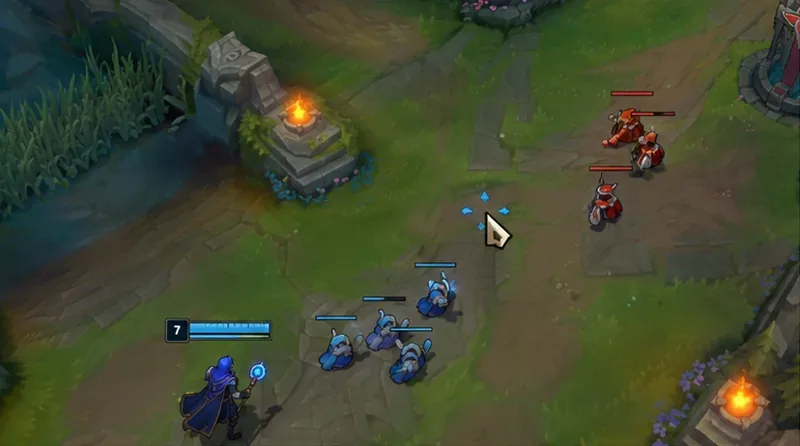
Before pinging, look at the last confirmed position of your lane opponent.
Step 2: Open the tactical ping wheel
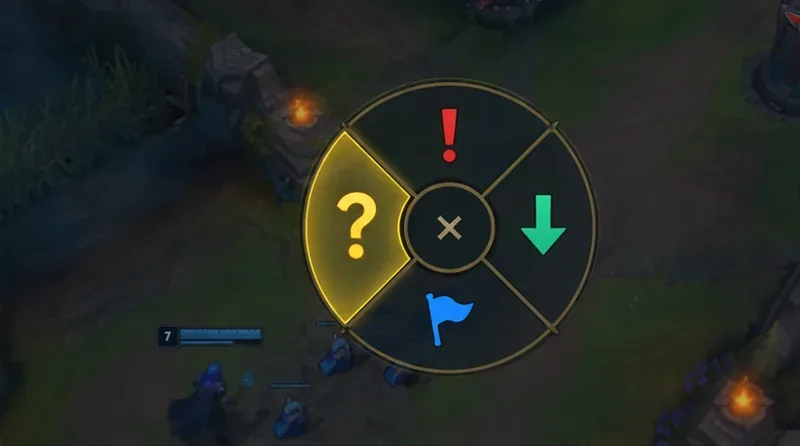
With default PC-style controls, hold G to open the ping wheel and move your mouse toward the Enemy Missing question-mark segment. The commonly used alternative is holding Alt while dragging with a mouse click, depending on bindings. Because hotkeys can be customized, verify the actual wheel shortcut in Esc → Hotkeys → Communication if G does not work. The exact wording of menu entries can vary by client version.
Do not merely tap a key and expect the question-mark ping if your setup uses press-and-drag selection. Keep the wheel open long enough to select the right segment, then release the input.
Select the yellow question-mark segment of the tactical ping wheel.
Step 3: Release on the appropriate location
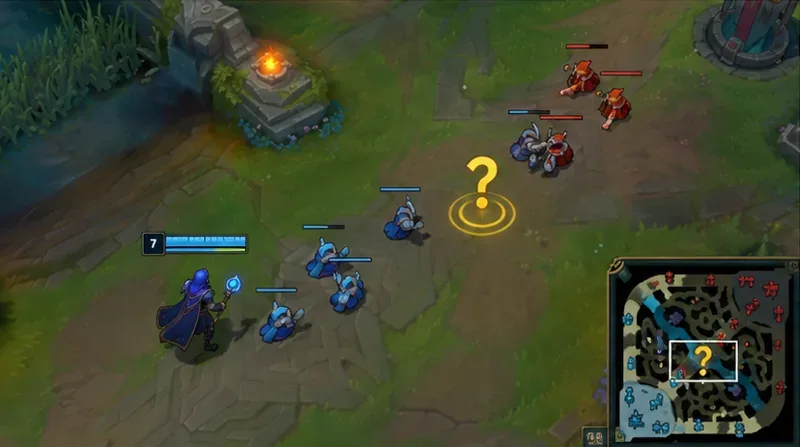
Aim at the lane position where the opponent was last visible or at the relevant point on the minimap and release the wheel. In this example, one Enemy Missing ping near mid lane says “my opponent is gone.” A nearby cautionary warning toward the bottom river entrance can add useful context if you have a specific reason to suspect that path.
Riot described off-screen behavior in its Preseason 2023 preview: Enemy Missing pings were designed to appear on teammates’ screens even when placed elsewhere on the map. That makes the signal suitable for quickly sharing a lane disappearance. It does not ensure anyone notices or responds.
Place the Enemy Missing ping near the location where the opponent disappeared.
Step 4: Add a targeted warning only when it helps
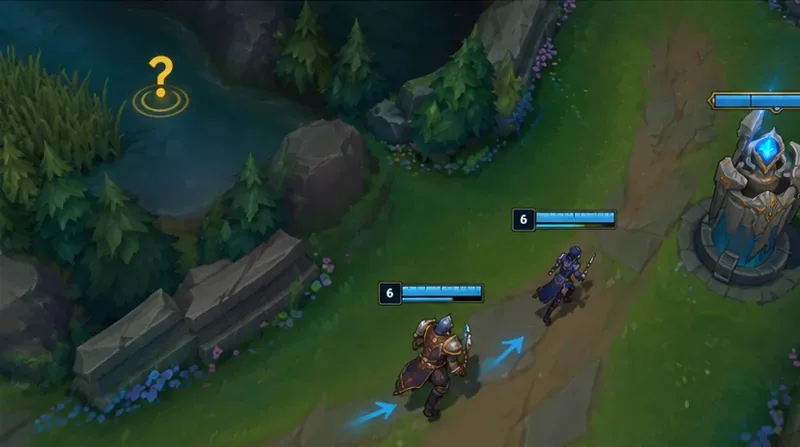
If the missing mid laner moved toward the bottom river and your bot lane is pushing forward, consider a Retreat or Caution ping near your allies’ route. Those communicate the possible action more directly than repeated question marks. If the direction is unknown, leave the warning as Enemy Missing rather than implying certainty.
In the example, the two bottom-lane allies might disengage, look for vision, or keep playing if they already know the enemy’s location. Their response is a decision, not proof that the ping was correct.
A missing-enemy warning can prompt vulnerable teammates to consider a safer position.
Where should you place the ping?
Situation
Best starting point
Why
Mid opponent disappears
Last visible mid-lane area
Shows which enemy is unaccounted for without claiming a destination.
Enemy heads toward a specific river entrance
Last seen location, then a careful warning near that route
Separates confirmed absence from possible danger.
Enemy returns to lane
Stop repeating the missing warning
Outdated alerts can confuse teammates.
Enemy jungler is unseen
Confirmed last sighting when known
Avoids inventing the jungler’s current position.
What if G does not open the ping wheel?
First, open an appropriate practice environment and check Esc → Hotkeys. Look for the communication or ping controls, inspect the bound key, and reset or assign a convenient shortcut if necessary. If a modifier combination interferes with another binding, choose a new one and test it before returning to a competitive match.
Second, move the cursor deliberately into the question-mark region before releasing. A wrong segment may send a different ping. Third, make sure the game window has keyboard and mouse focus. Finally, if several pings have just been sent, avoid rapidly retrying: the game can rate-limit repeated communication. A temporarily unavailable ping is not necessarily a broken keybind.
The positions and availability of ping commands have changed over the years. Riot acknowledged usability concerns with selecting wheel options in its Preseason 2023 communication review. If your current client displays a different arrangement, rely on the visible icon and the binding shown in your own settings rather than memorizing an old wheel layout.
How many times should you ping when someone disappears?
Send one clear missing alert at the moment you recognize the disappearance. Add a second, differently placed warning only if it carries new information, such as a credible path toward an overextended teammate. Do not flood the same spot with question marks or use them to criticize a missed ability, a death, or a teammate’s decision.
In the hypothetical match, a compact communication sequence would be: Enemy Missing in mid after vision is lost; Retreat near bot-side river if the opponent was last moving that way; no further pings once the opponent reappears or the threat is resolved. You have passed on the information without pretending to know more than the map reveals.
Enemy Missing vs. Danger, Retreat, and On My Way
Each ping answers a different question. Enemy Missing says “an expected enemy is not visible.” Retreat asks an ally to move back. Caution flags a dangerous area. On My Way announces your own intended movement. Choosing the ping that matches what you know reduces ambiguity, particularly in matches where teammates do not share a spoken language.
If you are roaming after the missing opponent, use On My Way for your own rotation, but do not treat that as a substitute for the missing warning. You may both alert the team and communicate that you are following. Never chase blindly into dark river terrain merely because you have already sent a ping.
How can you tell whether the warning worked?
In a practice game, deliberately select Enemy Missing and confirm that the question-mark alert appears where you intended. Then practice the same input with the cursor on the minimap. In real matches, judge your own communication by accuracy, timeliness, and restraint—not by whether teammates obey every alert. Nobody can infer the exact enemy location from a question mark alone.
Return to the mid-lane example: after the opponent disappears toward bot river, the effective outcome is that your allies have the missing information before the possible fight. If the enemy turns back and reappears mid, update your understanding and stop issuing the warning. That habit makes your future pings more trustworthy.
Sources and verification limits
Riot’s official Patch 12.22 documentation establishes the named Enemy Missing tactical ping, and its 2023 preseason communication overview explains the original off-screen ping behavior. The development follow-up documents usability issues with the expanded ping wheel. These are official historical descriptions, not a live test of the October 2026 client. No current client build or custom keybind configuration was independently tested for this article; check your in-game Hotkeys menu if your controls differ.