Home
» 🎮 Esports
»
How to Handle Rocket League Chat Ban Filter Notifications
How to Handle Rocket League Chat Ban Filter Notifications
Rocket League does not document a setting that hides the in-game notice for an account chat ban. The settings that are available control who can text-chat and, in limited cases, whether text-chat reporting is active. They do not dismiss an enforcement notice or remove a ban. If you mean Epic Games Launcher pop-ups, those can be switched off separately, but that affects launcher communications rather than Rocket League’s in-game notices.
The wording “chat ban filter notification” can describe a few different things. A chat ban notice reports an account restriction. A language filter changes or blocks text in chat. A reporting setting controls when eligible text conversations can be reported. They are related to chat, but one setting does not control all three.
The settings images below are simplified interface illustrations. Option names follow Epic’s support documentation; the live layout can vary by platform or game version.
What can you actually turn off?
If you want to…
Use this setting
What it changes
Stop seeing or sending free-text match messages
Rocket League Settings > Chat > Match Chat / Party Chat
Turn off the selected text-chat channel. Quick Chat presets may remain available.
Reduce text reporting in eligible friend parties
Chat > Text Chat Reporting > Off When Possible
Reporting can be off in a Party Chat only when everyone has chosen this option. It stays on in Game chats, and it is always on in text conversations with players under 18.
Hide Epic Games Launcher communication pop-ups
Epic Games Launcher > Communication Settings > Notifications
Turns off launcher communication notifications. It does not turn off an in-game ban or report-feedback notice.
Hide your in-game chat-ban notice
No documented toggle found
Use the notice to check the restriction details; chat settings do not suppress it.
1. Turn off the text-chat channels you do not want
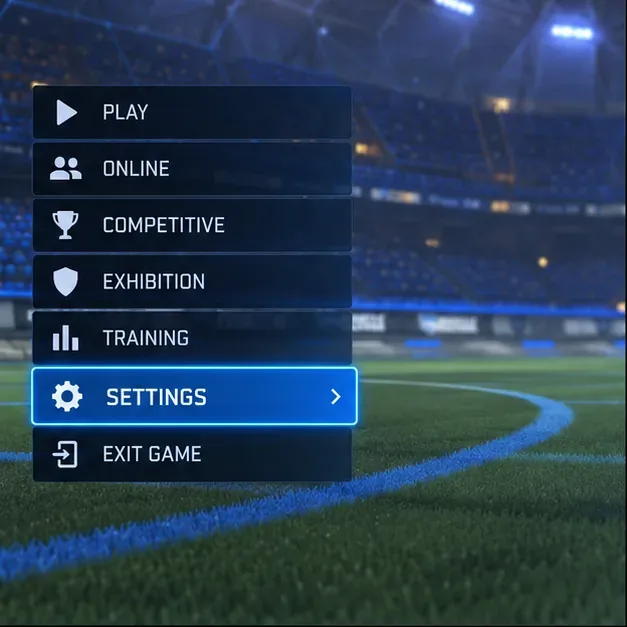
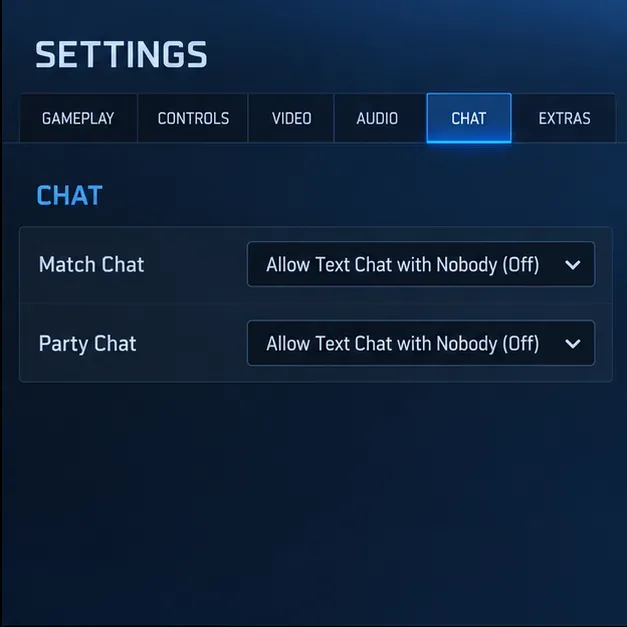
If your goal is to avoid free-text chat, this is the most direct in-game option. From the Rocket League main menu, open Settings, choose the Chat tab, then set Match Chat and/or Party Chat to Allow Text Chat with Nobody (Off). You can turn off only one channel if you still want to talk with a party or teammates in another channel.
A main-menu illustration highlights Settings, the starting point for the in-game Chat controls.The Chat screen shows Match Chat and Party Chat set to Nobody (Off); choose only the channel you want to disable.
Epic’s Rocket League text-chat settings guide lists these channel controls. Epic also explains that players who turn off Match Chat and Party Chat should only see the game’s preset messages. This is useful if you want a quieter match or want to avoid free-text conversations, but it will also prevent you from sending normal typed messages in the channels you disable.
2. Know what “Off When Possible” does—and does not do
The Text Chat Reporting option is easy to misread as a master switch for chat filtering or ban alerts. It is neither. Epic’s current support page says Off When Possible can turn reporting off in Party Chat when every participant has selected that preference. If someone in the party has reporting set to Always On, reporting remains on in that party conversation. Text reporting is on in Game chats, and it is always on for conversations that include players under 18.
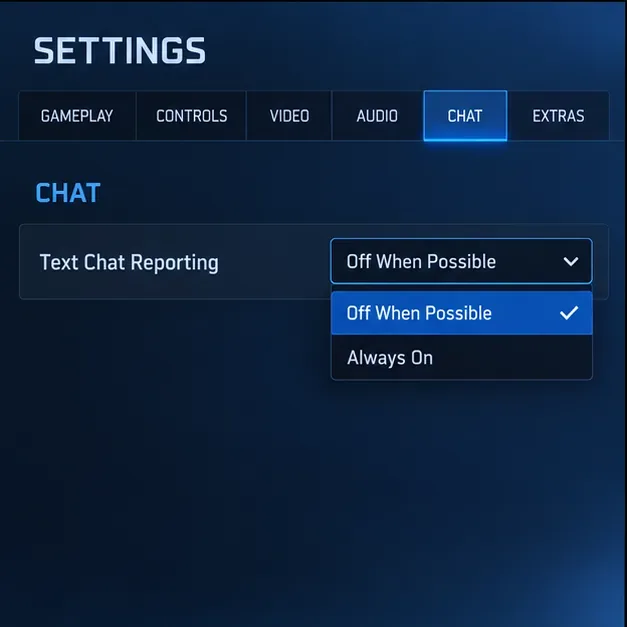
To change it, open Settings > Chat, find Text Chat Reporting, and choose Off When Possible if that matches your preference. This changes reporting in eligible conversations; it does not switch off the text filter, prevent moderation, or hide a chat-ban notification.
The Text Chat Reporting menu shows Off When Possible and Always On; this preference does not control ban notices.
Rocket League’s v2.52 patch notes describe updated text filtering across Match and Party Chat and state that chat or game bans can still be issued for reported violations or attempts to bypass filtering. In other words, filtering and enforcement are separate from the reporting preference.
3. Turn off Epic Games Launcher notifications only if that is the pop-up you mean
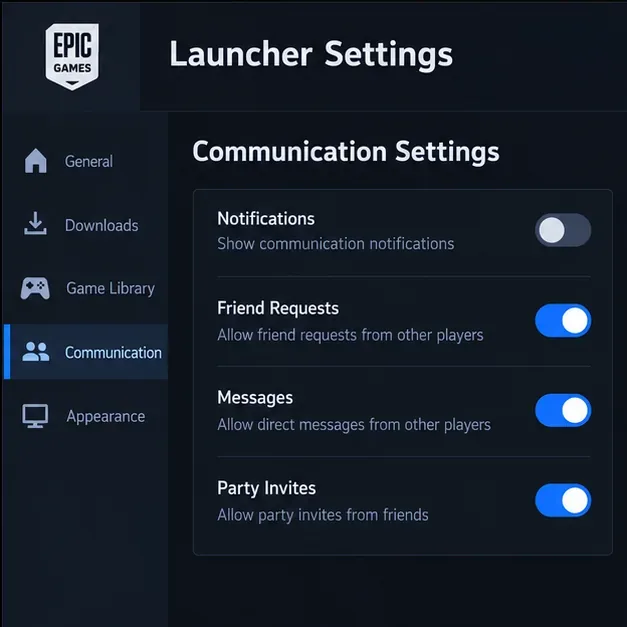
If the alert appears on your computer outside the game and refers to messages, friend requests, or other Epic social activity, it may be a launcher notification rather than a Rocket League ban notice. In the Epic Games Launcher, open your profile or communication settings and switch Notifications off. Epic’s social settings guide lists launcher notifications separately from text-chat and text-reporting controls.
The launcher Communication Settings illustration shows Notifications turned off; this applies to launcher alerts, not in-game enforcement messages.
This option is relevant to the PC launcher. It is not a reliable way to hide a message shown inside Rocket League on console, Steam, or the Epic Games Store version of the game. If you disable launcher notifications, you may also miss other communication alerts, so use it only if that trade-off is acceptable.
What if the message says you are chat-banned?
A chat ban is an account restriction, not a notification preference. Rocket League’s support explains that chat bans limit chat use; the game may still allow Quick Chat with limits. Temporary enforcement periods vary, and Epic’s support currently says temporary bans can last up to 30 days. Use the duration shown in your own notice as the relevant information for your account. Turning off Match Chat, Party Chat, reporting, or launcher notifications will not shorten that period.
If you believe the restriction is a mistake, use the official Rocket League ban support page to review the enforcement information and contact the appropriate support channel. Include the platform, approximate date, and the notice details. Do not share your password or authentication codes. The game’s filtering system is not a workaround for a ban, and trying to evade filters can lead to further enforcement.
Quick recommendation by goal
You want fewer typed messages: set Match Chat and/or Party Chat to Nobody (Off). Keep Quick Chat if you still want preset team callouts.
You want to change reporting in a private party: choose Off When Possible, understanding that the party must meet Epic’s conditions and Game chats remain reportable.
You want to stop desktop Epic alerts: disable launcher Notifications, knowing that other launcher communications may disappear too.
You want to remove an in-game chat-ban notice: there is no separate notification switch documented in the current chat controls. Check the restriction details, and contact support if you think it is incorrect.