Home
» 🎮 Esports
»
Best Tekken 8 Stage Visual Settings for a Low-End Graphics Card
Best Tekken 8 Stage Visual Settings for a Low-End Graphics Card
For a low-end graphics card, the safest starting point for Tekken 8 is 1920×1080 with Rendering Quality Preset set to Low. Bandai Namco lists that combination for the game’s minimum HD PC specification. If your system still struggles, reduce visual quality before raising the resolution or enabling extra effects. Then test more than one stage and keep the settings that maintain steady gameplay on your PC.
There is no verified universal “best stage” preset that fits every graphics card. Tekken 8’s arenas contain different scenery and interactive, destructible elements, and a graphics card’s available video memory can matter as much as its model name. The recommendations below separate Bandai Namco’s published baseline from practical adjustments you can make and verify yourself.
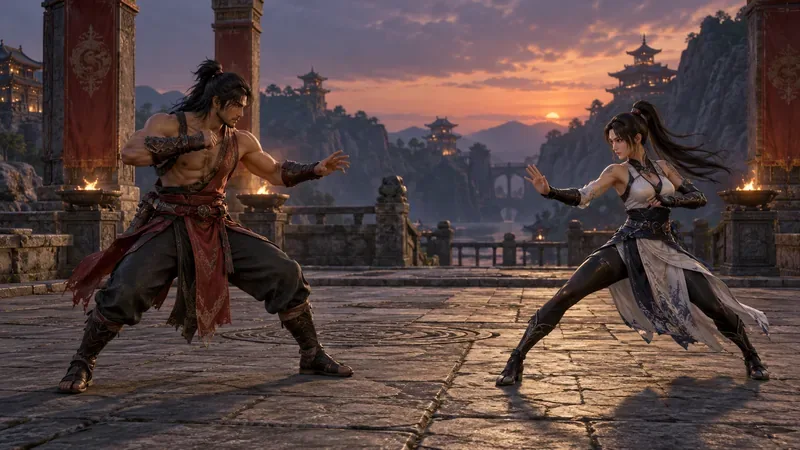
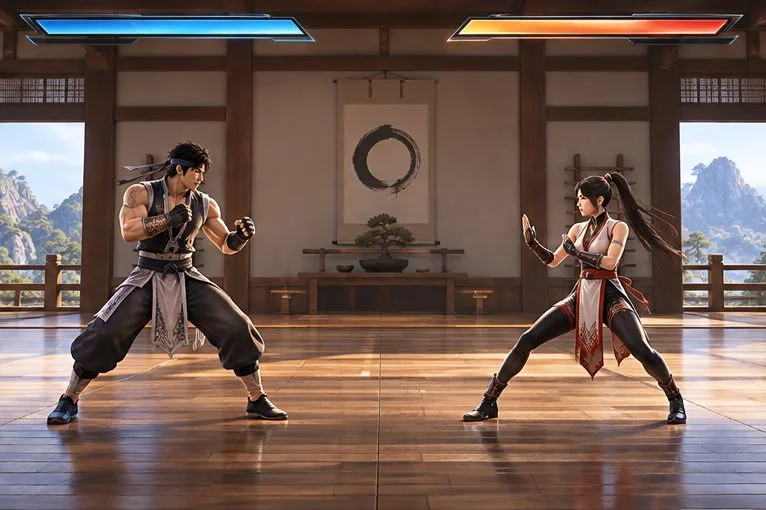
A fighting-game arena with a stone floor, pillars, distant buildings, and subdued lighting illustrates the stage details that graphics settings can simplify. This is a conceptual scene, not a captured Tekken 8 match.
Quick reference: start with these settings
Setting or check
Starting point
Why it helps
Output resolution
1920×1080
This is the official minimum HD baseline; it keeps menus and fighters reasonably clear.
Rendering Quality Preset
Low
Bandai Namco lists Low for the minimum HD specification.
Individual quality options
Lower effects, shadows, or background detail if your installed menu offers them
These are common visual-cost areas; reduce one at a time and compare.
V-Sync
Test Off first; turn it On if tearing is more distracting
Off can improve input response slightly, while On is intended to reduce screen tearing.
Stage testing
Check multiple arenas, including one with active stage destruction
One quiet training scene may not show the heaviest visual load you encounter.
What Bandai Namco’s PC baseline tells you
Tekken 8’s official PC requirements list an HD minimum configuration with a 1920×1080 resolution and the Low rendering quality preset. The listed graphics cards are an NVIDIA GeForce GTX 1050 Ti or AMD Radeon R9 380X, with more than 4 GB of video memory (VRAM). VRAM is the memory on the graphics card used for textures and other graphics data. These are published minimum specifications, not a guarantee that every PC with a similar card will hold the same performance in every scene.
Use the Low preset as a starting point, not a promise that the game will run smoothly. A PC below the listed minimum, a laptop with a low-power version of a GPU, limited system memory, background applications, heat, or a CPU bottleneck can all change the result. A CPU bottleneck means the processor is limiting how quickly the game can prepare work for the graphics card. Lowering graphics quality may not fix a problem caused mainly by the CPU or thermal throttling.
Which stage visuals should you reduce first?
The game’s public PC requirements page describes a preset rather than a verified stage-by-stage settings recipe. Individual graphics controls can change by build and platform, so use the labels visible in your current PC version. If the menu exposes separate quality controls, the order below is a sensible test sequence based on the kinds of visuals they affect; it is not a claim that every option appears under exactly these names in every version.
Effects and post-processing: reduce these first if large attacks, sparks, glow, or other screen effects coincide with slowdowns. The trade-off is a less dramatic presentation.
Shadows and lighting: lower them if the arena’s lighting and shadow detail are costly. Fighters and stage objects may look flatter, but their silhouettes can remain easy to follow.
Background or stage detail: reduce it if distant scenery, reflections, or decorative geometry are contributing to a heavy scene. This usually changes the arena more than the fighter models.
Textures: lower texture quality if the card is short on VRAM or you see stuttering while assets load. Texture quality affects surface detail; reducing it can make costumes and floor materials look softer.
If the game offers only a preset, stay on Low rather than searching for unofficial hidden settings. If it offers separate options, change one setting per test. Changing several at once makes it difficult to tell which choice improved performance and which one only reduced visual clarity.
Keep resolution and image clarity in balance
Start at 1920×1080 because that is the official HD baseline. Lowering the output resolution can make the image blurrier, including small text and fighter edges. If the game provides a render scale or upscaling control in your installed build, treat it as a separate experiment: render scaling changes the internal image resolution before it is displayed. A lower render scale can reduce GPU work, but it can also soften the picture. The official public requirements page does not prescribe a render scale for low-end cards, so compare the result on your own monitor rather than assuming one percentage is best.
Avoid using the 4K baseline as a target for a low-end card. Bandai Namco publishes separate 4K requirements and a Low preset for that resolution. A graphics card that meets the HD minimum is not automatically suitable for 4K. If your monitor is 1080p, do not select a higher output resolution just because the option is available.
V-Sync: smoother edges or quicker response?
V-Sync, short for vertical synchronization, coordinates frame output with the display refresh to reduce visible screen tearing. Bandai Namco’s v2.00.01 notes say turning V-Sync off slightly improves the response time between an input and the character’s action, but minor tearing can occur. The notes also state that the Steam version has this option.
V-Sync is not a setting that lowers stage detail, and switching it off is not a guaranteed frame-rate fix. For a low-end GPU, test Off first if responsive controls matter most. If tearing is distracting, try On and compare. Keep the choice that feels clearer and more consistent on your display. For Steam users, the same notes warn that tournament settings can affect which V-Sync option takes priority, so check the relevant setting if the graphics-menu control is unavailable.
Test the stages you actually play
Tekken’s official game page describes battle stages with interactive and destructible elements. That means the image can change during a round as parts of a stage are damaged or transition. A quiet scene in Practice Mode may not represent every moment in an online match. Do not assume that one arena proves the settings are stable across all stages.
Apply 1920×1080 and the Low preset, then restart the game if it asks you to.
Use Practice Mode or Versus to check a familiar stage with clear lighting and movement.
Check another stage with more visible environmental detail or stage destruction.
Watch for repeated dips, stutter, or delayed-feeling input during movement and attacks. Do not judge only by a still screenshot.
If a problem persists, lower one available visual option, repeat the same check, and keep a note of the change.
Once the results are stable in offline testing, confirm them in online matches. Network lag and rendering slowdowns can feel similar, but graphics settings do not fix a poor network connection.
Bandai Namco’s June 2024 v1.05 notes documented an automatic Graphics Settings reduction for subsequent online matches if processing load crossed a threshold on the Steam version. This can act as a fallback, but it is not a substitute for checking the current settings yourself, especially if you later change them or install a major update.
When the stage still slows down
Confirm the game is using the intended graphics card, close unnecessary GPU-heavy applications, and check that the PC is not overheating. On a laptop, connect power and use the system’s performance mode if one is available. These steps address possible system-level limits; they do not change Tekken’s visual settings, so test the game again after each adjustment.
If your GPU is below the official HD minimum, or if the same slowdown remains at 1080p Low on several stages, there may not be a graphics option that completely solves it. You can test a lower output resolution if it is available, accepting a softer image. Avoid unofficial configuration edits or graphics mods as a first fix: they can introduce visual errors and make it harder to identify whether the game or the modification caused a problem.
Practical checklist
Begin with 1920×1080 and Rendering Quality Preset: Low.
Reduce effects, shadows, background detail, or textures only if those controls are present in your build, and adjust one at a time.
Test more than one arena, including stage destruction, rather than judging from a menu or static image.
Try V-Sync Off for response, then On if screen tearing is more distracting; neither choice replaces lowering graphics quality.
Recheck settings after updates and distinguish graphics slowdown from network lag.
Bandai Namco’s official PC requirements page provides the 1080p Low baseline. Its v1.05 notes document Steam’s automatic graphics reduction, and its v2.00.01 notes explain V-Sync. The official update list currently shows v3.02.01, dated August 19, 2026; the published notes do not give a separate best preset for each stage.