Home
» 🎮 Esports
»
How to Fix EA Sports FC Cutscene Stuttering and FPS Drops on PC
How to Fix EA Sports FC Cutscene Stuttering and FPS Drops on PC
Start by checking the cutscene frame-rate setting, then test a frame-rate target your PC can maintain during close-ups and replays. A smooth match camera does not guarantee smooth celebrations, introductions, or halftime scenes. If the game stays slow after a cutscene ends, treat that as a separate symptom rather than assuming the cinematic FPS setting explains everything.
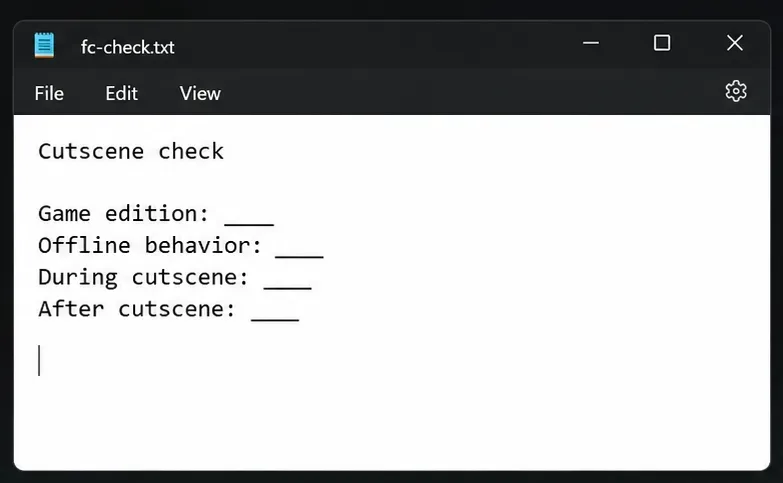
This guide uses EA's verified FC 26 settings as its concrete example. Sources were checked on October 8, 2026. FC 24, FC 25, FC 26, and later editions may have different labels and behavior; use the equivalent controls only where your edition provides them. The illustrations show interface examples and blank diagnostic notes, not actual benchmark results.
First, separate three problems that can look similar
What you see
What it suggests
Useful first check
Cutscenes consistently look less fluid, then gameplay immediately returns to normal
A cinematic frame-rate setting may explain the difference
Check Half versus Full Frame Rate
Close-ups freeze irregularly or FPS fluctuates
Investigate rendering load and frame delivery
Repeat the scene with a lower target and lighter settings
Gameplay remains severely slow after halftime or a replay
A persistent performance issue needs its own investigation
Record the trigger and test the updated game
Misunderstanding: every choppy cutscene is online lag. EA's PC performance troubleshooting article, currently labeled for FC 27, recognizes offline delay, frametime spikes, and slow motion even with apparently normal average FPS. Frametime is the interval needed to deliver a frame; inconsistent intervals can feel jerky despite a respectable average.
Action: reproduce the scene in a local Kick Off match before changing your router. An offline reproduction points the investigation toward the PC or game, although it does not identify the exact cause.
Step 1: Record the trigger and update your game
Write down the edition, installed build if available, graphics driver version, resolution, and when the problem starts. Distinguish the first introduction, a goal celebration, an instant replay, halftime, and the final whistle. Note whether normal gameplay recovers immediately afterward.
Install available game updates through your launcher, then repeat the same kind of local match. Keep your existing settings for this first comparison. If an update changes the behavior, record that before making additional adjustments.
EA staff previously announced an update addressing particular second-half framerate problems in the official FC 26 technical-support discussion. That confirms a specific issue received attention; it does not establish that every current cutscene problem has the same cause or is resolved.
Record whether the slowdown occurs only during a scene or continues after it.
Step 2: Check whether cutscenes are deliberately running at half rate
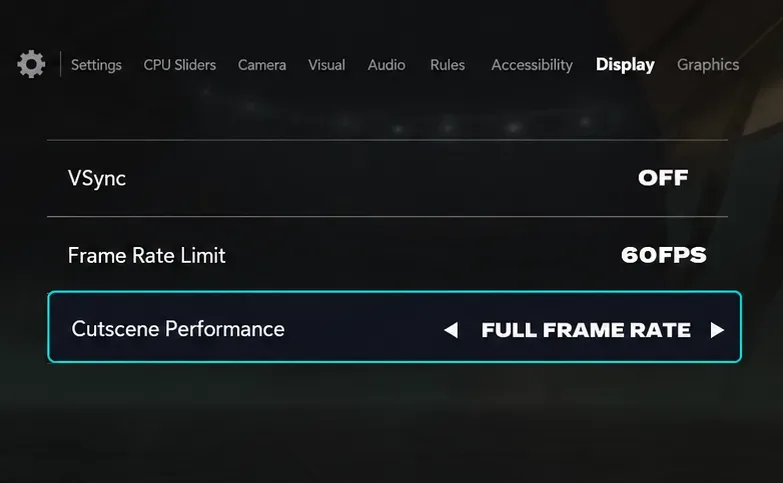
EA's FC 26 PC Deep Dive, published September 11, 2025 confirms that Cutscene Performance covers cinematics, menus, replays, and set-piece cameras. Half Frame Rate uses half the refresh rate or frame limit; Full Frame Rate follows the frame-rate limit. Full is disabled with fractional VSync.
Misunderstanding: selecting Full Frame Rate guarantees smooth cinematics. It changes the target, not your hardware's ability to meet it. Action: if your PC has sufficient headroom, compare Full against Half in the Display settings, then repeat the same transition.
For a hypothetical 60 FPS target, half-rate presentation would be 30 FPS. That example explains why a cinematic can look less fluid without random freezes. It is not a measurement from a tested system. If Full causes larger drops, continue with a lower target or lighter graphics rather than treating the option as a mandatory fix.
Compare Full Frame Rate when fractional VSync is not active; these values are an example.
Step 3: Establish a simple FPS and synchronization baseline
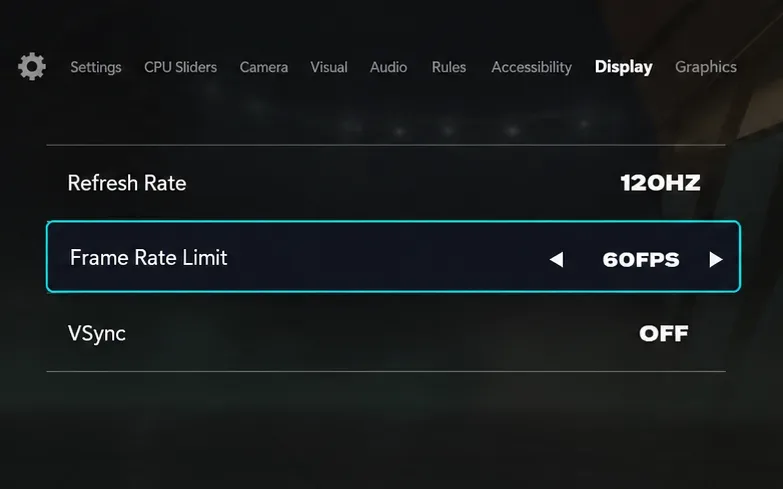
In FC 26, EA documents Frame Rate Limit as active with VSync off. Fractional VSync synchronizes to a portion of the display refresh rate.
For diagnosis, save your current setup, set VSync to Off, and choose an available frame limit that is comfortably below what your machine sustains in ordinary play. A 60 FPS comparison is a useful starting experiment for many systems, not a universal recommendation. Avoid changing an external GPU-driver limiter at the same time.
Repeat a cutscene and watch whether delivery becomes consistent. If it does, cautiously raise the target afterward. If you see tearing, compare a separate run with normal VSync or your established variable-refresh setup; keep that comparison distinct from the first test.
What depends on circumstances: synchronization choices interact with the display and driver configuration. This guide does not claim that one VSync combination is best for all monitors. Action: keep the simplest configuration that produces repeatable results on your PC.
Use a simple, sustainable frame-rate target for the first comparison.
Step 4: Reduce close-up graphics load
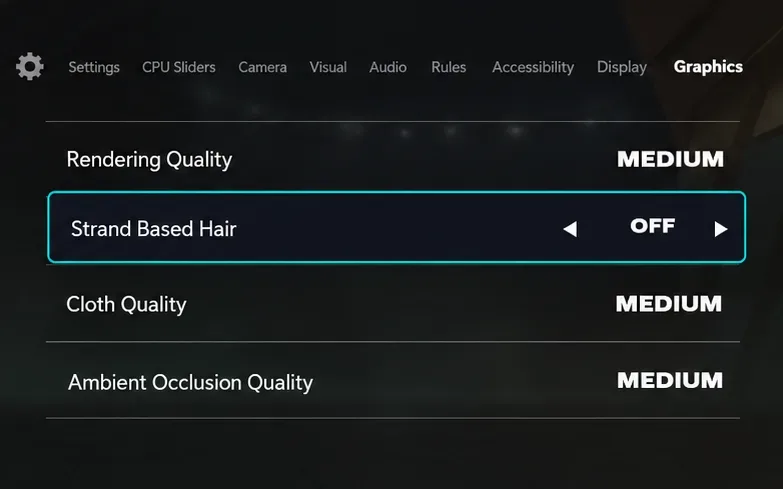
EA identifies Strand Based Hair as demanding on the GPU and also lists substantial processing costs for Rendering Quality, Cloth Quality, and Ambient Occlusion Quality. FC 26 graphics changes require a restart.
Use a controlled comparison: disable Strand Based Hair first, apply the change, restart, and repeat the scene. If needed, test a lower rendering or ambient-occlusion setting next. Save the original values so you can restore visual quality once the problem is isolated.
Misunderstanding: hair is always the root cause. A setting's documented resource cost does not prove a bug in that setting. Action: call it helpful only if the improvement repeats. If lowering it does nothing, continue investigating rather than copying an unsupported diagnosis about forced hair settings or a memory leak.
Test Strand Based Hair separately, then restart before repeating the scene.
Step 5: Test a lower rendering resolution
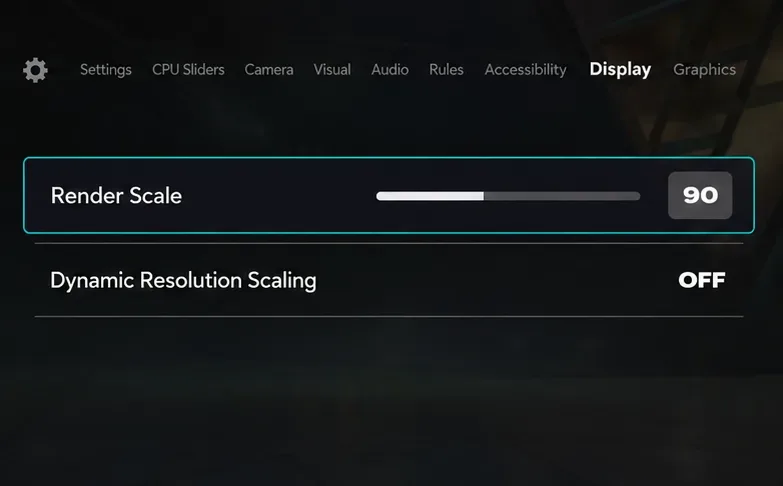
FC 26 supports Render Scale; reducing it below 100% trades sharpness for performance. EA describes Dynamic Resolution Scaling as a GPU-limited feature.
Keep the screen resolution unchanged and try a modestly lower render scale, such as 90%, if your edition exposes it. This is a diagnostic value, not a guaranteed optimum. Keep dynamic scaling unchanged during the first comparison, or temporarily turn it off if you want a fixed scale for both runs.
If that improves the same cutscene repeatedly, you have evidence that reducing rendering work helps. It still does not prove the GPU is the only bottleneck. If the result is unchanged, restore the scale and investigate other causes.
On older editions without this control, compare a lower available resolution instead. Avoid reducing resolution, changing display mode, and replacing the graphics preset simultaneously; you would lose the ability to identify the useful change.
A fixed lower render scale can help test whether reducing rendering work improves the scene.
Step 6: Check background apps, drivers, and laptop power conditions
EA's PC performance guidance recommends reducing background load, updating graphics drivers, and reviewing power settings. Before repeating the match, close unnecessary browser tabs and stop screen recording. Temporarily disable optional overlays through their own settings, then reopen the game.
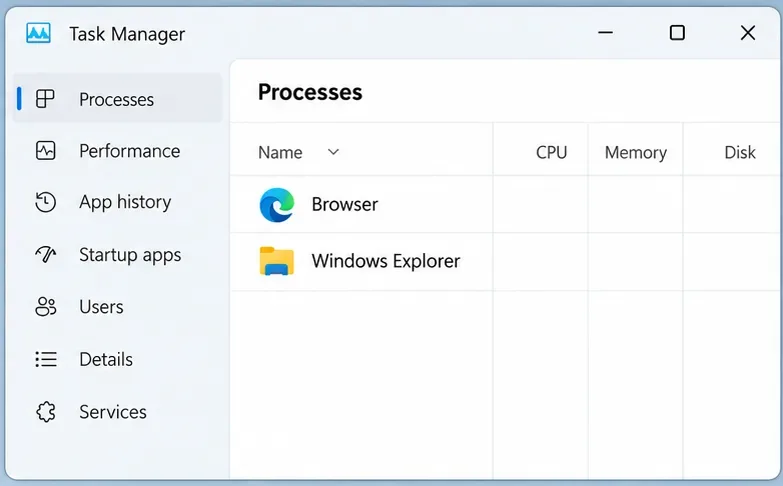
Use Task Manager to identify recognizable applications consuming resources. Close those applications normally rather than terminating unfamiliar Windows services. Restore optional tools after the comparison to see whether one of them reproduces the issue.
On a laptop, compare while connected to its appropriate power adapter and using the manufacturer's supported performance mode. Check graphics-driver updates through your GPU or computer manufacturer. If the issue began immediately after a driver change, record both the previous and current versions for support.
What remains unknown: the symptom alone does not distinguish a driver regression, thermal limit, software conflict, or game defect. Action: change one condition per run and keep notes. Do not buy RAM or a new GPU based solely on an online cutscene anecdote.
Review recognizable background applications before repeating the match.
Step 7: Repair installed files
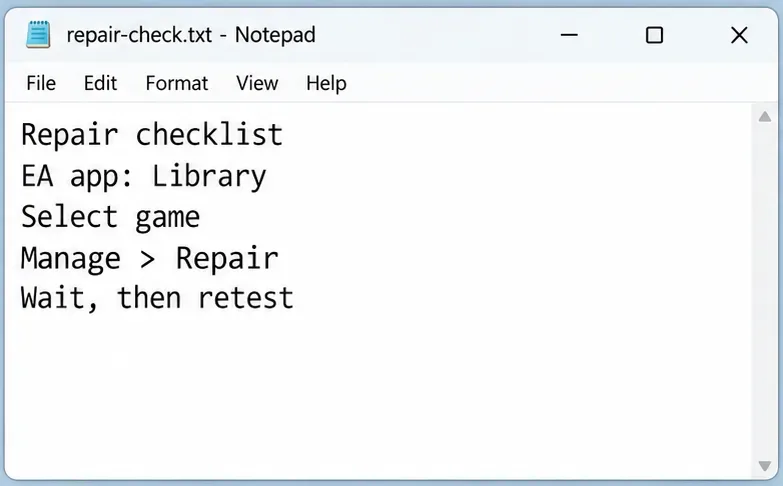
Close FC, open the EA app, go to Library, select the game's Manage icon, and choose Repair. Wait for completion before launching again. EA documents that path in its official PC freezing and crashing troubleshooting guide.
Repair is reasonable after an interrupted update or persistent abnormal behavior, but it is not proof that files were damaged. Test the same local match afterward and record whether anything changed. Use the equivalent file-verification function in another launcher when appropriate for your installation.
Avoid treating launcher cache clearing as a universal rendering fix. Likewise, this guide has not verified that adding -dx11, locking settings files as read-only, or pasting Frostbite configuration commands repairs this issue across FC editions. Use supported settings before experimenting with unverified recipes.
Use the supported repair process, wait for completion, and retest the original trigger.
Step 8: Verify the result and collect evidence if stuttering persists
Run more than one cutscene transition, including halftime if that was the original trigger. Check both the cinematic and the return to the match camera. A successful change should improve consistency without leaving normal gameplay slower or introducing an unacceptable visual tradeoff.
Keep a short record of the starting settings, the single change, and what happened. If two configurations feel similar, prefer the one that preserves quality or your familiar controls. Stop stacking tweaks once the result is stable.
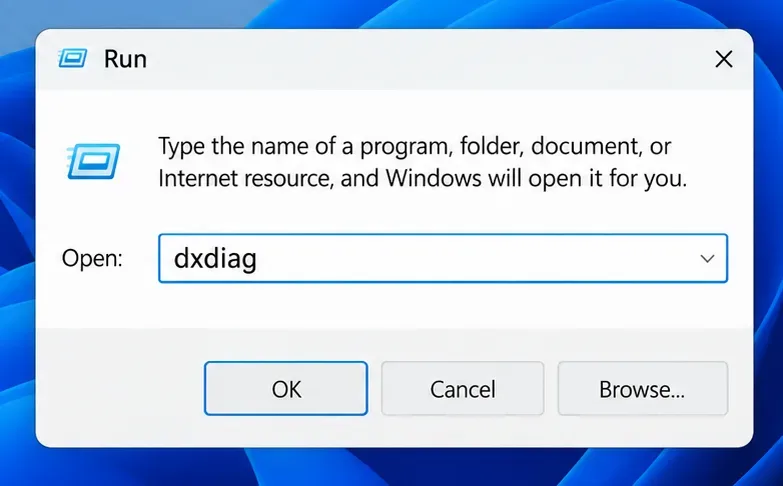
If the problem persists, press Windows + R, enter dxdiag, and open the DirectX Diagnostic Tool. When it finishes collecting information, select Save All Information. EA's DxDiag support instructions explain how to save the report for a support case.
Include your edition and build, CPU and GPU, driver version, display settings, whether it occurs offline, and whether the slowdown survives the cutscene. A short clip showing the transition is more informative than an average FPS number alone. Review diagnostic files for personal information before posting them publicly.
If the same transition still causes severe, persistent slowdown on the updated game after these comparisons, report the reproducible behavior to EA. State what you observed and which tests failed; leave the exact technical cause open until evidence identifies it.
Open the DirectX Diagnostic Tool to prepare system details for a support report.