Home
» 🎮 Esports
»
How to Fix the TFT Mobile Connection Lost Retry Error
How to Fix the TFT Mobile Connection Lost Retry Error
If TFT Mobile suddenly shows “Connection Lost” and a Retry button, the message does not identify one confirmed cause. A temporary Riot service interruption, an unstable route between your phone and the game, or an app/device issue can look similar. Use the checks below to find the cause with the least disruption. If you are in a live match, try the in-game reconnect once first; avoid deleting the app or clearing its data until you have confirmed your account sign-in.
Research note: Riot’s public support material does not define this exact “Connection Lost / Retry” message as one specific error code. The steps below combine Riot’s service and player-support resources with Apple and Google’s general app and connection guidance. Menu names can vary by device and software version.
Choose the first check by what else is failing
What you observe
Best first move
Trade-off
Friends or players in your region also cannot connect, or Riot lists maintenance
Check Riot’s service notices and wait for an update.
Waiting is slower than changing settings, but avoids unnecessary app resets during an outage.
Other apps or websites also stall on this phone
Test another Wi-Fi network or mobile data, then check the router or carrier.
Mobile data can use your plan; public Wi-Fi may require a sign-in page.
Only TFT fails, while other apps work
Compare Wi-Fi with mobile data, then restart and update TFT.
A second network test uses a little time and possibly data, but helps separate a local network issue from an app or service issue.
The problem appears only after switching apps or locking the phone
Check background data and power-saving restrictions for TFT.
Allowing background activity can use more battery or data.
1. Check whether Riot services are available
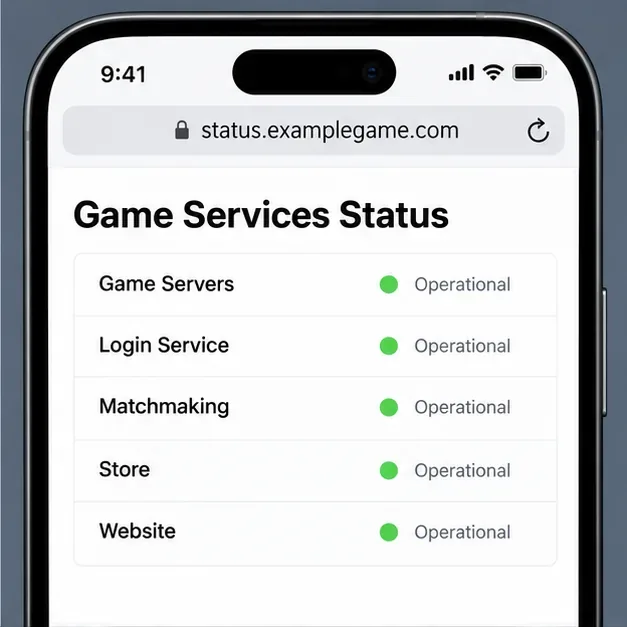
Before changing the phone, open Riot Games Service Status. Select the region and product options available on the page, then look for current incidents or scheduled maintenance that could affect League or TFT services on mobile. A status page may not list every individual TFT symptom, so a clear page is useful evidence but not proof that every connection path is working.
If Riot reports an incident, wait for its status update and try again later. Reinstalling, clearing storage, or repeatedly changing network settings cannot repair a server-side interruption. If the status page is clear and only your phone is affected, continue with the network comparison.
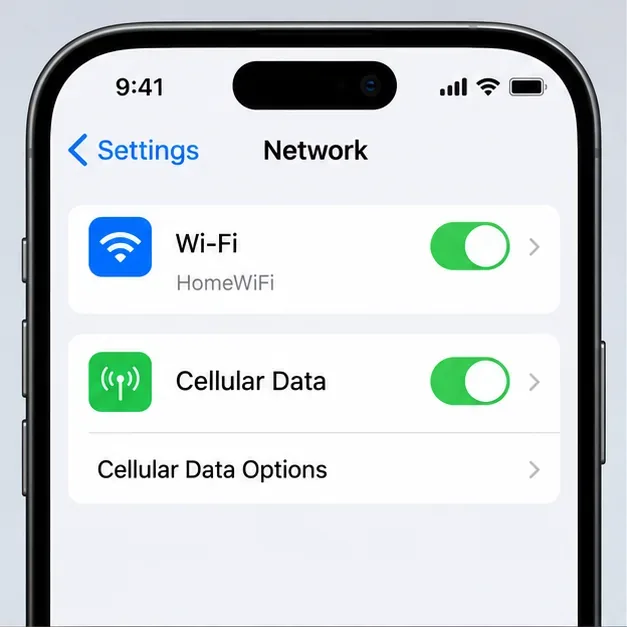
A phone settings screen shows Wi-Fi and cellular data toggles; test one connection at a time to see whether the failure follows a particular network.
2. Compare Wi-Fi and mobile data
Close the Retry loop, then test one change at a time. If you are on Wi-Fi, turn Wi-Fi off briefly and try TFT on cellular data. If you are on cellular data, use a trusted Wi-Fi connection. Keep the test short, especially if your mobile plan has a data cap. Google recommends checking that Android has a strong internet connection, and Apple’s troubleshooting guidance similarly starts with the device’s network connection.
If TFT works on cellular data but not Wi-Fi: the router, Wi-Fi signal, captive sign-in page, or that network’s route may be involved. Move closer to the router, complete any network sign-in page, or restart the router if you control it.
If TFT works on Wi-Fi but not cellular data: check that mobile data is enabled for TFT and that your carrier connection is stable. Coverage, congestion, or a data restriction can affect the test.
If both fail but other apps work: a TFT service, app, account, or device-specific issue becomes more plausible. Continue below and report the pattern to Riot if it persists.
If you use a VPN, proxy, or custom DNS, you can briefly test without it only if you understand how to restore your normal settings. A different route may help diagnose a routing problem, but it is not a guaranteed fix and should not require weakening device security.
3. Reconnect cleanly, then restart the phone if needed
First, tap Retry once while the game is open and the chosen network is stable. If it returns to the same error, switch networks once and retry. Repeated taps on the same failed connection rarely provide new information.
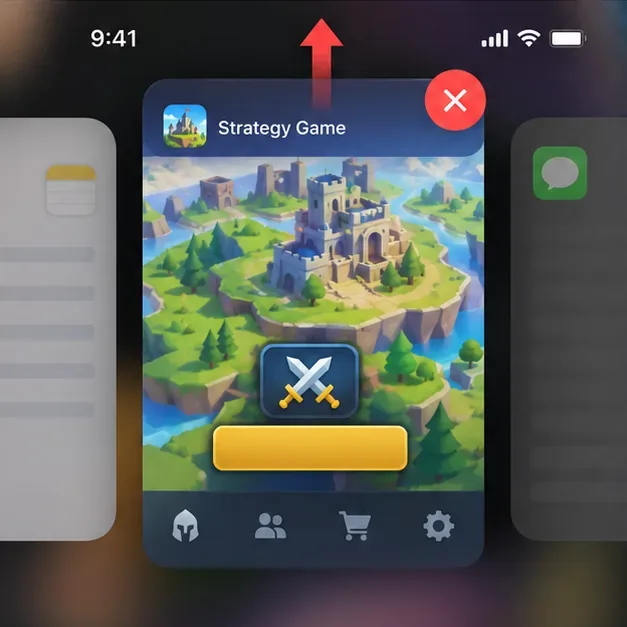
If the app remains stuck, close TFT from the app switcher or use your phone’s force-stop control, then reopen it. If that does not help, restart the phone. This clears a temporary app or network state without removing the game’s installed files. On iPhone or iPad, Apple’s app troubleshooting steps include closing and reopening an unresponsive app and restarting the device; on Android, Google likewise recommends restarting an app or device when an app is not working normally.
A generic example status dashboard displays server, login, and matchmaking rows; it is not a live Riot status report.A generic game card is being dismissed from the app switcher before reopening the game; the exact gesture differs by phone.
4. Update TFT and check the settings that can block it
Open the Apple App Store or Google Play Store, search for Teamfight Tactics, and install an available update. If there is no update button, check for a pending operating-system update when convenient. Updates can address app defects or compatibility changes, but they will not solve an active service interruption. Riot’s TFT Player Support site is the source to check for current mobile notices and game-specific help.
Then review settings that matter to your test:
Allow TFT to use cellular data if you expect to play without Wi-Fi.
On Android, check whether Data Saver or battery optimization restricts background activity. On iPhone, check Low Data Mode or Low Power Mode if the disconnect happens after the app goes to the background. Temporarily changing one setting can help isolate the cause; restore it if it makes no difference.
Make sure your phone has free storage for updates and that date and time are set automatically. These are general device checks, not a confirmed fix for this particular message.
Android offers a lower-risk cache check: in Settings, open TFT’s app information and clear cache if that option is available. Device menus vary. Avoid choosing Clear storage or Clear data as an early step because those options can remove local app data and sign-in state. iOS does not provide the same per-app cache button. Reinstalling should be a last resort, after you have verified your Riot account credentials and can sign back in. Google’s Android app guidance and Apple’s iPhone/iPad app guidance explain the general restart, update, and reinstall sequence.
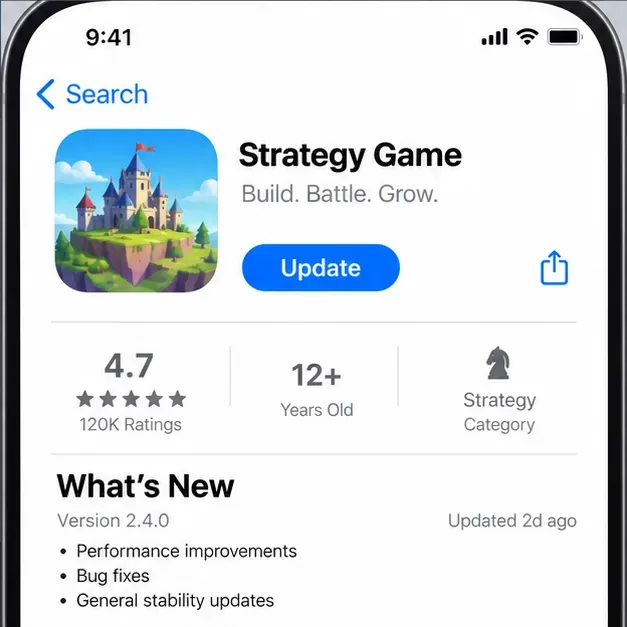
A generic app store listing shows an Update button; check TFT’s actual store page for an available update rather than relying on this sample screen.
5. Decide whether to wait, troubleshoot the network, or contact Riot
Use the result of your tests to choose the next step:
Riot reports an incident: wait for Riot’s update, then try again. Do not reinstall just to respond to an outage.
Only one Wi-Fi or carrier connection fails: troubleshoot that network or ask its provider. Give the support team the network type, approximate time, region, and whether other apps connect.
Only TFT fails on multiple networks after an update and restart: submit a ticket through Riot TFT Player Support. Include your device model, operating-system version, TFT version, region, the exact message, when it began, whether it occurs at login or mid-match, and which networks you tested. Do not send your password or authentication codes.
The game disconnects only in the background: keep TFT in the foreground during a match and review power/data restrictions. This is a practical workaround, not a guarantee against network drops.
How to confirm the connection is stable
After making one change, reopen TFT and check whether it reaches the lobby without returning to the Retry screen. If the error happened during a match, reconnect and confirm the game itself has resumed before trying another queue. A successful lobby connection on one network, followed by a failure on another, is a more useful clue than repeatedly pressing Retry. If the game still fails across two independent connections while other apps work, preserve the details above and send them to Riot rather than resetting the whole phone.